> For the complete documentation index, see [llms.txt](https://docs.enlyze.com/llms.txt). Markdown versions of documentation pages are available by appending `.md` to page URLs; this page is available as [Markdown](https://docs.enlyze.com/en/administration/user-management.md).
# User management
Invite new team members, assign roles, and manage permissions.
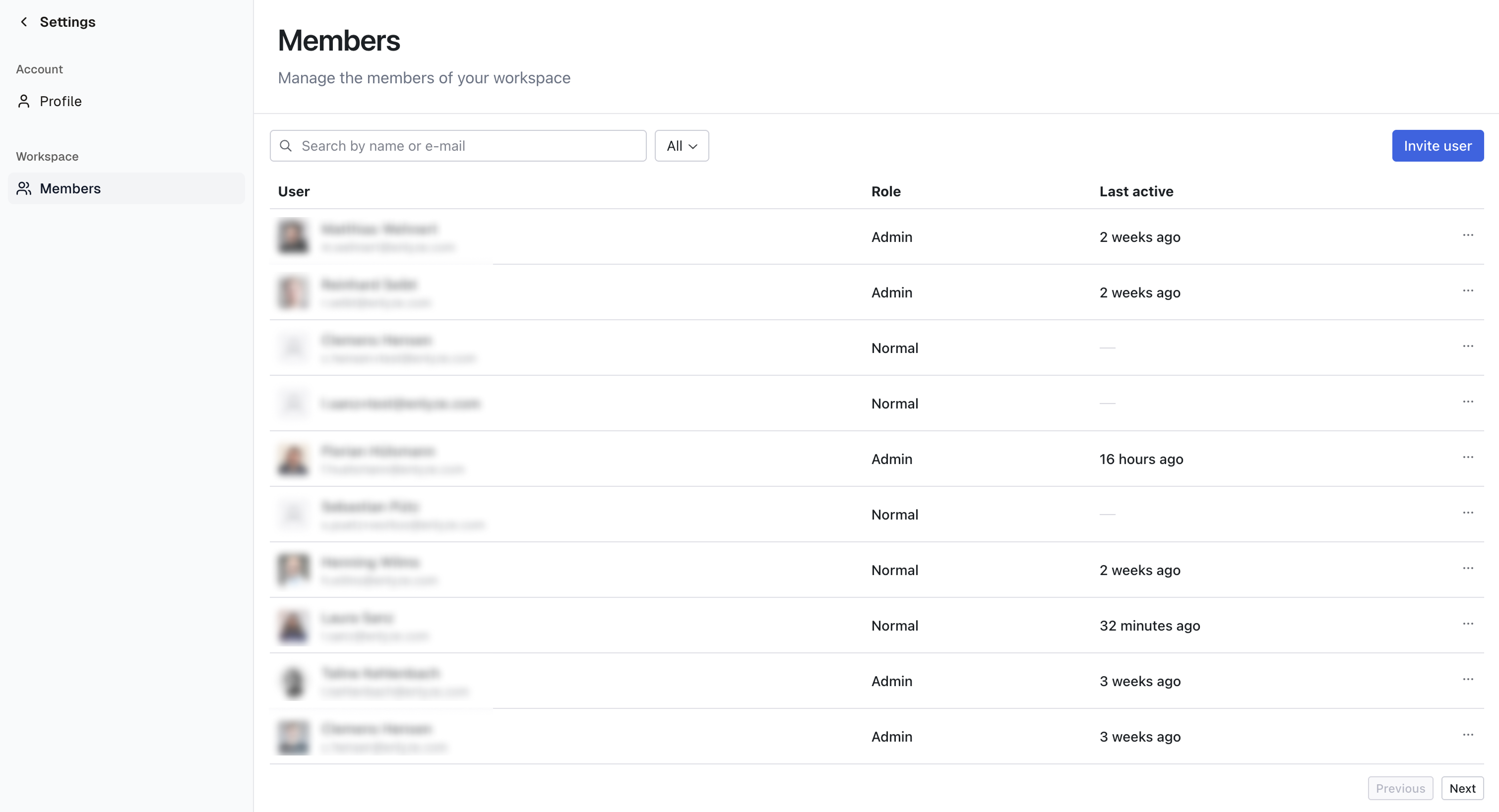
The user management page gives you an overview of all users in your organization. Here you can invite new users, assign roles, and remove users.
User management in the ENLYZE settings
{% hint style="info" %}
Only users with the **Admin** role have access to user management.
{% endhint %}
## Invite a user
1. Go to [Platform > Settings > Members](https://app.enlyze.com/platform/settings/members)
2. Click **Invite**
3. Enter the email address and select a [role](#roles-and-permissions) for the new user
4. Click **Send invites**
The invited user receives an email with a link to complete their registration.
{% hint style="warning" %}
The email address must be valid and able to receive emails. Without confirming the link, the account cannot be activated.
{% endhint %}
## Remove a user
1. Go to [Platform > Settings > Members](https://app.enlyze.com/platform/settings/members)
2. Click the **three-dot menu** in the user's row
3. Click **Remove user**
The user is removed from the organization and can no longer access ENLYZE.
## Roles & permissions
ENLYZE provides three roles with different levels of access.
### Assign roles
1. Go to [Platform > Settings > Members](https://app.enlyze.com/platform/settings/members)
2. Click the **three-dot menu** in the user's row
3. Select **Edit role**
4. Choose one of the three roles: **Admin**, **Normal**, **Operator**
Role changes take effect immediately.
### Admin
The **Admin** role is for users who need full management and troubleshooting capabilities. Admins have access to all features within ENLYZE.
Admins can:
* Manage users and send invitations
* Monitor and troubleshoot the IIoT infrastructure
* Create and edit sites, machines, and data sources
* Use all features of the ENLYZE App
This role is best suited for **managers**, **IT**, and **OT personnel**.
### Normal
The **Normal** role is for users who configure and manage the ENLYZE App's operational features.
Normal users can:
* Configure the ENLYZE App
* Define metric calculations (e.g. OEE)
* Create and adjust the downtime reason catalog
Normal users **cannot invite new users**. This role is ideal for **process engineers**, **quality managers**, and **shift leaders**.
### Operator
The **Operator** role is for shopfloor workers who monitor production processes. Operators can view and use features to track production but **cannot configure** any settings in the ENLYZE App.
Assign this role to **shopfloor personnel** involved in day-to-day operations.
### Roles and permissions matrix
| Feature / action | Admin | Normal | Operator |
| -------------------------------------------- | ----- | ------ | ------------- |
| **Profile settings** | ✅ | ✅ | ✅ |
| **Home** | ✅ | ✅ | ✅ |
| **Timeline** | ✅ | ✅ | ✅ |
| **Production runs** | ✅ | ✅ | ✅ |
| **Products** | ✅ | ✅ | ✅ (read-only) |
| **Downtimes** | ✅ | ✅ | ✅ |
| **Co-Pilot** | ✅ | ✅ | ✅ |
| **Configuring setup sheets** | ✅ | ✅ | ❌ |
| **Reports** | ✅ | ✅ | ❌ |
| **Process analytics** | ✅ | ✅ | ❌ |
| **Batch record** | ✅ | ✅ | ❌ |
| **ENLYZE App settings** | ✅ | ✅ | ❌ |
| **User management** | ✅ | ❌ | ❌ |
| **Platform (sites, machines, data sources)** | ✅ | ❌ | ❌ |
## Roles & permissions in Grafana
When using the Grafana version hosted by ENLYZE, your ENLYZE roles are automatically mapped to the following [Grafana roles](https://grafana.com/docs/grafana/latest/administration/roles-and-permissions/#organization-roles):
| ENLYZE role | Grafana role |
| ----------- | -------------------------- |
| Admin | Organization administrator |
| Normal | Editor |
| Operator | Viewer |
**Grafana role descriptions:**
* **Organization administrator:** Access to all organization resources, including dashboards, users, and teams.
* **Editor:** Can view and edit dashboards, folders, and playlists.
* **Viewer:** Can view dashboards, playlists, and query data sources.
### Customize permissions
Roles cannot be modified directly in Grafana, but permissions can be customized at the folder or dashboard level. This gives you full flexibility to deviate from the default role mapping.
This allows you to:
* Grant specific users access to individual dashboards
* Restrict access to sensitive data
* Create custom permission structures that match your organization's needs
#### Change permissions for dashboards
1. Open the desired dashboard
2. Open the **dashboard settings**
3. Go to **Permissions**
Customizing dashboard permissions in Grafana
#### Change permissions for folders
1. Open the desired folder
2. Click **Folder actions**
3. Select **Manage permissions**
Customizing folder permissions in Grafana
By default, each role has standard permissions. You can change the permissions for **Editor** and **Viewer** to **View**, **Edit**, or **Admin**. You can also remove a role entirely to fully revoke access.
Default permissions in Grafana
{% hint style="info" %}
Admins always retain admin permissions for every dashboard and folder. Their access cannot be revoked.
{% endhint %}
Click **Add a permission** to define permissions for specific users, teams, or roles.
Adding a permission in Grafana
### Use teams to manage permissions
Grafana allows you to organize users into teams. Teams are a best practice for managing permissions at the folder and dashboard level.
To create a team, go to **Administration > Users and Access > Teams** in the side menu.
For more details, see the [Grafana documentation](https://grafana.com/docs/grafana/latest/administration/team-management/). [This post](https://grafana.com/blog/2022/03/14/how-to-best-organize-your-teams-and-resources-in-grafana/) covers best practices for organizing permissions with teams.
## Set up display accounts
A dedicated user account is often needed to permanently show ENLYZE or Grafana dashboards on a shop floor monitor. This type of account typically only needs view permissions (**Operator** role).
An invitation requires a valid, deliverable email address. There are two common ways to provide an address for a display account.
### Service email address from IT
The IT department can create a dedicated email address (e.g. `grafana-hall1@example.com`). This can be done through Google Workspace, Microsoft 365, or other email services.
{% hint style="warning" %}
Some providers (e.g. Microsoft 365) automatically associate a license with every email address. Check with your IT department beforehand whether additional costs apply.
{% endhint %}
### Plus addressing (recommended)
A simpler alternative is plus addressing (also known as subaddressing). Add a `+` followed by any tag before the `@` sign of an existing email address:
`j.smith+grafana-hall1@example.com`
Emails sent to this address are automatically delivered to the mailbox of `j.smith@example.com`. For ENLYZE, however, it counts as a separate address, allowing you to create a distinct user account.
{% hint style="info" %}
Plus addressing is a general email standard ([RFC 5233](https://datatracker.ietf.org/doc/html/rfc5233)), not an ENLYZE feature. Most email providers support it, including Google Workspace, Microsoft 365, and many others.
{% endhint %}
To set up a display account using plus addressing:
1. Go to [Platform > Settings > Members](https://app.enlyze.com/platform/settings/members)
2. Click **Invite**
3. Use a plus address such as `j.smith+grafana-hall1@example.com`
4. Select the **Operator** role (view-only permissions)
5. Click **Send invites**
The confirmation email will be delivered to the mailbox of `j.smith@example.com`. Complete the registration using the link in the email.
{% hint style="info" %}
You can create as many plus addresses as needed with the same mailbox (e.g. `j.smith+grafana-hall2@example.com` or `j.smith+dashboard-assembly@example.com`).
{% endhint %}
## FAQ
Can I customize roles or create new ones?
No. ENLYZE currently provides only three roles: Admin, Normal, and Operator. Every user must be assigned one of these roles.
Can I change a user's role after inviting them?
Yes. You can change a user's role at any time from the user management page. See [Assign roles](#assign-roles).
What happens if all Admins are removed?
Without an Admin, you cannot invite or manage users. Make sure at least one Admin is always assigned. If all Admins have been removed, contact .
Why can't I invite new users?
You most likely don't have the Admin role. Only Admins have access to user management and can invite users.
The invited user didn't receive an email
1. Check the recipient's spam folder.
2. Make sure the email address is correct and can receive emails. If not, create a new invitation with a valid address.
Where can I see users and roles in Grafana?
In Grafana, open the **side menu** and go to **Administration > Users and Access > Users**.
Can I modify the roles in ENLYZE-hosted Grafana?
No. Roles in Grafana are synchronized with ENLYZE roles and cannot be changed directly in Grafana.
Why are some users missing in Grafana?
A Grafana profile is created when a user accesses Grafana through the ENLYZE App for the first time. Until then, the user does not appear in the Grafana user list.
Infinite loading screen or welcome message when setting up a new account
If you create a new account (e.g. a display account) and open the confirmation link in the same browser where you are already logged in with your own account, stored session data can cause conflicts. Common symptoms:
* Infinite loading screen after logging in with the new account
* The welcome message ("Congratulations") appears when logging in with the existing account
**Solution:** Open the confirmation link in one of the following environments:
* **Incognito/private window** (recommended): Ctrl+Shift+N (Chrome, Edge) or Ctrl+Shift+P (Firefox)
* **Different browser:** Use a browser where you are not logged in to ENLYZE
If the issue has already occurred, clear your browser cache:
* **Chrome:** Settings > Privacy and Security > Clear browsing data
* **Edge:** Settings > Privacy, Search and Services > Clear browsing data
* **Firefox:** Settings > Privacy & Security > Cookies and Site Data > Clear Data