> For the complete documentation index, see [llms.txt](https://docs.enlyze.com/llms.txt). Markdown versions of documentation pages are available by appending `.md` to page URLs; this page is available as [Markdown](https://docs.enlyze.com/en/connect/edge-device/connecting.md).
# Connecting to the Manufacturing Data Platform
In the following, you will learn how to connect the Edge Device to the internet and the Manufacturing Data Platform
Once your Edge Device is:
* Installed at the intended location,
* Connected to the network,
* And powered on,
you need to configure the network settings to establish a connection to the **ENLYZE Manufacturing Data Platform**.
This is done via the **ENLYZE EDGE interface** – the configuration tool available directly on the Edge Device.
{% hint style="success" %}
If your network uses **DHCP exclusively** and you have already confirmed that the Edge Device is visible in your network, you can skip this step. Your Edge Device is already successfully connected to the Manufacturing Data Platform.
{% endhint %}
## Connecting to the Edge Device
You can either connect directly to the Edge Device (peer-to-peer) via Ethernet (recommended) or access it over the network.
### Option 1: Direct Connection via the Service Port (Peer-to-Peer)
Connect your laptop to the Edge Device using an Ethernet cable. Use the port labeled **"Service"** on the Edge Device.
**Configure your Laptop's Network Adapter**
To access the ENLYZE EDGE interface, configure your laptop's network port (used for the Edge Device connection) with:
* **IP address**: `10.96.96.2`
* **Subnet mask**: `255.255.255.0`
Below is a step-by-step guide for assigning a static IP address on your operating system.
Guide: Configure IP Address on Windows
**Requirements:**
* Admin rights on your laptop
* Know which network adapter to configure (especially if you have multiple LAN adapters)
***
**Steps for Windows 10 or 11:**
1. Open *Network and Sharing Center*:\
Go to **"Network & Internet"** → then **"Network and Sharing Center"**
2. Change adapter settings:\
Click **"Change adapter settings"** on the left panel
3. Select your network adapter:\
Right-click on your active **Ethernet adapter** → click **"Properties"**
4. Open IPv4 settings:\
Double-click on **"Internet Protocol Version 4 (TCP/IPv4)"**
5. Manually enter the IP address:
* Select **"Use the following IP address"**
* IP address: `10.96.96.2`
* Subnet mask: `255.255.255.0`
* Default gateway: `10.96.96.1`
6. Save settings:\
Click **"OK"** → then **"Close"** → close the window
***
📌 **Tip**:
To revert to automatic IP assignment later, select\
\&#xNAN;**"Obtain an IP address automatically"** and **"Obtain DNS server address automatically"**
Guide: Configure IP Address on a Mac
**Requirements:**
* Know which adapter to use (and possibly have an Ethernet adapter)
**Steps:**
1. Open **System Settings**\
→ Click the Apple menu (top left)\
→ Choose **"System Settings"** (or "System Preferences" in older macOS)
2. Go to **Network**\
→ Select **"Network"** from the main menu or search
3. Choose the correct connection\
→ Select the Ethernet adapter connected to the Edge Device\
→ If it’s not visible: Ensure your Mac is connected via LAN cable
4. Click **"Details" / "Advanced" / "More Options"** (label varies by macOS version)
5. Manually configure the IP address\
→ Go to the **"TCP/IP"** tab\
→ Set **"Configure IPv4"** to **"Manually"**\
→ Enter:
* IP address: `10.96.96.2`
* Subnet mask: `255.255.255.0`
* Router/Gateway: leave blank or `10.96.96.1`
6. Save settings:\
Click **"OK"** → then **"Apply"**
### Option 2: Access via Network
Alternatively, you can access ENLYZE EDGE if your laptop is in the same subnet as the Edge Device – or if a corresponding route exists.
Use the Edge Device’s local IP address with **port 443**.
***
## Open the ENLYZE EDGE Interface in the Browser
* Open your browser and go to:
* A security warning may appear, indicating an unsecure connection. This is **expected and harmless**, as ENLYZE EDGE uses a **self-signed certificate** to encrypt traffic even offline.\
More information is available [here](https://github.com/enlyze/enlyze-docs/blob/main/en/connect/security/connection-warning.md).
To proceed:
1. Click **"Advanced"**
2. Then click the link **"Continue to 10.96.96.1 (unsafe)"** to access the ENLYZE EDGE interface.
***
## First Login to ENLYZE EDGE
Use the following credentials for the initial login:
* **Username**: `admin`
* **Password**: the hostname of the Edge Device (printed on the device housing, e.g., `youthful-gabbana`)
> ℹ️ **Hint:**
>
> The hostname is printed directly on the Edge Device enclosure.
**You will be prompted to set a new password:**\
→ Choose a **secure password** and save it in your corporate password manager.\
→ Share the new password with your IT or responsible team.
***
## Internet Access Configuration
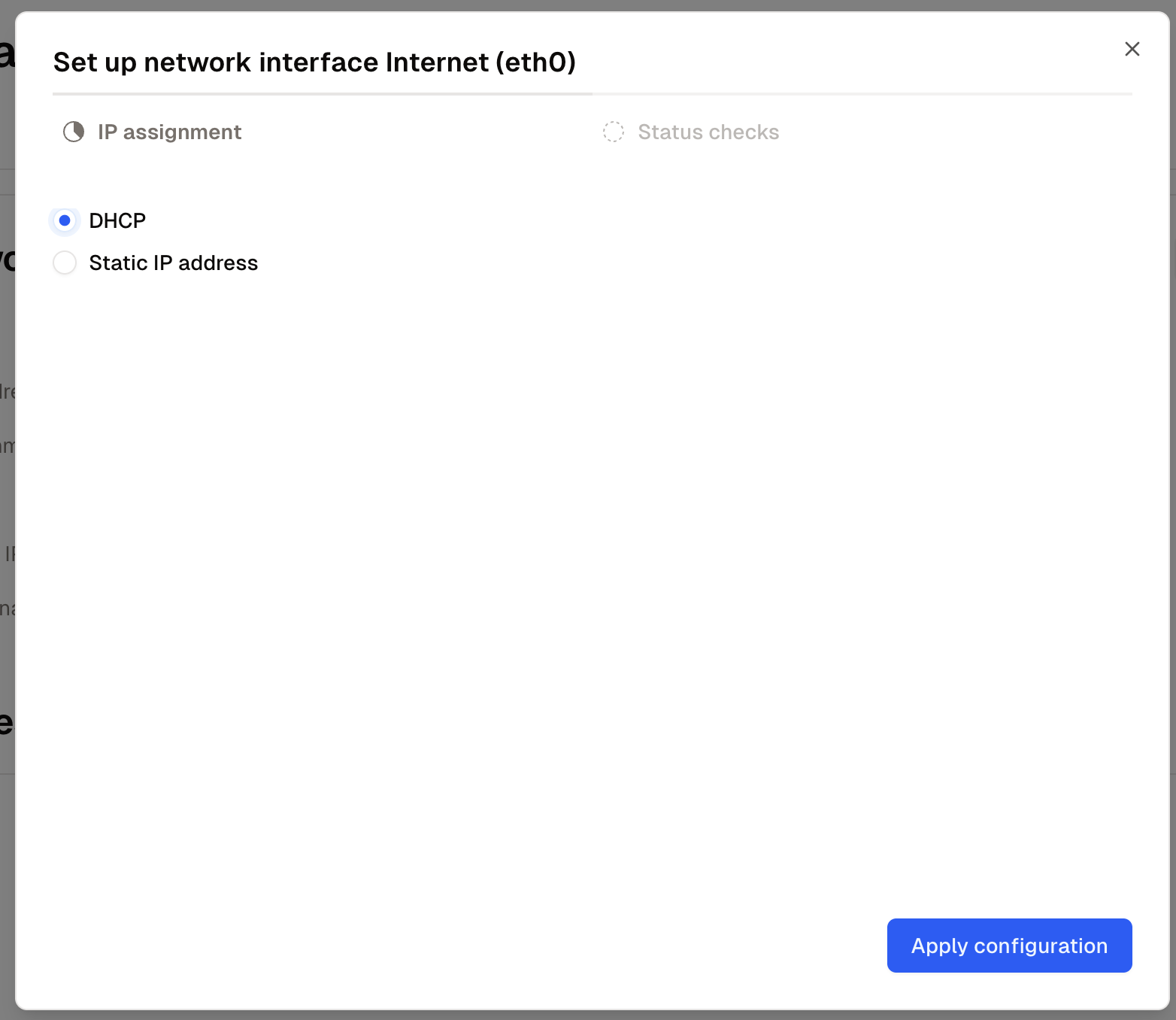
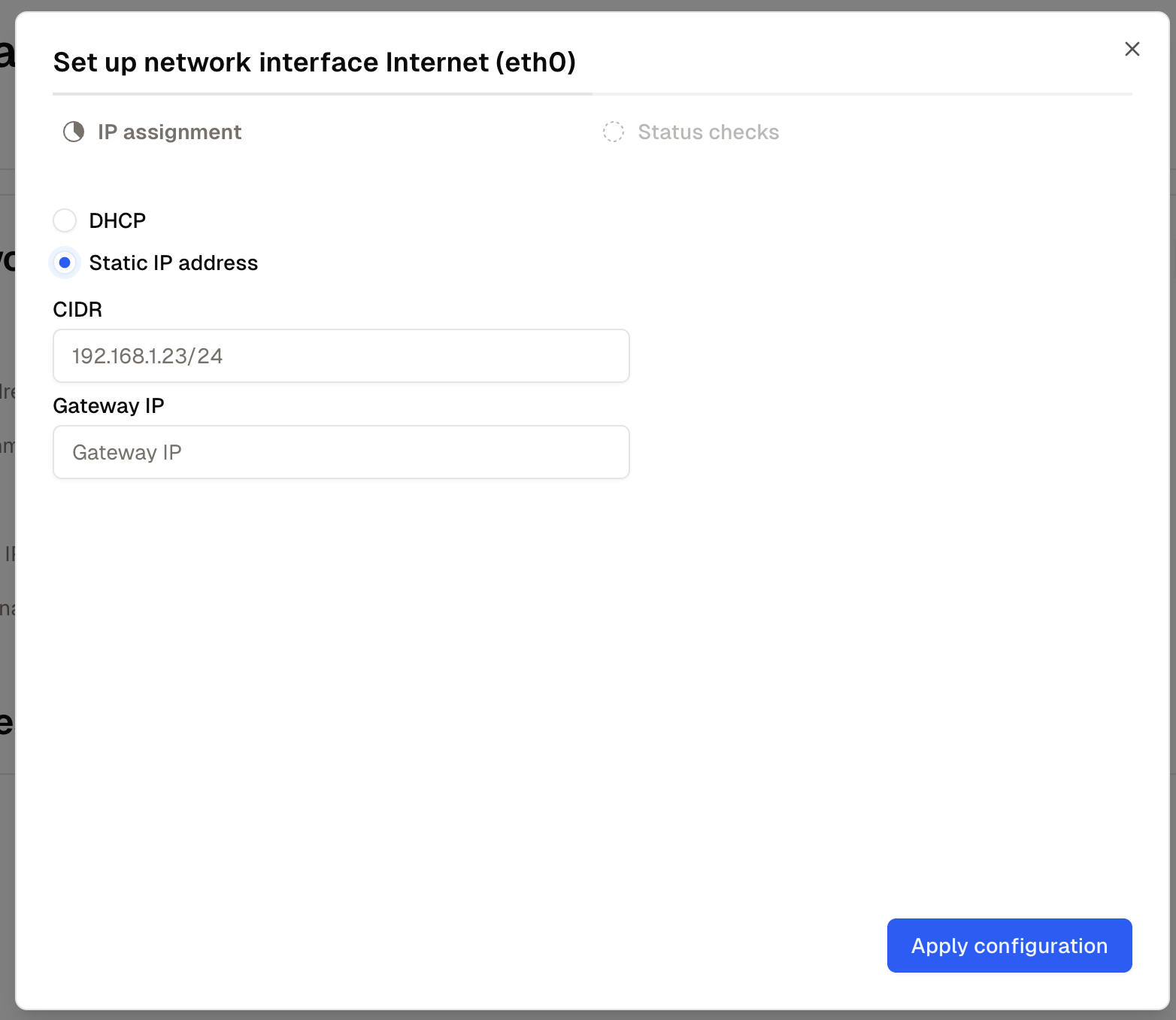
After login, the **installation wizard** guides you through setting up internet connectivity.
Depending on your network setup:
* **DHCP**: IP address is assigned automatically.
* **Static IP**: You will be prompted to enter CIDR and gateway IP.
IP Assignment via DHCP
Static IP Assignment
**After applying the configuration**, the connection to the ENLYZE Manufacturing Data Platform is tested.
If no error appears, your Edge Device is now connected and can securely transmit shopfloor data to the cloud. It will also appear as **online** in the [ENLYZE app](https://app.enlyze.com/login).
***
## Connection Issues
If a connection error occurs, an error message will be shown:
Example: ENLYZE EDGE reports failed DNS resolution
For troubleshooting, please refer to our Troubleshooting Guide.
{% content-ref url="" %}
{% endcontent-ref %}