> For the complete documentation index, see [llms.txt](https://docs.enlyze.com/llms.txt). Markdown versions of documentation pages are available by appending `.md` to page URLs; this page is available as [Markdown](https://docs.enlyze.com/en/connect/edge-device/enlyze-edge/accessing-the-interface.md).
# Accessing the Interface
Access the ENLYZE EDGE interface in the browser.
This guide explains how to open the ENLYZE EDGE web interface on your Edge Device. You have two options, each with different requirements.
## Access Methods
**1. Direct Connection via the Service Port (eth2)**
1. Connect your laptop to the Edge Device’s Service Port using an Ethernet cable.
2. Open your browser and enter: `https://{{ IP of the Service Port }}`
3. By default, you can reach ENLYZE EDGE on the Service Port at [https://10.96.96.1](https://10.96.96.1/).
→ A detailed step-by-step guide can be found in the linked documentation.
**2. Indirect Access via the Company Network**
If your computer has a route to one of the Edge Device’s IP addresses, you can access the ENLYZE EDGE web interface more conveniently:
1. Open your browser.
2. Go to: `https://{{ IP of the Edge Device }}`
3. You can find the IP address in the ENLYZE APP under the Edge Device overview or in the IoT topology.
## Trusting ENLYZE EDGE
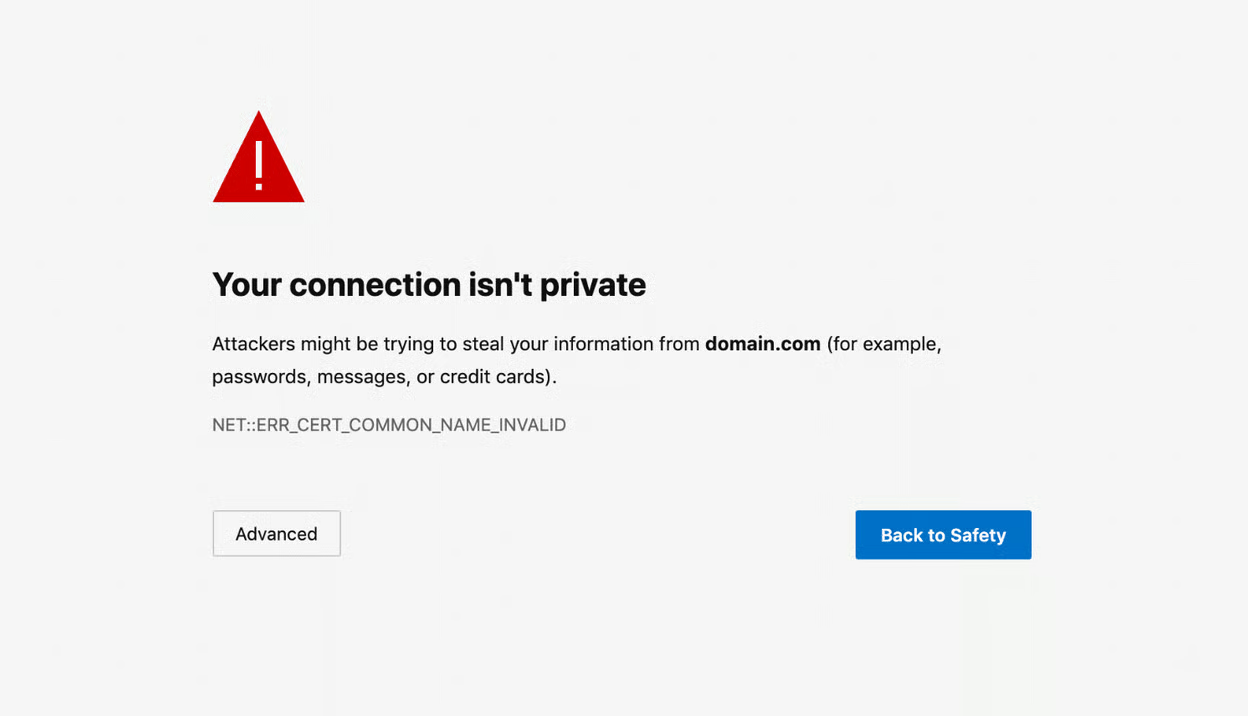
Your browser may display a security warning indicating an unsecure connection. This is expected and harmless, as ENLYZE EDGE uses a self-signed certificate to enable encrypted traffic even when offline. More information is available [here](https://github.com/enlyze/enlyze-docs/blob/main/en/connect/security/connection-warning.md).
## Login Credentials
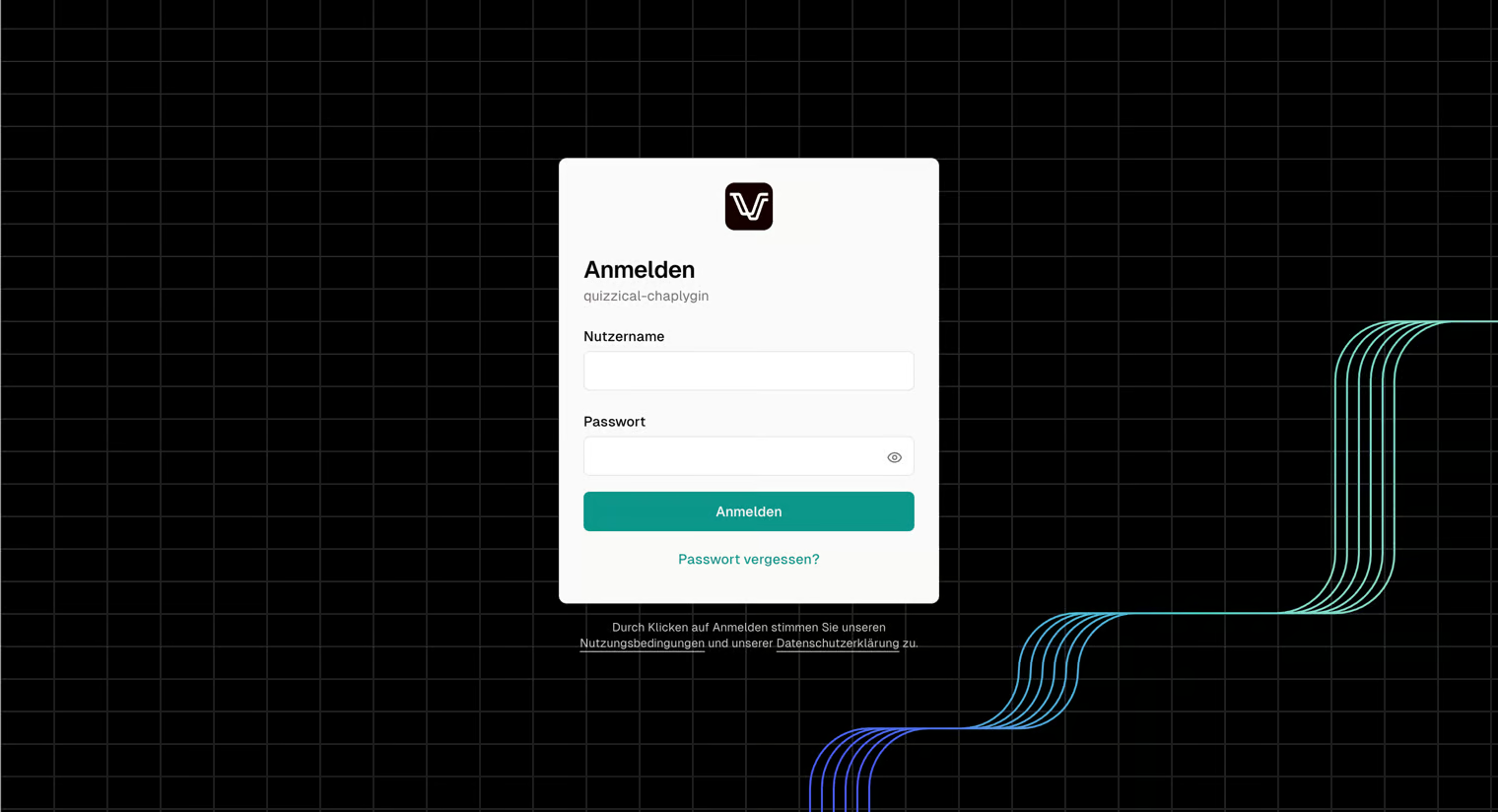
Logging into ENLYZE EDGE
Authentication is required to access ENLYZE EDGE:
* **Username**: `admin`
* The username is fixed and cannot be changed.
* **Password**:
* The initial password is the hostname of the Edge Device. You’ll find the hostname on the login screen under the heading “Login.”
* If you’ve already changed the password, use your new one to log in.