> For the complete documentation index, see [llms.txt](https://docs.enlyze.com/llms.txt). Markdown versions of documentation pages are available by appending `.md` to page URLs; this page is available as [Markdown](https://docs.enlyze.com/en/connect/edge-device/enlyze-edge/network-tools.md).
# Network Tools
Check the Reachability of Data Sources in the Network
## Ping for IPv4 Addresses
With the ENLYZE Edge ping query, you can check the connection to an IPv4 address.
{% stepper %}
{% step %}
#### Accessing Network Tools
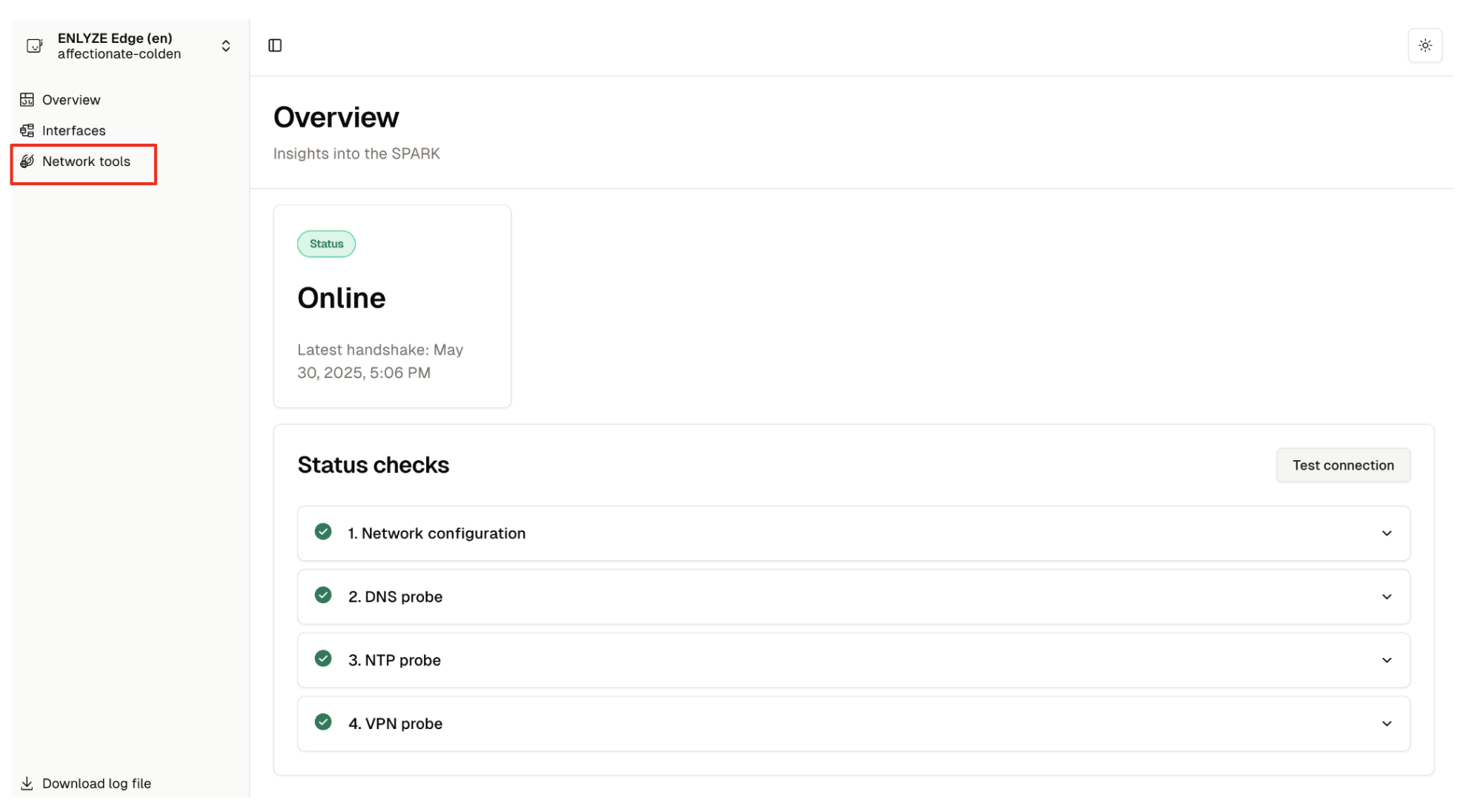
To execute a ping query using ENLYZE Edge, open the [interface](/en/connect/edge-device/enlyze-edge/accessing-the-interface.md) for the respective Edge Device and navigate to “Network Tools”.
ENLYZE EDGE Homepage
{% endstep %}
{% step %}
#### Enter IP Address and Start the Query
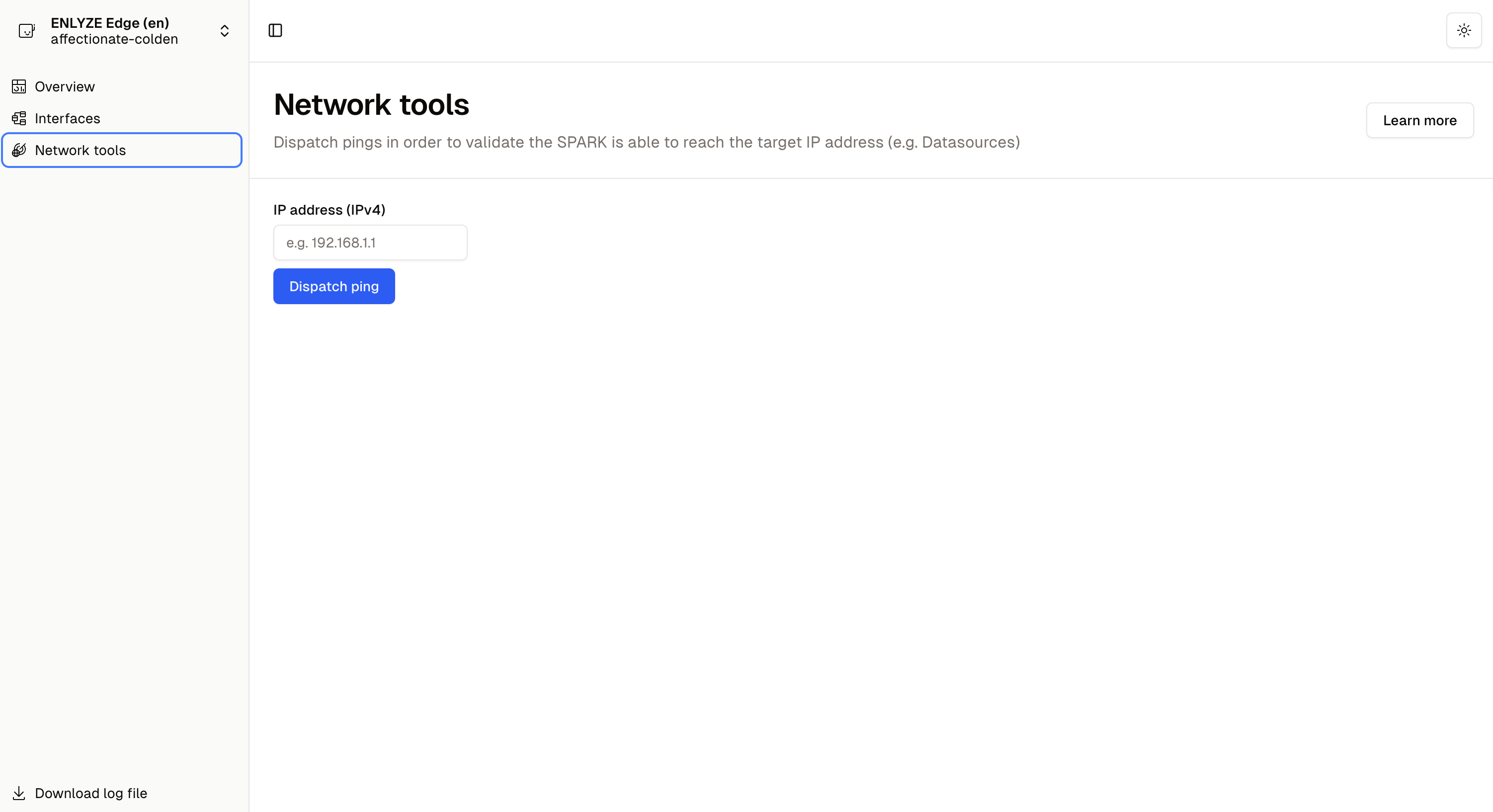
Enter the IP address of the device you want to ping and click the “Dispatch Ping” button.
{% endstep %}
{% step %}
#### Display of Terminal Output
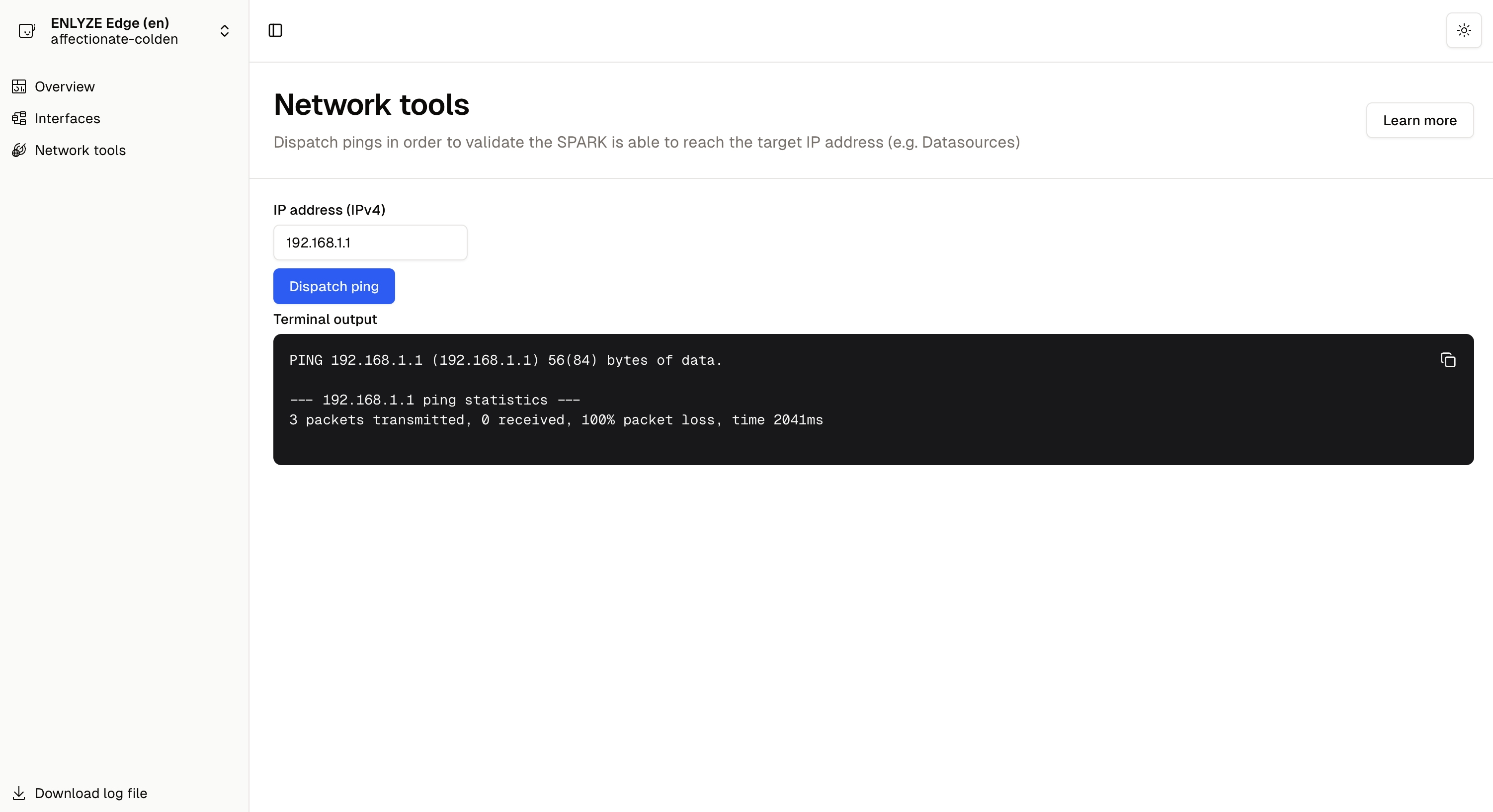
ENLYZE Edge displays the terminal output of the ping command. This provides insights into whether the network device is reachable via ICMP Echo requests.
A successful ping confirms that the target network participant is reachable at the specified IP address from the Edge Device. As a next step, you can proceed to add the data source to be connected.
{% endstep %}
{% endstepper %}
## Interpreting the Terminal Output
A successful `ping` response confirms the network participant is reachable via the given IP address from the Edge Device. This allows for the subsequent connection of the desired data source.
Example of a successful ping:
```
PING 8.8.8.8 (8.8.8.8): 56 data bytes
64 bytes from 8.8.8.8: icmp_seq=0 ttl=117 time=19.646 ms
64 bytes from 8.8.8.8: icmp_seq=1 ttl=117 time=18.460 ms
64 bytes from 8.8.8.8: icmp_seq=2 ttl=117 time=21.537 ms
--- 8.8.8.8 ping statistics ---
3 packets transmitted, 3 packets received, 0.0% packet loss
round-trip min/avg/max/stddev = 18.460/19.881/21.537/1.267 ms
```
If the query fails, as shown below, this does not necessarily mean there is no network connection between the Edge Device and the other device:
```
PING 172.192.20.2 (172.192.20.2): 56 data bytes
Request timeout for icmp_seq 0
Request timeout for icmp_seq 1
--- 172.192.20.2 ping statistics ---
3 packets transmitted, 0 packets received, 100.0% packet loss
```
## Possible Reasons for Failed `ping` Queries
1. **Device is turned off**\
The target device might be powered off or not connected to the network.
2. **Device blocks ICMP**
Some devices can be configured to suppress ICMP Echo replies.
> **Note**: ICMP replies can be disabled or enabled via the device's OS settings.
3. **A firewall blocks ICMP**
If traffic between the Edge Device and the device passes through a firewall, certain rules might block ICMP Echo replies.
> **Note***:* ICMP replies can also be managed in the firewall settings.
4. **No, or incorrect route**\
If the device is not part of the Edge Device’s link-local networks, a missing or misconfigured route could cause the `ping` to fail. Routes can be easily configured and managed via the ENLYZE Edge web interface.
{% hint style="info" %}
Even if a ping fails, the device may still offer services over TCP or UDP. Tools like `telnet `, `curl`, or port scanners such as `nmap` can help verify connectivity using alternative protocols.
{% endhint %}