> For the complete documentation index, see [llms.txt](https://docs.enlyze.com/llms.txt). Markdown versions of documentation pages are available by appending `.md` to page URLs; this page is available as [Markdown](https://docs.enlyze.com/en/connect/edge-device/enlyze-edge/setting-up-routes.md).
# Setting Up Routes
Set up network routes on the Edge Device.
ENLYZE EDGE allows you to configure static routes to access data sources in other subnets. The following guide walks you through the necessary steps to set up static routes.
{% hint style="warning" %}
Incorrect configuration of static routes can lock you out of ENLYZE EDGE. Make sure you enter the correct network details before saving any changes.
{% endhint %}
## Prerequisites
* Access and login credentials for ENLYZE EDGE
* Knowledge of the target network and gateway IP
* Knowledge of which Edge Device network interface the route should be configured for
* The target network must **not** fall within the `10.21.0.0/16` IP range.
{% hint style="warning" %}
`10.21.0.0/16` is reserved by ENLYZE for the VPN network and is therefore not supported.
{% endhint %}
## Access the Network Configuration of the Interface
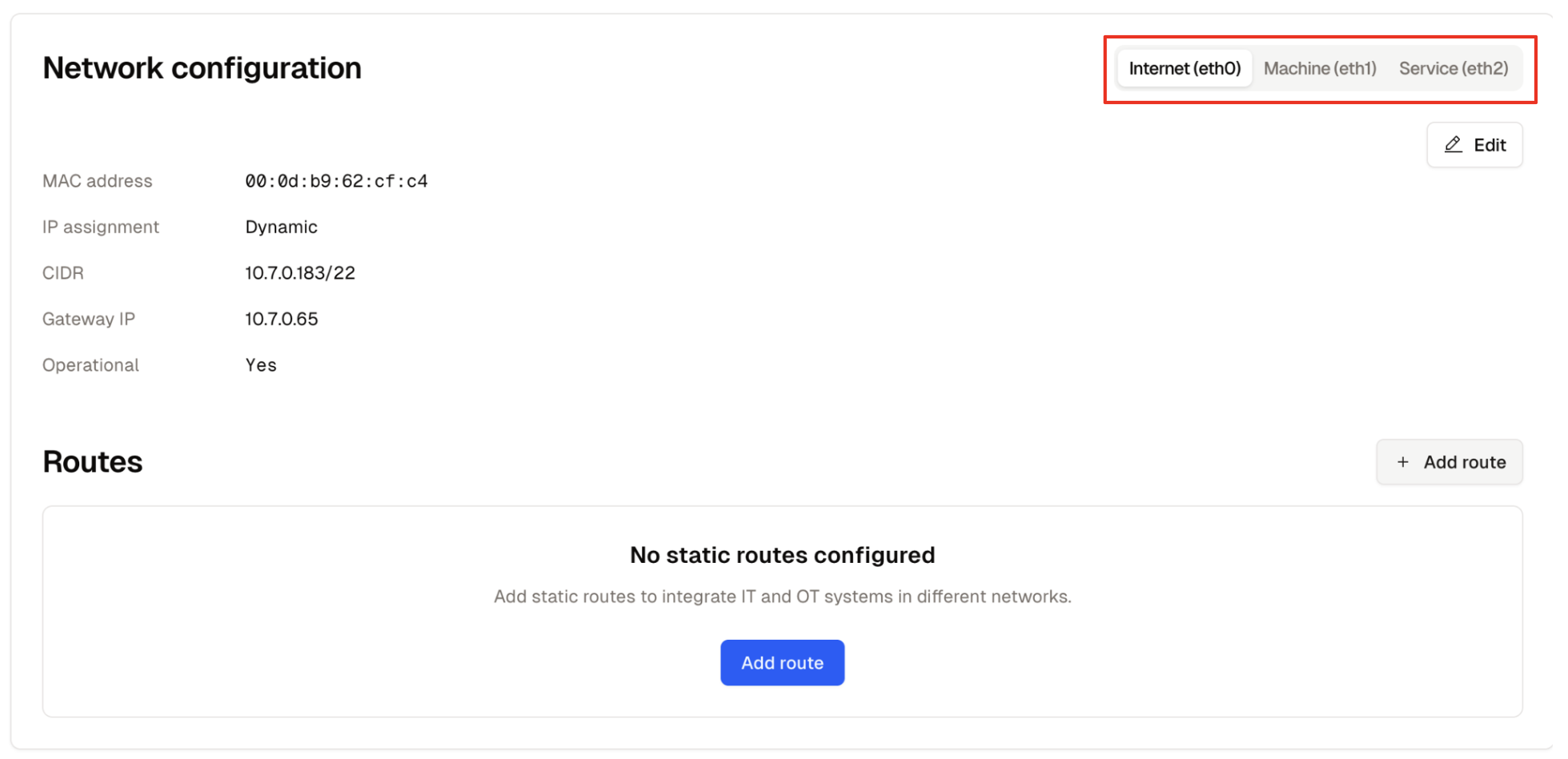
Static routes are configured via the network configuration view of the respective interface. Navigate to the “Interfaces” page in the ENLYZE EDGE web interface and select the interface for which you want to set up a static route – in this example, `Internet (eth0)`.
## Check the Network Configuration
Before adding a new route, familiarize yourself with the current network configuration and evaluate the planned route for potential issues:
* Is the target network within the `10.21.0.0/16` range?
* Is there already a route configured that is a supernet of the target network? If so, is this intentional?
* Are there subnet collisions due to overlapping CIDRs?
## Add Static Routes
In the “Routes” subsection, click the “+ Add Route” button to begin configuring the network route.
### **Enter Route Information**
Fill in the following information in the form:
* **Target Network (CIDR)**: Enter the destination network in CIDR format\
Example: `192.168.1.0/24`
* **Gateway IP**: Enter the gateway’s IP address\
Example: `192.168.1.1`
Click “Save” to add the route.
## Troubleshooting
If you encounter problems with route configuration, our Troubleshooting Guide can help.
{% content-ref url="/pages/4vaffYWNT8upopEYe7SM" %}
[Troubleshooting](/en/connect/edge-device/enlyze-edge/troubleshooting.md)
{% endcontent-ref %}