> For the complete documentation index, see [llms.txt](https://docs.enlyze.com/llms.txt). Markdown versions of documentation pages are available by appending `.md` to page URLs; this page is available as [Markdown](https://docs.enlyze.com/en/connect/ot-connectivity/supported-industrial-protocols/s7-classic.md).

# S7 Classic

Set up the S7 Classic protocol for ENLYZE.

This guide walks you through connecting data sources that communicate via the S7 Classic protocol. S7 Classic (S7comm) is the classic [Siemens](/en/connect/ot-connectivity/supported-controller-brands/siemens.md) protocol of the S7-300 and S7-400 generations. ENLYZE connects these controllers over Ethernet via RFC1006 (ISO-on-TCP, default port `102`). In the ENLYZE Platform, the connector is called **S7**.

{% hint style="info" %}
**Import variables instead of Variable Discovery**

S7 Classic addresses data through absolute memory addresses (e.g. data blocks, flags, inputs and outputs) rather than symbolic tags, so [Variable Discovery](/en/connect/ot-connectivity.md#variable-discovery) is not possible. Instead, you import the variables directly in the ENLYZE Platform from one of these sources:

* the controller's **STEP 7 project folder** (SIMATIC Manager)
* the **HMI configuration** of a Siemens panel (`.fwx` / `.fwc`)

The files are read exclusively in your browser. No project files are transferred to ENLYZE or stored on our servers. Only the variables you select are registered in the platform. To find out which option fits, see [Import variables](#import-variables).
{% endhint %}

## Supported devices

For a complete overview of the Siemens families and the recommended connector for each, see the [Siemens page](/en/connect/ot-connectivity/supported-controller-brands/siemens.md). Devices you can connect via S7 Classic include:

* Siemens S7-300 (e.g. CPU 315-2 PN/DP, 317-2 PN/DP)
* Siemens S7-400 (e.g. CPU 414, 416)
* [Yaskawa (VIPA)](/en/connect/ot-connectivity/supported-controller-brands/yaskawa.md) SPEED7 controllers, which are compatible with the S7-300

You connect controllers without an integrated Ethernet interface (PROFIBUS-only or MPI-only CPUs) through a PROFIBUS/MPI adapter. The adapter bridges the controller to the Edge Device. The configuration in the ENLYZE Platform stays the same.

You can buy the adapter directly from ENLYZE. We used to use adapters from IBH Softec, but they repeatedly caused outages and problems. We therefore recommend the [ACCON-NetLink-PRO compact](https://industrial.softing.com/products/gateways/gateways-for-access-of-controller-data/accon-netlink-pro-compact.html) adapter from Softing (formerly DELTALOGIC).

{% hint style="info" %}
For TIA Portal generation controllers (S7-1200, S7-1500), we recommend the [S7+](/en/connect/ot-connectivity/supported-industrial-protocols/s7+.md) connector. It supports Variable Discovery and optimized data blocks.
{% endhint %}

## Before you start

Have the following ready:

* the IP address of the controller or of the PROFIBUS/MPI adapter
* one source for the variables: the STEP 7 project folder, the WinCC runtime file (`.fwx`, `.fwc`) of the HMI device, or an address list (see [Import variables](#import-variables))

{% stepper %}
{% step %}

#### Connect the data source to the network

If not done yet, first establish a network connection between the data source and the respective Edge Device. You can find the possible networking scenarios [here](/en/connect/integration-scenarios.md). The connector opens a TCP connection to the controller on port `102`.

Use the [network tools](/en/connect/edge-device/enlyze-edge/network-tools.md) to check that the controller is reachable from the Edge Device.
{% endstep %}

{% step %}

#### Create the data source

Open the [ENLYZE Manufacturing Data Platform](https://app.enlyze.com/platform), select the machine you want to add this data source to, and click **+ Data source**.

Enter a descriptive name and add the manufacturer (**Siemens**, or **Yaskawa** for VIPA controllers) and the CPU model, e.g. `CPU 315-2 PN/DP`, under **Device details**.

<figure><img src="https://4261006941-files.gitbook.io/~/files/v0/b/gitbook-x-prod.appspot.com/o/spaces%2FSNEuiyRRKwuqtIcaEt45%2Fuploads%2Fgit-blob-2e6e42ed16ee4fa6114e8d36608a616a5a2bc75a%2Fconnect-s7-classic-create-datasource-01.png?alt=media" alt="Data source form with name, machine, and the device details manufacturer Siemens and device model S7-300 CPU315-2 PN/DP"><figcaption><p>Name and device details of an S7 Classic data source</p></figcaption></figure>
{% endstep %}

{% step %}

#### Add connection details

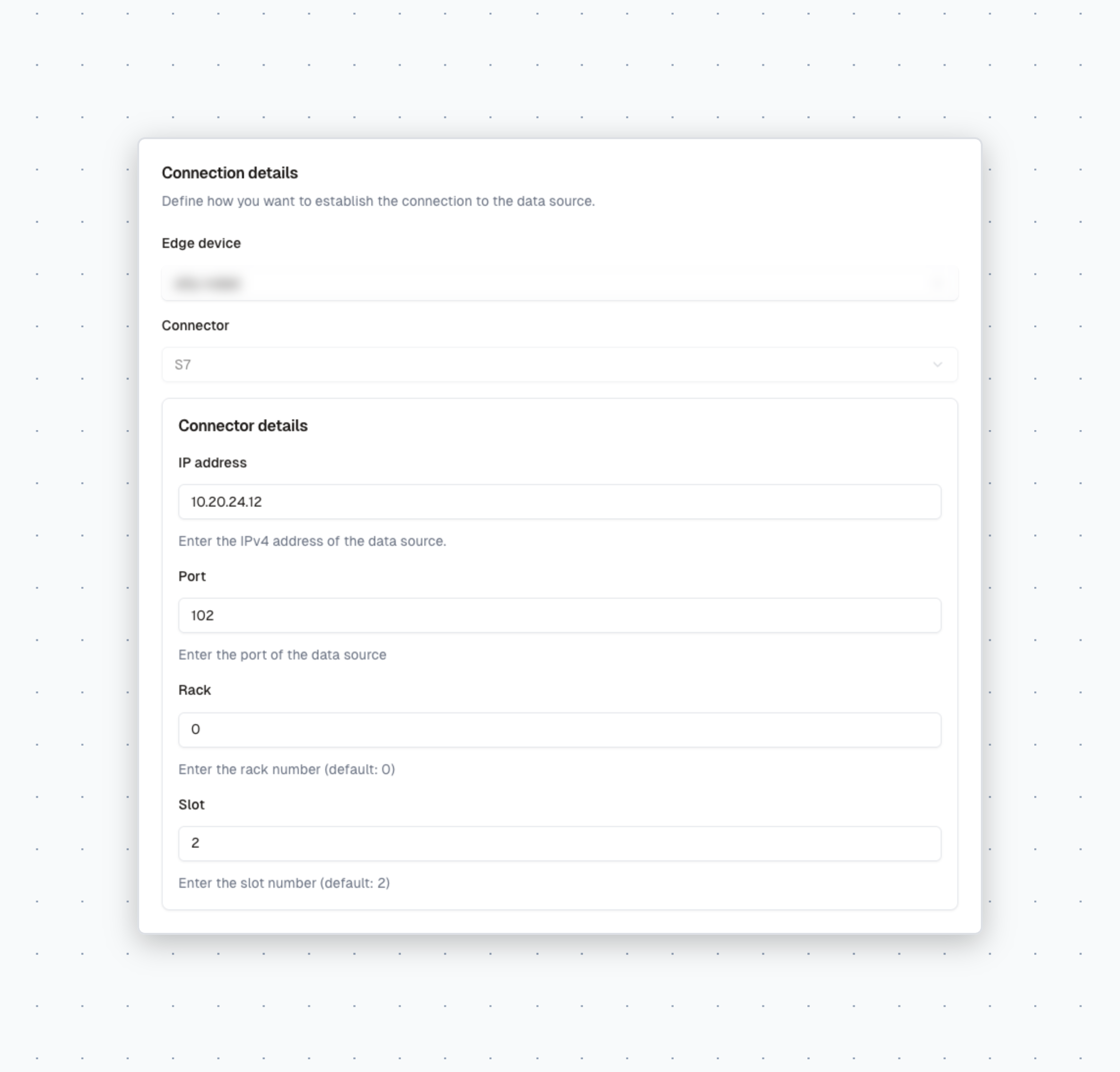
Under **Connection details**, select the **Edge device**. Its name is printed on a sticker on the device (pattern `adjective-scientist`). Choose **S7** as the **Connector** and enter the connector details:

* **IP address**: the IPv4 address of the controller or of the PROFIBUS/MPI adapter
* **Port**: `102`
* **Rack** and **Slot**: the position of the CPU within the controller. On an S7-300, the CPU almost always sits in rack `0`, slot `2`, the default values. On an S7-400, the slot depends on how many slots the power supply to the left of the CPU occupies. It is often slot `2` or `3`. You find both values in the hardware configuration of the STEP 7 project (HW Config) at the position of the CPU.

S7 Classic does not need a password.

{% hint style="success" %}
**Check rack and slot with ENLYZE EDGE**

If you are unsure about the values, test them directly from the Edge Device first:

1. Open the [ENLYZE EDGE interface](/en/connect/edge-device/enlyze-edge/accessing-the-interface.md) of the Edge Device.
2. Open **Data source tools** and select the **S7 Tools** tab.
3. Enter the IP address, port, rack, and slot, and click **Query PLC info**.

If the order number, CPU name, and operating mode are shown, the IP address, rack, and slot are correct. If the query fails, the controller is unreachable or does not speak S7 Classic, for example an S7-1200/1500 with optimized access.
{% endhint %}

<figure><img src="https://4261006941-files.gitbook.io/~/files/v0/b/gitbook-x-prod.appspot.com/o/spaces%2FSNEuiyRRKwuqtIcaEt45%2Fuploads%2Fgit-blob-72937c5ab7d0740f3e33cbfaf21d017020f5f538%2Fconnect-s7-classic-connection-details-01.png?alt=media" alt="Connection details with connector S7 and the fields IP address, Port, Rack, and Slot"><figcaption><p>Connection details of an S7 Classic data source</p></figcaption></figure>

Click **Save** and confirm with **Save and try to connect**. The Edge Device then connects to the controller.

{% hint style="info" %}
If you are still missing some details, you can **save the data source as a draft** first. You add the connection details later via **Add connection details** on the data source page.
{% endhint %}
{% endstep %}

{% step %}

#### Import variables

S7 Classic addresses data through absolute memory addresses instead of symbolic tags, so [Variable Discovery](/en/connect/ot-connectivity.md#variable-discovery) as with S7+ or OPC UA is not possible. Instead, you import the variables.

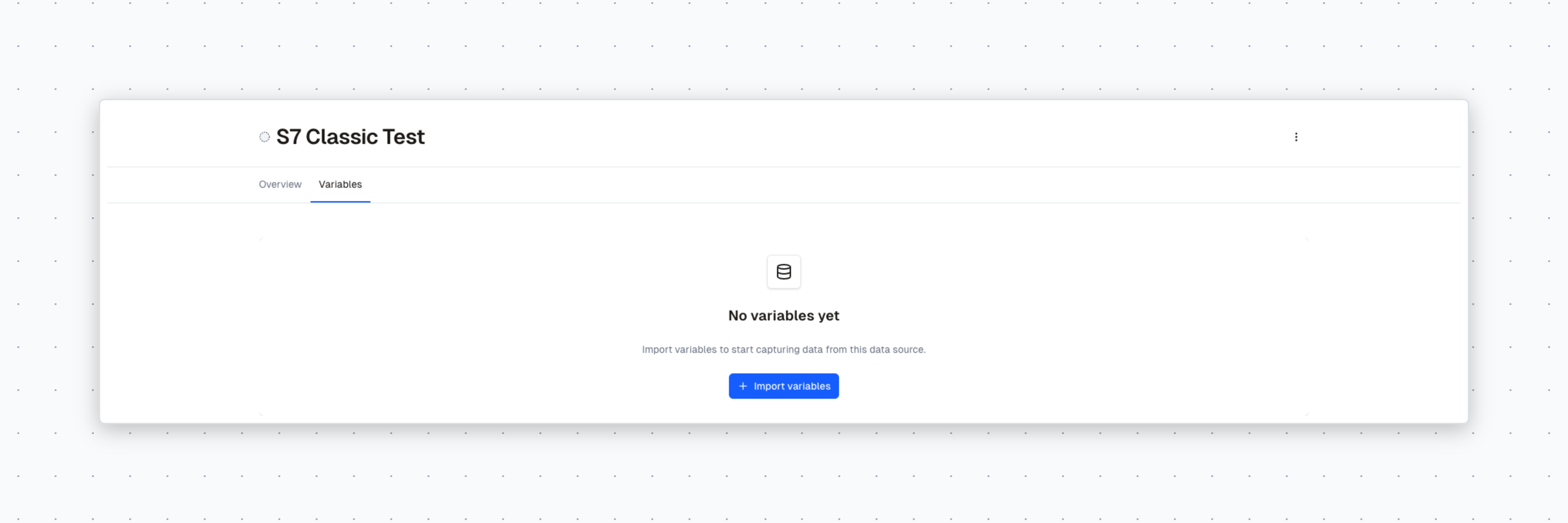
On the data source page, open the **Variables** tab and click **Import variables**.

<figure><img src="https://4261006941-files.gitbook.io/~/files/v0/b/gitbook-x-prod.appspot.com/o/spaces%2FSNEuiyRRKwuqtIcaEt45%2Fuploads%2Fgit-blob-5bde5cdfea16bd24a43d05450423ee49e4c2f315%2Fconnect-s7-classic-variables-empty-01.png?alt=media" alt="Variables tab of a data source without variables and the Import variables button"><figcaption><p>Variables tab of a new S7 Classic data source</p></figcaption></figure>

Then choose where the variables come from. The STEP 7 project folder gives you every variable of the controller. The WinCC runtime file gives you only the values operators see on the HMI, with display name and unit right away. You can combine both and repeat them as often as you like, for example after a change to the PLC program.

<figure><img src="https://4261006941-files.gitbook.io/~/files/v0/b/gitbook-x-prod.appspot.com/o/spaces%2FSNEuiyRRKwuqtIcaEt45%2Fuploads%2Fgit-blob-2102f1105ba5fb762b62c8d5fe9a50a0ad8f9b5b%2Fconnect-s7-classic-import-variables-01.png?alt=media" alt="Import variables dialog with the options STEP 7 project folder and WinCC runtime file (.fwx, .fwc)"><figcaption><p>Choosing the variable source for an S7 Classic data source</p></figcaption></figure>

{% tabs %}
{% tab title="A: STEP 7 project folder" %}
**You need** the complete project folder from SIMATIC Manager, i.e. the `.s7p` file with all its subfolders. If the project is stored as an archive (`.zip`), extract it first.

1. Select **STEP 7 project folder**.
2. Click **Browse files** and select the **entire project folder**, not just the `.s7p` file. The folder must contain exactly one `.s7p` file.

   <figure><img src="https://4261006941-files.gitbook.io/~/files/v0/b/gitbook-x-prod.appspot.com/o/spaces%2FSNEuiyRRKwuqtIcaEt45%2Fuploads%2Fgit-blob-7bff8472ceb159ecbf8b4b6924faa72b82bfaefd%2Fconnect-s7-classic-step7-upload-01.png?alt=media" alt="Upload step of the STEP 7 import with the Browse files button"><figcaption><p>Uploading the STEP 7 project folder</p></figcaption></figure>
3. The project is read in your browser. If it contains several controllers, choose the CPU that belongs to this data source under **Device**.
4. Check the variable preview. Variables with unsupported data types are listed and not imported (see [Supported data types](#supported-data-types)).

   <figure><img src="https://4261006941-files.gitbook.io/~/files/v0/b/gitbook-x-prod.appspot.com/o/spaces%2FSNEuiyRRKwuqtIcaEt45%2Fuploads%2Fgit-blob-e3e87b69b63e9970e91ae16a1a5a4ff2b840a7f2%2Fconnect-s7-classic-step7-configuration-01.png?alt=media" alt="Configuration step with the selected device, the unsupported data types, and a preview of the variables"><figcaption><p>Choosing the CPU and checking the variable preview</p></figcaption></figure>
5. Click **Start import** and close the dialog with **Done** once it finishes.

   <figure><img src="https://4261006941-files.gitbook.io/~/files/v0/b/gitbook-x-prod.appspot.com/o/spaces%2FSNEuiyRRKwuqtIcaEt45%2Fuploads%2Fgit-blob-4eb47acd4fb16f22ffe9eae73552e4c844a37640%2Fconnect-s7-classic-step7-import-01.png?alt=media" alt="Import step with the number of variables to import and the Start import button"><figcaption><p>Starting the import</p></figcaption></figure>

The summary shows how many variables were newly imported, updated, left unchanged, or failed.

{% hint style="info" %}
Large projects can take a few minutes to import. Keep the browser window open during that time.
{% endhint %}
{% endtab %}

{% tab title="B: WinCC runtime file" %}
**You need** the runtime file of the HMI device: `.fwx` (WinCC flexible 2005/2008) or `.fwc` (WinCC Runtime in TIA Portal). To find out where to get it, see [Get the configuration file](/en/variable-mapping/hmi-configuration.md#get-the-configuration-file).

To find out how the selection works in detail, see [Variable mapping via HMI configuration](/en/variable-mapping/hmi-configuration.md#take-over-the-variables).

1. Select **WinCC runtime file (.fwx, .fwc)**. The Flex Configuration Extractor opens in a new tab with site, machine, and data source already selected.
2. Upload the HMI device's `.fwx` or `.fwc` file, select the display elements, and give each one a display name and a unit.
3. Send the variables to the platform with **Send variables to ENLYZE platform**.
   {% endtab %}

{% tab title="C: Address list" %}
**You need** a list of addresses and data types, e.g. from the machine manufacturer.

Send the list to <support@enlyze.com>. ENLYZE registers the variables for you. To see how addresses and data types are specified, see [Addresses and data types](#addresses-and-data-types).
{% endtab %}
{% endtabs %}
{% endstep %}

{% step %}

#### Select variables for recording

The import registers the variables in the ENLYZE Platform. Variables imported from the STEP 7 project are not recorded yet, though. Select the variables you need in the [variable selection](/en/variable-mapping/exploration-discovery.md) and [contextualize](/en/variable-mapping/contextualisation.md) them. **See all available variables** in the **Variables** tab takes you straight there.

{% hint style="warning" %}
Data is only recorded once variables have been selected for recording. The number of variables that can be recorded per data source is limited. If you see the message **Variable limit reached**, contact us at <support@enlyze.com>.
{% endhint %}
{% endstep %}
{% endstepper %}

## Addresses and data types

The import takes over the address and data type of every variable automatically. You only need the following details if variables are registered via an address list (option C) or the [ENLYZE API](/en/enlyze-api/quickstart.md).

### Address scheme

The connector uses the English operand identifiers (`I` / `Q` instead of `E` / `A`) and separates the data block from the byte address with a colon:

| Memory area    | Scheme                      | Examples                |
| -------------- | --------------------------- | ----------------------- |
| Data block     | `DB<number>:<byte>[.<bit>]` | `DB400:12`, `DB327:6.1` |
| Flags (Merker) | `M<byte>[.<bit>]`           | `M6.1`, `MW2`           |
| Inputs         | `I<byte>[.<bit>]`           | `I0.5`, `IW4`           |
| Outputs        | `Q<byte>[.<bit>]`           | `Q8.0`                  |

The size marker (`B`, `W`, `D`) is optional because the data type is specified separately. The Siemens notation `DB1.DBW0` therefore corresponds to `DB1:0` with data type `WORD`. Peripheral I/O (PI/PQ), timers, and counters are not supported.

### Supported data types

| S7 data type                                   | Data type in the ENLYZE Platform |
| ---------------------------------------------- | -------------------------------- |
| `BOOL`                                         | Boolean                          |
| `BYTE`, `CHAR`, `INT`, `WORD`, `DINT`, `DWORD` | Integer                          |
| `REAL`                                         | Float                            |
| `STRING`, `STRING[n]`                          | String                           |

Unsupported types include `LREAL`, `TIME`, `DATE`, `S5TIME`, and arrays. Structures (STRUCT) are resolved into their individual elements when importing from the STEP 7 project.

## Further reading

* [Tips & practical notes](/en/connect/ot-connectivity/supported-industrial-protocols/s7-classic/known-issues.md): notes on operating the S7 Classic connector and the recommended way to handle them.
* [Siemens](/en/connect/ot-connectivity/supported-controller-brands/siemens.md): overview of all Siemens families and the recommended connectors.

If you have any questions, feel free to contact us at <support@enlyze.com>.