> For the complete documentation index, see [llms.txt](https://docs.enlyze.com/llms.txt). Markdown versions of documentation pages are available by appending `.md` to page URLs; this page is available as [Markdown](https://docs.enlyze.com/en/integrations/grafana/advanced-api/01-introduction.md).
# 01 Introduction
Introduction to the ENLYZE API data source for Grafana.
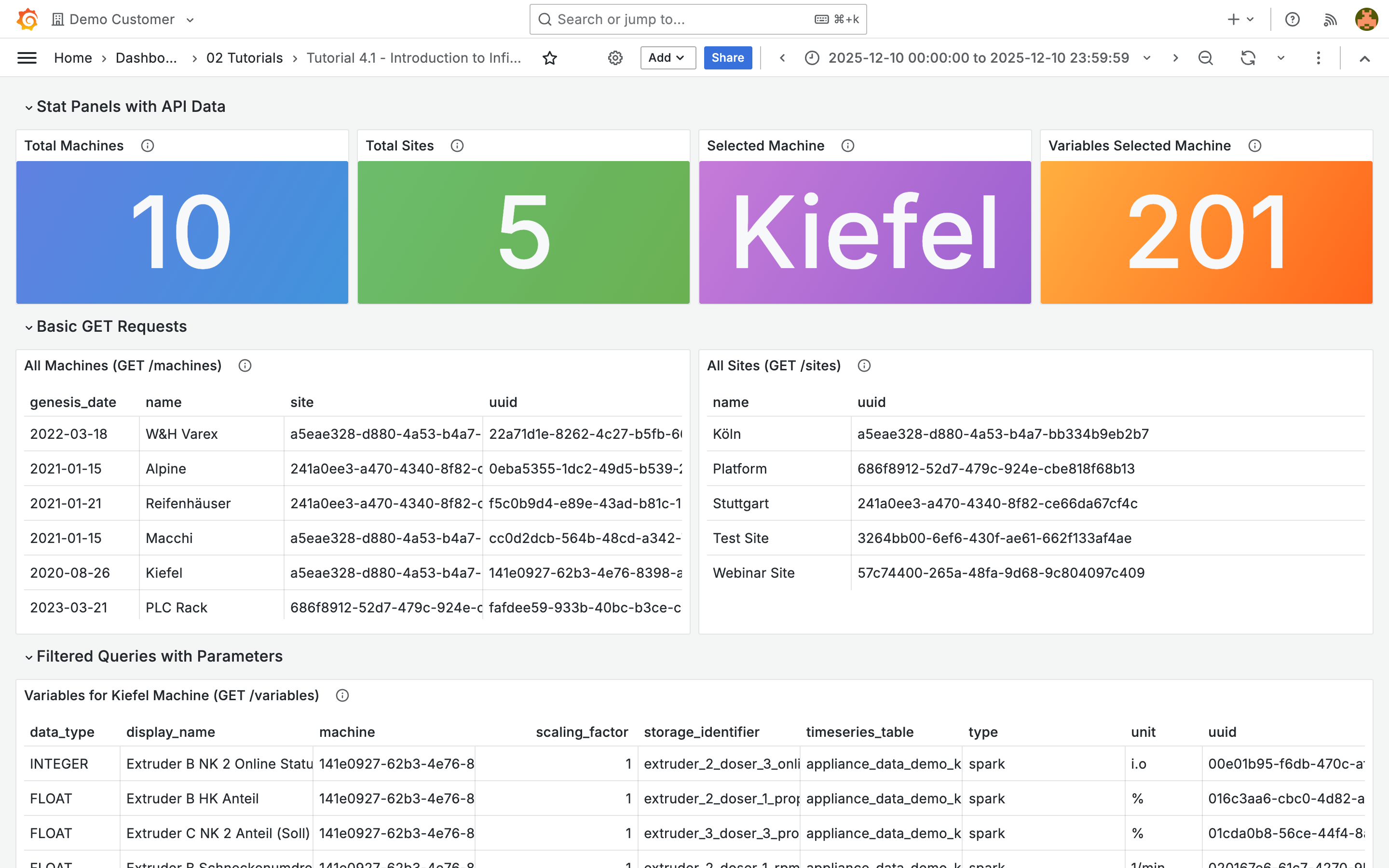
The **ENLYZE API** data source (based on the Infinity plugin) connects directly to the ENLYZE Platform API. It enables OEE dashboards, dropdown filters, alerts, and complex data combinations. In this tutorial you will make your first API query and learn the basics:
## What you will learn
* When to use the ENLYZE API instead of the ENLYZE data source
* How to send a GET request to the ENLYZE API
* How to parse JSON responses with the root selector `$.data`
* How to select columns and structure results
## Prerequisites
* Completed parts 1-3 of the tutorials (basic Grafana knowledge)
* Access to Grafana with both ENLYZE data sources configured
***
## What is the ENLYZE API?
The ENLYZE Platform provides a REST API. An API (Application Programming Interface) is an interface that allows programs to exchange data in a structured way. Instead of reading data in a user interface, you send a request to a URL and receive the response as machine-readable text (JSON).
In Grafana the Infinity plugin handles the communication. You only specify which endpoint you want to query (e.g. `machines`), and Grafana sends the request automatically.
The full API documentation with all available endpoints and parameters is available at [app.enlyze.com/api/v2/redoc](https://app.enlyze.com/api/v2/redoc).
## ENLYZE vs. ENLYZE API
Two data sources are available in Grafana. The **ENLYZE** data source (parts 1-3 of the tutorials) offers a point-and-click interface for time series data. The **ENLYZE API** data source uses the REST API directly and offers significantly more:
| Feature | ENLYZE | ENLYZE API |
| ------------------- | --------------- | ------------------- |
| Ease of use | Point-and-click | Query configuration |
| Variables/dropdowns | Limited | Full support |
| Alerting | Not supported | Supported |
| OEE metrics | Not available | Full access |
Use the ENLYZE API when you need dashboard variables, alerts, OEE metrics, or production data (production runs, downtimes).
***
## First API query: listing machines
### Create a panel
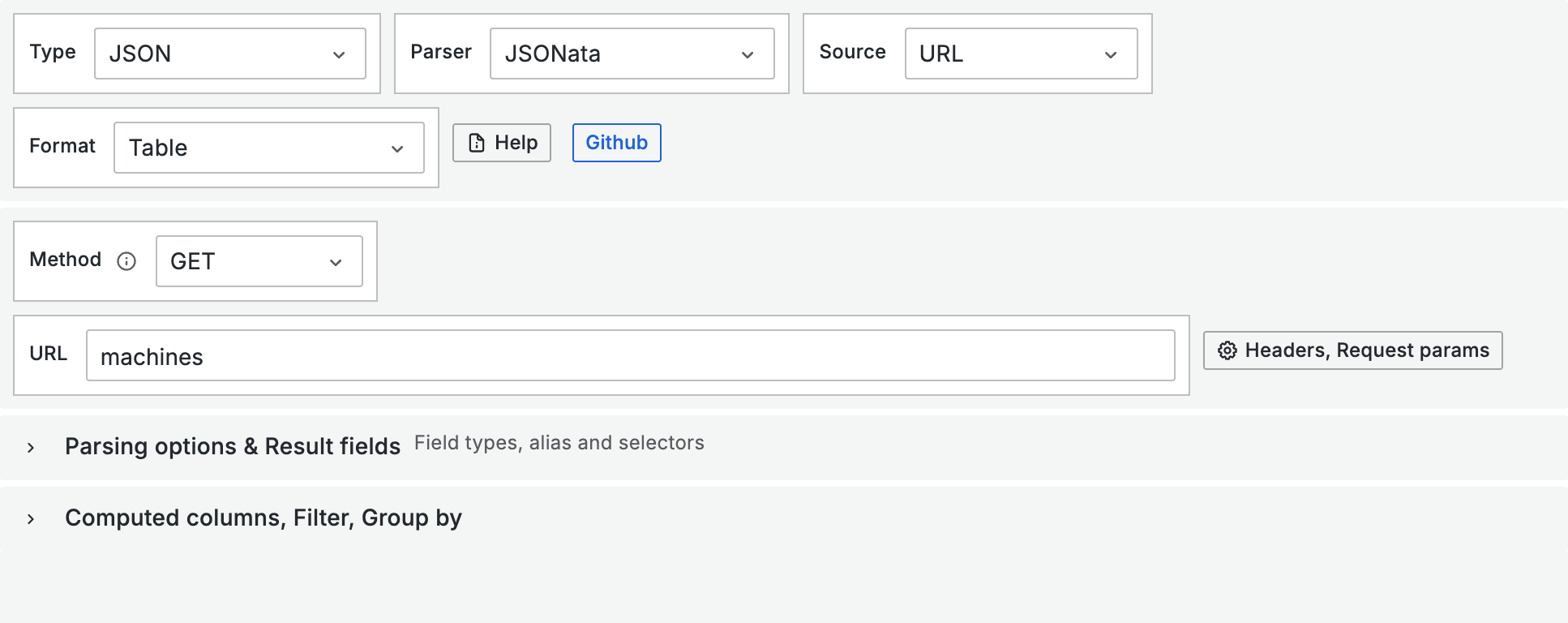
1. Create a new panel with the **Table** visualization
2. In the query editor, select the data source **ENLYZE API** (not ENLYZE)
**Configure the query**
| Setting | Value |
| ------- | ---------- |
| Type | JSON |
| Parser | Backend |
| Source | URL |
| Format | Table |
| Method | GET |
| URL | `machines` |
{% hint style="info" %}
You only need to enter `machines`, not the full URL. The base URL (`https://app.enlyze.com/api/v2/`) and authentication are already preconfigured.
{% endhint %}
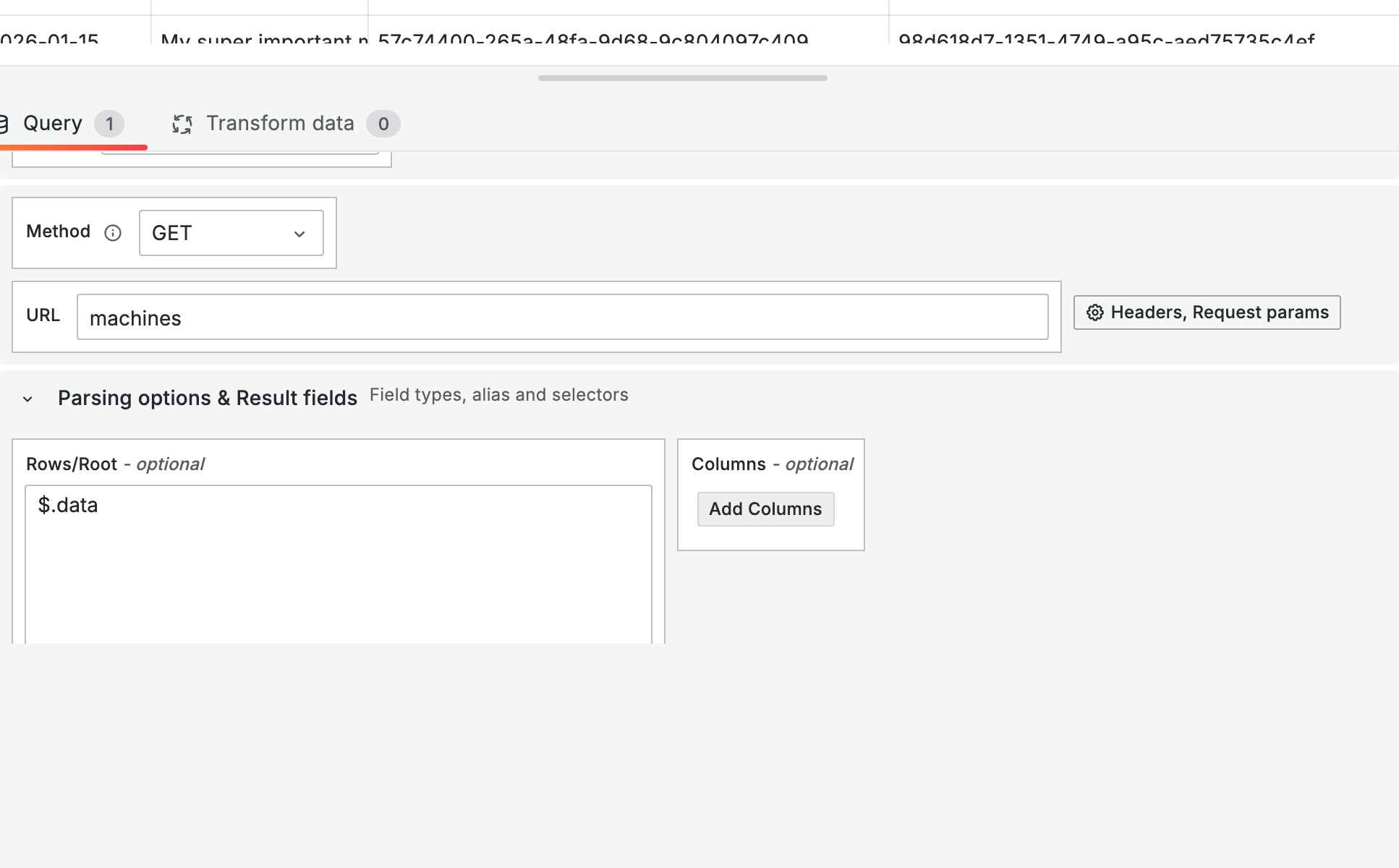
### Root selector
The API returns data inside a `data` array. To extract it, enter in the **Root selector** field: `$.data`
Without a root selector, Grafana would display the entire response including `next_cursor`. With `$.data` you extract only the data array.
***
## More endpoints
### Query sites
| Setting | Value |
| ------------- | -------- |
| URL | `sites` |
| Root selector | `$.data` |
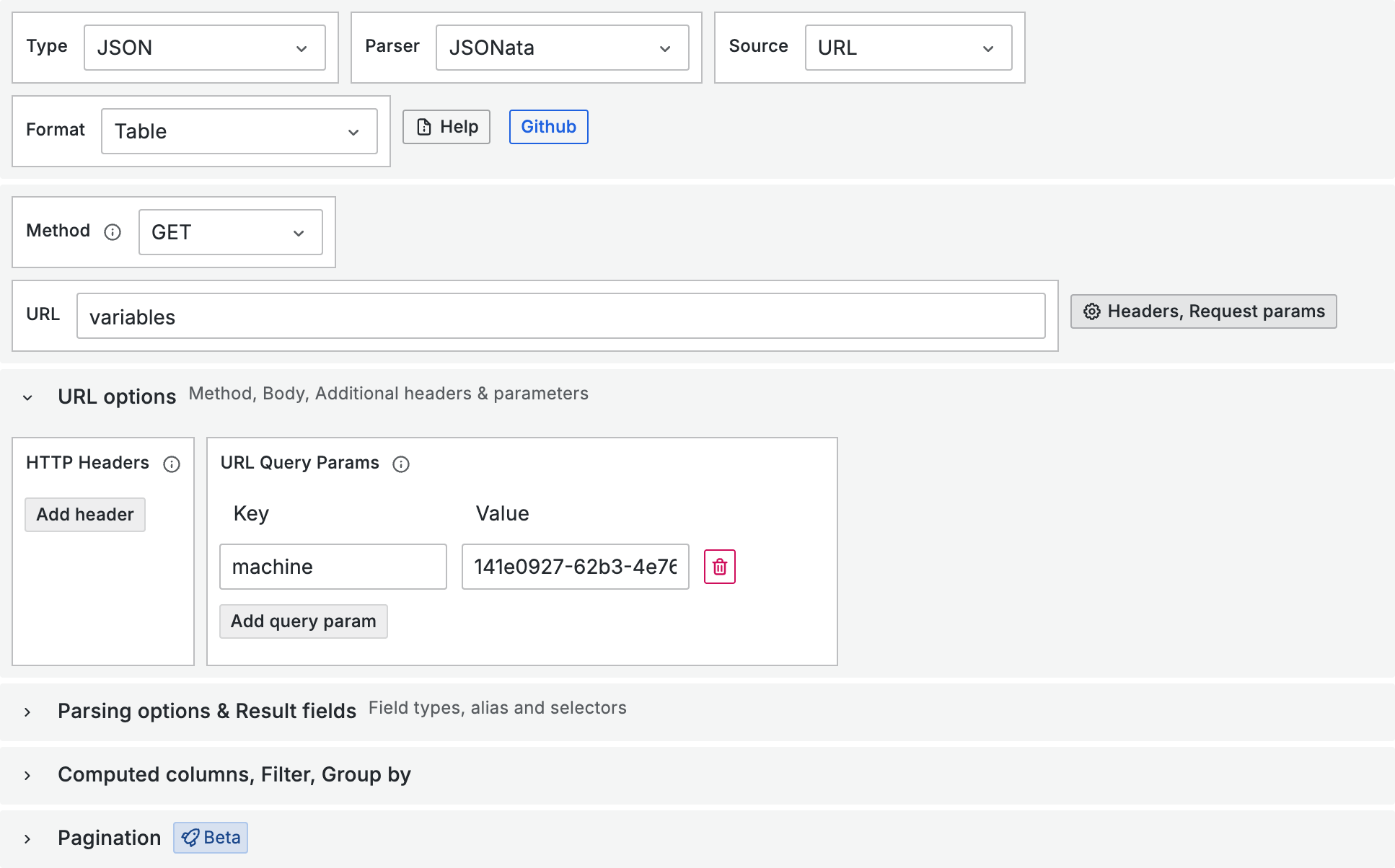
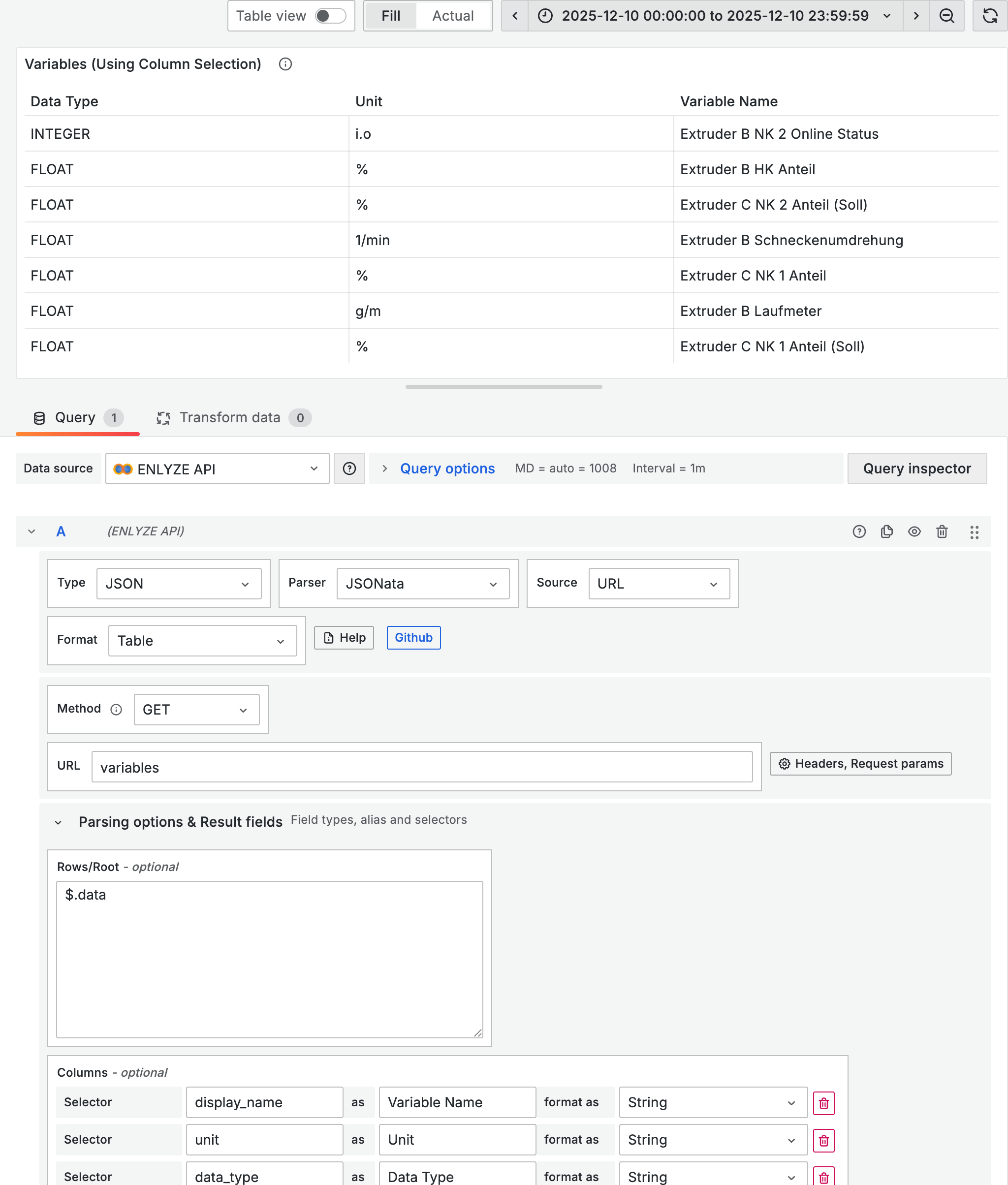
### Variables of a machine
| Setting | Value |
| ------------- | ----------- |
| URL | `variables` |
| Root selector | `$.data` |
Many API endpoints accept query parameters to filter the results. Instead of writing the parameters directly into the URL, you can specify them through the Grafana interface:
1. Click **Headers, Request params**
2. Under **URL Query Params** enter key-value pairs, e.g. `machine` = `141e0927-...`
Which query parameters an endpoint supports can be found in the [API documentation](https://app.enlyze.com/api/v2/redoc).
### Common endpoints
| Endpoint | Method | Description |
| -------------------------------------- | ------ | ---------------------- |
| `machines` | GET | All machines |
| `sites` | GET | All sites |
| `variables?machine={uuid}` | GET | Variables of a machine |
| `machines/{uuid}/productivity-metrics` | POST | OEE metrics |
| `production-runs` | GET | Production runs |
| `downtimes` | GET | Downtimes |
***
## Structuring results
### Selecting columns
By default, Infinity shows all fields from the API response. To show only specific columns:
1. Expand **Parsing options & Result fields**
2. Under **Columns**, click **Add Columns**
3. Enter the field name as **Selector** and assign a display name under **as**
Alternatively, you can use Grafana's **Organize fields by name** transformation (as covered in [Transformations](/en/integrations/grafana/intermediate-features/02-transformations.md)).
{% hint style="info" %}
In the **Rows/Root** field you can also use JSONata for more complex data queries, e.g. filtering, renaming, or calculating fields. The following tutorials show how this works.
{% endhint %}
***
## Tips
* **Backend parser**: Always set the parser to **Backend**. Data is processed server-side, which is more reliable.
* **Start simple**: First get the query working with `$.data`, then add columns and transformations.
* **"No data"**: Check the URL (just `machines`, not the full URL), verify the root selector is `$.data`, and make sure the parser is set to "Backend".
* **Test URLs**: You can test API URLs directly in the browser: `https://app.enlyze.com/api/v2/machines`
***
## Next steps
* [**Querying the ENLYZE API**](/en/integrations/grafana/advanced-api/02-api-queries.md) - POST requests, productivity metrics, dynamic time ranges