> For the complete documentation index, see [llms.txt](https://docs.enlyze.com/llms.txt). Markdown versions of documentation pages are available by appending `.md` to page URLs; this page is available as [Markdown](https://docs.enlyze.com/en/integrations/grafana/advanced-api/03-variables.md).
# 03 Variables
Dashboard variables for dynamic site and machine selection in Grafana.
In this tutorial you create dropdown variables for site and machine and use them in queries, filters, and panel titles:
## What you will learn
* What dashboard variables are and when you need them
* Create a site dropdown from the ENLYZE API
* Create a chained machine dropdown with API filtering
* Use variables in URLs, query parameters, and panel titles
* Debug technique: display variable values as a table
* Variable syntax (`${var}`, `${var:text}`, `${var:csv}`)
## Prerequisites
* [Introduction to the ENLYZE API](/en/integrations/grafana/advanced-api/01-introduction.md) and [API queries](/en/integrations/grafana/advanced-api/02-api-queries.md) completed
* Understanding of GET requests, root selectors, and JSONata
***
## What are dashboard variables?
Variables are placeholders that are replaced with a concrete value at runtime. Instead of hard-coding a machine UUID into every query, you use `${machine}`. When you switch the machine in the dropdown, all panels update automatically.
You can use variables in:
* **URL paths**: `machines/${machine}`
* **Query parameters**: `machine=${machine}`
* **Root selectors**: JSONata filters with `${site}`
* **Panel titles**: `Machines at ${site:text}`
***
## Create the site variable
1. Create a new dashboard and open **Dashboard Settings** (gear icon, top right)
2. Switch to the **Variables** tab and click **+ New variable**
3. Configure the variable:
| Setting | Value |
| ------------- | ----------------- |
| Variable type | Query |
| Name | `site` |
| Label | Site |
| Data source | ENLYZE API |
| Query type | Infinity |
| Type | JSON |
| Parser | JSONata (Backend) |
| Source | URL |
| Method | GET |
| URL | `sites` |
| Root selector | `$.data` |
4. Expand **Parsing options & Result fields** and add the following under **Columns**:
| Selector | Title (as) | Type (format as) |
| -------- | ---------- | ---------------- |
| `name` | Name | String |
| `uuid` | UUID | String |
The first column becomes the display name in the dropdown, the second becomes the stored value (UUID).
5. Under **Selection options**, set:
* **Sort**: Alphabetical (asc)
* **Refresh**: On dashboard load
6. Click **Apply** and then **Save dashboard**
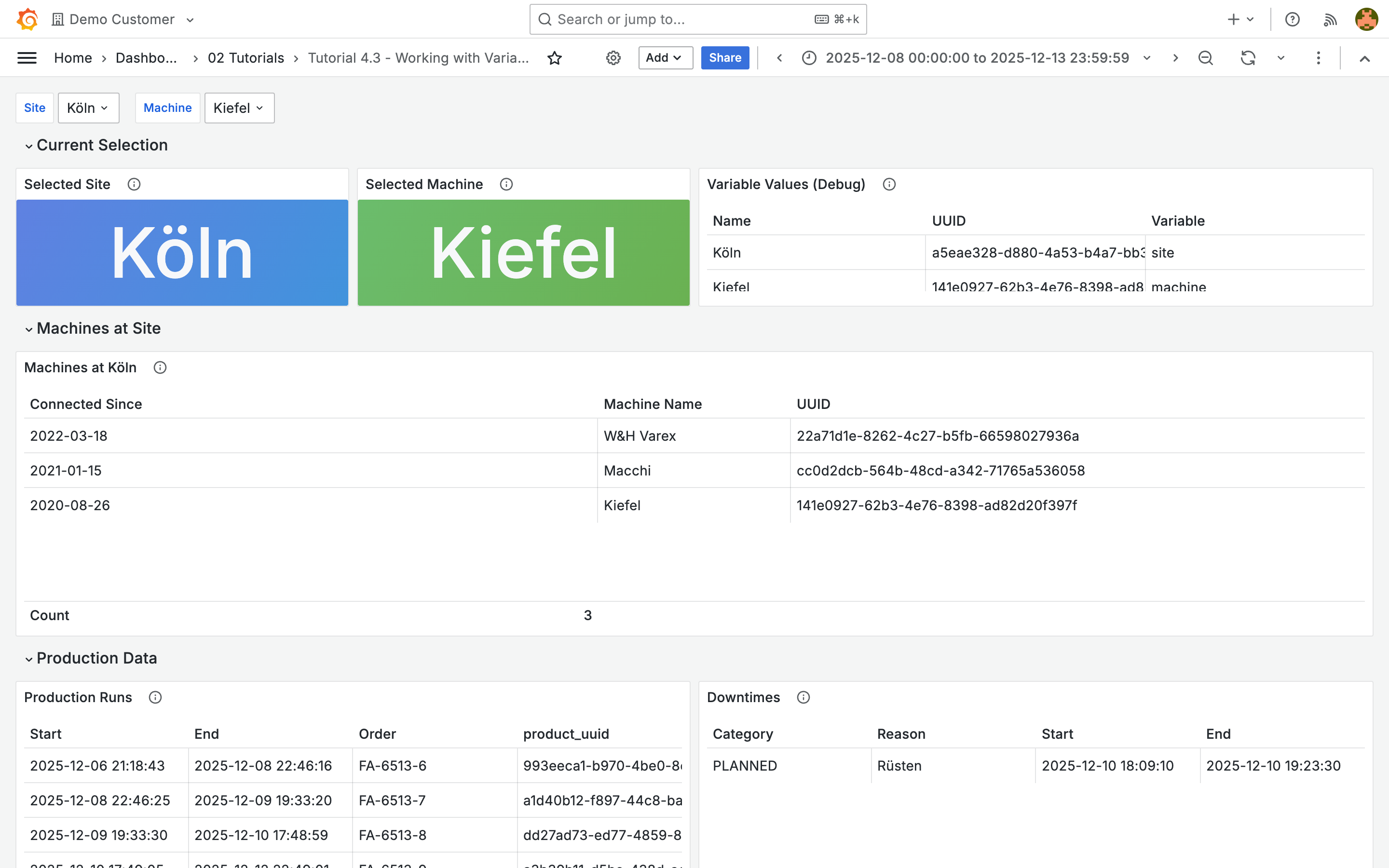
Back on the dashboard you will see a **Site** dropdown at the top with the available sites.
***
## Chained dropdown: machine by site
The machine dropdown should only show machines for the selected site. To achieve this, you pass the `site` variable as a query parameter to the API.
1. Open **Dashboard Settings** > **Variables** > **+ New variable** again
2. Configure the variable:
| Setting | Value |
| ------------- | ---------- |
| Variable type | Query |
| Name | `machine` |
| Label | Machine |
| URL | `machines` |
| Root selector | `$.data` |
3. Add the following under **URL Query Params**:
| Key | Value |
| ------ | --------- |
| `site` | `${site}` |
4. Columns same as for `site`: `name` (Name), `uuid` (UUID)
5. Sort: **Alphabetical (asc)**, Refresh: **On dashboard load**
The API filters server-side and returns only machines for the selected site. When you switch the site, the machine list updates automatically.
{% hint style="info" %}
The order of variables matters: `machine` depends on `site`. Grafana evaluates variables in the order they are defined. `site` must come before `machine`.
{% endhint %}
***
## Use variables in panels
Create panels that use the variables. Here are three typical patterns:
### URL path: display the selected site
Create a **Stat** panel with the following query:
| Setting | Value |
| ------------- | --------------- |
| URL | `sites/${site}` |
| Root selector | (empty) |
Under **Stat** > **Value options**, set **Fields** to `/^name$/`. The panel displays the name of the selected site.
### JSONata filter in the root selector
Not every API supports server-side filtering. In those cases you can filter the response client-side with JSONata. Create a **Table** panel that loads all machines and filters by site in the root selector:
| Setting | Value |
| ------------- | ------------------------------------------------------ |
| URL | `machines` |
| Root selector | `$filter($.data, function($v){ $v.site = "${site}" })` |
Add columns: `name` (Machine Name), `uuid` (UUID), `genesis_date` (Connected Since).
{% hint style="info" %}
When the API offers a matching filter parameter (like `site` on the `machines` endpoint), use it instead of JSONata. This is more efficient because less data is transferred. JSONata filters in the root selector are useful when no server-side filter is available.
{% endhint %}
### Query parameter: production data
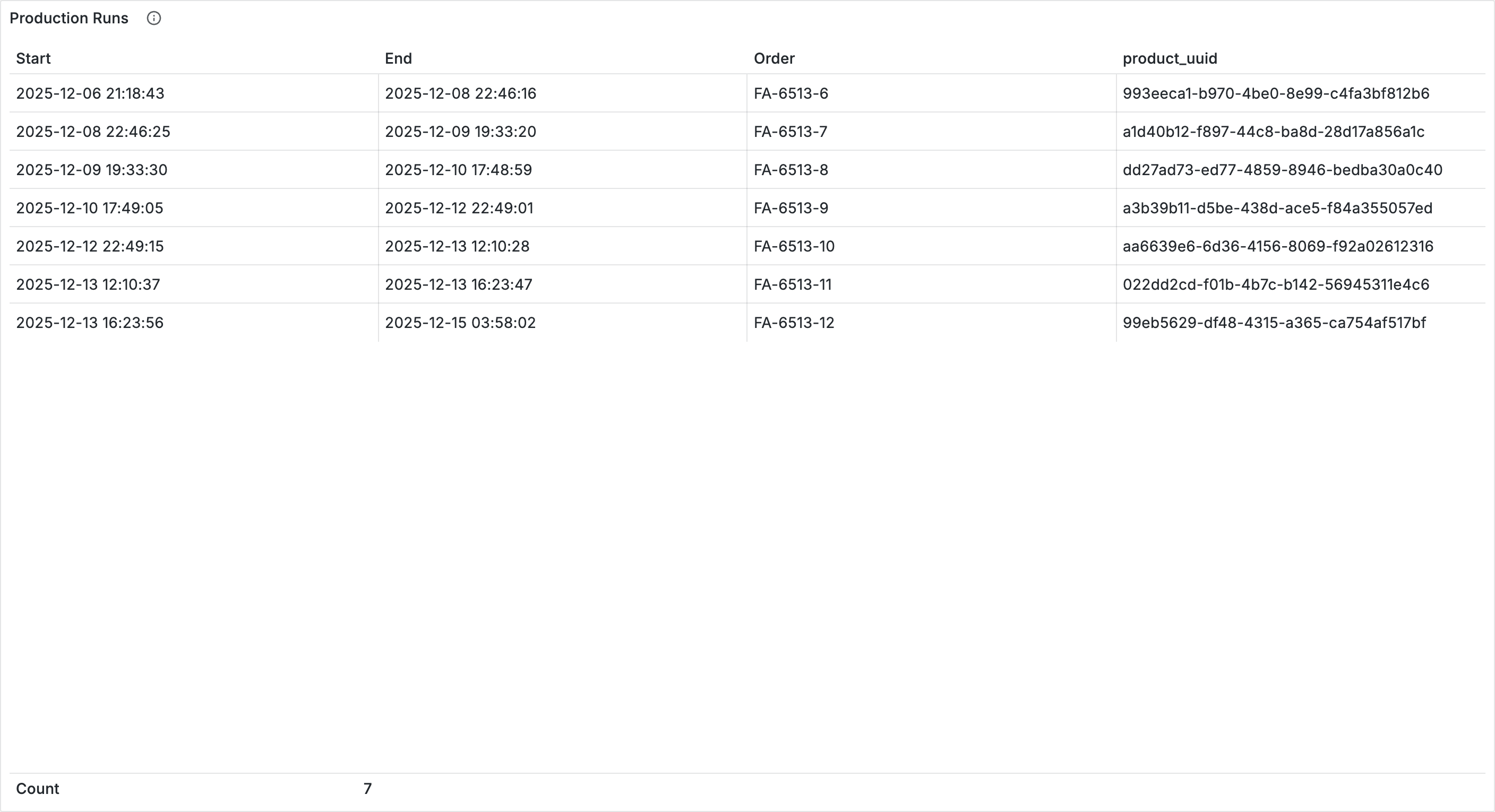
Create a **Table** panel for production runs:
| Setting | Value |
| ------------- | ----------------- |
| URL | `production-runs` |
| Root selector | `$.data` |
Add the following under **URL Query Params**:
| Key | Value |
| --------- | -------------------- |
| `machine` | `${machine}` |
| `start` | `${__from:date:iso}` |
| `end` | `${__to:date:iso}` |
### Panel title with variables
You can also use variables in the panel title. Set the title to `Machines at ${site:text}`. The placeholder `${site:text}` is replaced with the display name (e.g. "Köln") rather than the UUID.
***
## Debug tip: display variable values
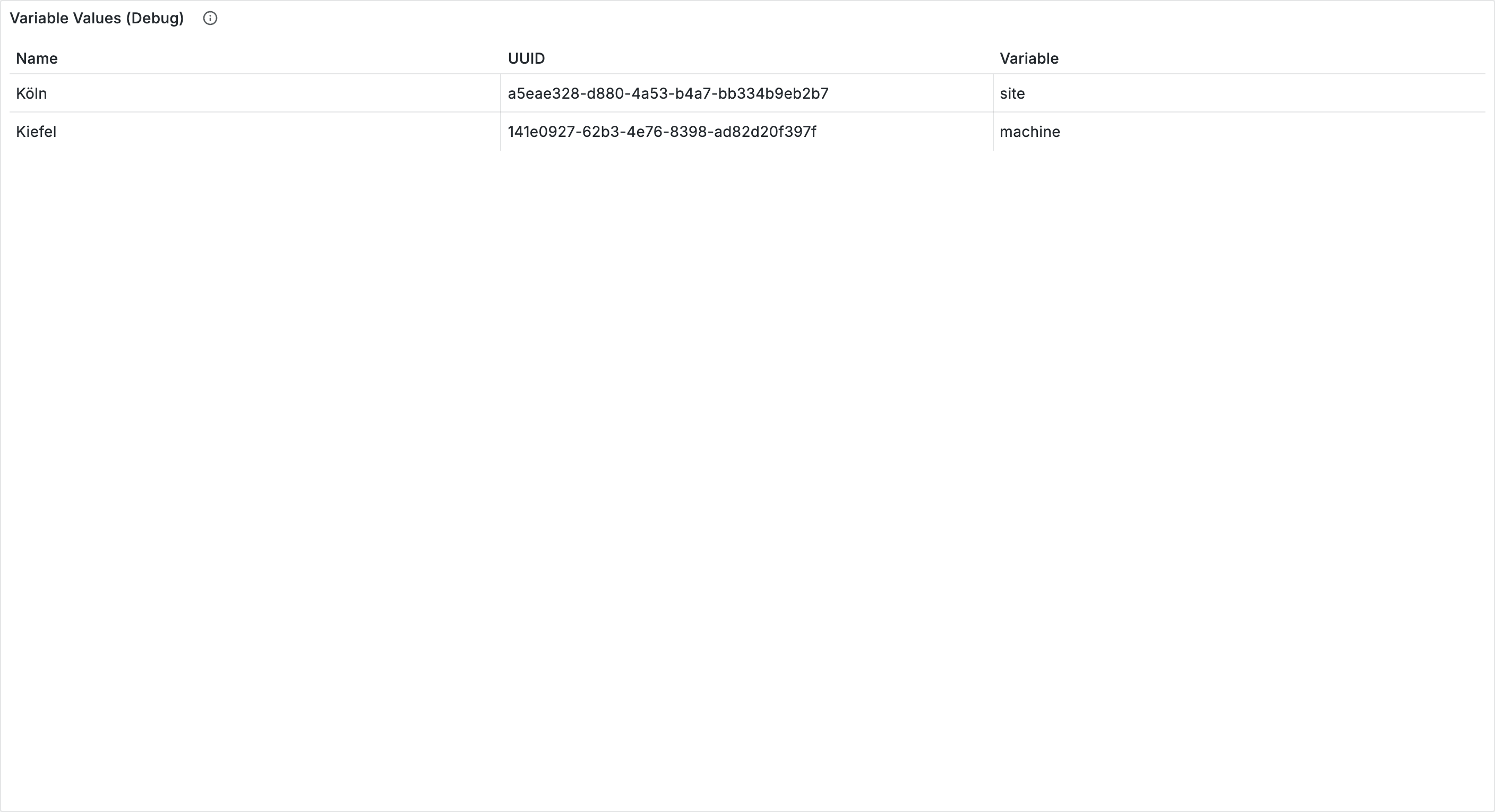
The dropdown shows the display name, but the query uses the UUID. To see both values side by side, create a **Table** panel with inline data:
1. Create a new panel with the **Table** visualization
2. Set the source to **Inline** instead of URL
3. Enter the following JSON:
```json
[
{"Variable": "site", "UUID": "${site}", "Name": "${site:text}"},
{"Variable": "machine", "UUID": "${machine}", "Name": "${machine:text}"}
]
```
The table shows you exactly which values Grafana substitutes. This is particularly helpful when a query does not return the expected result and you want to check whether the correct UUID is being passed.
***
## Variable syntax
| Syntax | Result | Example |
| ------------- | ------------------------------ | ------------------- |
| `${var}` | Value (UUID) | `a5eae328-d880-...` |
| `${var:text}` | Display name | `Köln` |
| `${var:csv}` | Comma-separated (multi-select) | `uuid1,uuid2` |
| `${var:json}` | JSON array (multi-select) | `["uuid1","uuid2"]` |
| `${var:pipe}` | Pipe-separated (multi-select) | `uuid1\|uuid2` |
The `:csv`, `:json`, and `:pipe` formats are especially relevant for multi-select variables. You will learn about those in the next tutorial.
***
## Tips
* **Naming variables**: Use short, descriptive names like `site`, `machine`, `product`. Avoid spaces and special characters.
* **Refresh strategy**: Use "On dashboard load" for variables that rarely change (sites, machines). Use "On time range change" for time-dependent values.
* **Order = dependency**: Variables are evaluated in the order they are defined. Dependent variables must come after their dependencies.
* **Debug first**: When a query does not return the expected result, check the variable values with the debug table first.
***
## Next steps
* [**Advanced variables**](/en/integrations/grafana/advanced-api/03b-advanced-variables.md) -- Multi-select, repeat panels, and hidden variables for per-machine OEE