> For the complete documentation index, see [llms.txt](https://docs.enlyze.com/llms.txt). Markdown versions of documentation pages are available by appending `.md` to page URLs; this page is available as [Markdown](https://docs.enlyze.com/en/integrations/grafana/enlyze-data-source.md).
# ENLYZE data source
Overview of the available data and functionality of the ENLYZE data sources in Grafana.
With Grafana you can easily visualize data from the ENLYZE Manufacturing Data Platform. You can use either a self-hosted Grafana instance or Platform Grafana. Two data sources are available for retrieving data. Here you can learn more about these connections and what data you can access with them.
## ENLYZE Grafana Plugin
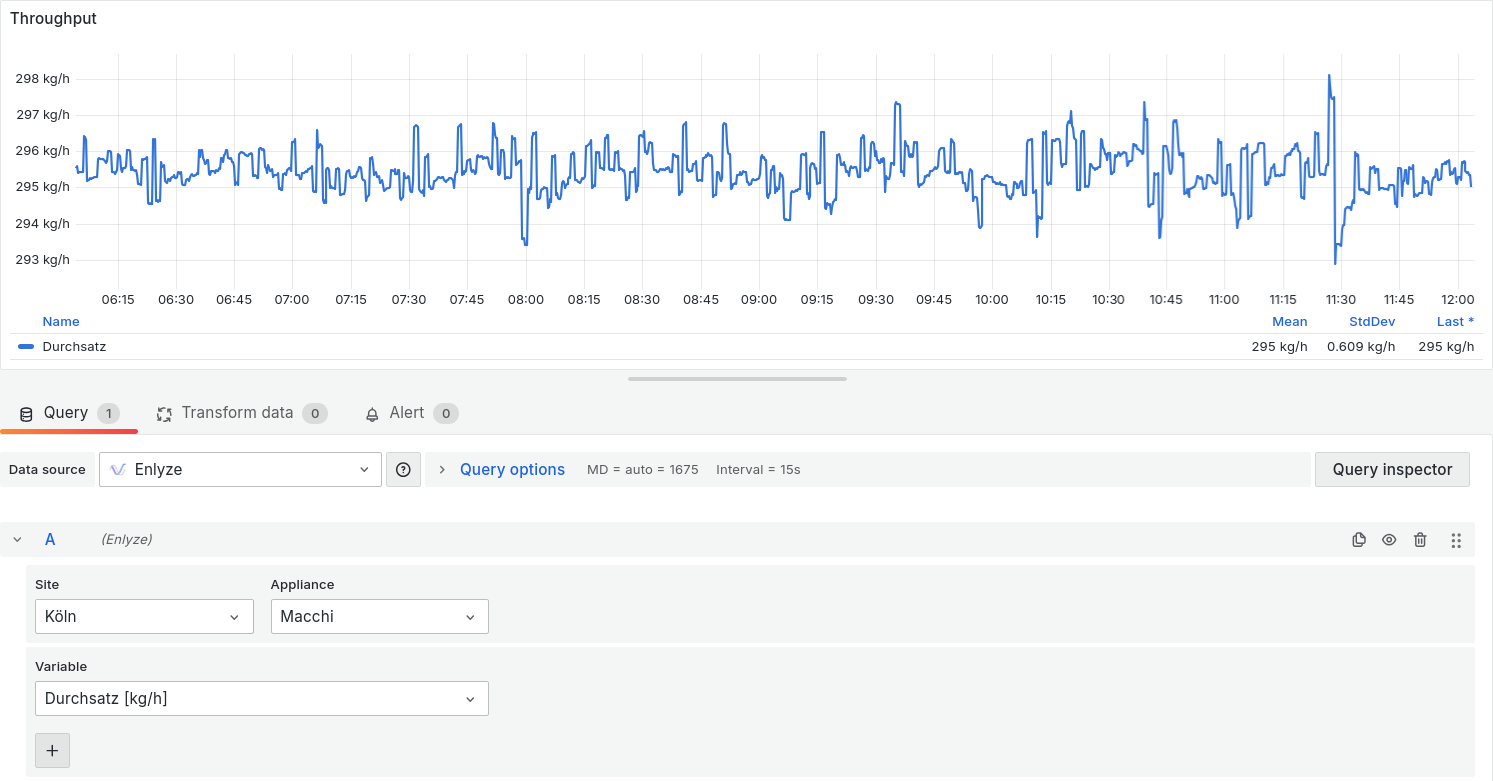
The ENLYZE Grafana Plugin was developed by ENLYZE. It lets you retrieve machine data such as line speeds, temperature, and pressure values. This data source is therefore ideal for time series displays, status indicators, and comparisons of target and actual values.
The query editor consists of dropdown fields for site, machine, and variable. All active variables from the ENLYZE app can be retrieved.
The ENLYZE Plugin is available by default in Platform Grafana. If you run your own Grafana instance, see [Install the ENLYZE Plugin](#install-the-enlyze-plugin) for installation instructions.
## Infinity data source
The Infinity data source is a plugin developed by Grafana that serves as a connector for APIs. This makes it ideal for connecting to the [ENLYZE API](https://app.enlyze.com/api/v2/redoc). You can find more information about the Infinity data source in the official [Grafana documentation](https://grafana.com/docs/plugins/yesoreyeram-infinity-datasource/latest/).
A data source connected to the ENLYZE API provides direct access to several predefined data tables. Detailed descriptions of the included data can be found in the linked API documentation.
* [**Sites**](https://app.enlyze.com/api/v2/redoc#operation/get_sites_v2_sites_get): All sites available on the ENLYZE platform.
* [**Machines**](https://app.enlyze.com/api/v2/redoc#operation/get_machines_v2_machines_get): All machines across all sites.
* [**Products**](https://app.enlyze.com/api/v2/redoc#operation/get_products_v2_products_get): All products recorded on the platform so far.
* [**Variables**](https://app.enlyze.com/api/v2/redoc#operation/get_variables_v2_variables_get): All active variables across all machines.
* [**Production Runs**](https://app.enlyze.com/api/v2/redoc#operation/get_production_runs_v2_production_runs_get): All production runs recorded on the platform across all machines.
* [**Downtimes**](https://app.enlyze.com/api/v2/redoc#operation/get_downtimes_v2_downtimes_get): All downtimes recorded on the platform across all machines.
This data source is versatile. For a first look at using the Infinity data source, see the tutorial [02 API Queries](/en/integrations/grafana/advanced-api/02-api-queries.md).
## Install the ENLYZE Plugin
If you run your own Grafana instance and want to use the ENLYZE Plugin, you can install it manually. The plugin is not listed in the Grafana plugin catalog.
We can create a signed version of the ENLYZE Plugin specifically for your instance. For this we need the [`root_url`](https://grafana.com/docs/grafana/latest/setup-grafana/configure-grafana/#root_url) of your Grafana instance. After receiving the signed plugin, it must be installed manually. The [Grafana documentation](https://grafana.com/docs/grafana/latest/administration/plugin-management/#install-plugin-on-local-grafana) provides detailed instructions for manual plugin installation.
After installation, you need to add the new data source, which can be found under the name **Enlyze**.
{% hint style="info" %}
If the data source does not appear as an option, restart Grafana.
{% endhint %}
When setting up the data source, you will be prompted to enter an ENLYZE API key, which authenticates access to the ENLYZE Manufacturing Data Platform. We recommend using an organizational API key, as it is not tied to a specific user.
If you want to use the ENLYZE Plugin, contact your ENLYZE representative. We will provide you with the plugin and help you with the installation. Learn how to create an API key under [Manage API keys](/en/administration/api-keys.md).
### Supported Grafana versions
The ENLYZE Plugin supports Grafana 9.2.5 up to and including 12.x.
Starting with Grafana 13.0, the dropdown fields in the query editor (site, machine, variable) stay empty because Grafana disables a deprecated API by default that the plugin uses for these fields. Existing panels and queries continue to work. A plugin update that removes this limitation is in progress.
{% hint style="warning" %}
If you run Grafana 13.0 or newer, enable the [`datasourceLegacyIdApi`](https://grafana.com/docs/grafana/latest/setup-grafana/configure-grafana/feature-toggles/) feature toggle in your `grafana.ini` as a temporary workaround:
```ini
[feature_toggles]
datasourceLegacyIdApi = true
```
Alternatively, set the environment variable `GF_FEATURE_TOGGLES_DATASOURCELEGACYIDAPI=true`. Restart Grafana afterwards.
{% endhint %}
## Configure the Infinity data source for the ENLYZE API
The [Infinity data source](https://grafana.com/docs/plugins/yesoreyeram-infinity-datasource/latest/) can be configured to connect to the ENLYZE API. Here you will find the required settings for correct configuration.
### 1. Add the data source
First, add a new Infinity data source.
### 2. Authentication
* Go to Authentication and select `Bearer Token`.
* Under **Auth details > Bearer token**, enter the ENLYZE API key. If you do not have one yet, learn how to create one under [Manage API keys](/en/administration/api-keys.md).
* Under **Allowed Hosts**, enter `https://app.enlyze.com`.
### 3. Base URL
* Go to URL, Headers & Params.
* Under **Base URL**, enter: `https://app.enlyze.com/api/v2/`.
### 4. Security
* Go to Security.
* Under **Allowed hosts**, enter: `https://app.enlyze.com`.
### 5. Health check
* Go to Health check.
* Verify that the custom health check is enabled.
* Under **Health check URL**, enter: `https://app.enlyze.com/api/v2/openapi.json`.
Finally, click **Save & test**. If the configuration is correct, a successful health check will confirm the connection to the API: