> For the complete documentation index, see [llms.txt](https://docs.enlyze.com/llms.txt). Markdown versions of documentation pages are available by appending `.md` to page URLs; this page is available as [Markdown](https://docs.enlyze.com/en/integrations/grafana/getting-started/02-first-dashboard.md).
# 02 First Dashboard
Create your first Grafana dashboard with ENLYZE data.
In this tutorial you create your first Grafana dashboard step by step using ENLYZE production data:
## What you will learn
* Create a new dashboard and save it
* Add a panel with time series data
* Configure a query with the ENLYZE data source
* Customize the panel title and legend
## Prerequisites
* [Tutorial: Introduction to Grafana](/en/integrations/grafana/getting-started/01-introduction.md) completed
* Access to your ENLYZE Grafana instance
* At least one machine with data in the ENLYZE platform
***
## Create a new dashboard
1. Click the **+** icon in the top right, or use the menu **Dashboards** > **New** > **New Dashboard**
2. You will see an empty dashboard with a prompt to add your first panel
***
## Add your first panel
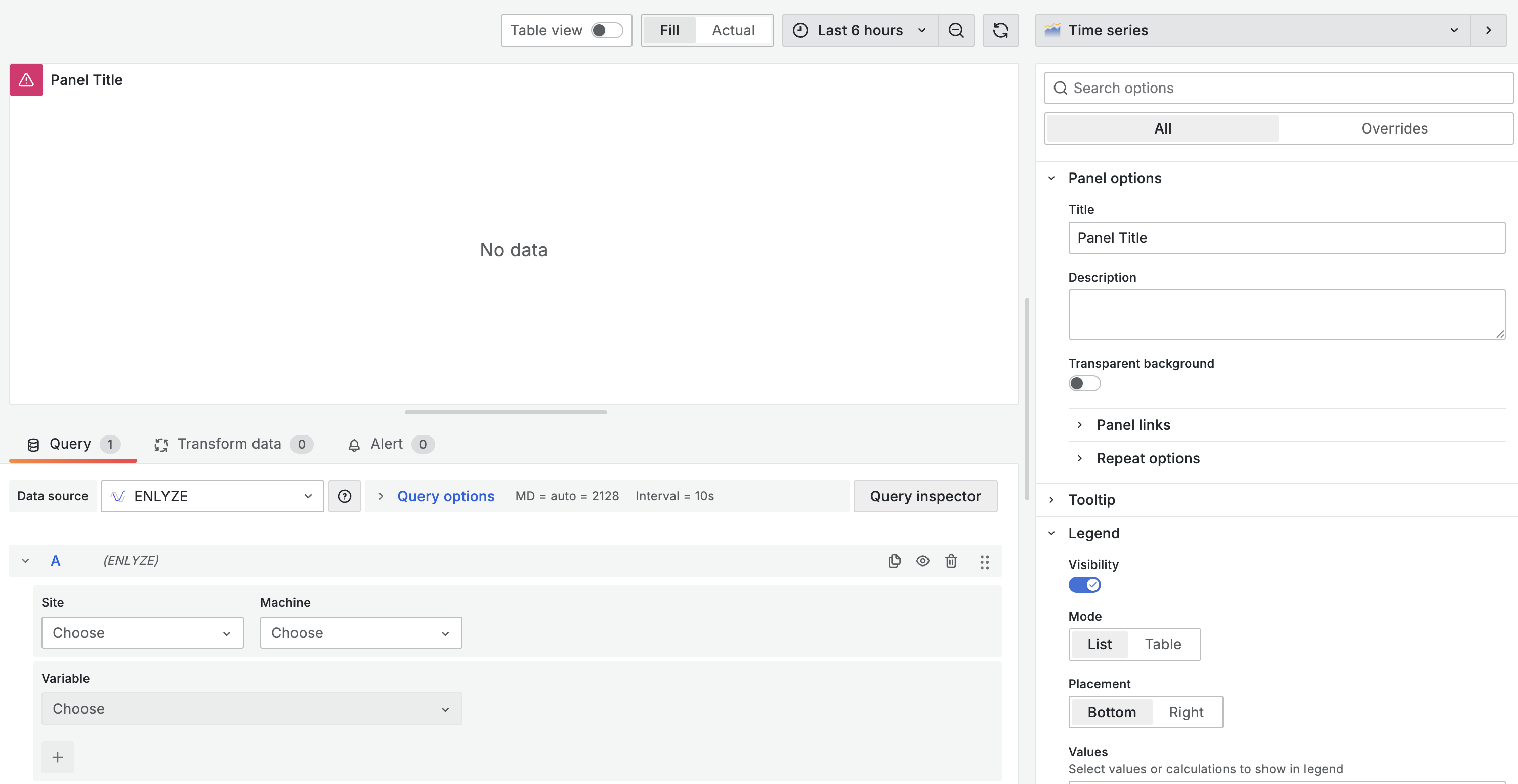
1. Click **Add visualization**
2. In the data source selector, choose **ENLYZE** (not Infinity)
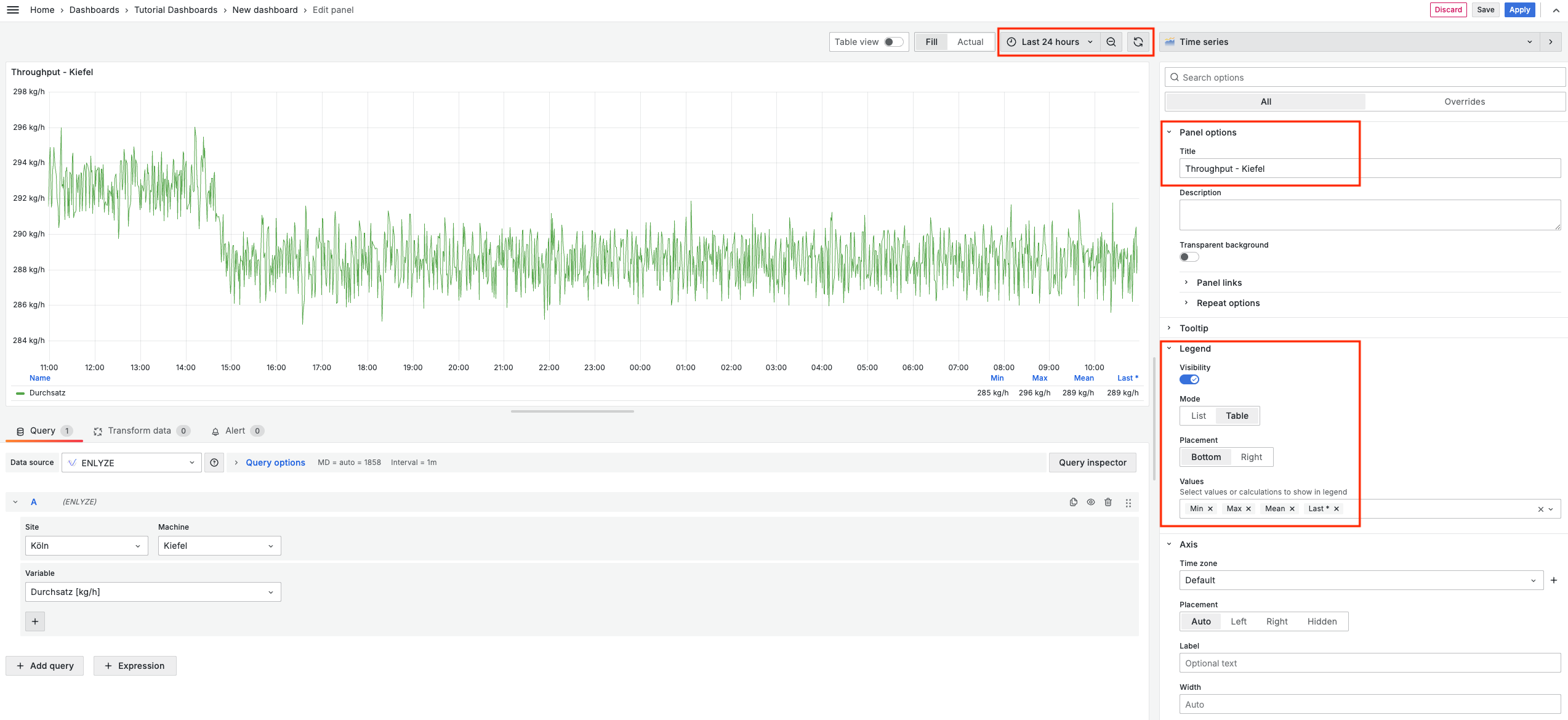
The panel editor has three main areas:
* **Top**: Preview of your visualization
* **Bottom left**: Query configuration
* **Right sidebar**: Panel options
***
## Configure your query
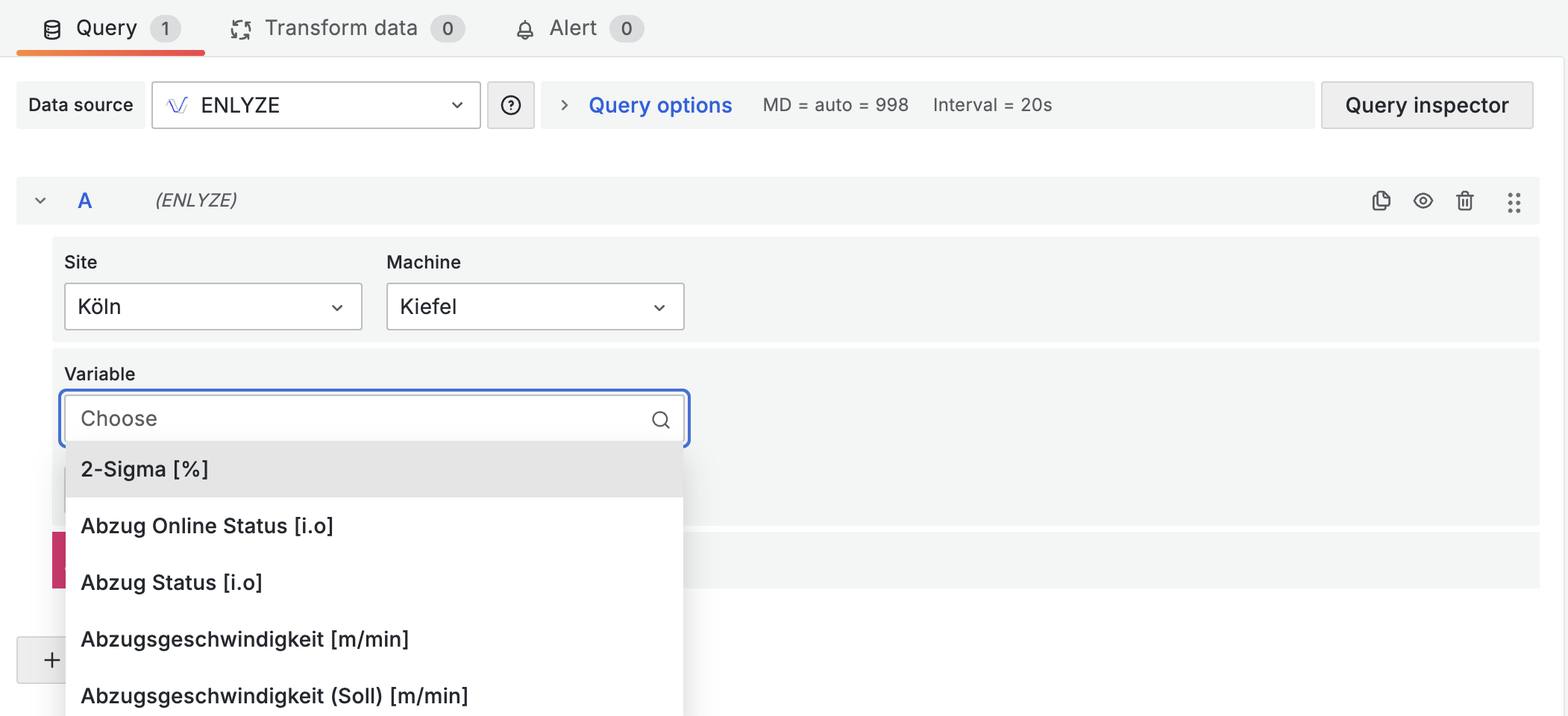
The ENLYZE data source uses a simple selection process: site, machine, and variables.
1. In the query editor, click the **Site** dropdown and select your production site (e.g. "Koln")
2. Click **Machine** and select the machine (e.g. "Kiefel")
3. Click **Variables** and select one or more data points (e.g. "Durchsatz")
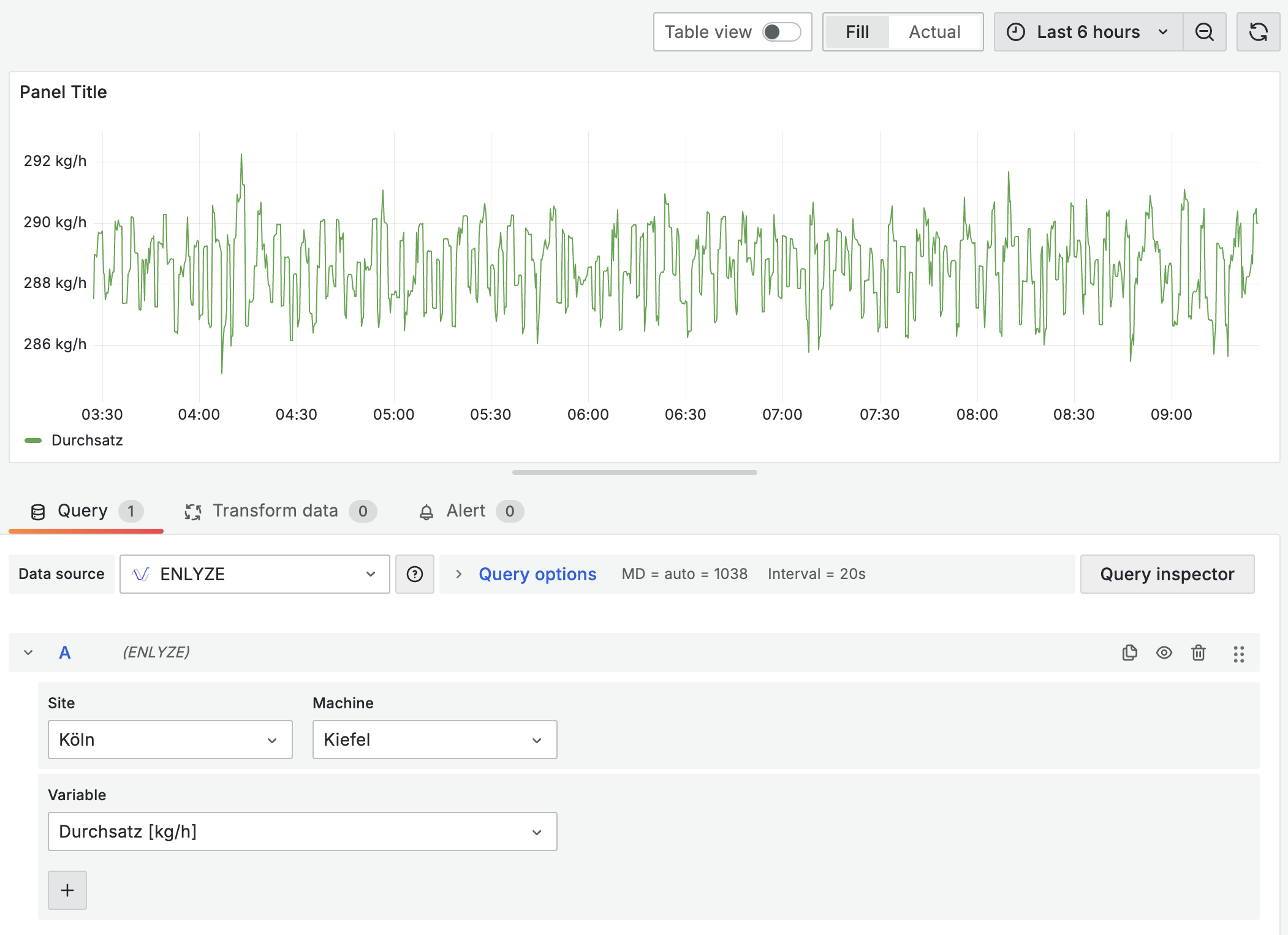
Click the refresh icon in the top right next to the time range selector to load your data:
{% hint style="info" %}
If no data appears, check that the time range covers a period when the machine was running. Expand the range (e.g. "Last 7 days") to find data.
{% endhint %}
***
## Customize the panel
### Change the title
In the right sidebar, find the **Title** field and replace "Panel Title" with a descriptive name (e.g. "Throughput - Kiefel").
### Configure the legend
1. In the right sidebar, scroll down to **Legend**
2. Set **Mode** to **Table** for a more detailed view
3. Under **Values**, add statistics like **Min**, **Max**, and **Mean**
### Adjust the time range
Click the time range selector in the top right and choose an appropriate range:
| Use case | Recommended range |
| --------------- | ----------------- |
| Live monitoring | Last 1 hour |
| Current shift | Last 8 hours |
| Daily review | Last 24 hours |
| Weekly analysis | Last 7 days |
***
## Save
1. Click **Apply** in the top right of the panel editor to return to the dashboard view
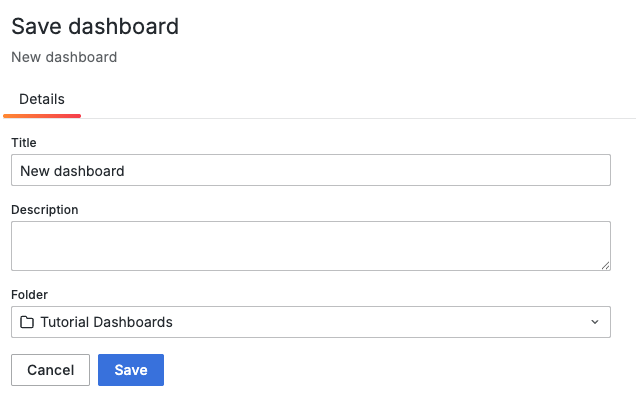
2. Click the **Save** icon in the navigation bar (or `Ctrl+S` / `Cmd+S`)
3. Enter a dashboard name (e.g. "My First Dashboard") and optionally choose a folder
{% hint style="warning" %}
Your dashboard is not saved automatically. Save regularly with `Ctrl+S` / `Cmd+S`.
{% endhint %}
***
## Add more panels
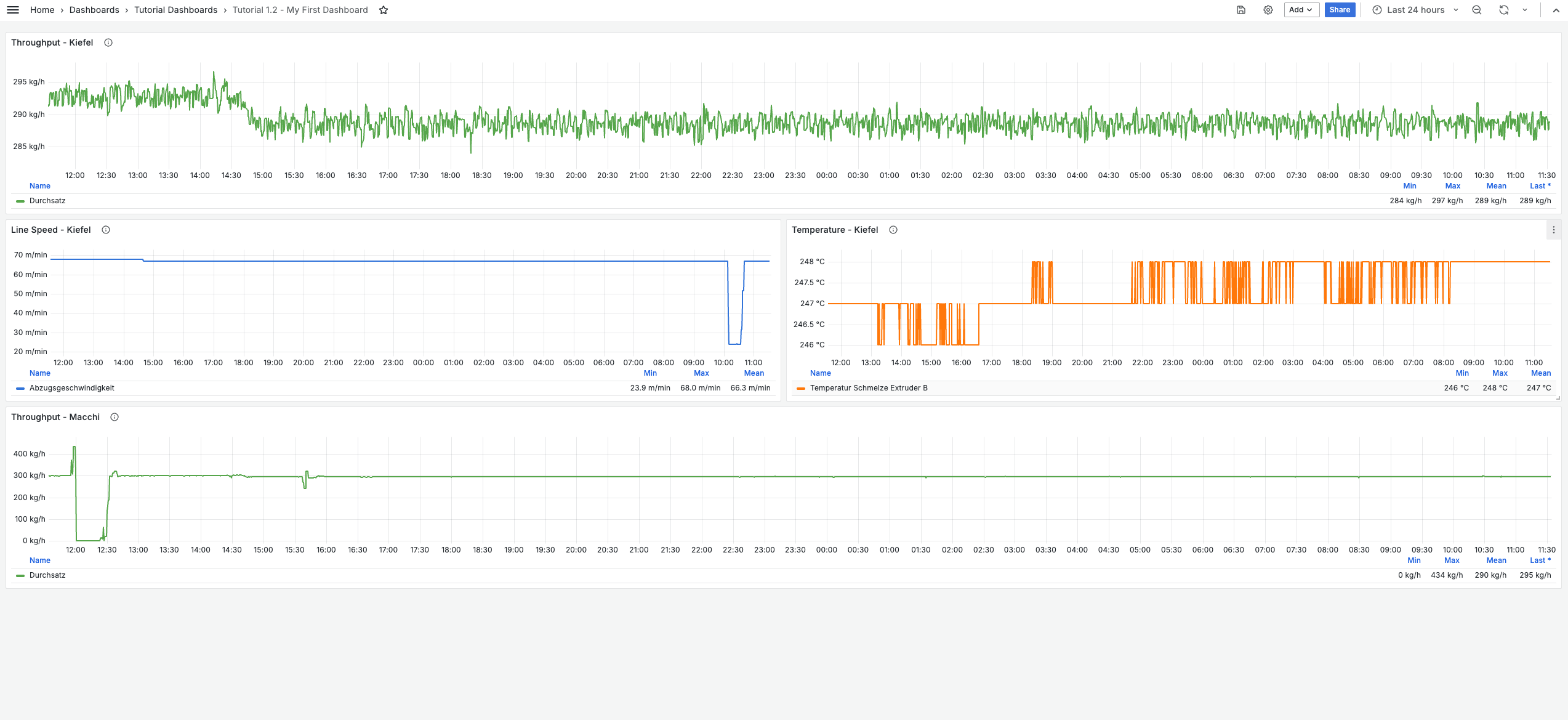
Click **Add** > **Visualization** in the top bar to add more panels. Layout tips:
* Place related panels next to each other
* Use full-width panels for time series
* Use smaller panels for single-value displays
***
## Next steps
* [**Time series**](/en/integrations/grafana/visualisation-types/01-time-series.md) - Advanced options for line charts
* [**Single value displays**](/en/integrations/grafana/visualisation-types/02-single-values.md) - Stat, gauge, and bar gauge panels
* [**Tables**](/en/integrations/grafana/visualisation-types/03-tables.md) - Display data in tabular format