> For the complete documentation index, see [llms.txt](https://docs.enlyze.com/llms.txt). Markdown versions of documentation pages are available by appending `.md` to page URLs; this page is available as [Markdown](https://docs.enlyze.com/en/integrations/grafana/intermediate-features/01-dashboard-organization.md).
# 01 Dashboard Organisation
Organize and structure dashboards in Grafana.
As your dashboard grows with more panels, good organization becomes increasingly important. In this tutorial you will learn the key tools for keeping dashboards clear and easy to navigate:
## What you will learn
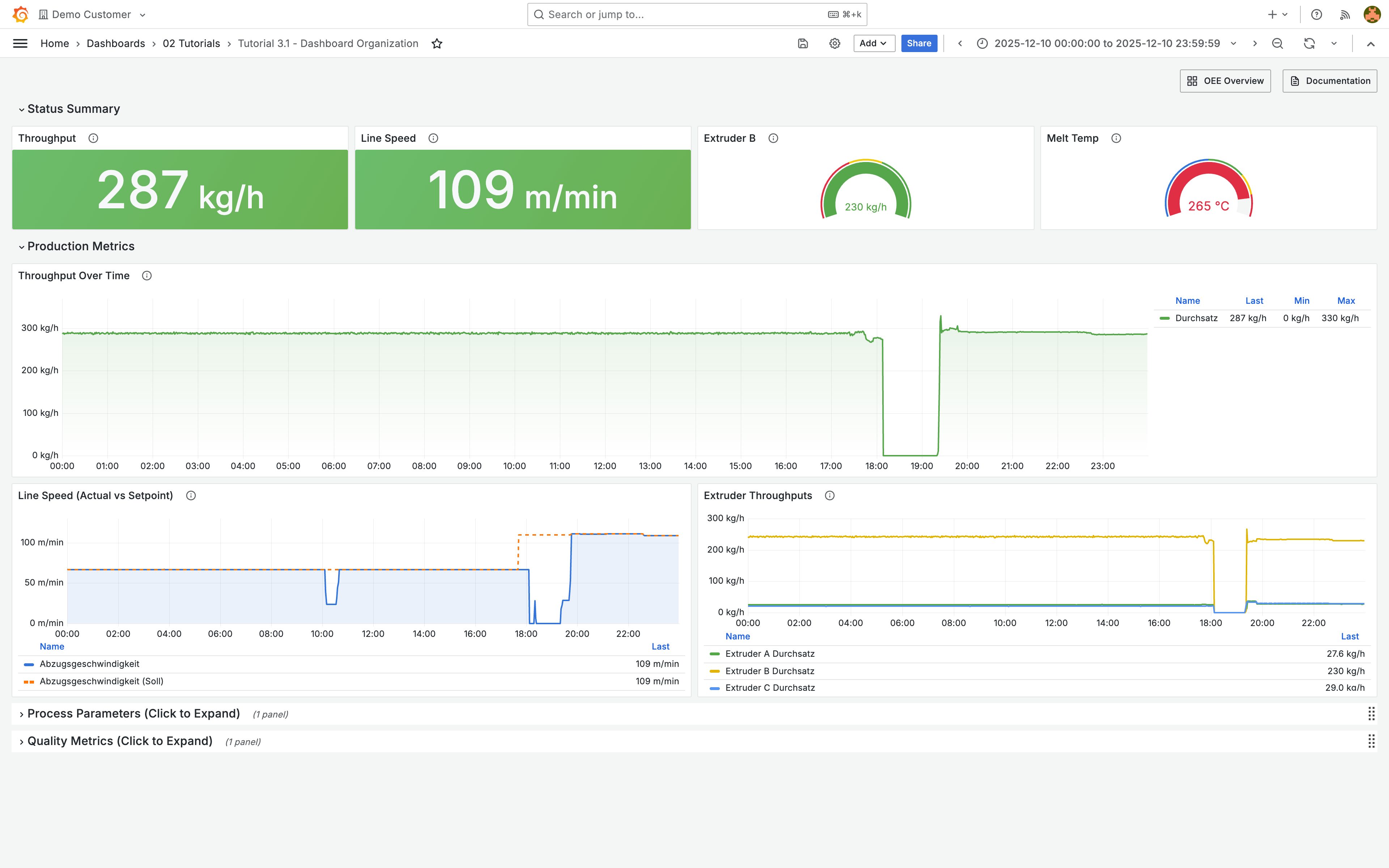
* Group panels logically with rows and collapse them
* Link dashboards to each other
* Use folders to manage dashboard collections
* Use dashboard settings and versioning
## Prerequisites
* Completed Part 1 and Part 2 of the tutorials
* At least one dashboard with multiple panels
***
## Rows
Rows are horizontal containers that group related panels under a shared heading. They can be collapsed to hide panels.
### Add a row
1. In edit mode, click **Add** in the top navigation
2. Select **Row**
3. Drag panels below the row to assign them to that section
### Change the row title
Click the row title, then click the gear icon to configure the title and other options.
### Collapsible rows
Click the arrow next to the row title to collapse or expand the panels inside it. Collapsed panels are not rendered, which speeds up page loading.
### Recommended structure
| Section | Content |
| --------------------------- | --------------------------------------------------- |
| **Top (expanded)** | Summary KPIs, status, alerts |
| **Middle rows** | Detailed time series, process parameters |
| **Bottom rows (collapsed)** | Historical data, less frequently needed information |
***
## Dashboard links
Links help users navigate between related dashboards.
### Add dashboard links
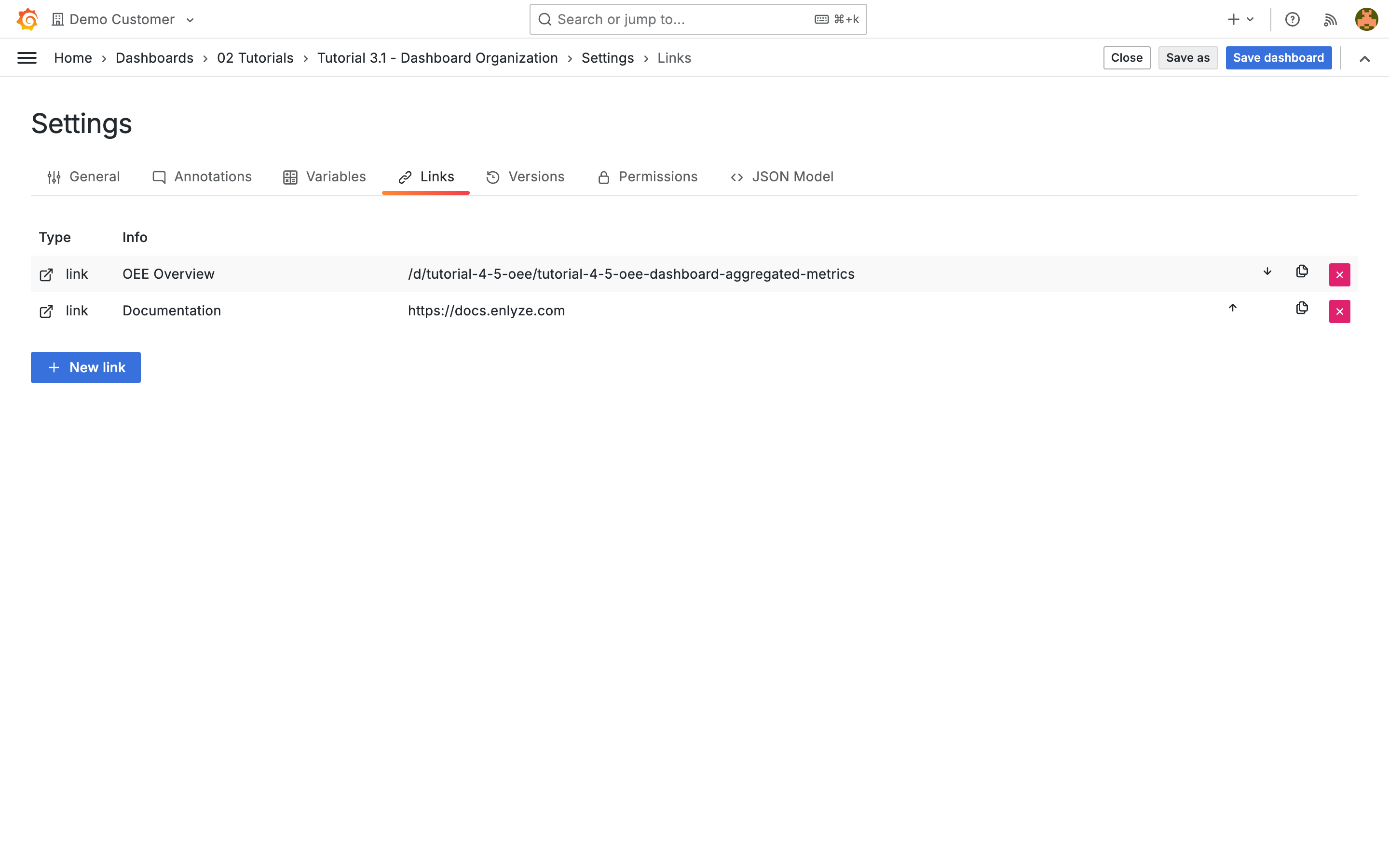
1. Open the dashboard settings (gear icon)
2. Select the **Links** tab
3. Click **+ New link**
4. Configure the link:
| Setting | Description |
| -------------------------------------- | ------------------------------------- |
| **Type** | Dashboard or Link (URL) |
| **Title** | Display text |
| **Include current time range** | Pass the time selection to the target |
| **Include current template variables** | Pass variable values to the target |
| **Open in new tab** | Open the link in a new browser tab |
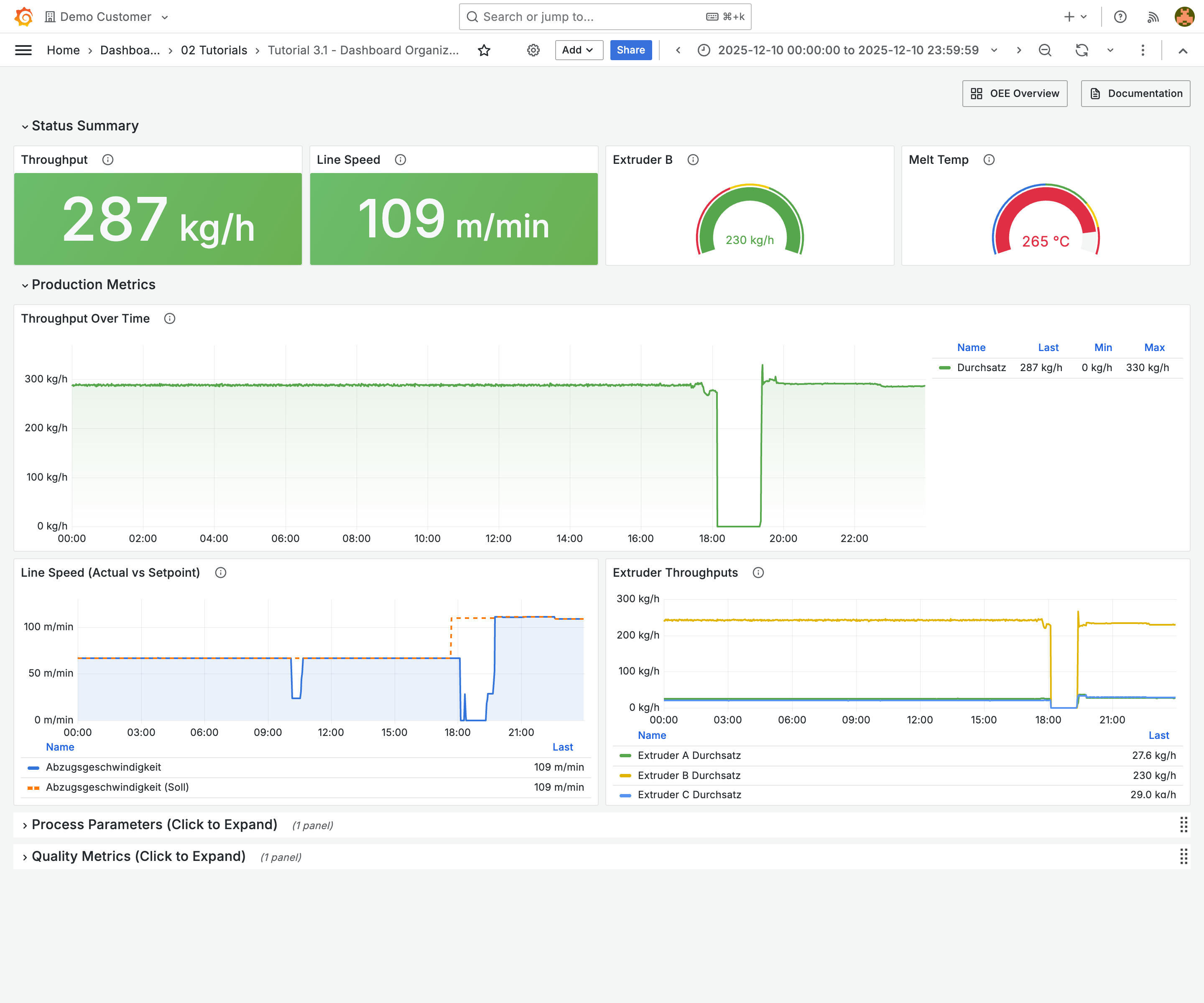
Links appear in the dashboard header:
### Drilldown links in panels
Create links that appear when clicking on data points:
1. Edit the panel
2. In the sidebar, find the **Data links** section
3. Click **Add link**
You can use variables in the URL, for example `${__data.fields.machine}`, to navigate to the correct detail dashboard based on context.
### Link strategy
Build a navigation hierarchy so that users can intuitively switch between detail and overview levels:
```
Site overview
└── Hall overview
└── Machine dashboard
└── Detailed analysis
```
Each level links to the next via a dashboard link. Enable **Include current time range** and **Include current template variables** so that the time selection and filter values are preserved when navigating.
{% hint style="info" %}
For more details on dashboard links and drilldown links, see the [Grafana documentation](https://grafana.com/docs/grafana/latest/dashboards/build-dashboards/manage-dashboard-links/).
{% endhint %}
***
## Folders and permissions
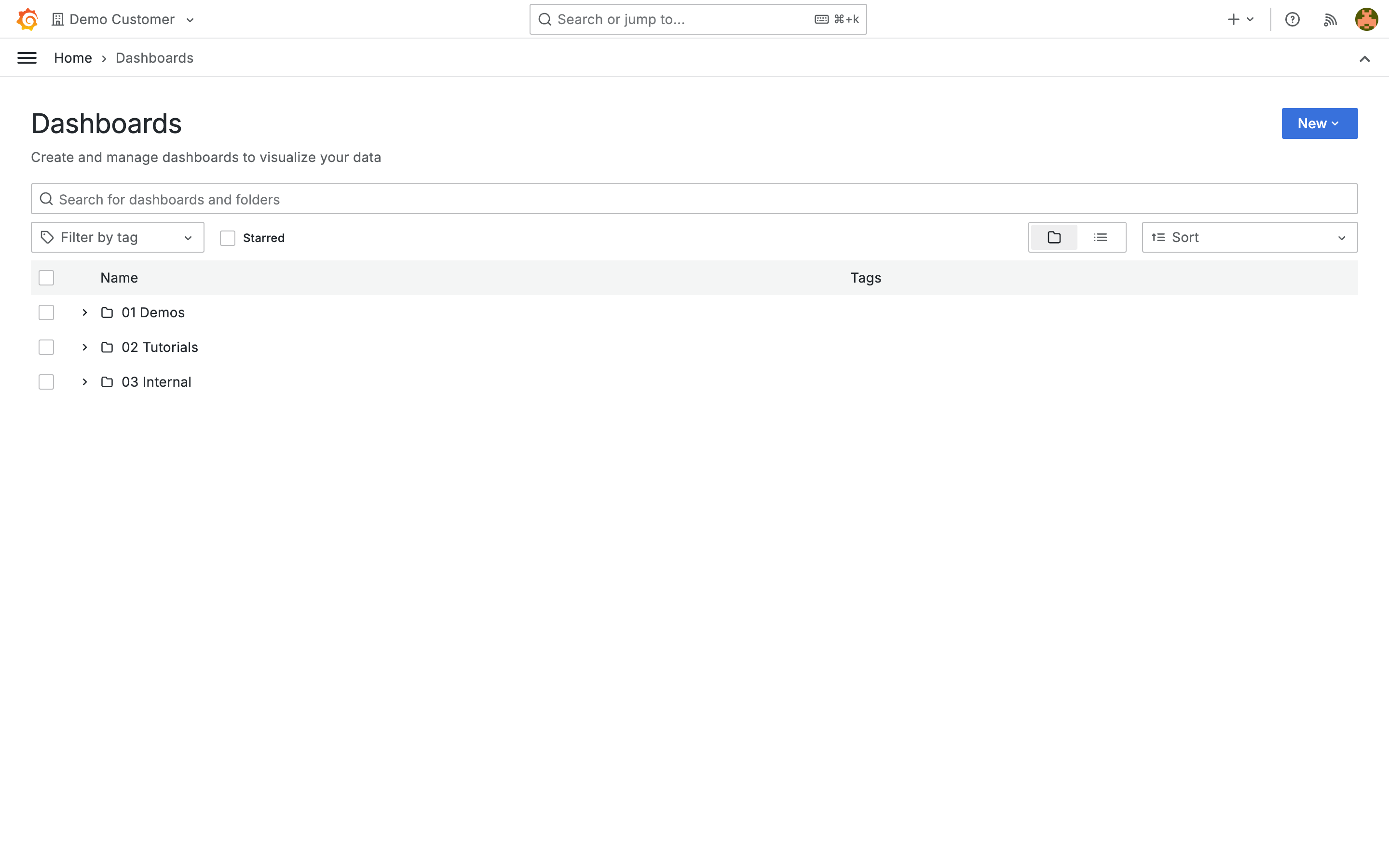
Folders organize dashboards in the Grafana sidebar. The folder structure can mirror the navigation hierarchy of your dashboard links.
1. Go to **Dashboards** in the main menu
2. Click **New**, then **New folder**
### Recommended folder structure
| Folder | Content |
| --------------- | ----------------------------------- |
| **Overview** | Summary dashboards, KPI overview |
| **Production** | Machine monitoring, throughput |
| **Quality** | Quality metrics, deviation tracking |
| **Maintenance** | Machine health, alerts |
| **Development** | Work-in-progress dashboards |
{% hint style="info" %}
Create a personal folder (for example with your name) for drafts and experiments. Under **Folder settings** > **Permissions** you can make the folder invisible to others.
{% endhint %}
### Permissions
Under **Folder settings** > **Permissions** you control who can view or edit dashboards in a folder. Assign Viewer or Editor roles to users or teams.
***
## Dashboard settings and versioning
### General settings
Open the dashboard settings via the gear icon in the top navigation:
| Setting | Description |
| ---------------- | ------------------------------------- |
| **Name** | Dashboard title |
| **Tags** | Searchable labels |
| **Timezone** | Browser, UTC, or a specific timezone |
| **Auto refresh** | Default refresh interval |
| **Editable** | Allow editing (disable for view-only) |
### Versioning
Grafana automatically saves dashboard versions. Under **Versions** in the dashboard settings you can:
* View saved versions with timestamps
* Compare two versions (JSON diff)
* Restore previous versions
{% hint style="info" %}
Use meaningful commit messages when saving to keep track of changes.
{% endhint %}
***
## Tips
* **Dashboard size**: Shopfloor displays should fit without scrolling (1-2 screens). Analysis dashboards can be longer with collapsible rows.
* **Naming conventions**: Use consistent patterns, for example "\[Area] - \[Topic]" or "\[Machine] - \[Detail level]".
* **Grid system**: Grafana uses 24 columns. Use consistent widths: 24 (full), 12 (half), 8 (third), 6 (quarter).
* **Copy panels**: Panel title > **More** > **Duplicate** creates a copy in the same dashboard. With **Copy** and **Paste panel** you can also copy panels across dashboards.
***
## Next steps
* [**Transformations**](/en/integrations/grafana/intermediate-features/02-transformations.md) - Transform and combine data
* [**Introduction to the ENLYZE API**](/en/integrations/grafana/advanced-api/01-introduction.md) - API-based dashboards