> For the complete documentation index, see [llms.txt](https://docs.enlyze.com/llms.txt). Markdown versions of documentation pages are available by appending `.md` to page URLs; this page is available as [Markdown](https://docs.enlyze.com/en/integrations/grafana/intermediate-features/02-transformations.md).
# 02 Transformations
Transform and process data in Grafana.
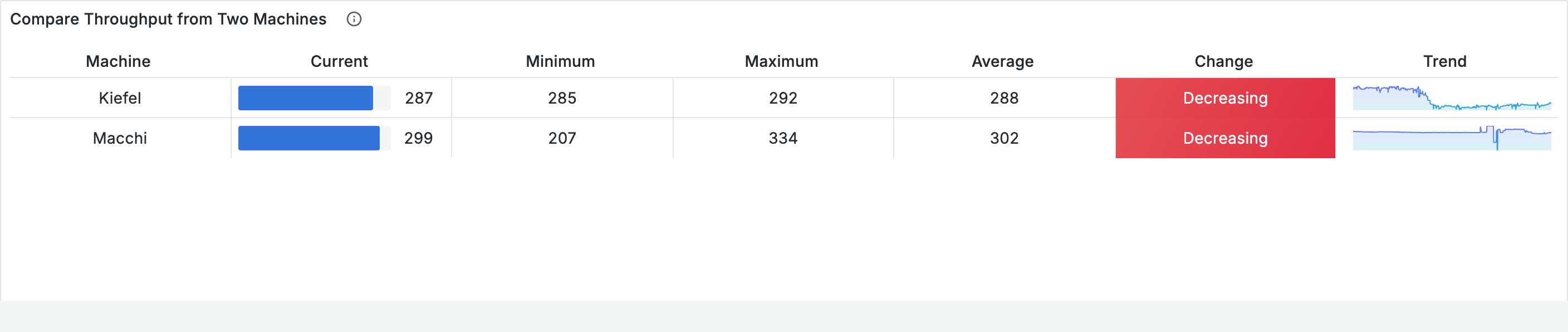
Transformations process data after the query but before visualization: aggregate, filter, rename, combine. In this tutorial you will learn the most important transformations and build a summary table like this step by step:
## What you will learn
* Aggregate data with Reduce (minimum, maximum, mean)
* Rename, reorder, and hide fields
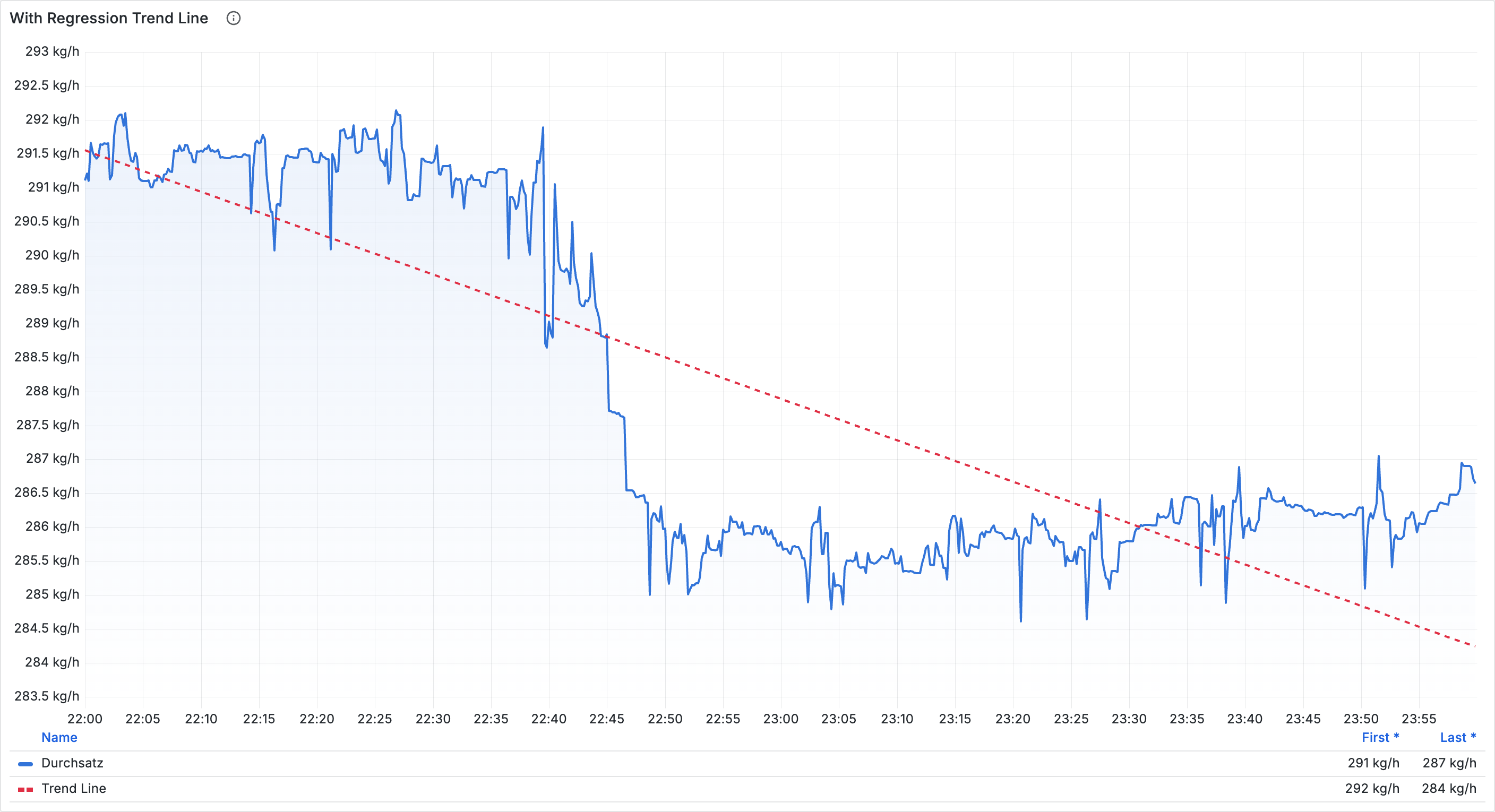
* Add trend lines with regression analysis
* Combine data from multiple queries
* Chain transformations
## Prerequisites
* Completed Part 1 and Part 2 of the tutorials
* Basic knowledge of panel creation
***
## The Transform tab
1. Edit a panel
2. Click the **Transform** tab (between Query and Alert)
3. Click **+ Add transformation** and select a transformation
Transformations are executed from top to bottom. You can reorder them via drag and drop, disable them (eye icon), or delete them (trash icon).
{% hint style="info" %}
The order affects the result. A filter before Reduce produces different results than after.
{% endhint %}
***
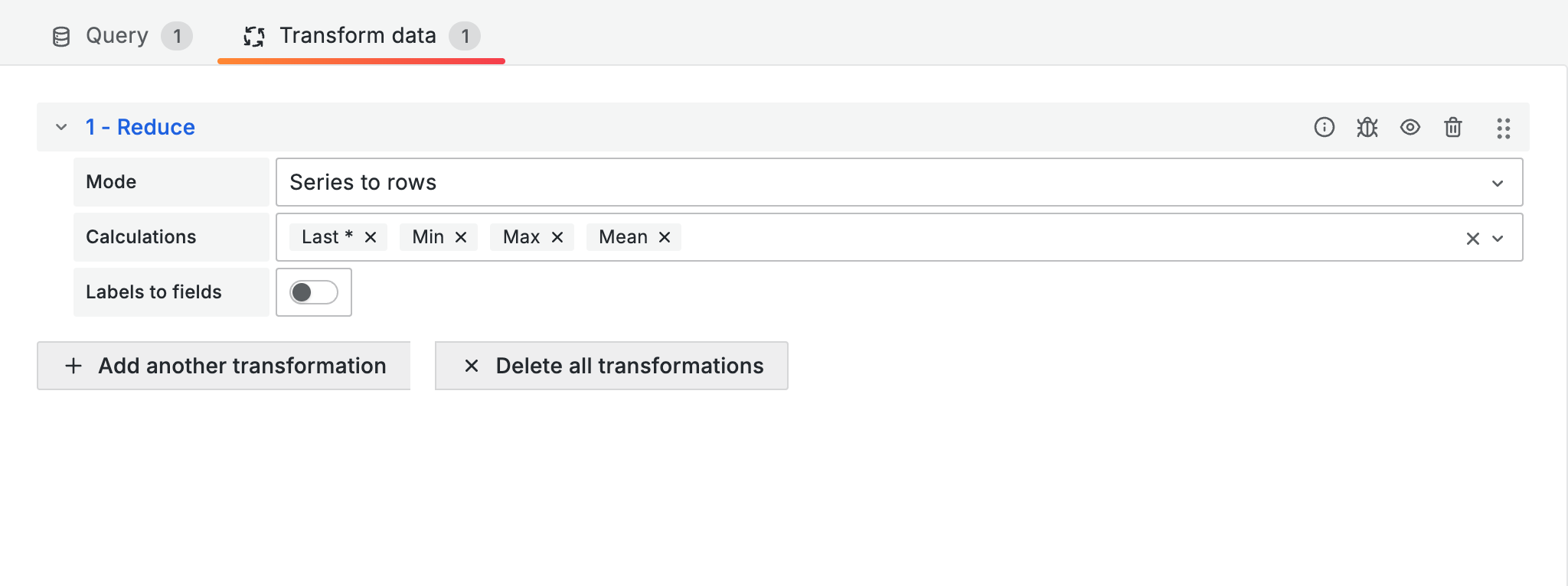
## Reduce
Converts time series data into aggregated values. Ideal for summary tables.
1. Add the **Reduce** transformation
2. Select the calculations:
| Calculation | Description |
| ---------------------- | ------------------------------------ |
| **Last \*** | Last non-null value |
| **Min** / **Max** | Minimum / Maximum |
| **Mean** | Average |
| **Sum** | Sum of all values |
| **Difference percent** | Percentage change |
| **All values** | Array of all values (for sparklines) |
***
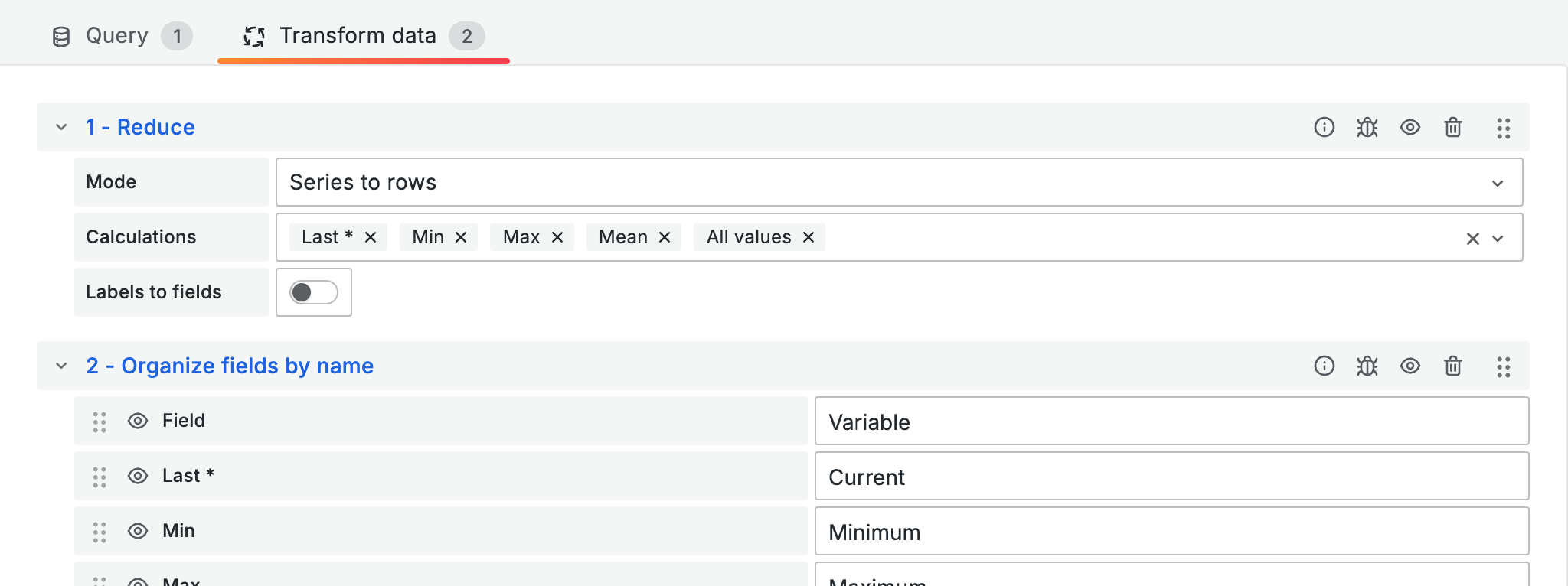
## Organize fields by name
Rename, reorder, and hide columns. Essential for clean tables.
1. Add the **Organize fields by name** transformation
2. For each field:
* **Rename**: Enter a new display name
* **Hide**: Click the eye icon to hide
* **Reorder**: Drag and drop to reorder
***
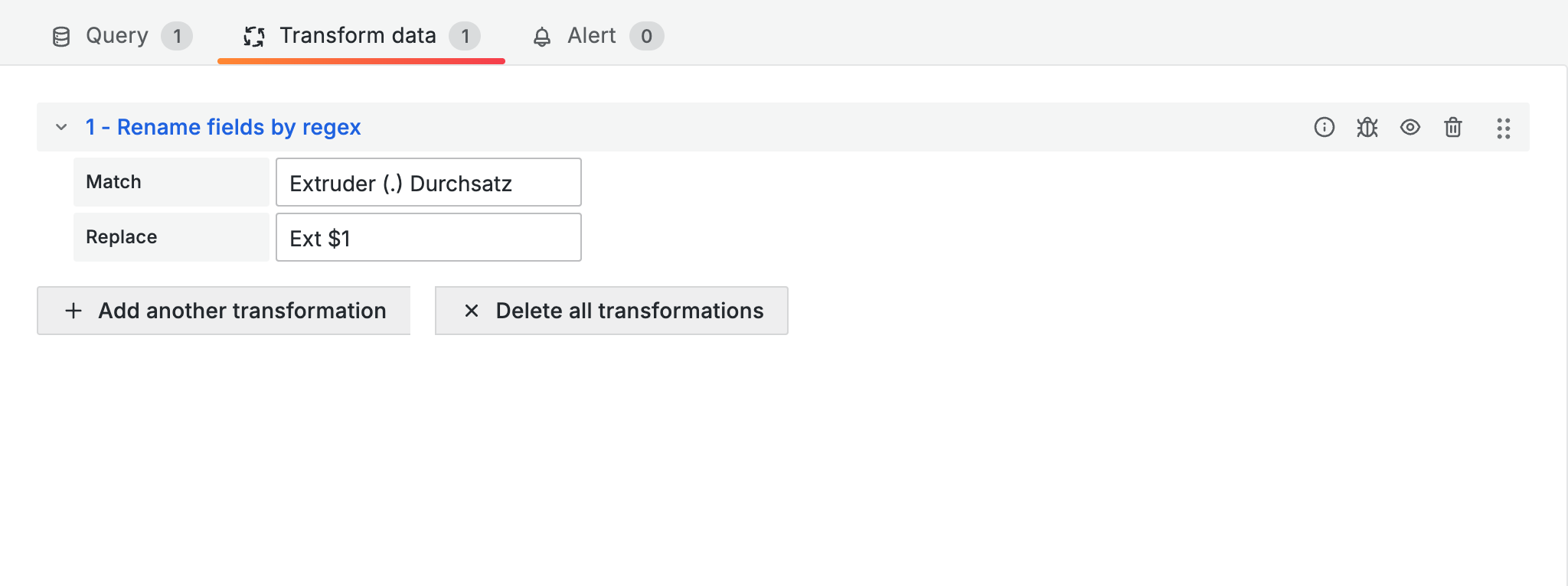
## Rename by regex
Rename multiple fields at once using pattern matching.
| Setting | Description |
| ----------- | -------------------------------------------- |
| **Match** | Regex pattern to match |
| **Replace** | Replacement text ($1, $2 for capture groups) |
**Examples:**
| Match | Replace | Before | After |
| ------------------------ | ---------- | -------------------- | -------------- |
| `Extruder (.) Durchsatz` | `Ext $1` | Extruder A Durchsatz | Ext A |
| `\(Soll\)` | `(Target)` | Speed (Soll) | Speed (Target) |
| `(.+) - (.+)` | `$2` | Kiefel - Durchsatz | Durchsatz |
### Common regex patterns
| Pattern | Description | Example |
| ----------- | ----------------------------------------- | ----------------------------------- |
| `.` | Any single character | `A`, `1`, `-` |
| `.*` | Any number of characters | `Extruder A Durchsatz` |
| `.+` | At least one character | like `.*`, but not empty |
| `(...)` | Capture group (use `$1`, `$2` in Replace) | `(Extruder .)` → `$1` |
| `\(` / `\)` | Literal parentheses | `\(Soll\)` matches `(Soll)` |
| `^` / `$` | Start / end of string | `^Kiefel` matches only at the start |
| `[A-C]` | Character class | `Extruder [A-C]` |
| `\d+` | One or more digits | `Sensor \d+` matches `Sensor 42` |
***
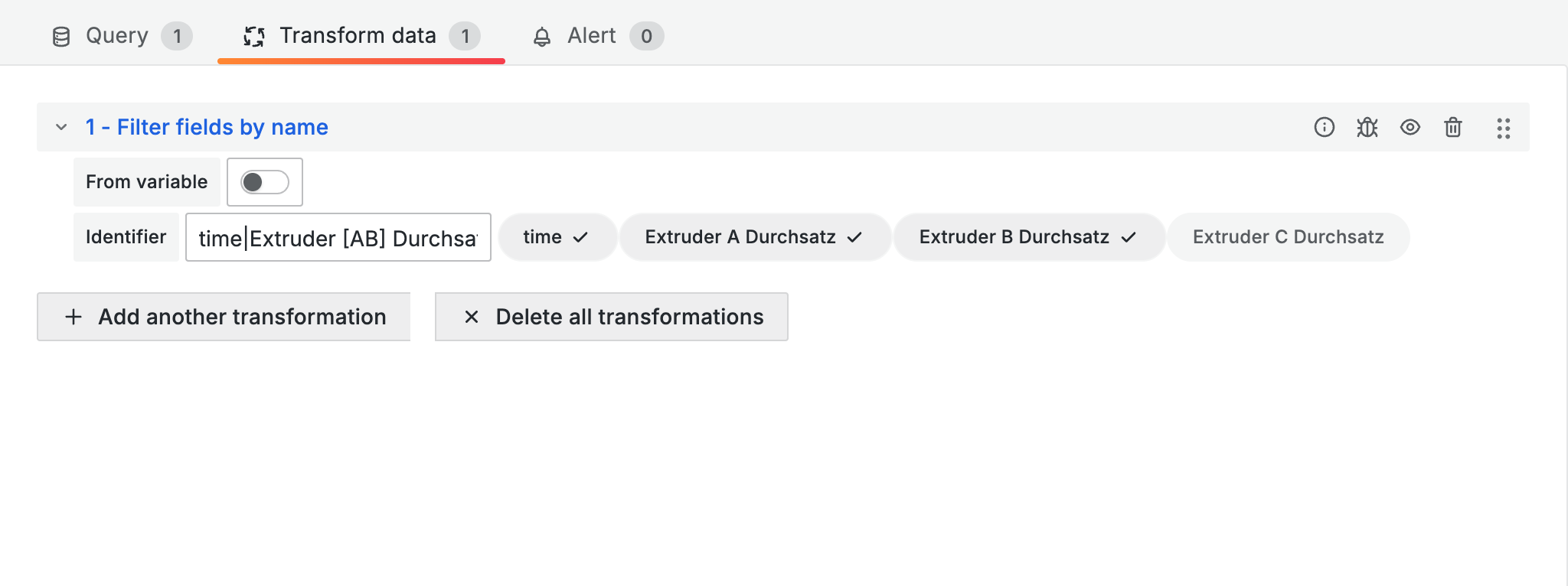
## Filter by name
Show only specific fields in the output.
1. Add the **Filter by name** transformation
2. Select **Include** (show only selected fields) or **Exclude** (hide selected fields)
3. Select fields manually via checkboxes or filter by regex
**Regex examples for Filter by name:**
| Mode | Regex | Effect |
| ------- | ----------------------- | ------------------------------------------- |
| Include | `Durchsatz\|Temperatur` | Show only throughput and temperature fields |
| Exclude | `.*\(Soll\)` | Hide all setpoint values |
| Include | `Extruder [AB].*` | Show only Extruder A and B |
{% hint style="info" %}
With **Filter data by values** you can also filter rows by conditions, for example only showing data points where the temperature is above 200 °C.
{% endhint %}
***
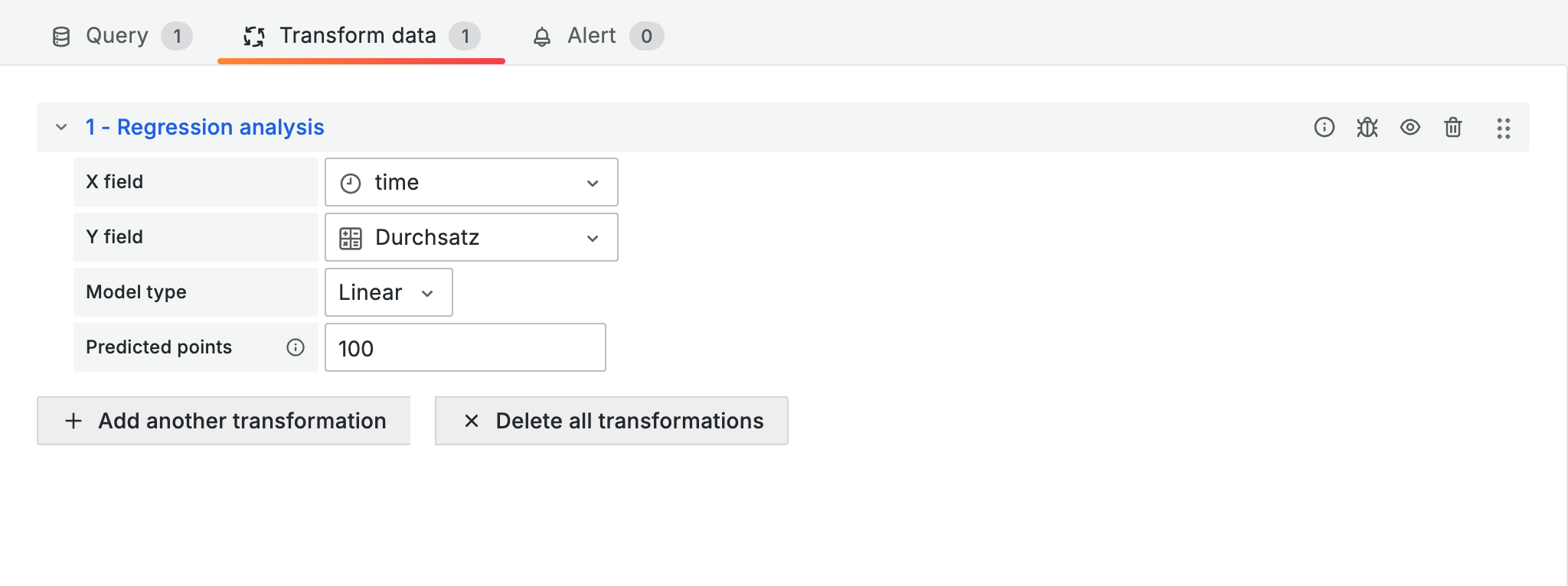
## Regression analysis
Add trend lines to identify how data evolves over time.
1. Add the **Regression analysis** transformation
2. Set **X field** to the time field and **Y field** to the value field
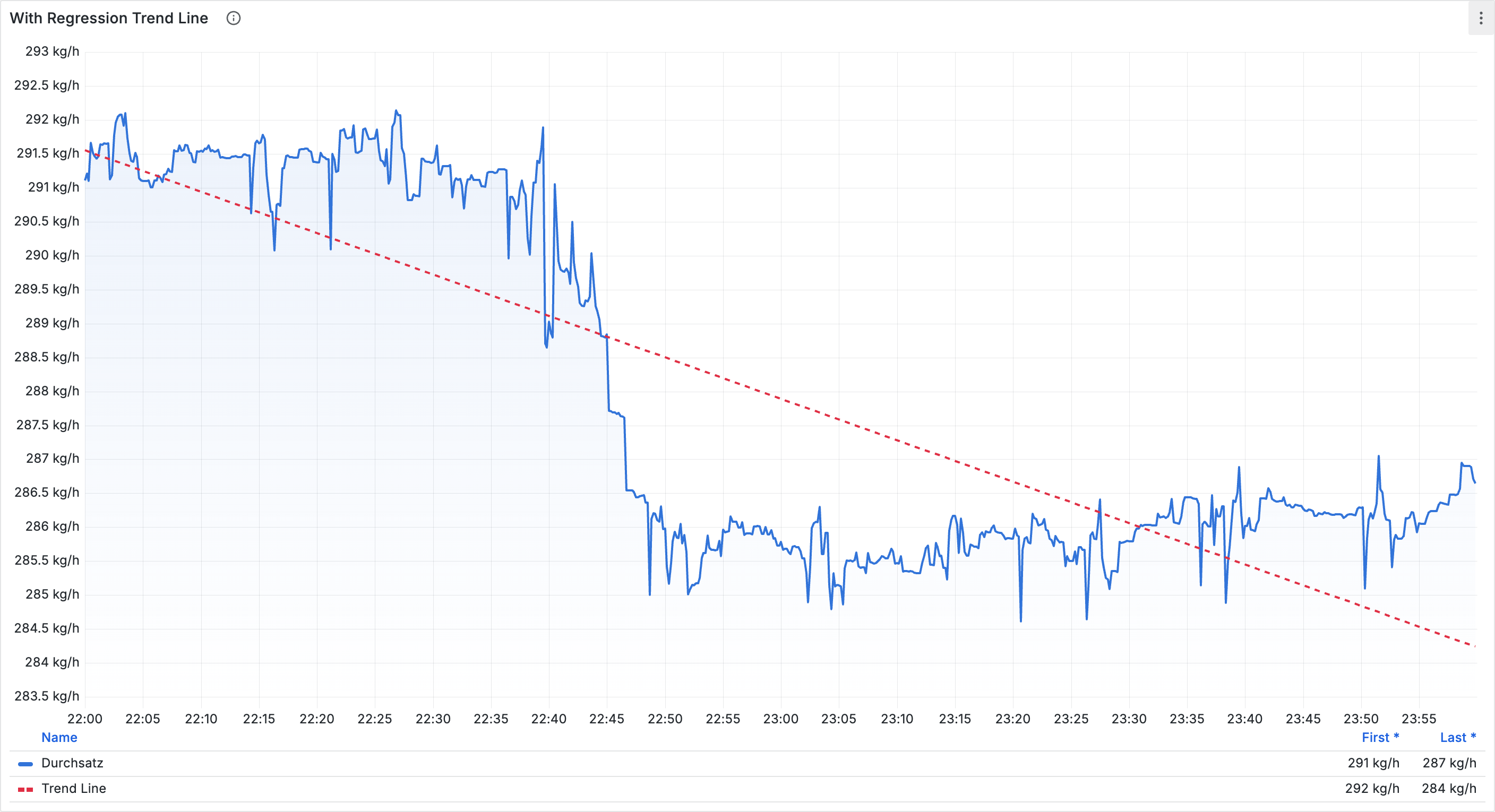
The regression line shows the overall trend: rising, falling, or stable.
### Style the trend line
By default, the regression line has no unit and appears on a separate Y-axis. Add an override:
1. Match the field by regex: `.*predicted.*`
2. Set the **Unit** to the same unit as the original data
3. Choose a different color (for example red) and a dashed line style
***
## Combine data
When you want to merge data from multiple queries, two transformations are available:
| Transformation | Description |
| ----------------- | -------------------------------------------------------------------------------------------------- |
| **Merge** | Combines all time series into one table. No configuration needed. |
| **Join by field** | Joins tables on a shared field (for example a timestamp). Mode: Inner, Left outer, or Right outer. |
***
## Example: machine comparison
This example shows how to use a transformation chain to summarize the throughput of two machines in a compact comparison table.
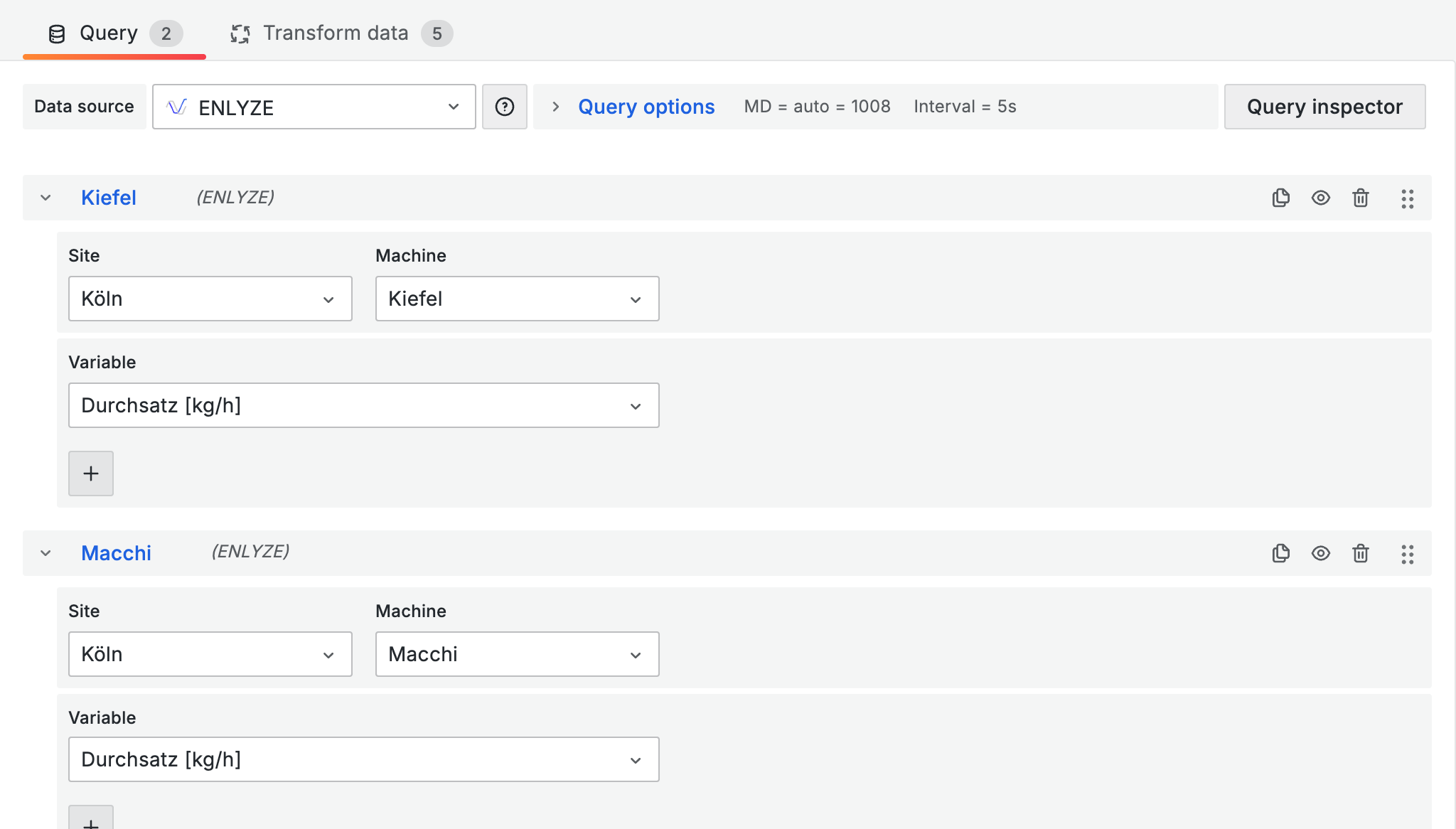
### Step 1: Create two queries
Create two separate queries, one for each machine. Name the queries after the machine (for example "Kiefel" and "Macchi") so the data can be distinguished later.
### Step 2: Build the transformation chain
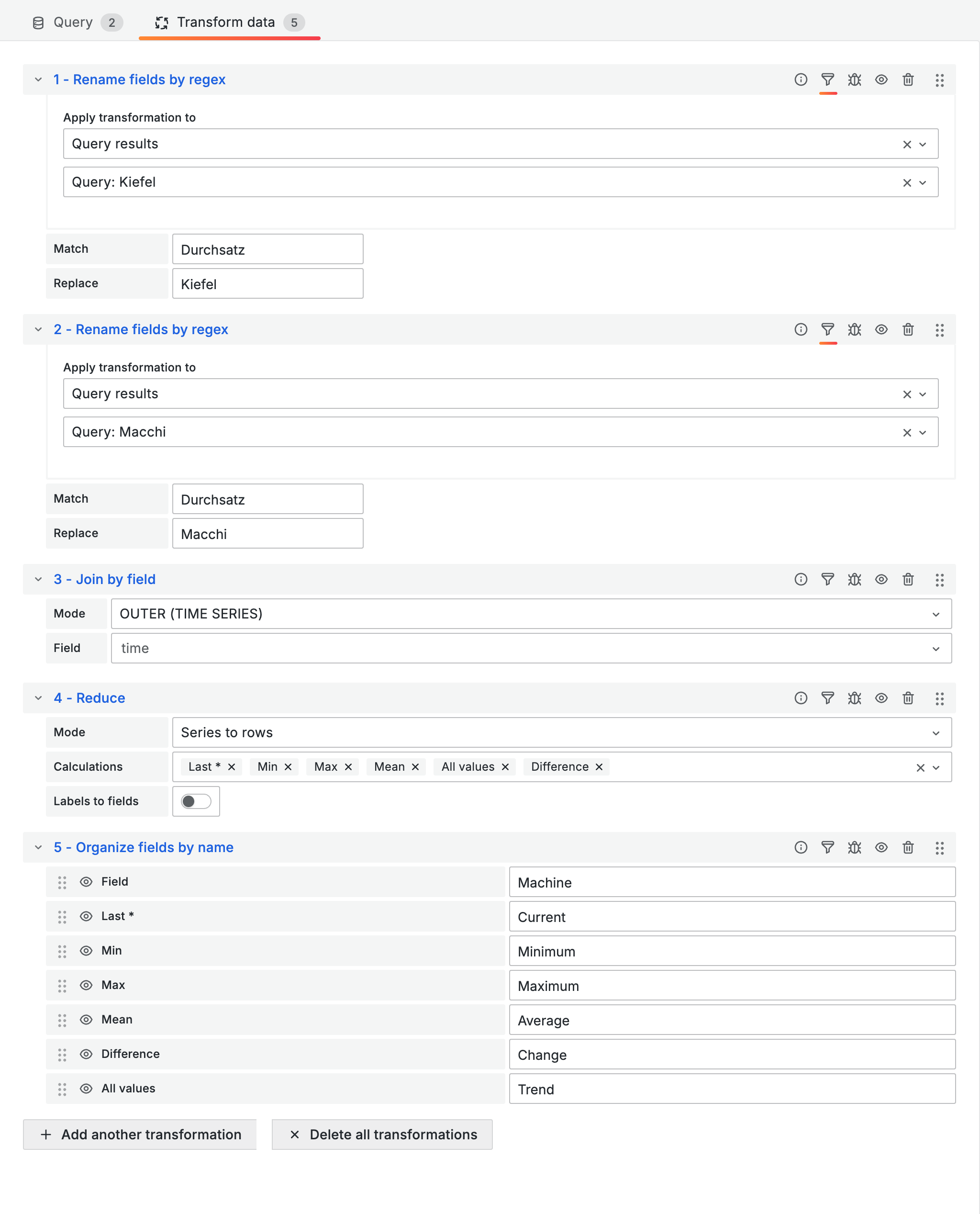
Switch to the **Transform** tab and add the following five transformations one after another:
1. **Rename by regex** (x2): Rename the "Durchsatz" field in each query so the machine is identifiable. Match: `Durchsatz`, Replace: `Kiefel` or `Macchi`. Click the filter icon on the transformation and under **Apply transformation to** select the corresponding query (for example "Query: Kiefel"). This way each rename only applies to its own query.
2. **Join by field**: Joins the two renamed time series on the timestamp into a single table.
3. **Reduce**: Aggregates the time series into one row per machine with the calculations Last \*, Min, Max, Mean, All values, and Difference.
4. **Organize fields by name**: Renames the columns to be more readable (for example "Field" to "Machine", "Last \*" to "Current", "All values" to "Trend") and sorts them into the desired order.
### Result
The finished table compares both machines at a glance, including a sparkline trend display:
The column formatting (Bar Gauge for "Current", colored background for "Change", Sparkline for "Trend") is configured via **Overrides** > **Fields with name** > **Cell options**. For details, see the tutorial [Tables](/en/integrations/grafana/visualisation-types/03-tables.md).
{% hint style="info" %}
Use the **Table view** toggle in the panel editor to check intermediate results after each transformation.
{% endhint %}
***
## Tips
* **Performance**: Transformations run in the browser. Filter at the query level when possible.
* **Debugging**: Add transformations one at a time and use the **Table view** toggle to check intermediate results.
* **Common patterns**: Time series to summary table: Reduce + Organize fields. Sparklines: Reduce with All values + Override on cell type.
***
## Next steps
* [**Introduction to the ENLYZE API**](/en/integrations/grafana/advanced-api/01-introduction.md) - API-based dashboards for advanced use cases