> For the complete documentation index, see [llms.txt](https://docs.enlyze.com/llms.txt). Markdown versions of documentation pages are available by appending `.md` to page URLs; this page is available as [Markdown](https://docs.enlyze.com/en/integrations/grafana/production-dashboards/01-shopfloor-monitoring.md).
# 04 Shopfloor Monitoring
Build monitoring dashboards for the production floor.
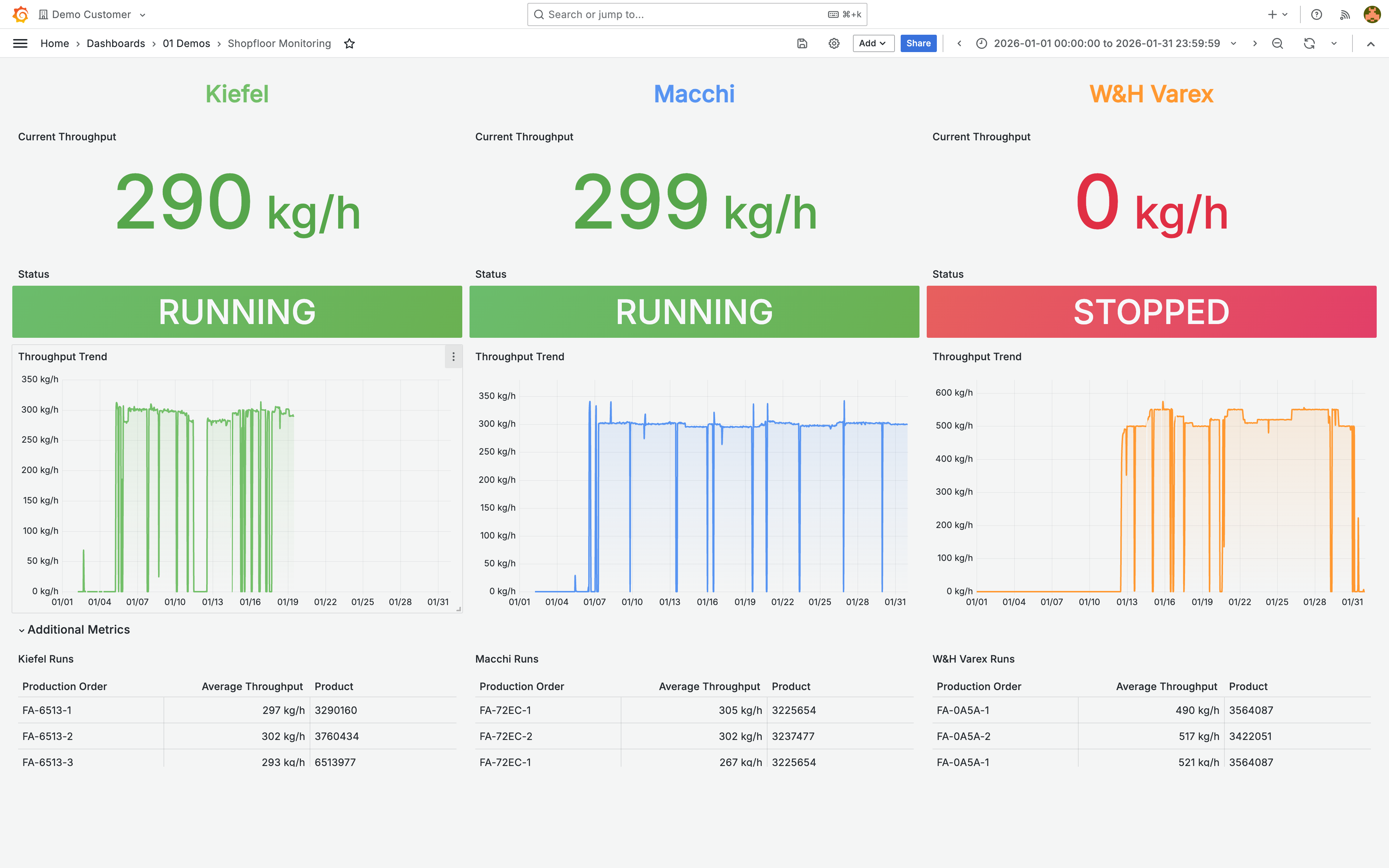
In this tutorial you build a dashboard for shopfloor screens that shows multiple machines side by side with real-time data:
## What you will learn
* Design multi-machine layouts for large screens
* Optimize panels for viewing from a distance
* Configure auto-refresh and kiosk mode
## Prerequisites
* Part 2 (visualization types) completed
* Basic knowledge of panel configuration
***
## Multi-machine layout
Grafana uses a grid with 24 units. For a shopfloor layout with 3 machines, each column gets 8 units:
1. Create all panels for one machine (header, stat, status, trend)
2. Duplicate the panels and adjust the data source
3. Position them in the next column
| Machines | Width per column |
| -------- | ---------------- |
| 2 | 12 units |
| 3 | 8 units |
| 4 | 6 units |
***
## Large stat panels
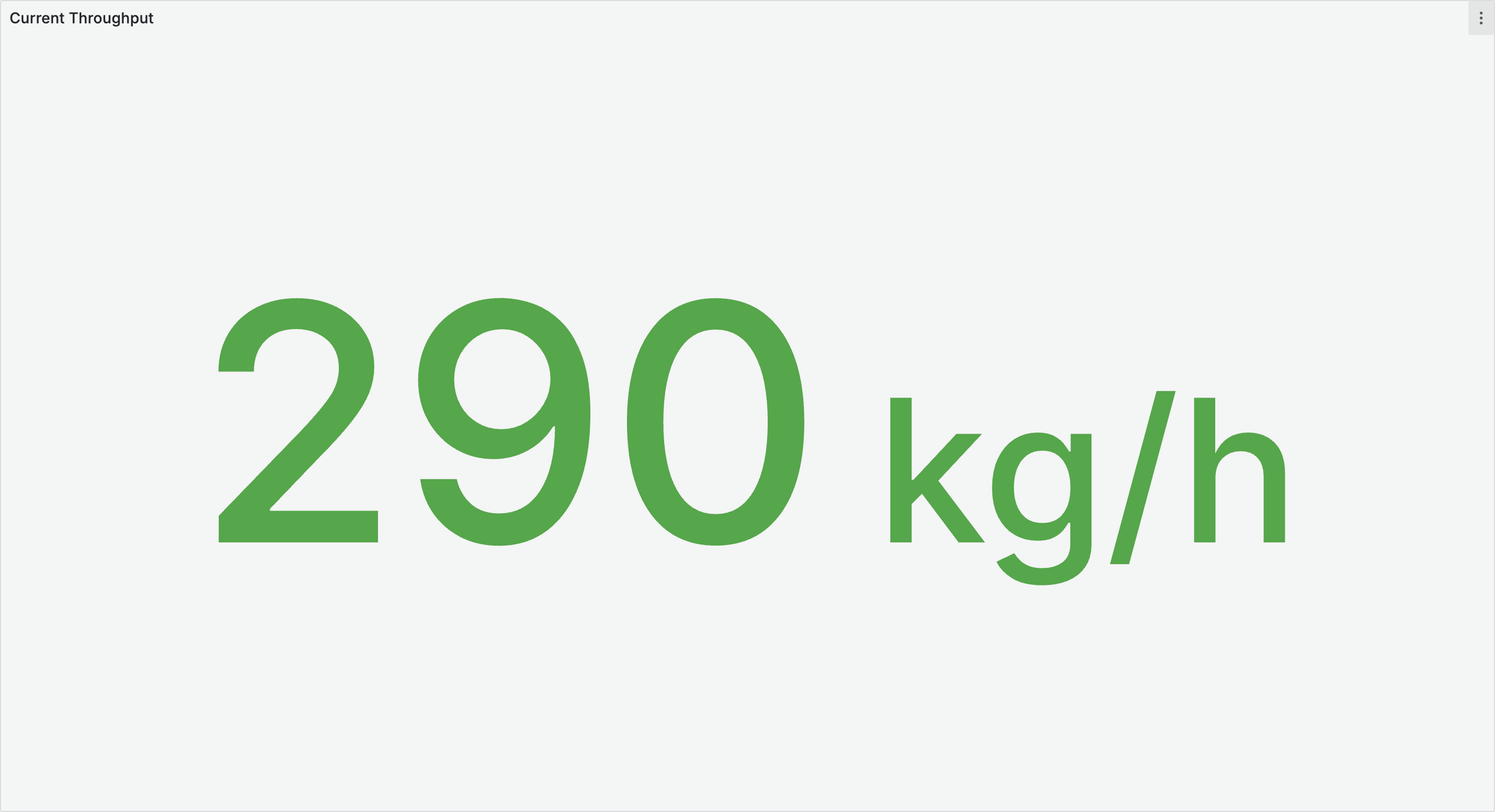
For shopfloor displays, stat panels must be readable from 3 to 10 meters away:
| Setting | Value |
| -------------- | -------------- |
| Color mode | Value |
| Graph mode | None |
| Text mode | Value |
| Minimum height | 4-5 grid units |
Configure thresholds for instant status recognition (e.g. throughput: >= 90 green, >= 70 yellow, < 70 red).
***
## Status indicator
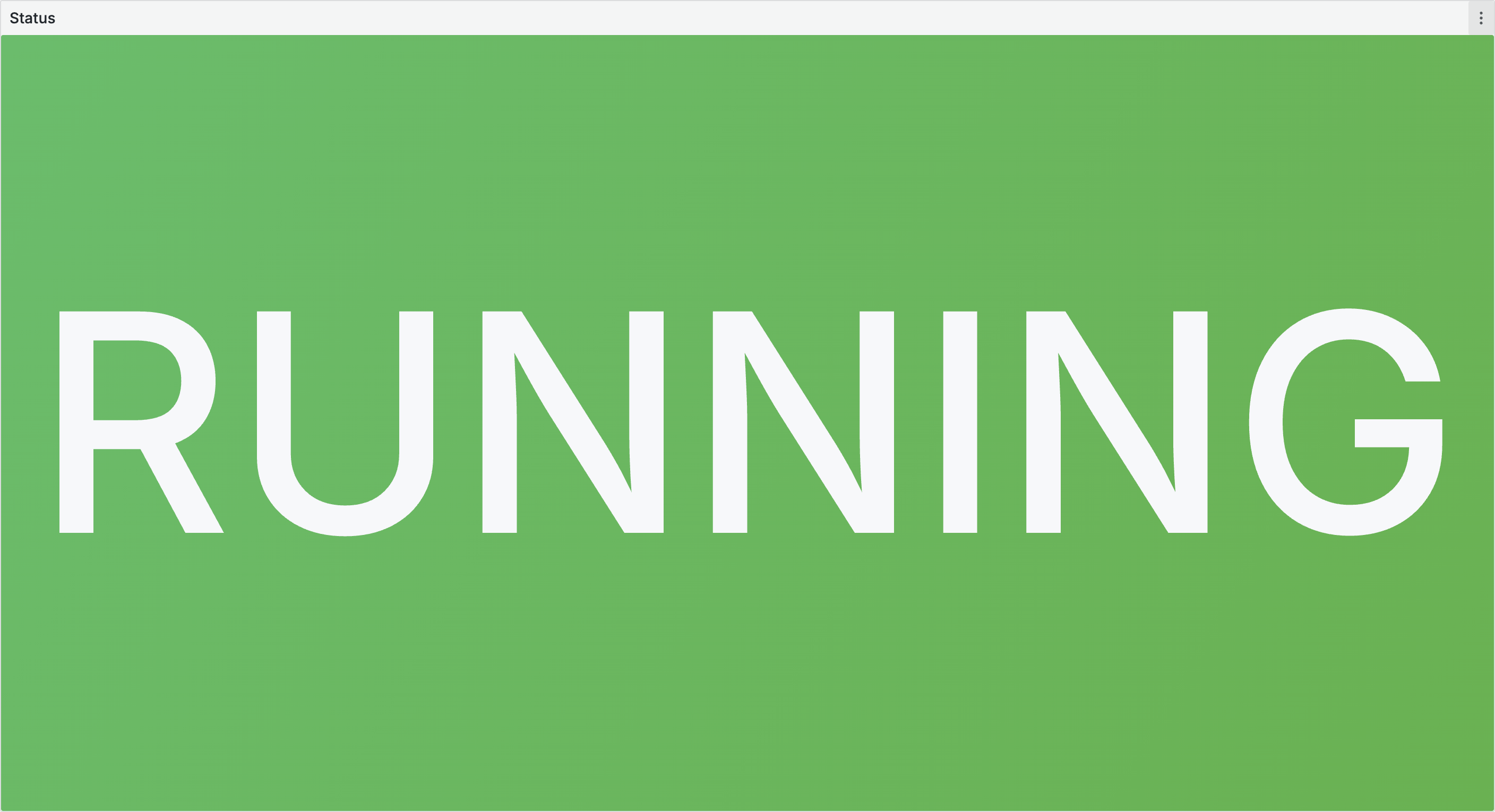
Create running/stopped indicators as a stat panel with value mappings:
| Value | Display | Color |
| ----------- | ------- | ----- |
| 0 / stopped | STOPPED | Red |
| 1 / running | RUNNING | Green |
Set **Color mode** to **Background** so the entire panel takes on the status color.
***
## Time series with thresholds
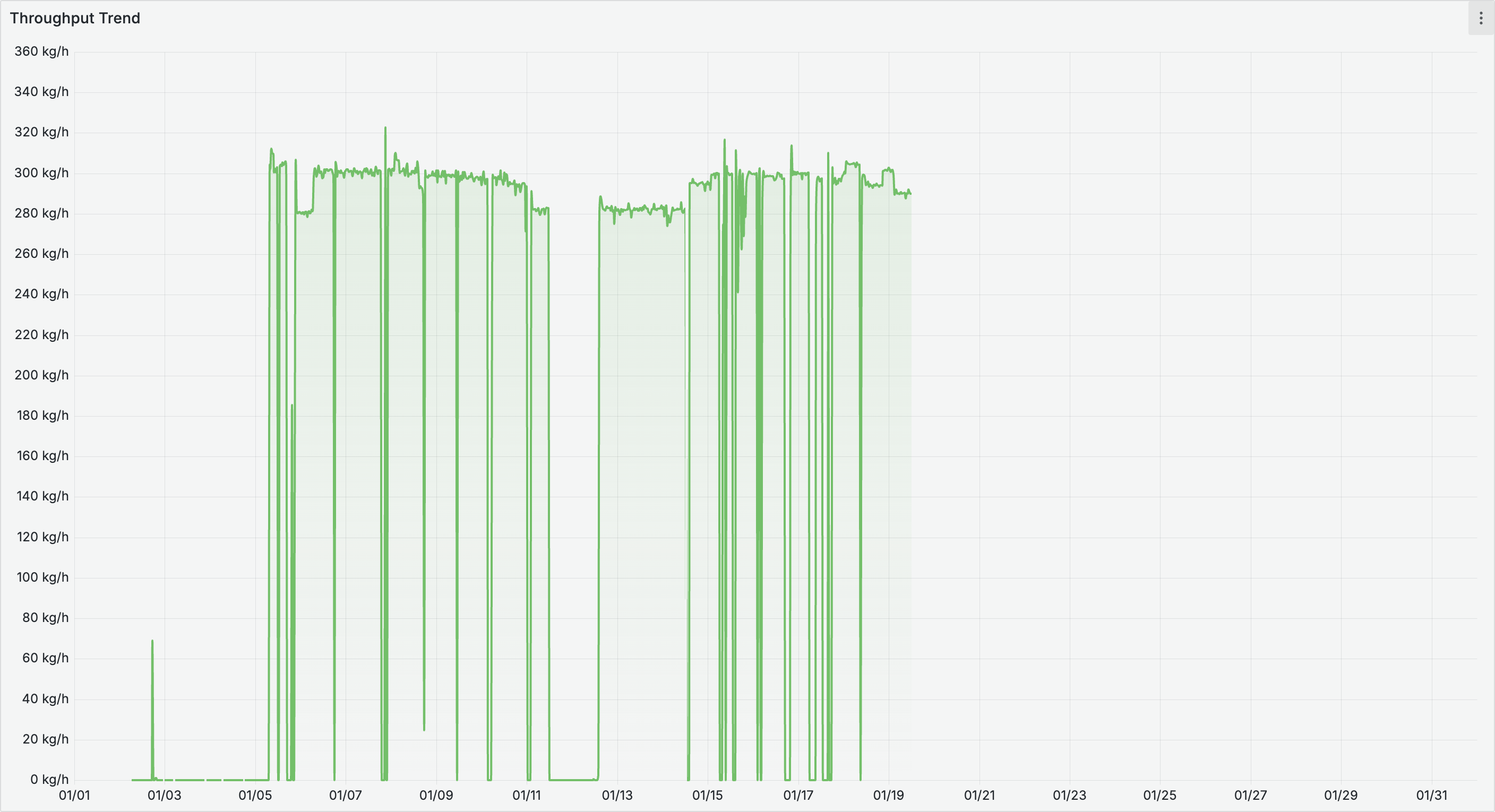
Trend lines help identify patterns. Optimize for shopfloor viewing:
| Setting | Value |
| --------------- | ----------------- |
| Line width | 2-3 |
| Fill opacity | 10-20 |
| Point size | Hidden |
| Legend | Hidden |
| Show thresholds | As filled regions |
Set fixed min/max values on all axes so that machine charts are comparable.
***
## Kiosk mode
Kiosk mode hides the entire Grafana UI for a clean display. Append `?kiosk` to the dashboard URL:
```
https://grafana.example.com/d/abc123/shopfloor?orgId=1&refresh=30s&kiosk
```
| URL parameter | Effect |
| ---------------------- | -------------------------------------- |
| `?kiosk` | Hide entire UI |
| `?kiosk=tv` | Hide UI, cycle through rows |
| `?kiosk&autofitpanels` | Automatically fit panels to the screen |
***
## Tips
* **Auto-refresh**: For shopfloor displays, set a refresh interval of 30s (time picker > refresh dropdown, or dashboard settings > Auto refresh).
* **Transparent panels**: Enable **Transparent background** in the panel options for a cleaner look on dark backgrounds.
* **Color consistency**: Assign each machine a consistent color (e.g. Kiefel: green #73BF69, Macchi: blue #5794F2). Use bold colors instead of pastels.
* **Time zone**: Set the dashboard time zone to **Browser** so that the local factory time is displayed.