> For the complete documentation index, see [llms.txt](https://docs.enlyze.com/llms.txt). Markdown versions of documentation pages are available by appending `.md` to page URLs; this page is available as [Markdown](https://docs.enlyze.com/en/integrations/grafana/production-dashboards/04-production-status.md).
# 01 Production Status
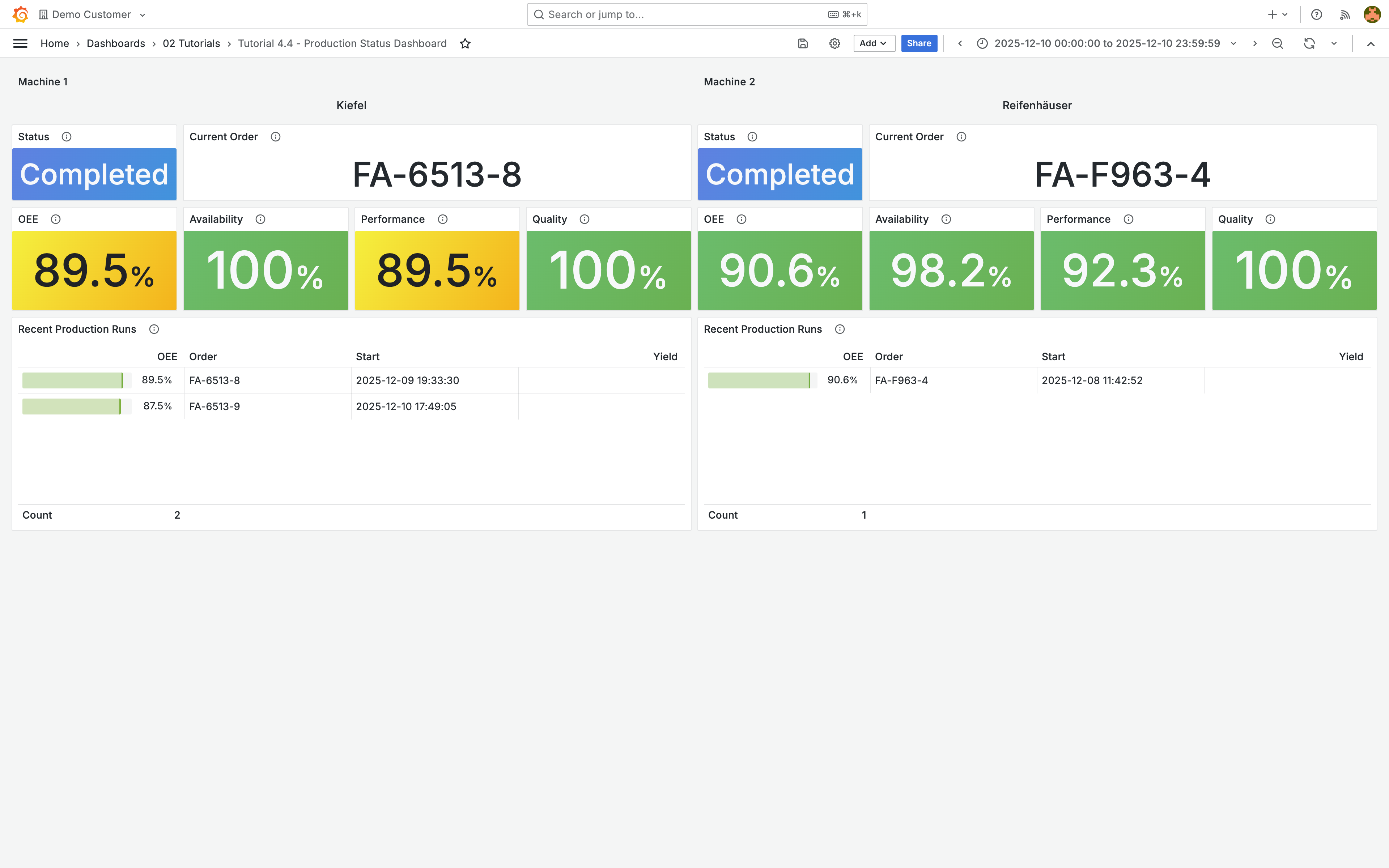
Production status dashboard using the constant variable approach.
In this tutorial you build a dashboard that shows the current production status of two machines side by side. Constant variables store the machine UUIDs, and all data comes from the ENLYZE API:
## What you will learn
* Constant variables for fixed machine configurations
* Fetch machine names from the API instead of hard-coding them
* Detect running production runs with JSONata
* Display OEE metrics from production runs
* Multi-machine layout with side-by-side panels
## Prerequisites
* [API queries](/en/integrations/grafana/advanced-api/02-api-queries.md), [Variables](/en/integrations/grafana/advanced-api/03-variables.md), and [Advanced variables](/en/integrations/grafana/advanced-api/03b-advanced-variables.md) completed
* Understanding of the `production-runs` endpoint and JSONata
***
## When to use constant variables
In [Variables](/en/integrations/grafana/advanced-api/03-variables.md) and [Advanced variables](/en/integrations/grafana/advanced-api/03b-advanced-variables.md) you created query variables with dropdown selection. For shopfloor displays or status monitors that always show the same machines, a dropdown is unnecessary.
Constant variables solve this case:
* **Fixed configuration**: The machine UUIDs are defined directly in the variable settings
* **Hidden**: `Hide: Variable` hides them from the dashboard, since users should not change them
* **Single point of configuration**: To swap a machine, you only change the variable instead of editing every query individually
***
## Create constant variables
Create a new dashboard and add two constant variables:
| Name | Type | Value | Hide |
| ---------- | -------- | -------------------------------------- | -------- |
| `machine1` | Constant | `141e0927-62b3-4e76-8398-ad82d20f397f` | Variable |
| `machine2` | Constant | `f5c0b9d4-e89e-43ad-b81c-16bd5cbe3646` | Variable |
You can find the UUIDs in the ENLYZE web app or via the `machines` endpoint.
***
## Display machine names
Instead of storing the machine name as another constant, you fetch it from the API. This way the name stays up to date if it is renamed in ENLYZE.
Create a **Stat** panel with these settings:
| Setting | Value |
| ------------- | ---------------------- |
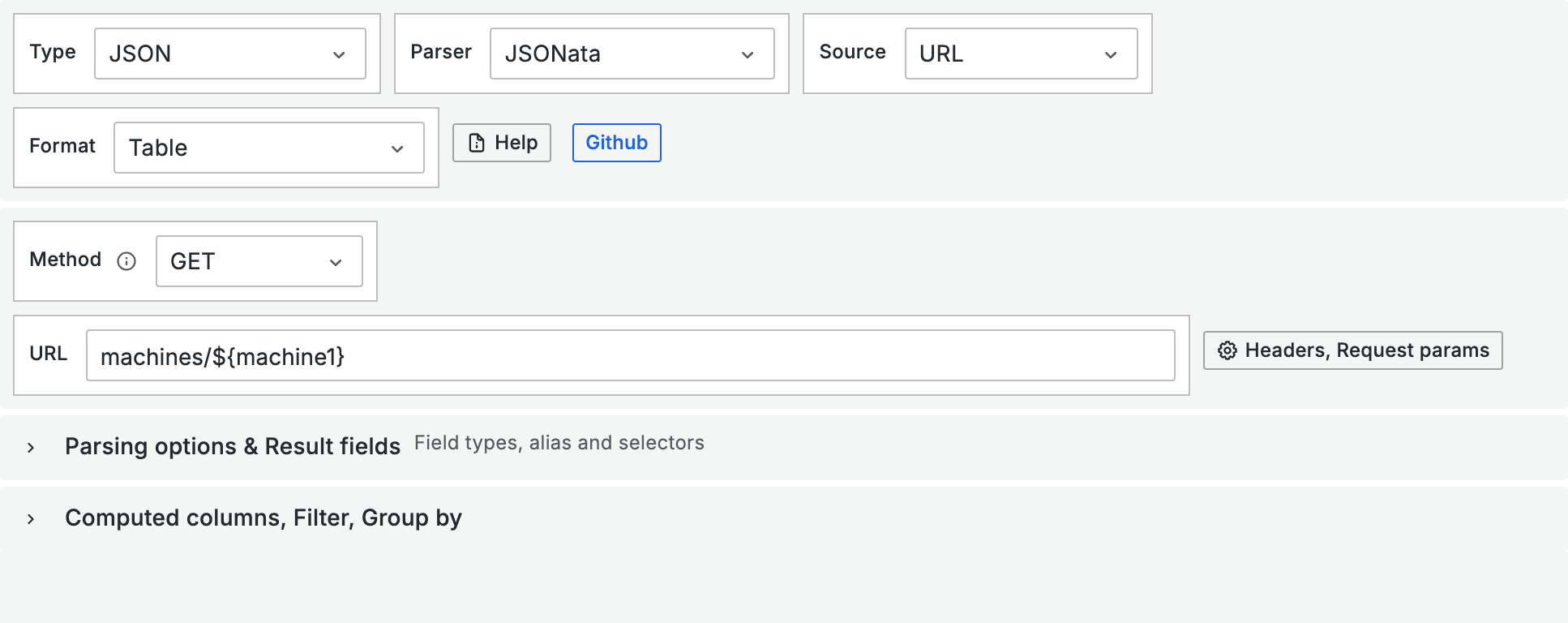
| URL | `machines/${machine1}` |
| Root selector | *(empty)* |
Under **Value options** > **Fields**, select `name` from the dropdown. This makes the panel show only the machine name.
Stat panel with API query for the machine name
You know this pattern from [Variables](/en/integrations/grafana/advanced-api/03-variables.md): the API returns a JSON object with all fields of the machine. The field selector makes the panel display only the `name` field.
Configure the panel:
* **Color mode**: None
* **Text mode**: Value
* **Transparent**: Enable (for a clean layout without panel borders)
***
## Detect the running production run
By default, the `production-runs` endpoint returns production runs sorted by start time, most recent first: the most recent run is at position `[0]`. If it has no `end` timestamp, it is still running.
### Status indicator
Create a **Stat** panel:
| Setting | Value |
| ------------- | ------------------------------------------------------------------------- |
| URL | `production-runs` |
| Query Params | `machine=${machine1}`, `start=${__from:date:iso}`, `end=${__to:date:iso}` |
| Root selector | `$.data[0].end = null ? "Running" : "Completed"` |
The root selector is a JSONata expression: if the `end` of the most recent run is `null`, it returns "Running", otherwise "Completed".
Under **Value Mappings**, create two entries:
| Value | Display | Color |
| --------- | --------- | ----- |
| Running | Running | Green |
| Completed | Completed | Blue |
Set **Color mode** to **Background**.
### Current production run
Create a second **Stat** panel for the production order number:
| Setting | Value |
| ------------- | ------------------------------------------------------------------------- |
| URL | `production-runs` |
| Query Params | `machine=${machine1}`, `start=${__from:date:iso}`, `end=${__to:date:iso}` |
| Root selector | `$.data[0].production_order` |
Status indicator and current production run
***
## OEE of the latest production run
The `production-runs` endpoint includes OEE metrics per production run. Create four **Stat** panels for OEE, Availability, Performance, and Quality.
### OEE panel
| Setting | Value |
| ------------- | ------------------------------------------------------------------------- |
| URL | `production-runs` |
| Query Params | `machine=${machine1}`, `start=${__from:date:iso}`, `end=${__to:date:iso}` |
| Root selector | `$.data` |
Expand **Parsing options & Result fields** and add a **Column**:
| Selector | Title | Type |
| -------------------- | ------------ | ------ |
| `productivity.score` | Productivity | Number |
Configure the panel:
* **Unit**: Percent (0.0-1.0)
* **Color mode**: Background
* **Thresholds**: Red (base), Yellow (0.6), Green (0.8)
* **Value Mapping**: `null` -> "NO DATA" (Gray)
### Why columns instead of the root selector?
It would be tempting to extract the score directly in the root selector, e.g. `$.data[0].productivity.score`. This works as long as the API returns data. However, if a machine did not run during the selected time range, `$.data` is an empty array. Accessing `[0]` then fails, and Grafana shows an error instead of an empty panel.
The solution: set the root selector to `$.data` and extract the value via a **Column** (`productivity.score`). When there is no data, the column returns `null`. You can then display this `null` value as "NO DATA" using a **Value Mapping**.
### Additional OEE panels
Create panels for the remaining metrics using the same pattern:
| Panel | Root selector | Column Selector |
| ------------ | ------------- | -------------------- |
| Availability | `$.data` | `availability.score` |
| Performance | `$.data` | `performance.score` |
| Quality | `$.data` | `quality.score` |
Configure a value mapping for `null` -> "NO DATA" in gray on all panels. Not all machines provide quality data, and machines without production in the selected time range show "NO DATA" for all metrics.
OEE metrics of the latest production run
***
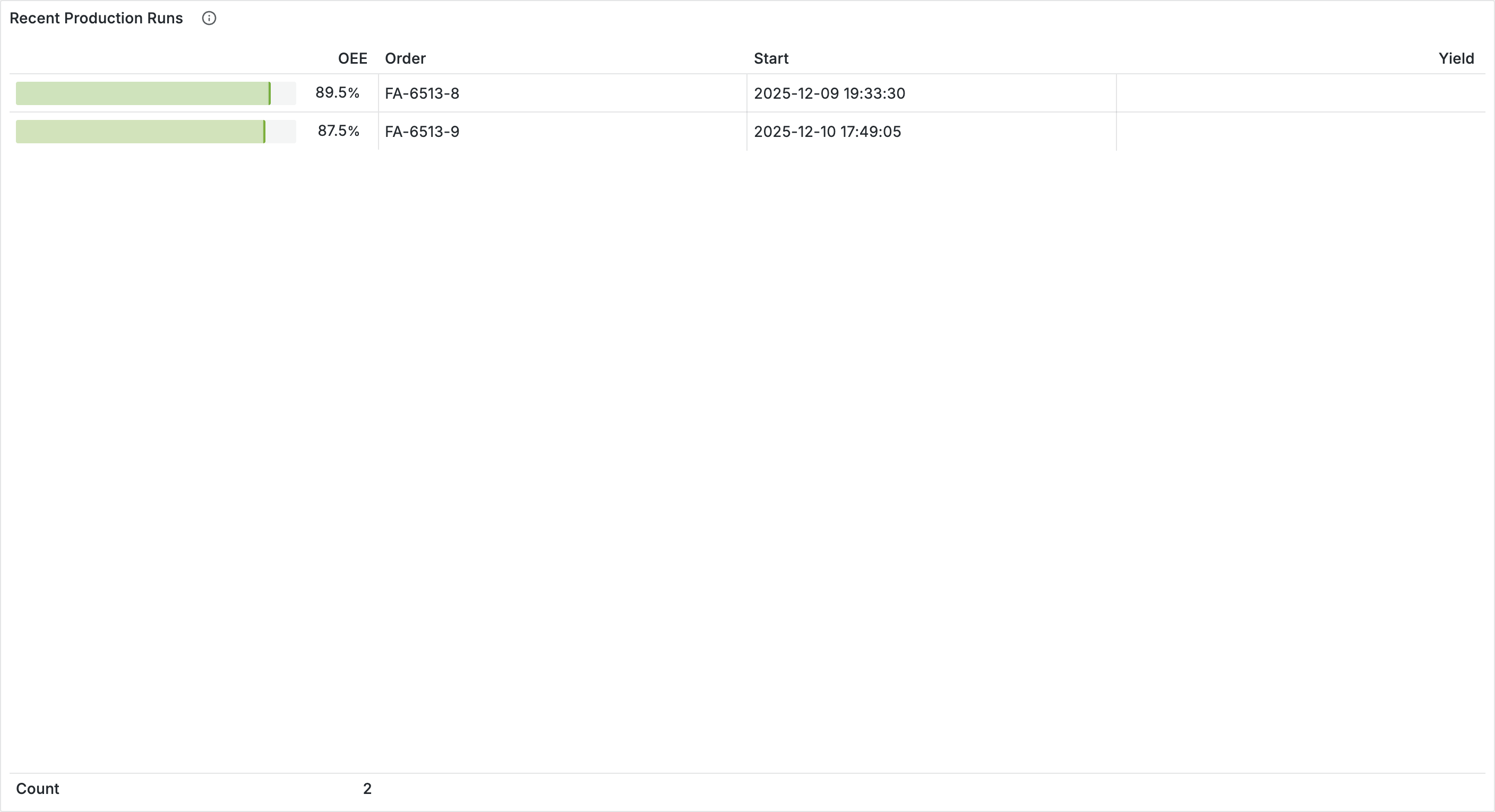
## Production run details table
Show the latest production runs with OEE details as a table.
Create a **Table** panel:
| Setting | Value |
| ------------- | ------------------------------------------------------------------------- |
| URL | `production-runs` |
| Query Params | `machine=${machine1}`, `start=${__from:date:iso}`, `end=${__to:date:iso}` |
| Root selector | `$.data` |
Add columns under **Parsing options & Result fields**:
| Selector | Title | Type |
| ---------------------- | ----- | --------- |
| `production_order` | Order | String |
| `start` | Start | Timestamp |
| `productivity.score` | OEE | Number |
| `quantity_yield.value` | Yield | Number |
Configure a **Field Override** for the OEE column:
* **Unit**: Percent (0.0-1.0)
* **Min**: 0, **Max**: 1
* **Cell type**: Gauge (basic)
* **Color scheme**: Continuous - RdYlGr
Production runs table with OEE as gauge cell
***
## Add the second machine
Duplicate all panels from the first machine and replace `${machine1}` with `${machine2}` in every query. Position the panels side by side: left side (x=0, width 12) for Machine 1, right side (x=12, width 12) for Machine 2.
{% hint style="info" %}
For dashboards with many machines, manually duplicating panels is impractical. Use the repeat pattern from [Advanced variables](/en/integrations/grafana/advanced-api/03b-advanced-variables.md) instead to automatically repeat panels for each machine.
{% endhint %}
***
## Tips
* **Auto-refresh**: For shopfloor displays, set a refresh interval of 30 seconds to 1 minute (top right, next to the time picker).
* **Running production runs**: By default, the API returns production runs sorted by start time, most recent first. `$.data[0]` is always the most recent run in the selected time range.
* **More machines**: For each additional machine, add a constant variable and duplicate the panels. With three or more machines, the repeat pattern from [Advanced variables](/en/integrations/grafana/advanced-api/03b-advanced-variables.md) is worth using.
***
## Next steps
* [**OEE dashboard**](/en/integrations/grafana/production-dashboards/05-oee-dashboard.md) -- Create aggregated OEE reports with the `productivity-metrics` endpoint