> For the complete documentation index, see [llms.txt](https://docs.enlyze.com/llms.txt). Markdown versions of documentation pages are available by appending `.md` to page URLs; this page is available as [Markdown](https://docs.enlyze.com/en/integrations/grafana/production-dashboards/05-oee-dashboard.md).
# 02 OEE Dashboard
OEE dashboard with the productivity-metrics endpoint.
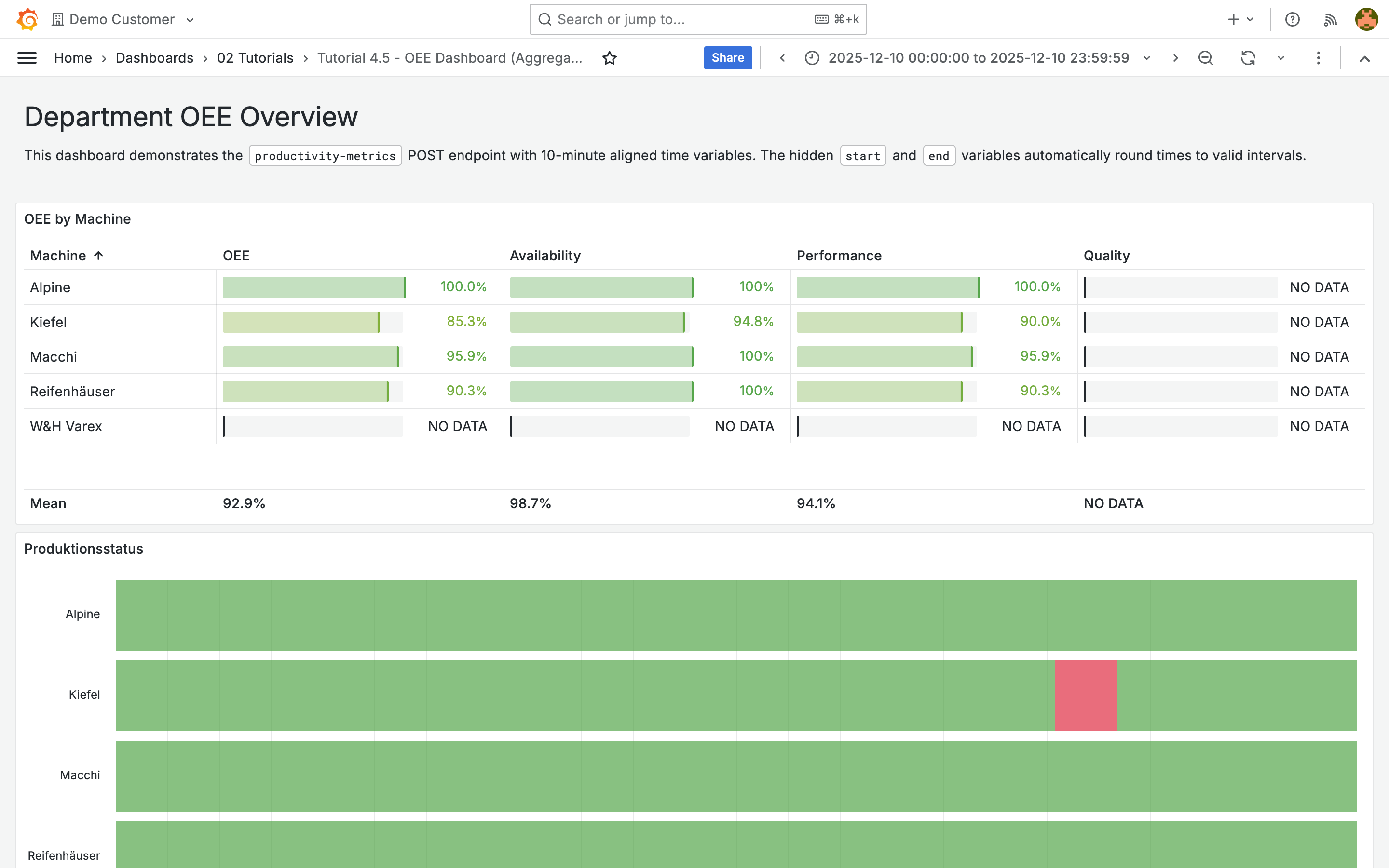
In this tutorial you build a department dashboard with aggregated OEE metrics, production status for every machine, and a department overview:
## What you will learn
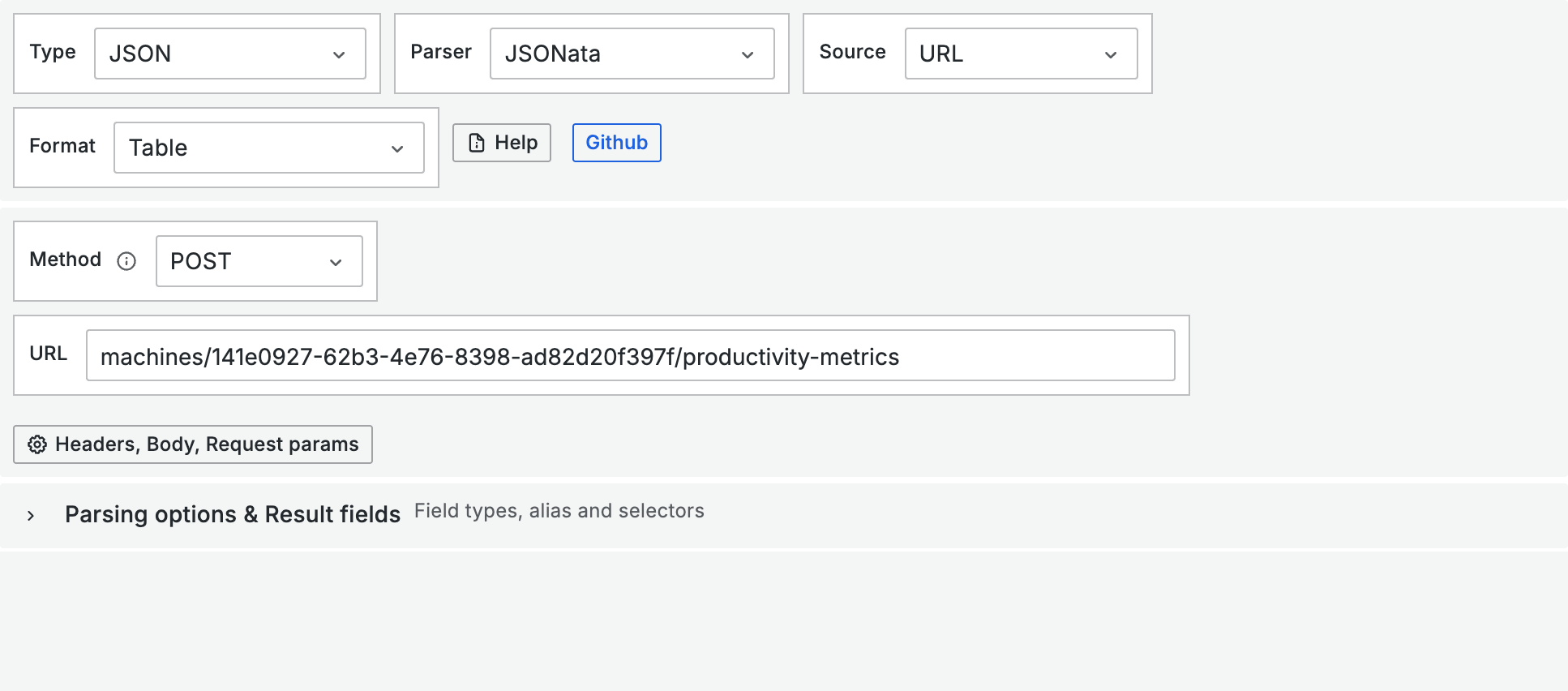
* Configure POST requests with the `productivity-metrics` endpoint
* Create hidden time variables with 10-minute alignment
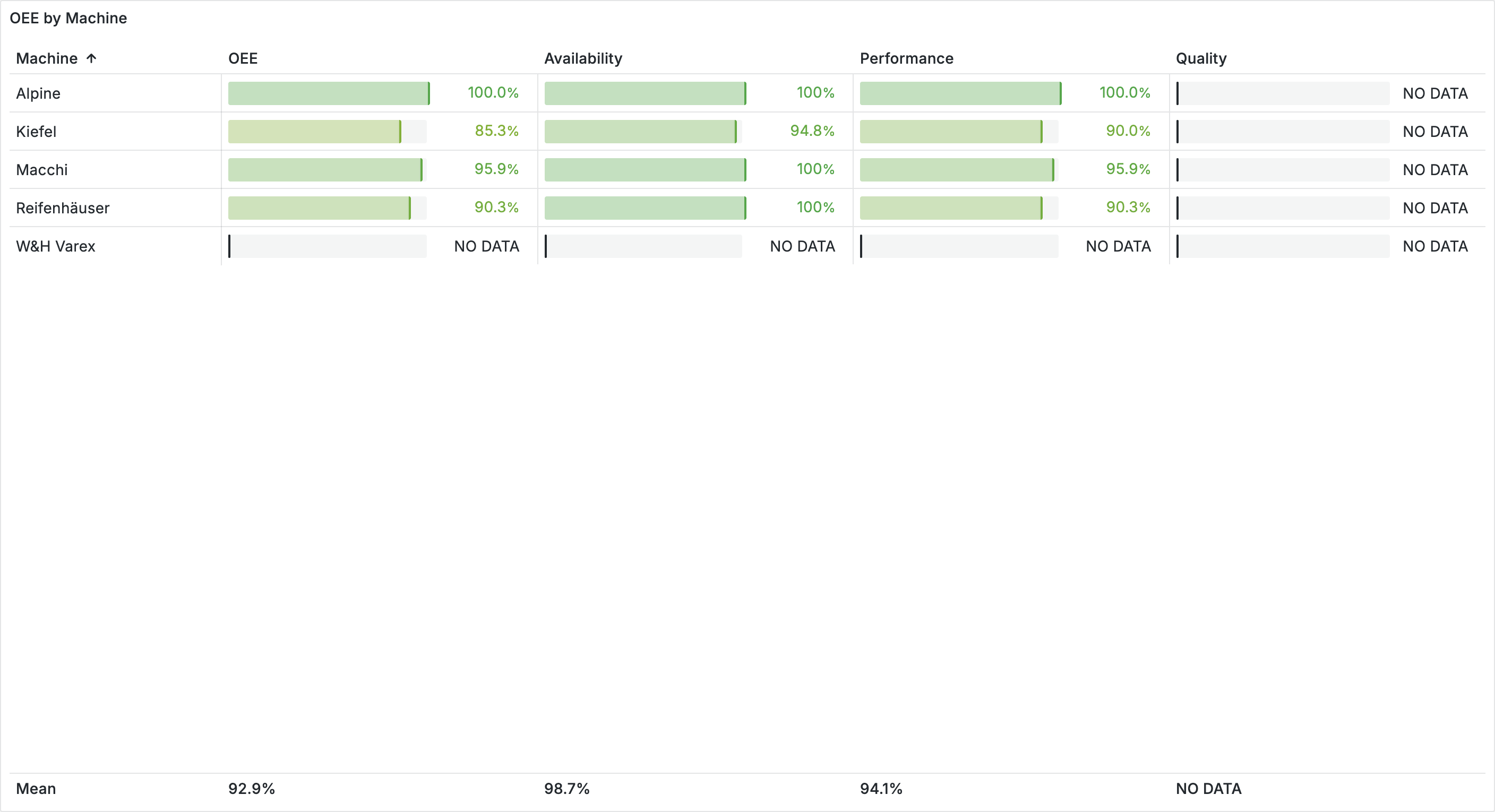
* Display OEE metrics as a table with color scale
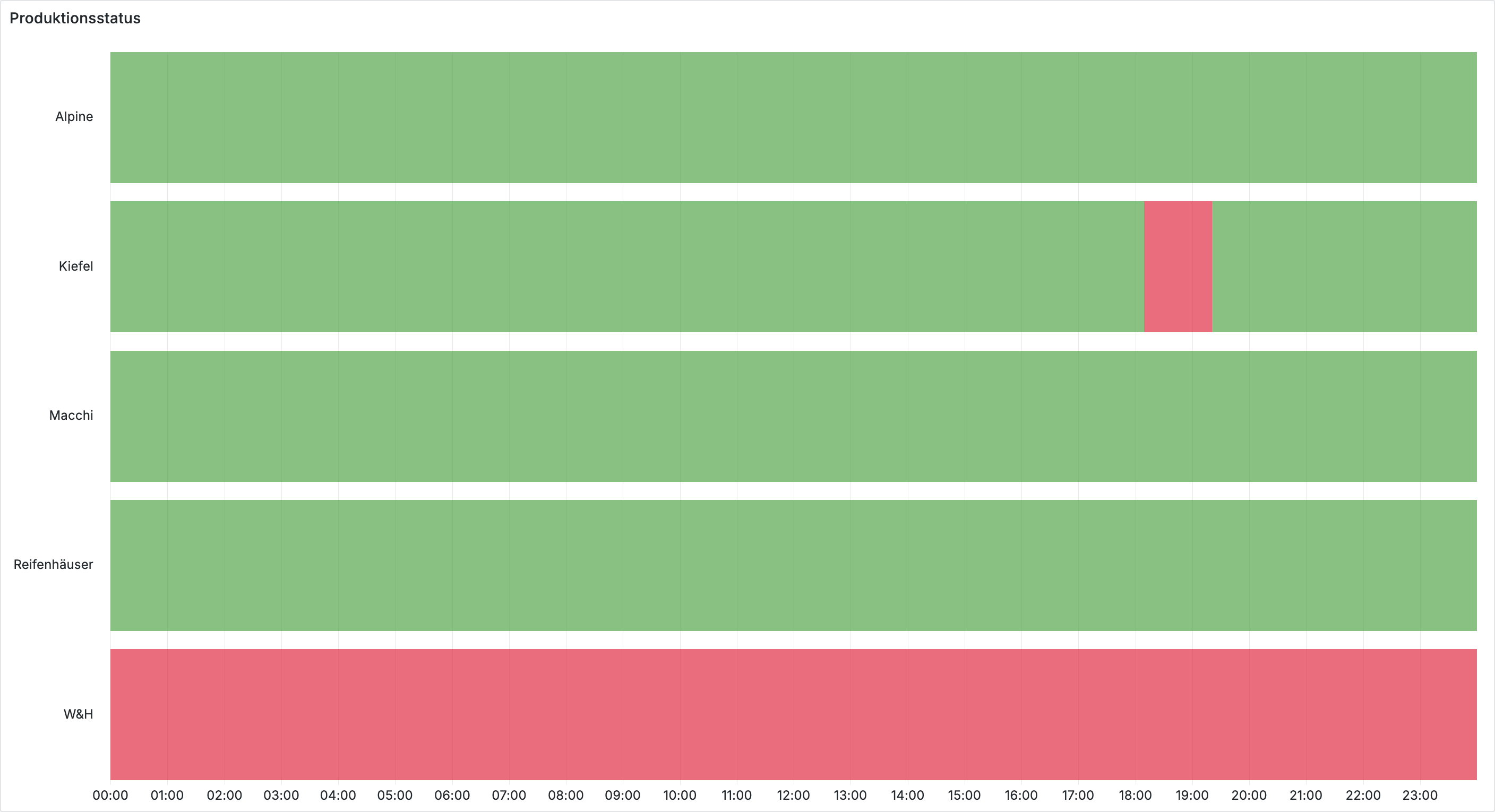
* Visualize machine activity as a state timeline
* Calculate weighted OEE aggregation for department overviews
## Prerequisites
* [Query the ENLYZE API](/en/integrations/grafana/advanced-api/02-api-queries.md) and [Variables](/en/integrations/grafana/advanced-api/03-variables.md) completed
* Understanding of transformations ([Tutorial 3.2](https://github.com/enlyze/enlyze-docs/blob/main/en/grafana/intermediate-features/03-transformations.md))
***
## 10-minute alignment
The `productivity-metrics` endpoint requires time ranges aligned to 10-minute intervals (minutes: 0, 10, 20, 30, 40, 50; seconds and milliseconds: 0).
When users select a time range such as "Last 7 days" in Grafana, the time values contain arbitrary seconds. Create two hidden query variables that round the time values automatically.
### Create time variables
Create a new dashboard and add two variables under **Settings** > **Variables**:
| Setting | start | end |
| ----------- | --------------------- | -------------------- |
| Name | `start` | `end` |
| Type | Query | Query |
| Data source | ENLYZE API | ENLYZE API |
| Hide | Variable | Variable |
| Refresh | On time range change | On time range change |
| Source | Inline | Inline |
| Data | `{"time": ${__from}}` | `{"time": ${__to}}` |
**Root selector (JSONata, identical for both variables):**
```
(
$time_millis := $number($.time);
$time_rounded := $time_millis - ($time_millis % 600000);
$fromMillis($time_rounded)
)
```
The expression converts the timestamp to milliseconds, rounds down to the nearest 10-minute interval, and converts back to an ISO date.
{% hint style="info" %}
For simpler dashboards you can also round to full hours: `${__from:date:YYYY-MM-DDTHH:00:00}+00:00`. The 10-minute rounding is more precise, though, and works with all ENLYZE API endpoints.
{% endhint %}
***
## OEE by machine (table)
The table shows OEE, Availability, Performance, and Quality for each machine in the department.
### Configure the POST request
Create a **Table** panel and configure the first query:
| Setting | Value |
| ----------------- | -------------------------------------------------------------------- |
| Type | JSON |
| Parser | Backend |
| Method | POST |
| URL | `machines/141e0927-62b3-4e76-8398-ad82d20f397f/productivity-metrics` |
| Body type | Raw |
| Body content type | application/json |
**Body:**
```json
{
"datetime_ranges": [
{
"start": "${start}",
"end": "${end}"
}
]
}
```
{% hint style="warning" %}
Make sure the **Body content type** is set to `application/json` (not `text/plain`). Otherwise the API responds with HTTP 422.
{% endhint %}
### Columns and computed columns
Set the **Root Selector** to `$.data` and add the following **Columns** under **Parsing options & Result fields**:
| Selector | Title | Type |
| -------------------- | ------------ | ------ |
| `productivity.score` | productivity | Number |
| `availability.score` | availability | Number |
| `performance.score` | performance | Number |
| `quality.score` | quality | Number |
Add two **Computed Columns** to identify the machine:
| Selector | Title | Type |
| ---------------------------------------- | ------------- | ------ |
| `"141e0927-62b3-4e76-8398-ad82d20f397f"` | machine\_uuid | String |
| `"Kiefel"` | Machine | String |
### Additional machines
Repeat the query for each machine in the department (Macchi, Alpine, Reifenhäuser, W\&H Varex). Change the UUID in the URL and in the computed columns accordingly.
### Transformations
1. **Merge** combines all queries into a single table
2. **Organize fields** hides `machine_uuid` and renames the columns (productivity to OEE, availability to Availability, etc.)
### Visual styling
Configure the table under **Standard options**:
* **Unit**: Percent (0.0-1.0)
* **Color scheme**: Continuous - RdYlGr
* **Min**: 0, **Max**: 1
Create **Field Overrides** for the OEE, Availability, Performance, and Quality columns:
* **Cell type**: Gauge (basic, color display)
Enable the **Table Footer** with Calculation **Mean** for the department averages.
Add a **Value mapping**:
* **Type**: Special > Null
* **Display text**: NO DATA
* **Color**: Text
{% hint style="info" %}
Not all machines provide quality data. In the demo account, Quality is 1 (100%) for all machines. The `null` mapping ensures that machines without data in the selected time range show "NO DATA" instead of an error.
{% endhint %}
***
## Machine activity (state timeline)
The state timeline shows at a glance when each machine was in production and when it was idle.
### Use the ENLYZE data source
Create a **State Timeline** panel with the **ENLYZE** data source (not ENLYZE API). Create a query for each machine and select the **Durchsatz** (throughput) variable.
Configure **Field Overrides** for each query (by **Frame refID**) to set the Display Name to the machine name (e.g. "Kiefel", "Macchi", etc.).
### Value mappings
Create two range mappings to convert the throughput value into an operating status:
| From | To | Text | Color |
| ----- | ----- | --------- | ----- |
| -1000 | 1 | IDLE | Red |
| 1 | 10000 | PRODUCING | Green |
The logic: if throughput is at or near 0, the machine is idle. If it is above 1, it is producing.
***
## Department overview
Four stat panels show the aggregated OEE metrics for the entire department: OEE, Availability, Performance, and Quality.
### OEE and Availability (mean)
Create a **Stat** panel for the Department OEE. Configure 5 queries (one per machine) with the same POST requests as in the table, but with a different root selector and columns:
* **Root Selector**: `$.data`
* **Column**: `productivity.score` as "OEE" (Number)
Add a **Merge** transformation. Under **Value options** > **Calculation**, select **Mean**.
Configure:
* **Color mode**: Background
* **Unit**: Percent (0.0-1.0)
* **Thresholds**: Red (base), Yellow (0.6), Green (0.8)
* **Value Mapping**: `null` to "NO DATA"
Create a second panel for **Availability** following the same pattern, with Column `availability.score`.
### Performance and Quality (weighted)
For Performance and Quality, a simple mean is not sufficient. When machines run for different amounts of time, the values must be weighted by Availability.
**Formula:**
$$
\text{Dept. Performance} = \frac{\sum\_{i} \text{Availability}\_i \times \text{Performance}*i}{\sum*{i} \text{Availability}\_i}
$$
Create a **Stat** panel for Performance. The 5 queries use a JSONata root selector:
```
$map($.data, function($v) {
{
"avail": $v.availability.score,
"weighted_perf": $v.availability.score * $v.performance.score
}
})
```
Each query returns the Availability and the weighted product (Availability x Performance).
**Transformations:**
1. **Merge** combines all queries
2. **Reduce** with Mode **Reduce fields** and Calculation **Sum** sums both columns
3. **Add field from calculation** with Mode **Binary operation**: `weighted_perf / avail`, Alias "Performance", **Replace all fields** enabled
For **Quality**, follow the same pattern with this root selector:
```
$map($.data, function($v) {
{
"avail": $v.availability.score,
"weighted_quality": $v.availability.score *
($exists($v.quality) ? $v.quality.score : 1)
}
})
```
The `$exists` fallback ensures that machines without quality data are treated as Quality = 1 (100%).
{% hint style="info" %}
The weighted aggregation ensures that machines with high availability contribute more to the department metrics than machines that barely ran. For more on OEE calculation, see the [ENLYZE documentation](https://docs.enlyze.com).
{% endhint %}
***
## Tips
* **10-minute variables**: The hidden `start` and `end` variables work in any dashboard that uses the `productivity-metrics` endpoint. Copy them to other dashboards as needed.
* **production-runs vs. productivity-metrics**: Use `production-runs` (GET, [Tutorial 4.2](/en/integrations/grafana/advanced-api/02-api-queries.md)) for OEE per production run. Use `productivity-metrics` (POST) for aggregated shift or daily reports.
* **422 Unprocessable Entity**: The time values are not correctly aligned. Check the hidden variables and make sure the body content type is set to `application/json`.
* **Single machine**: For a dashboard with the live status of a single machine, see [Production status dashboard](/en/integrations/grafana/production-dashboards/04-production-status.md).
***
## Next steps
* [**Downtime reporting**](/en/integrations/grafana/production-dashboards/06-downtime-reporting.md) -- Analyze and visualize machine downtimes