> For the complete documentation index, see [llms.txt](https://docs.enlyze.com/llms.txt). Markdown versions of documentation pages are available by appending `.md` to page URLs; this page is available as [Markdown](https://docs.enlyze.com/en/integrations/grafana/visualisation-types/01-time-series.md).
# 01 Time Series
Visualize time series data in Grafana.
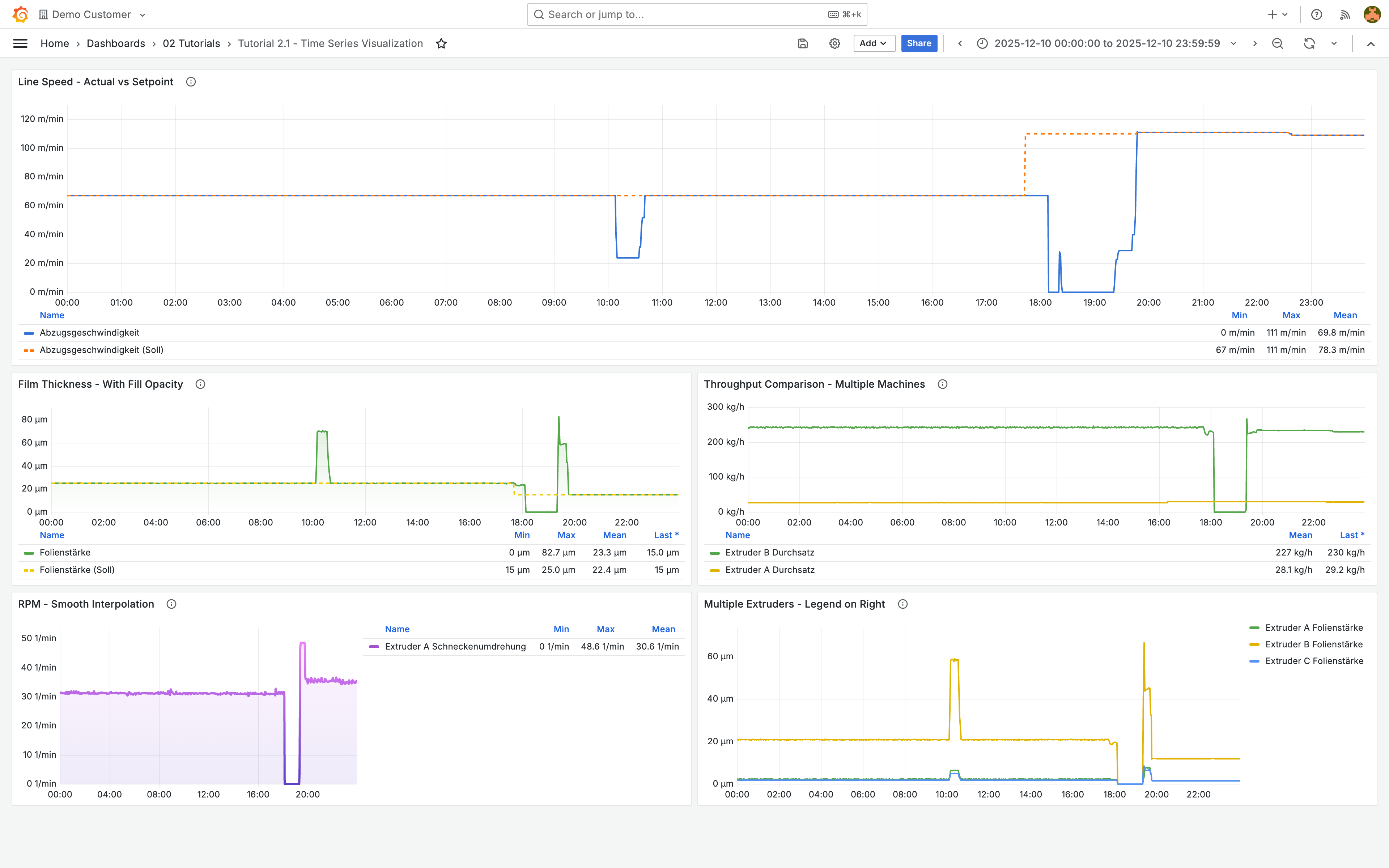
Time series charts are the most common visualization in manufacturing dashboards. They show how process parameters like temperature, pressure, and speed change over time. In this tutorial you will build a dashboard like this step by step:
## What you will learn
* Display multiple variables in a single chart
* Compare actual values with setpoints
* Customize line styles (colors, dashed lines, fill)
* Configure legends with statistical calculations
## Prerequisites
* Completed [Tutorial 1.2: Your first dashboard](/en/integrations/grafana/getting-started/02-first-dashboard.md)
* A dashboard with at least one time series panel
***
## Multiple variables in a single chart
There are two ways to display multiple variables:
### Multiple variables in one query
The simplest approach when the variables come from the same machine:
1. Edit your time series panel (click the panel title, then **Edit**)
2. In the **Variables** section, click the **+** icon to add another variable dropdown
3. Select the desired variable from the new dropdown
Repeat this for each additional variable. Variables that are already selected will not appear in the list again.
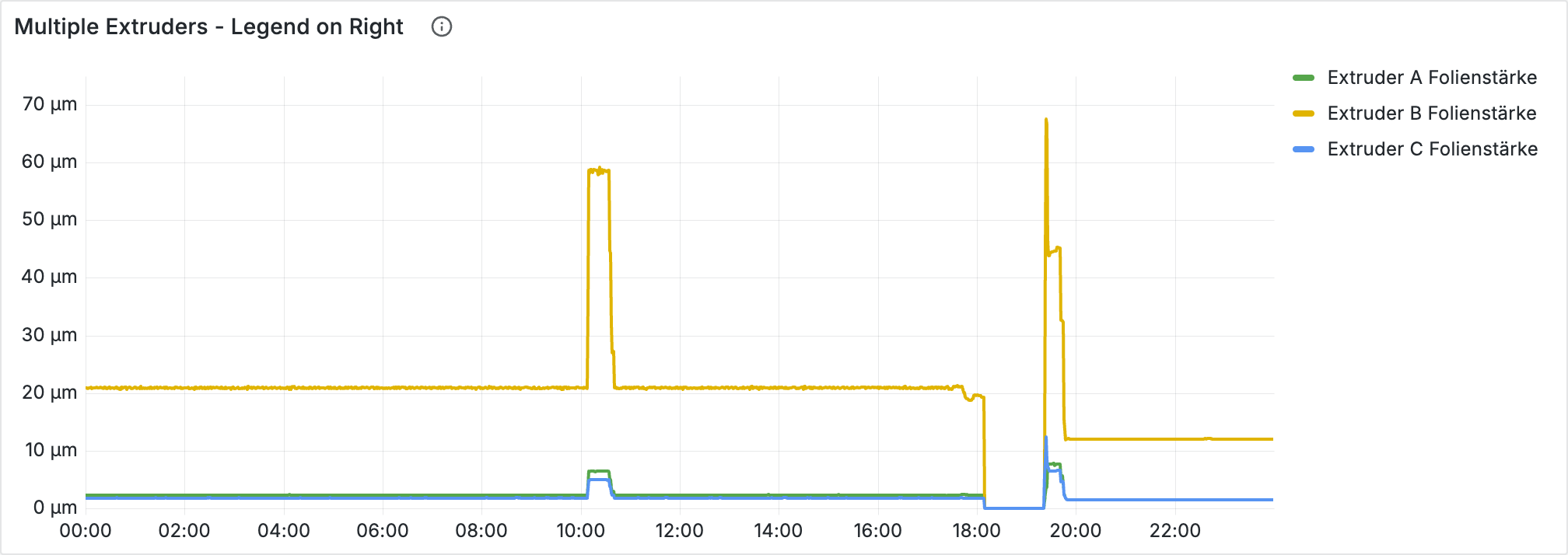
All selected variables appear as separate lines in the chart. This is best for comparing related measurements from the same machine (for example, multiple temperature sensors).
### Multiple queries
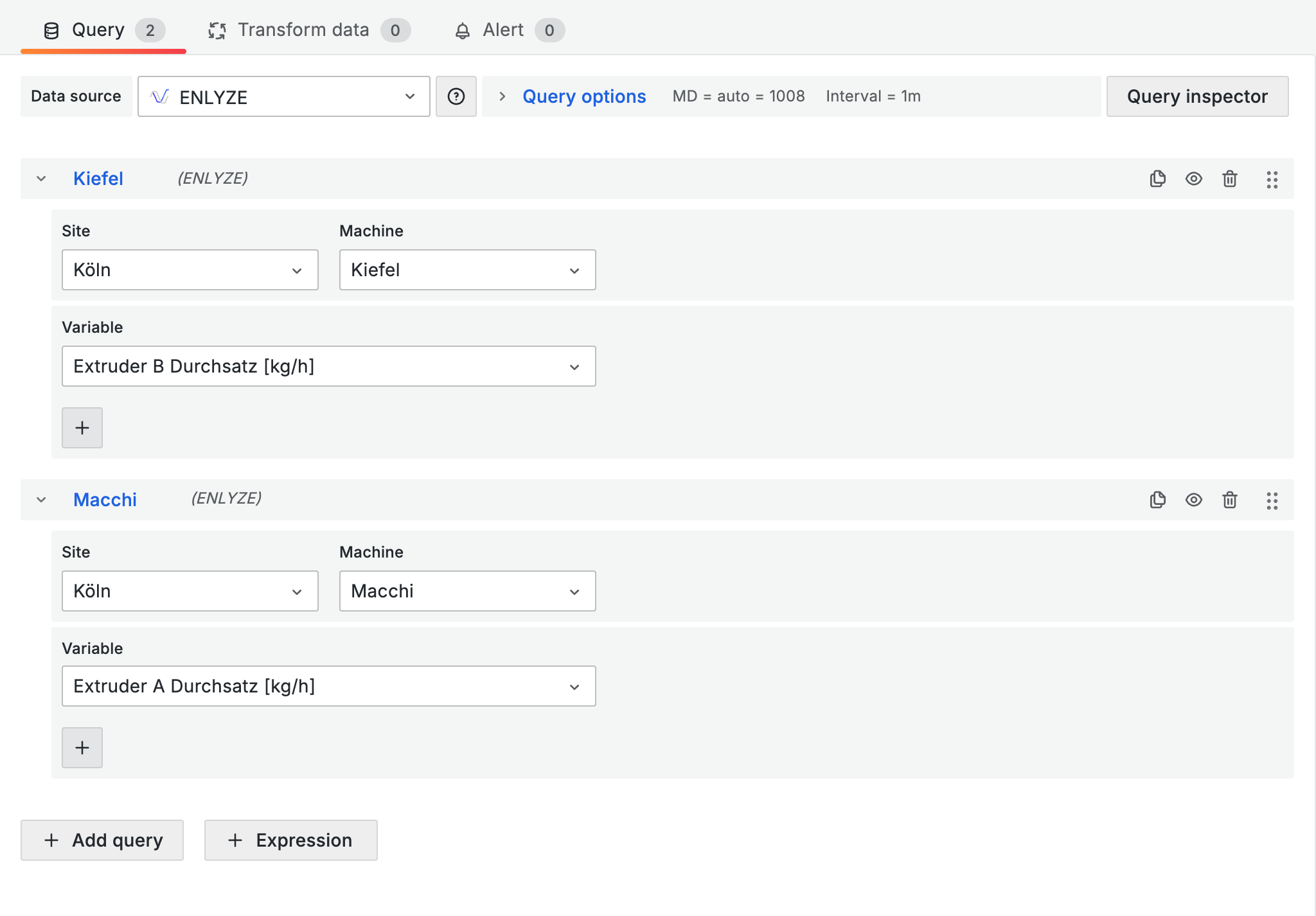
Use this method when you need variables from different machines or want to control each query individually:
1. In the query editor, click **+ Query** to add a new query
2. Configure the second query with a different site, machine, or set of variables
3. Each query appears as its own section (Query A, Query B, etc.)
Best for comparing the same variable across different machines.
***
## Comparing actual and setpoint values
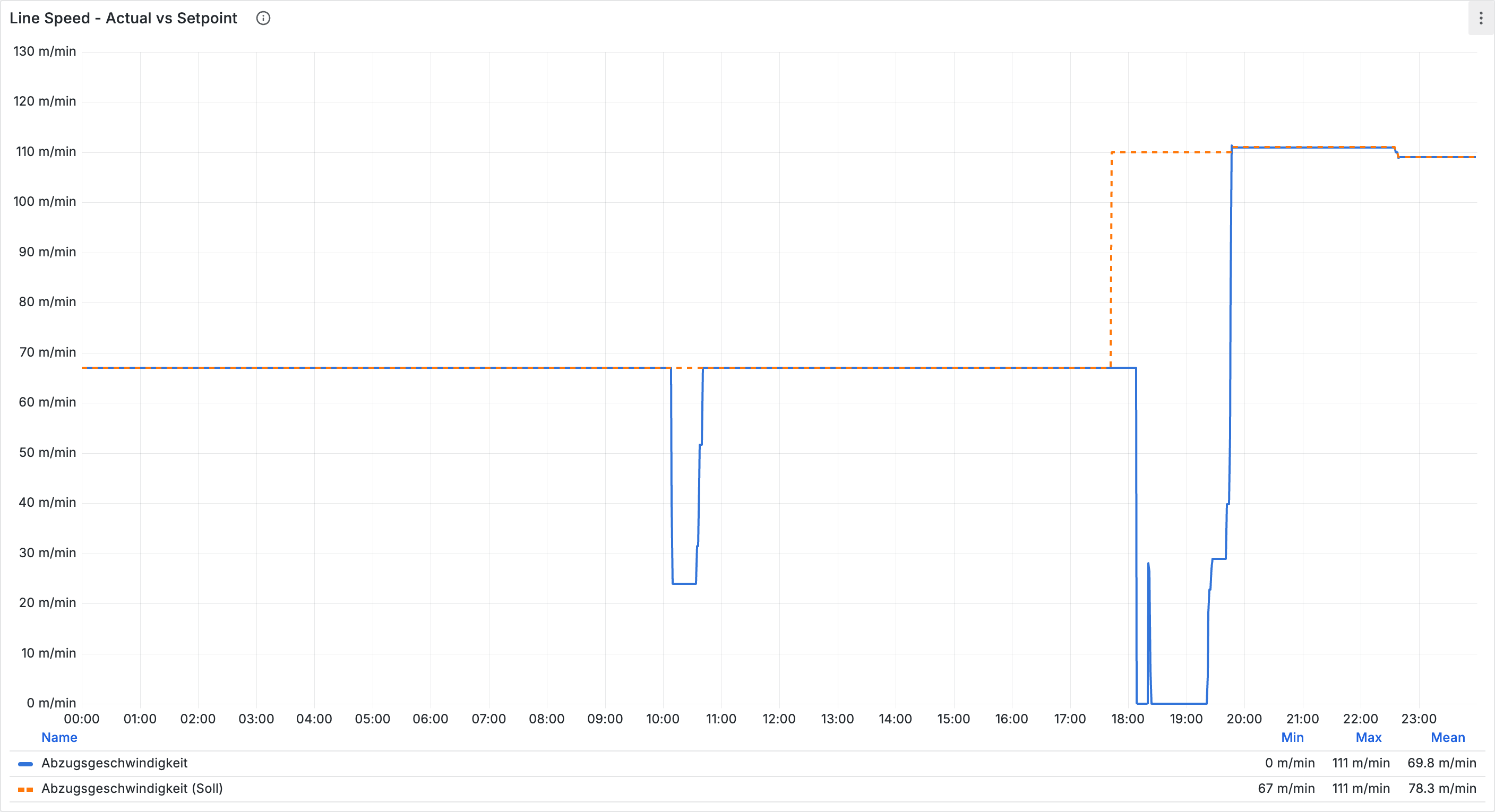
A common manufacturing use case: compare measured values (actual) with target values (setpoint) and make them visually distinguishable.
### Select variables
In your query, select both the actual and the setpoint variable (for example, "Abzugsgeschwindigkeit" and "Abzugsgeschwindigkeit (Soll)").
When you have multiple variables, Grafana automatically assigns default colors and styles. To customize color, line style, or other properties per variable, use **Overrides**.
### Configure overrides
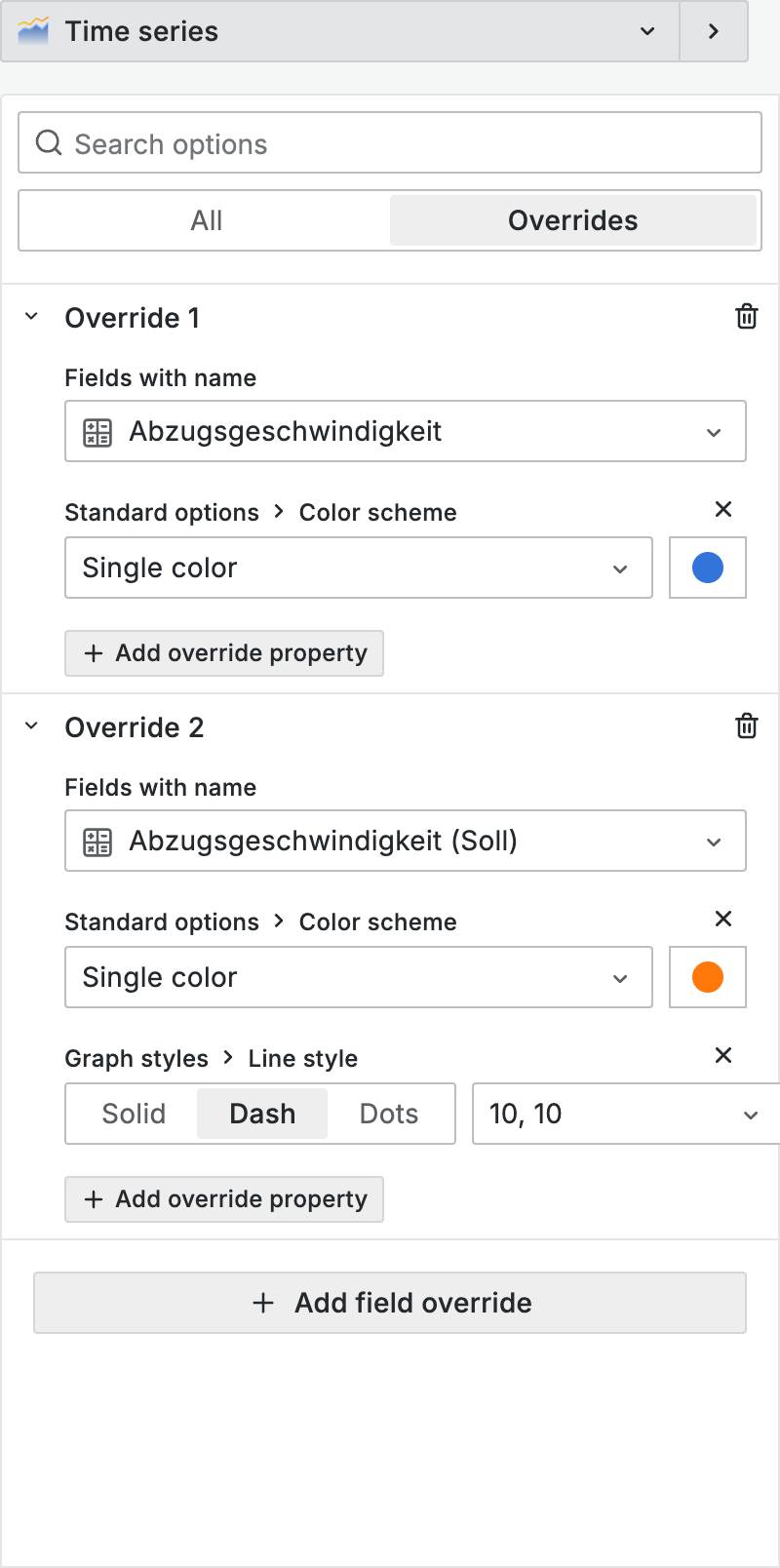
Field overrides let you style each data series individually:
1. In the right sidebar, scroll down to **Overrides**
2. Click **+ Add field override** and select **Fields with name**
3. Select the actual value and set a fixed color (for example, blue)
4. Add a second override for the setpoint
5. Set a different color (for example, orange) and under **Graph styles** > **Line style**, choose **Dash**
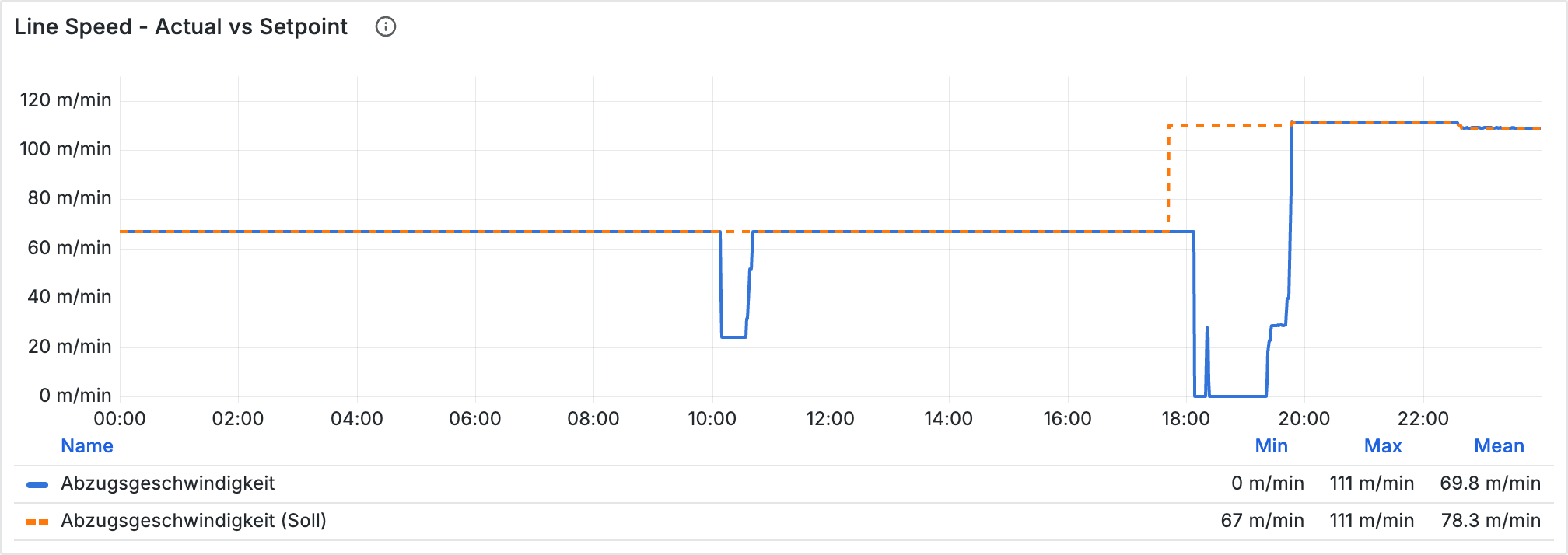
The result: the actual value appears as a solid blue line, the setpoint as a dashed orange line.
***
## Line styling
You can find the style options in the right sidebar under **Graph styles**. Here are the most important settings:
### Line width and fill
* **Line width**: Default is 1. Increase to 2 or 3 for more prominent lines (for example, on shopfloor monitors).
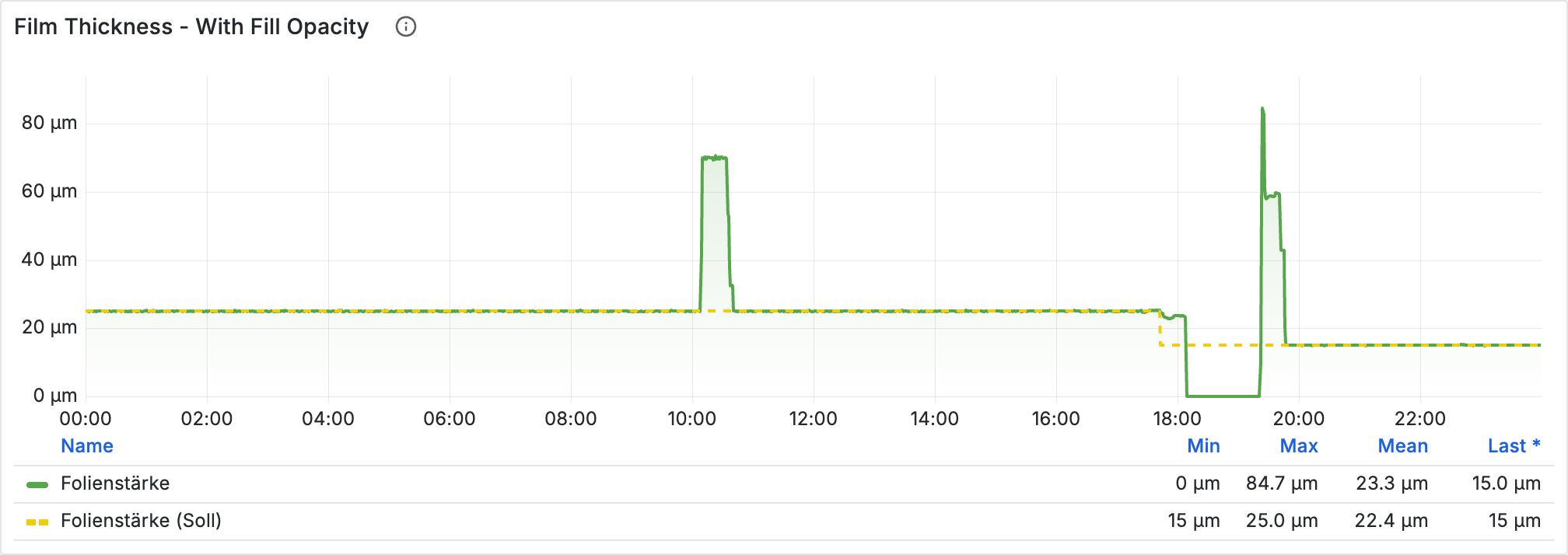
* **Fill opacity**: Adds a shaded area under the line. A subtle fill (10-30%) helps distinguish overlapping lines.
### Gradient mode
Under **Gradient mode** you can create a color gradient in the fill area:
| Mode | Description |
| ----------- | -------------------------------- |
| **None** | Solid fill |
| **Opacity** | Fades from top to bottom |
| **Hue** | Color shifts across the gradient |
| **Scheme** | Uses the color scheme gradient |
### Line interpolation
Determines how data points are connected:
| Mode | Use case |
| --------------------- | ---------------------- |
| **Linear** | Most data (default) |
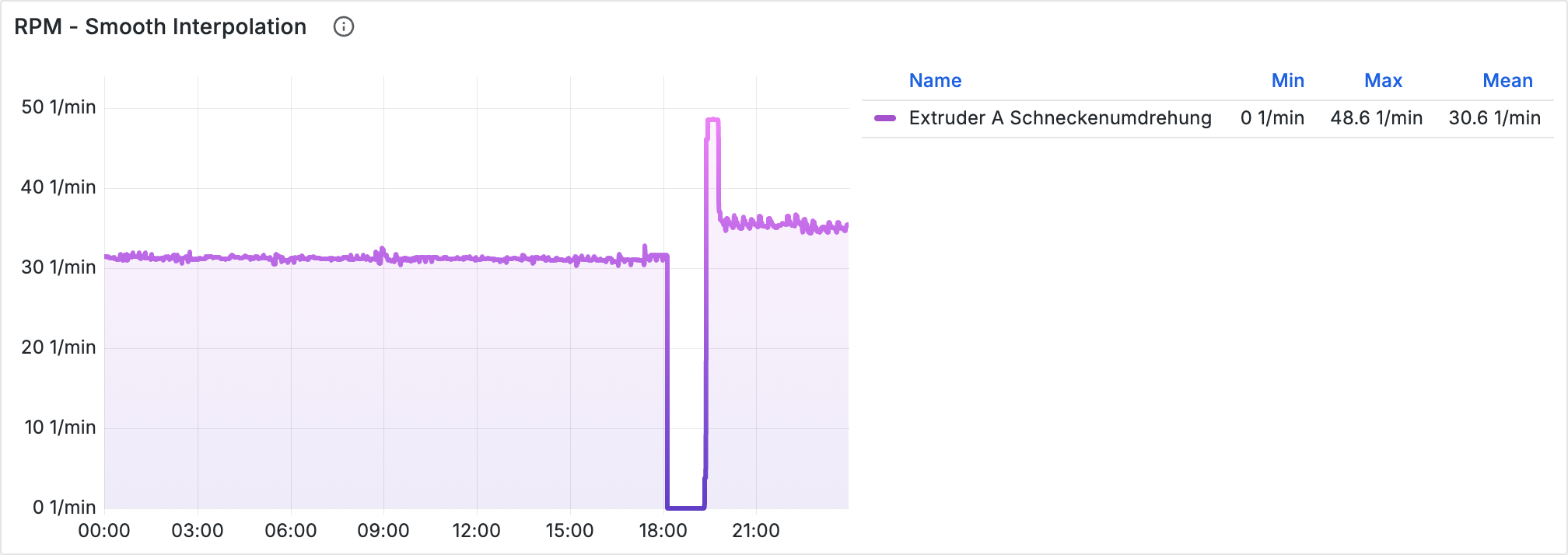
| **Smooth** | Trends, presentations |
| **Step before/after** | Discrete state changes |
***
## Legend and tooltip
### Legend mode
Search for **Legend** in the sidebar and choose the mode:
| Mode | Description |
| ---------- | ---------------------------------- |
| **List** | Simple list of series names |
| **Table** | Table with configurable statistics |
| **Hidden** | No legend |
In **Table** mode you can display calculated values under **Values** (for example, **Min**, **Max**, **Mean**, **Last \***). In manufacturing, Min, Max, and Mean help you quickly see whether values stayed within expected ranges.
### Tooltip mode
Under **Tooltip** > **Tooltip mode**:
| Mode | Description |
| ---------- | -------------------------------------- |
| **Single** | Shows only the selected series |
| **All** | Shows all series at that point in time |
| **Hidden** | No tooltip |
{% hint style="info" %}
Use **All** when comparing multiple series. In **All** mode you can set the sort order to **Descending** to see the highest value first.
{% endhint %}
***
## The finished panel
The individual steps together produce a process monitoring panel. Here is the full configuration:
| Setting | Value |
| ----------------- | --------------------------------------------------- |
| **Variables** | Abzugsgeschwindigkeit, Abzugsgeschwindigkeit (Soll) |
| **Line width** | 2 |
| **Fill opacity** | 10 |
| **Legend mode** | Table |
| **Legend values** | Min, Max, Mean |
| **Tooltip mode** | All |
### Overrides
| Field | Color | Line style |
| ---------------------------- | -------------- | ------------- |
| Abzugsgeschwindigkeit | Blue (fixed) | Solid |
| Abzugsgeschwindigkeit (Soll) | Orange (fixed) | Dash (10, 10) |
***
## Tips
* **Color choice**: Blue for actual/measured values, orange/yellow for setpoints, red only for errors/alerts.
* **Fill**: For a single variable use 0-20%, when comparing two variables use 0-10% or none at all.
* **Performance**: More than 10 variables in one panel can slow down rendering. Split the data across multiple panels instead.
***
## Next steps
* [**Single value displays**](/en/integrations/grafana/visualisation-types/02-single-values.md) - Stat, gauge, and bar gauge panels
* [**Tables**](/en/integrations/grafana/visualisation-types/03-tables.md) - Display data in tabular form
* [**Advanced styling**](/en/integrations/grafana/visualisation-types/04-advanced-styling.md) - Thresholds, units, and more