> For the complete documentation index, see [llms.txt](https://docs.enlyze.com/llms.txt). Markdown versions of documentation pages are available by appending `.md` to page URLs; this page is available as [Markdown](https://docs.enlyze.com/en/integrations/grafana/visualisation-types/02-single-values.md).
# 02 Single Values
Single value and stat panels in Grafana.
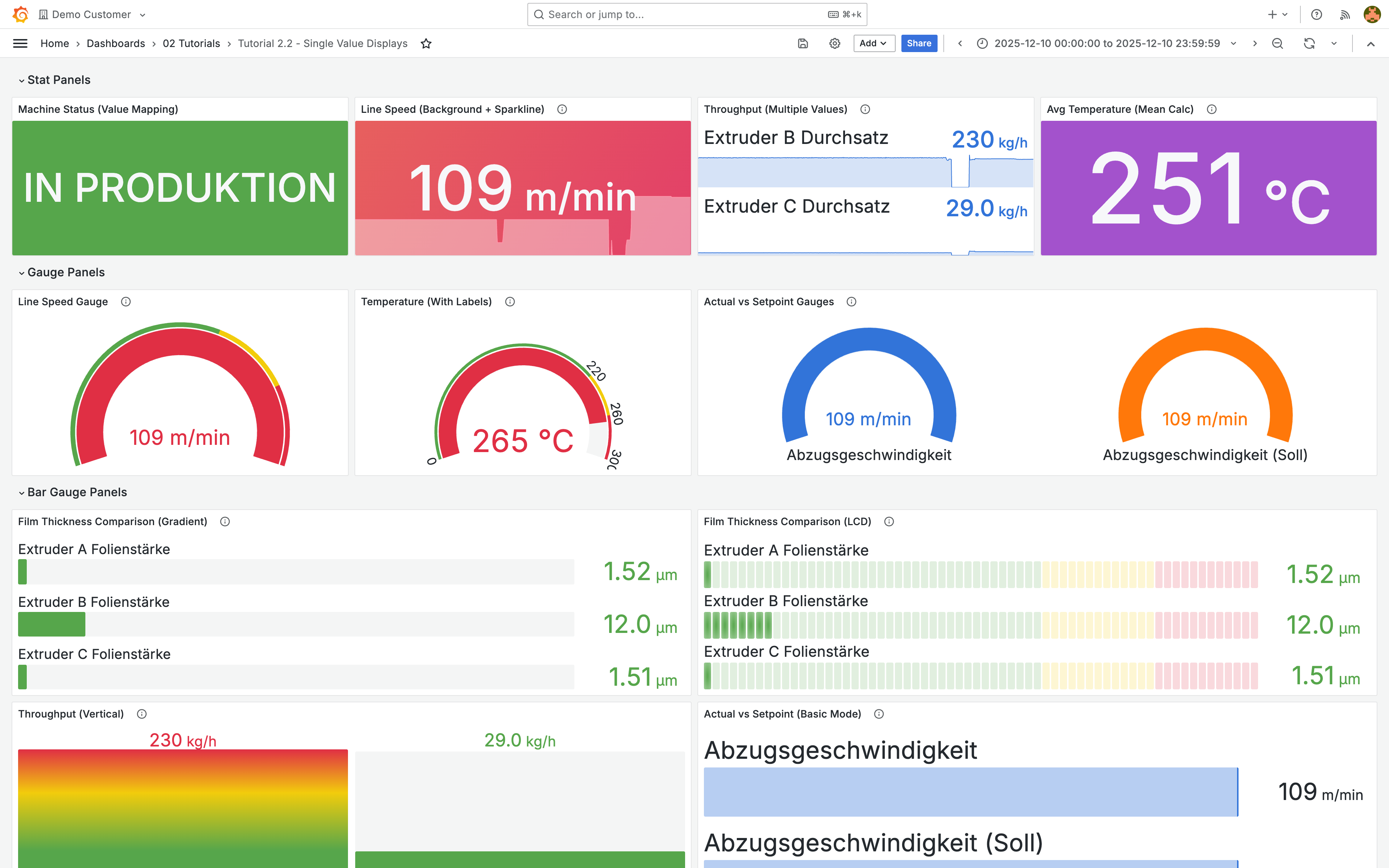
Single value displays show values prominently: the current throughput, the machine temperature, or the production status at a glance. In this tutorial you will learn about the three main single value visualizations and how to configure them for manufacturing dashboards:
## What you will learn
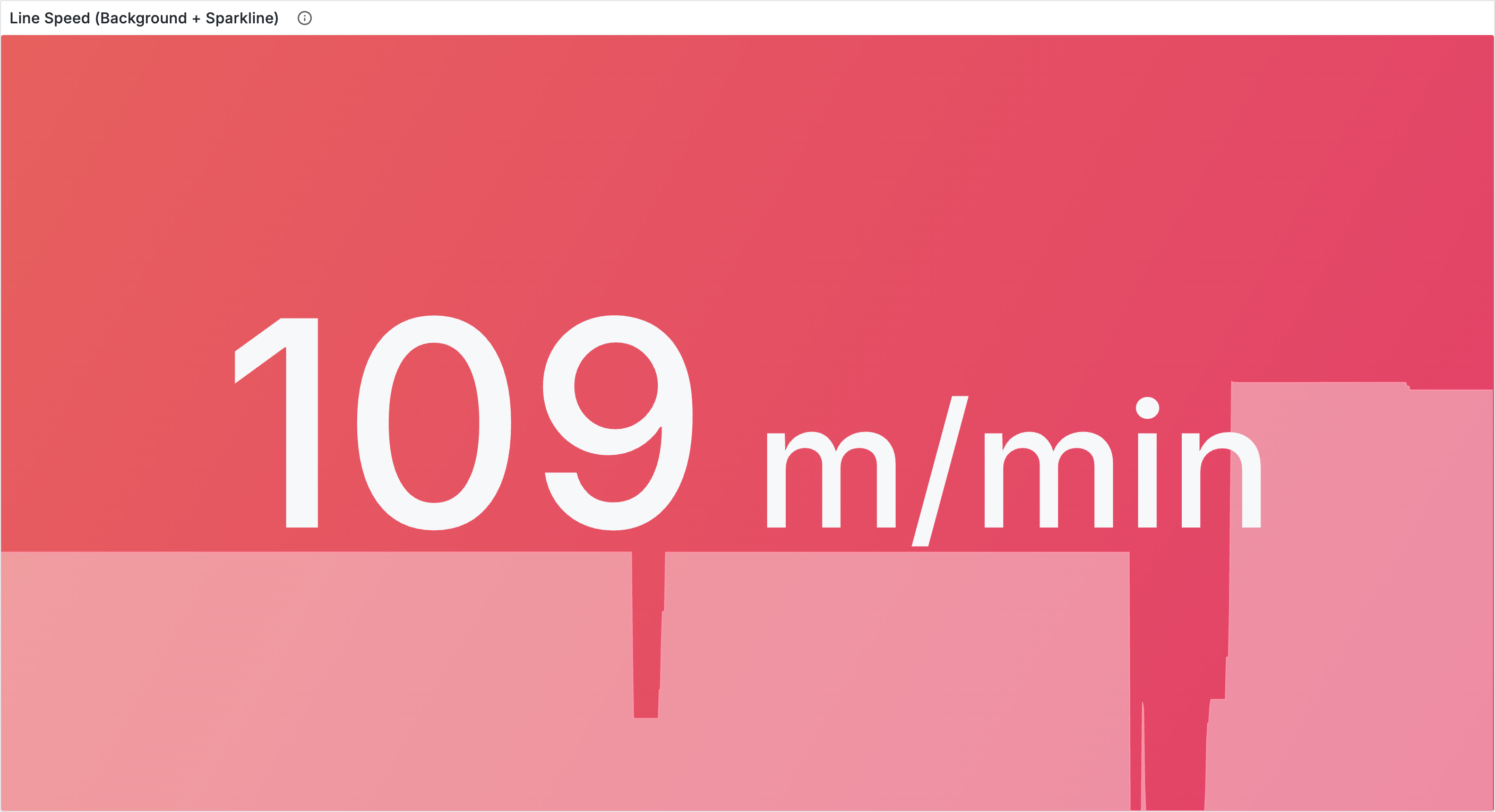
* Create stat panels for prominent value display with an optional sparkline
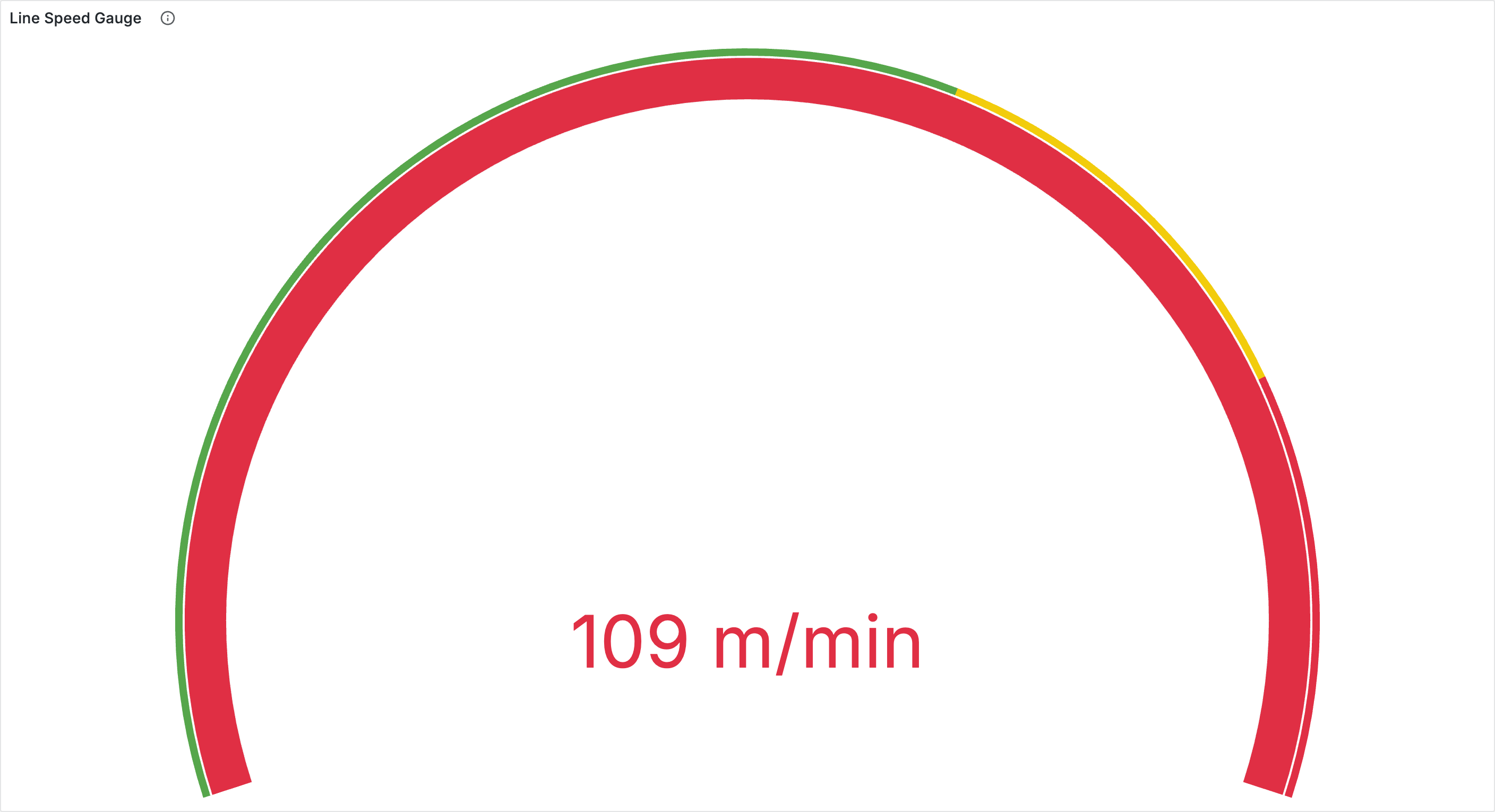
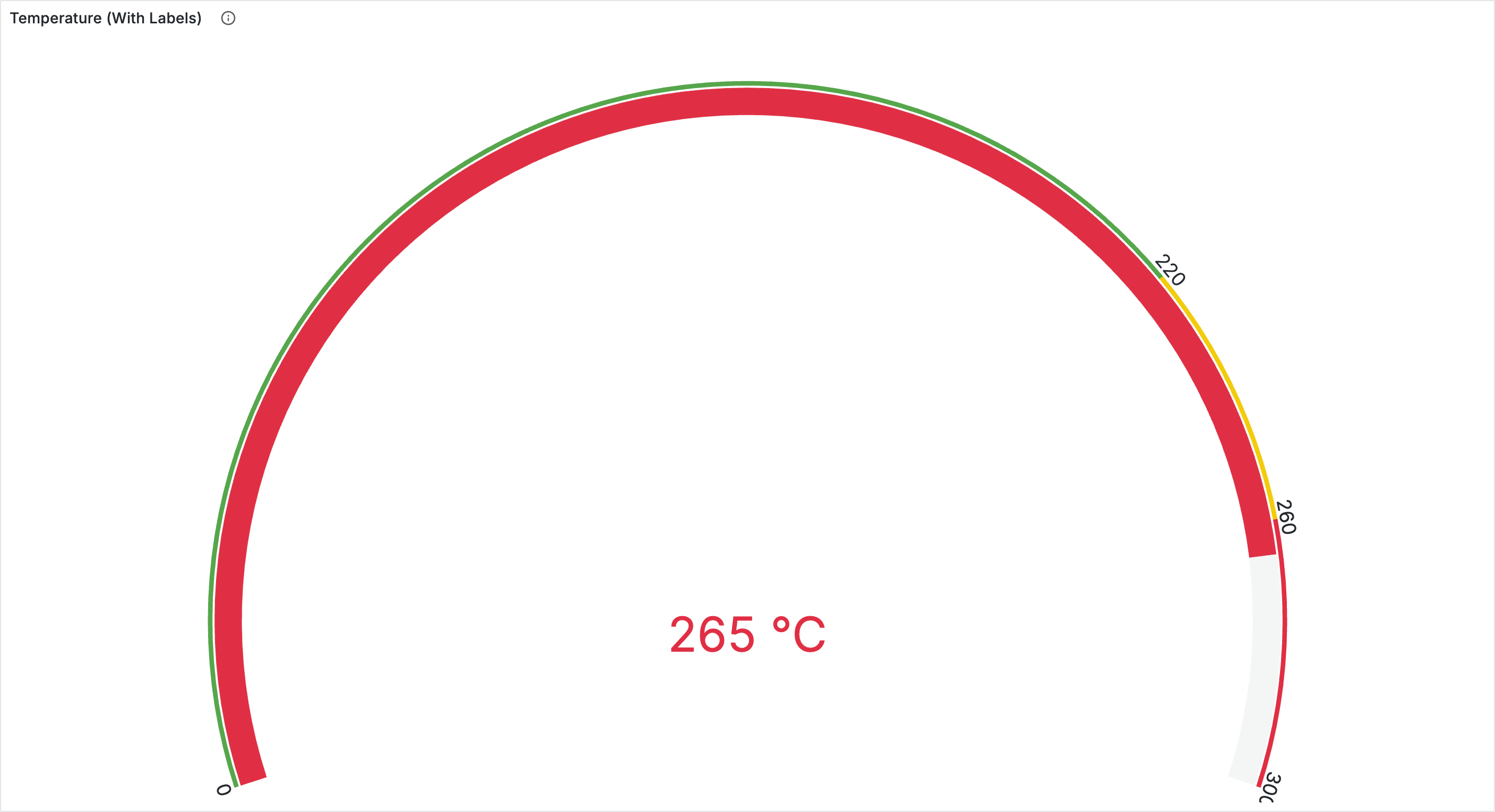
* Use gauge panels for visual range indication
* Build bar gauge panels for comparing multiple values
* Configure thresholds for color-coded status displays
* Use value mappings for text displays (for example, machine status)
## Prerequisites
* Completed [Tutorial 1.2: Your first dashboard](/en/integrations/grafana/getting-started/02-first-dashboard.md)
* Basic understanding of panel creation
***
## Stat panel
The stat panel displays values as large numbers. Ideal for dashboards that need to be readable from a distance.
1. Add a new panel and configure your query
2. Select **Stat** from the visualization dropdown
### Value calculation
Under **Value options** > **Calculation** you determine which value is displayed:
| Calculation | Use case |
| ----------------- | ---------------------------- |
| **Last \*** | Current status (most common) |
| **Mean** | Typical operating value |
| **Max** / **Min** | Peak or low point detection |
| **Sum** | Production counters |
### Fields
Under **Value options** > **Fields** you determine which fields the panel considers. By default this is set to **Numeric Fields**. If you want to display text values (for example, the current production run or a product), change the selection to **All Fields** or pick a specific field.
### Color mode, text mode, and sparkline
Under **Stat styles** you configure the appearance:
| Setting | Options | Recommendation |
| -------------- | ---------------------------------------------- | ------------------------------------------------------------------------------------------------------------------------------------------- |
| **Color mode** | Value, Background, Background (gradient), None | **Background** for shopfloor displays |
| **Graph mode** | None, Area | **Area** shows the trend as a sparkline |
| **Text mode** | Auto, Value, Value and name, Name, None | **Auto** is usually sufficient. Use **Value and name** for KPI dashboards or **Value** when the panel title already provides enough context |
***
## Gauge panel
Gauges display values on a circular arc and show where the value falls within a range.
1. Add a new panel and select **Gauge** as the visualization type
2. Under **Standard options**, set the **Min** and **Max** values (for example, 0 and 300 °C for a temperature sensor)
### Threshold markers
Under **Gauge** in the sidebar:
1. Enable **Show threshold markers** to see the threshold ranges on the arc
2. Optionally enable **Show threshold labels** to display the numeric values
***
## Bar gauge panel
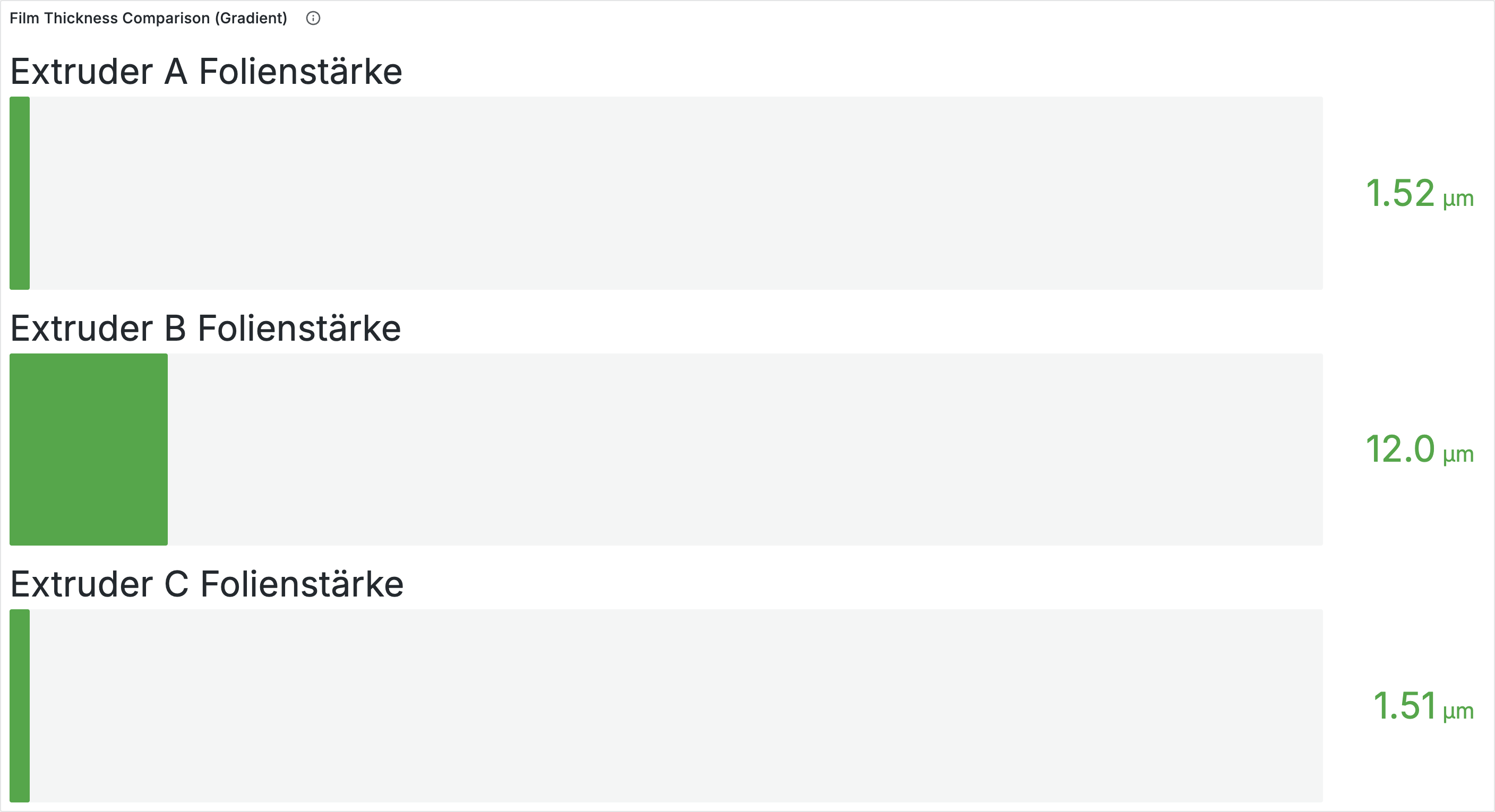
Bar gauges display values as horizontal or vertical bars. Ideal for comparing multiple values.
1. Add a new panel and select multiple variables in the query
2. Select **Bar Gauge** as the visualization type
### Display mode
| Mode | Description |
| ------------- | ----------------------------------- |
| **Gradient** | Smooth color gradient (modern look) |
| **Retro LCD** | Segmented display (industrial look) |
| **Basic** | Solid-color bars |
Under **Orientation** you choose between **Horizontal** and **Vertical**. Enable **Show unfilled area** to make the "empty" part of the bar visible.
***
## Configuring thresholds
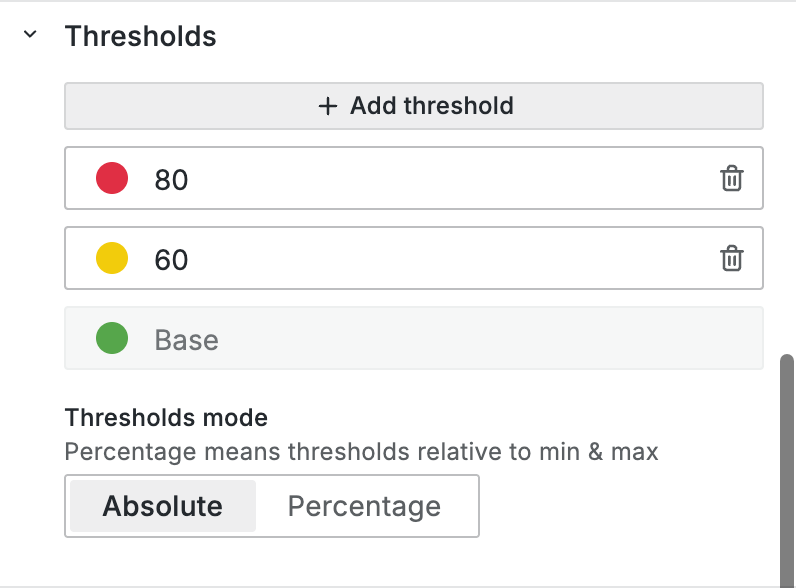
Thresholds provide instant visual feedback about whether values are normal, borderline, or critical.
1. Search for **Thresholds** in the right sidebar
2. Click **+ Add threshold**
3. Enter a value and choose a color
**Example: temperature monitoring**
| Threshold | Color | Meaning |
| --------- | ------ | ---------------- |
| Base | Green | Normal operation |
| 250 | Yellow | Warning |
| 300 | Red | Critical |
Thresholds can be defined as **Absolute** (fixed values) or **Percentage** (relative to Min/Max). Use Absolute when you have known limits.
***
## Value mappings: machine status
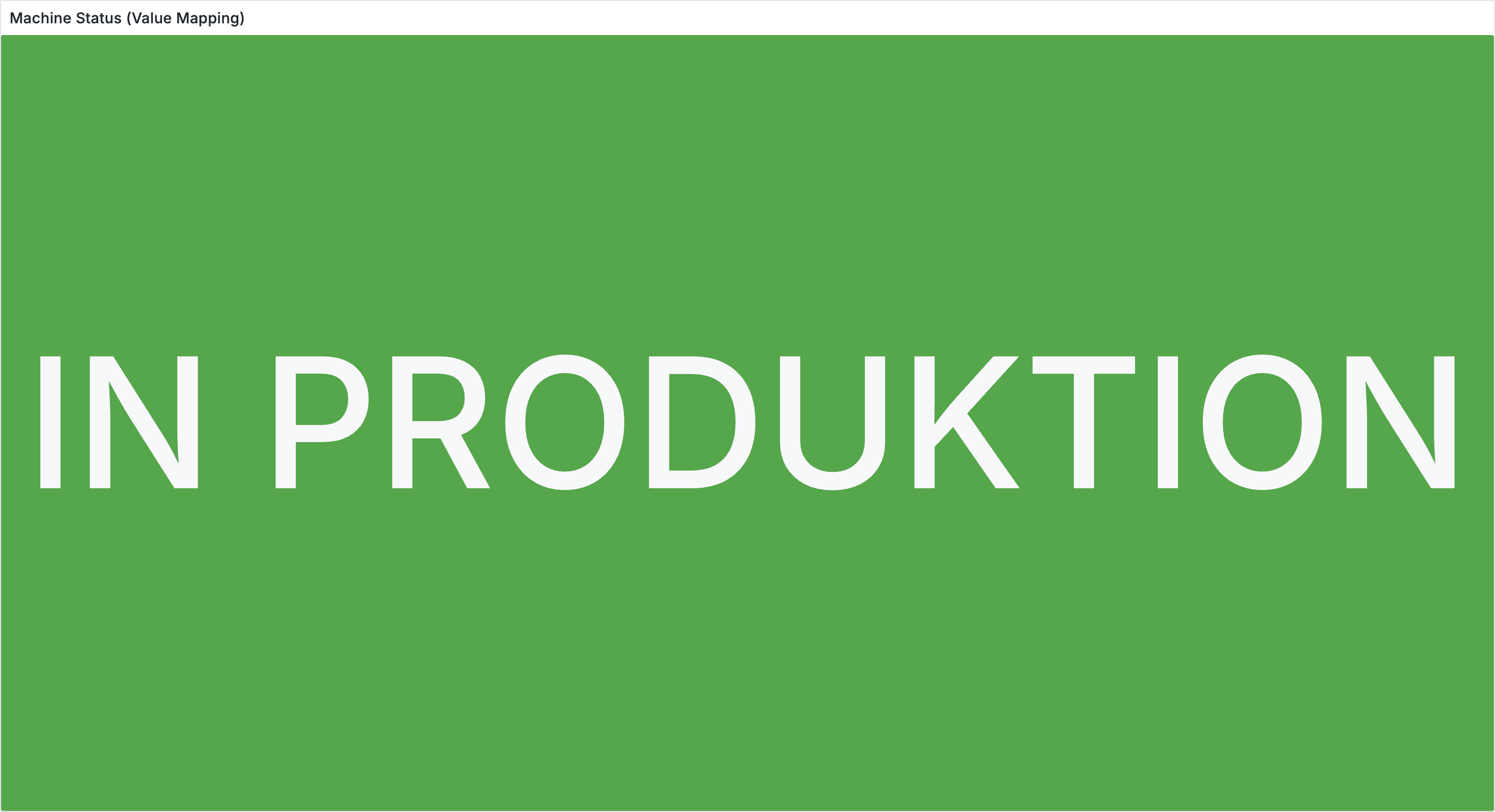
Value mappings let you display text instead of numbers. A typical use case: derive the machine status from the line speed.
1. Search for **Value mappings** in the sidebar and click **Add value mapping**
2. Create mappings with ranges to cover all cases:
| Type | From | To | Display | Color |
| ------- | ----- | ----- | ------------- | ----- |
| Range | -1000 | 0 | DOWNTIME | Red |
| Range | 1 | 10000 | IN PRODUCTION | Green |
| Special | Null | — | NO DATA | Gray |
3. Set **Color mode** to **Background** and **Text mode** to **Value**
{% hint style="info" %}
If the line speed fluctuates slightly and never reaches exactly 0, use a range (for example, 0-1) instead of an exact value for the downtime condition.
{% endhint %}
***
## Choosing the right visualization
| Goal | Visualization |
| ---------------------------------- | -------------------------- |
| Show one prominent value | Stat |
| Show value within a range | Gauge |
| Compare multiple similar values | Bar Gauge |
| Show trend alongside the value | Stat with sparkline |
| Industrial control panel look | Bar Gauge (LCD mode) |
| Maximum visibility from a distance | Stat with background color |
***
## Tips
* **Shopfloor displays**: Stat with background color mode, large panels, high-contrast colors. Let the colors communicate status.
* **KPI dashboards**: Use consistent thresholds for similar metrics. Add sparklines for trend display.
* **Mobile dashboards**: Stat panels are most readable at small sizes. Avoid gauges.
* **Performance**: **Last \*** is faster than aggregations. Limit the sparkline time range if needed.
***
## Next steps
* [**Tables**](/en/integrations/grafana/visualisation-types/03-tables.md) - Display data in tabular form
* [**Advanced styling**](/en/integrations/grafana/visualisation-types/04-advanced-styling.md) - Units, overrides, and more