> For the complete documentation index, see [llms.txt](https://docs.enlyze.com/llms.txt). Markdown versions of documentation pages are available by appending `.md` to page URLs; this page is available as [Markdown](https://docs.enlyze.com/en/integrations/grafana/visualisation-types/03-tables.md).
# 03 Tables
Tables and table formatting in Grafana.
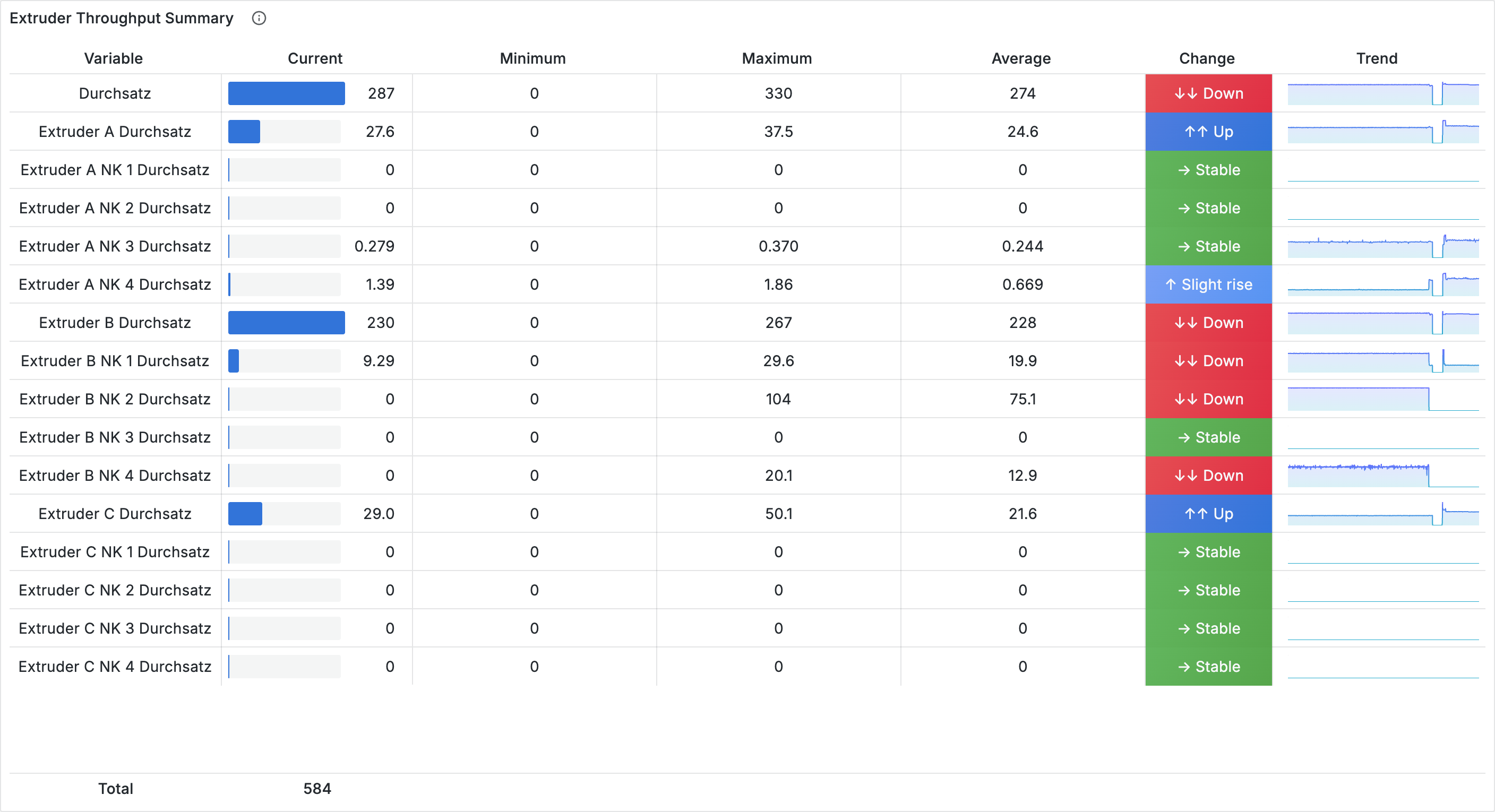
Tables are ideal for overviews: current values, minima, maxima, and trends for many variables at a glance. In this tutorial you build a summary table like this step by step:
## What you will learn
* Convert time series data into a table using the Reduce transformation
* Add sparklines for in-cell trend display
* Configure cell display types (colored text, gauge, colored backgrounds)
* Rename, hide, and reorder columns
* Enable sorting and a table footer
## Prerequisites
* [Tutorial 1.2: Your first dashboard](/en/integrations/grafana/getting-started/02-first-dashboard.md) completed
* Basic understanding of panel creation
***
## Create a basic table
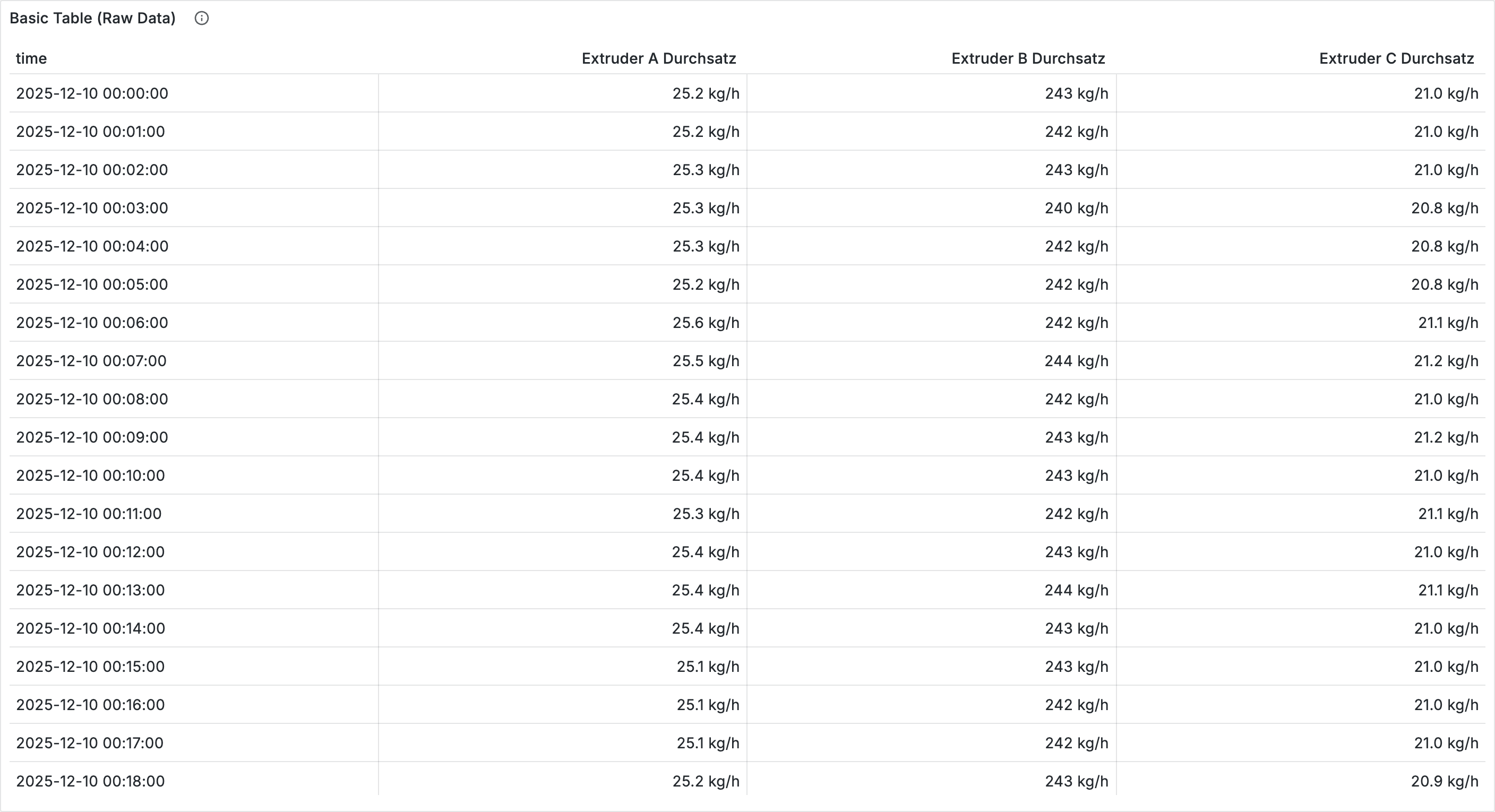
Time series data is displayed as a chart by default in Grafana. If you switch the visualization to **Table**, you see the raw data: one row per timestamp with all variables as columns.
1. Edit your dashboard and click **Add** → **Visualization**
2. Select your ENLYZE data source
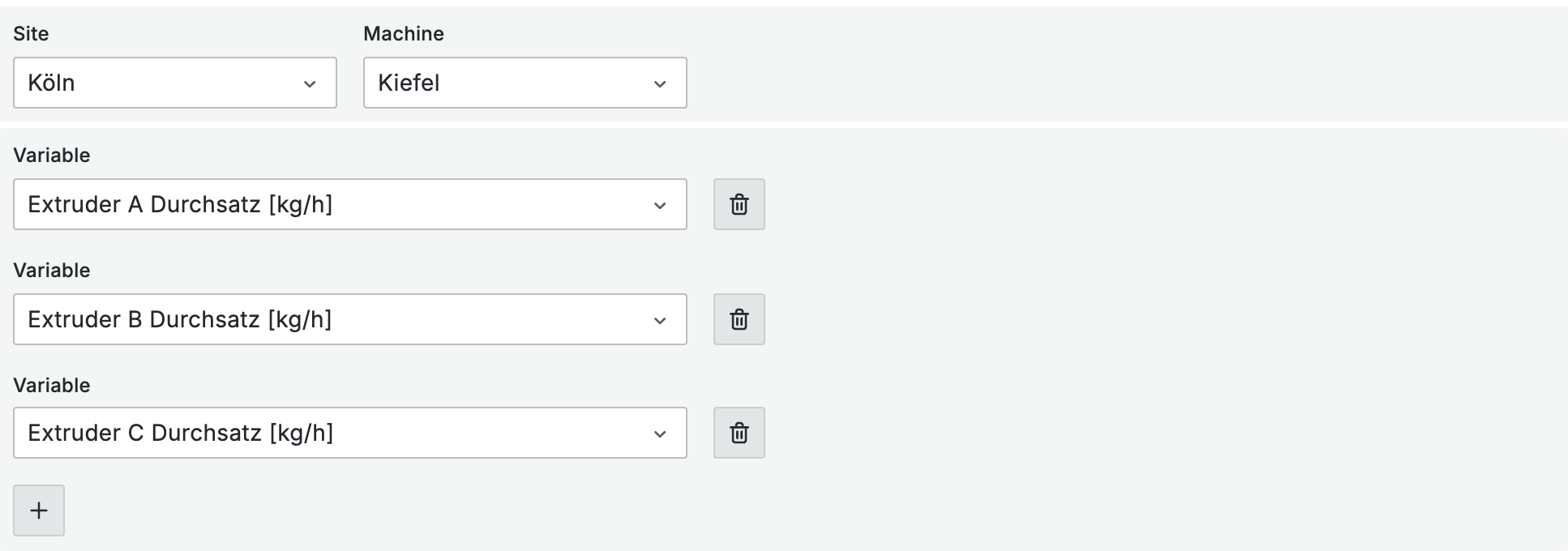
3. Choose a site and a machine
4. Select multiple variables (e.g. various extruder throughputs)
5. In the visualization dropdown (top right of the panel editor), select **Table**
The table now shows the raw time series data with one row per timestamp:
{% hint style="info" %}
This raw view is not very useful. In the next step you will convert the data into a summary using a transformation.
{% endhint %}
***
## Reduce transformation
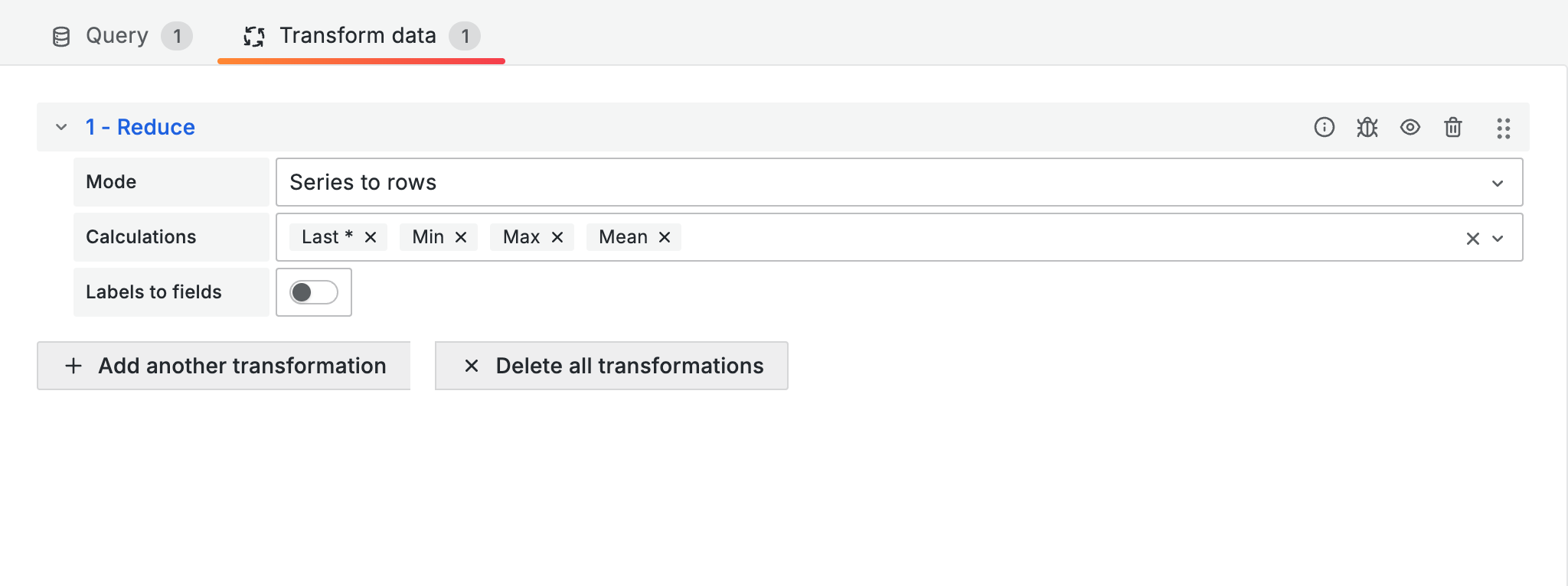
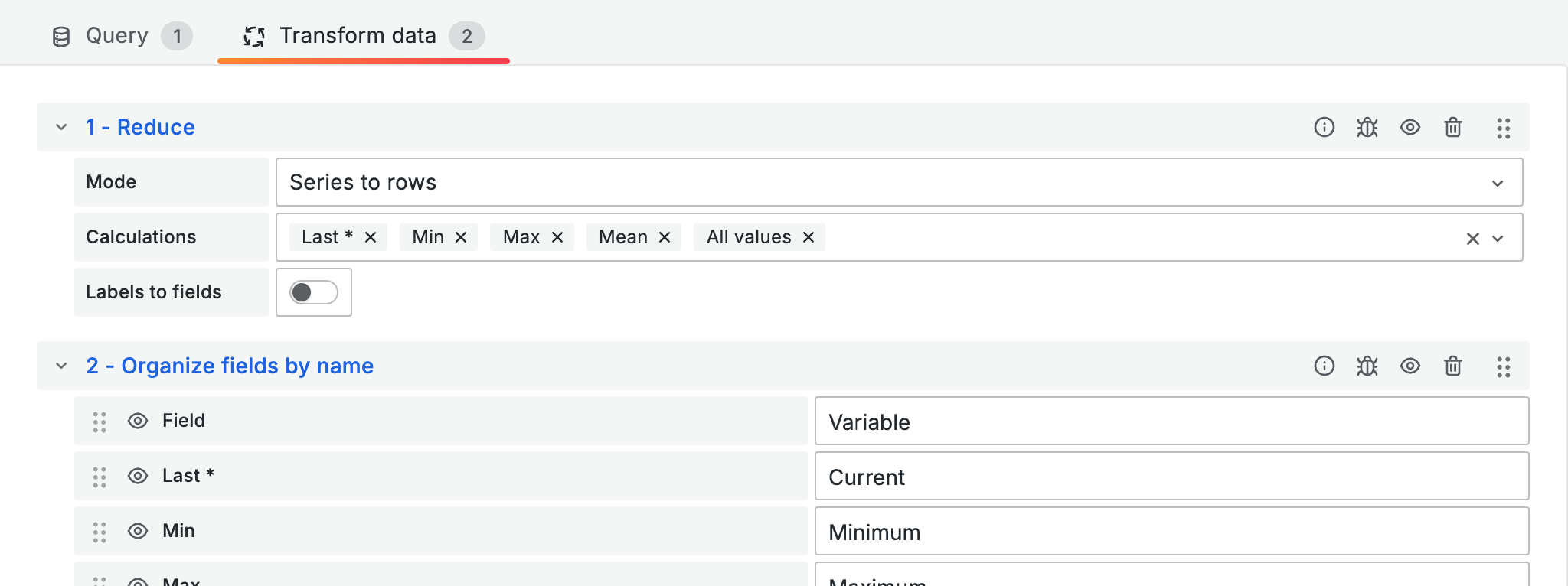
The **Reduce** transformation converts time series data into summary statistics. Many data points per variable become single values like minimum, maximum, mean, and the current value.
1. In the panel editor, switch to the **Transform** tab
2. Click **+ Add transformation** and select **Reduce**
3. In the **Calculations** field, select the statistics you want:
| Calculation | Description |
| -------------- | ------------------------------------------- |
| **Last \*** | Most recent non-null value |
| **Min** | Minimum value in the time range |
| **Max** | Maximum value in the time range |
| **Mean** | Average value |
| **Difference** | Difference between the last and first value |
| **All values** | Array of all values (for sparklines) |
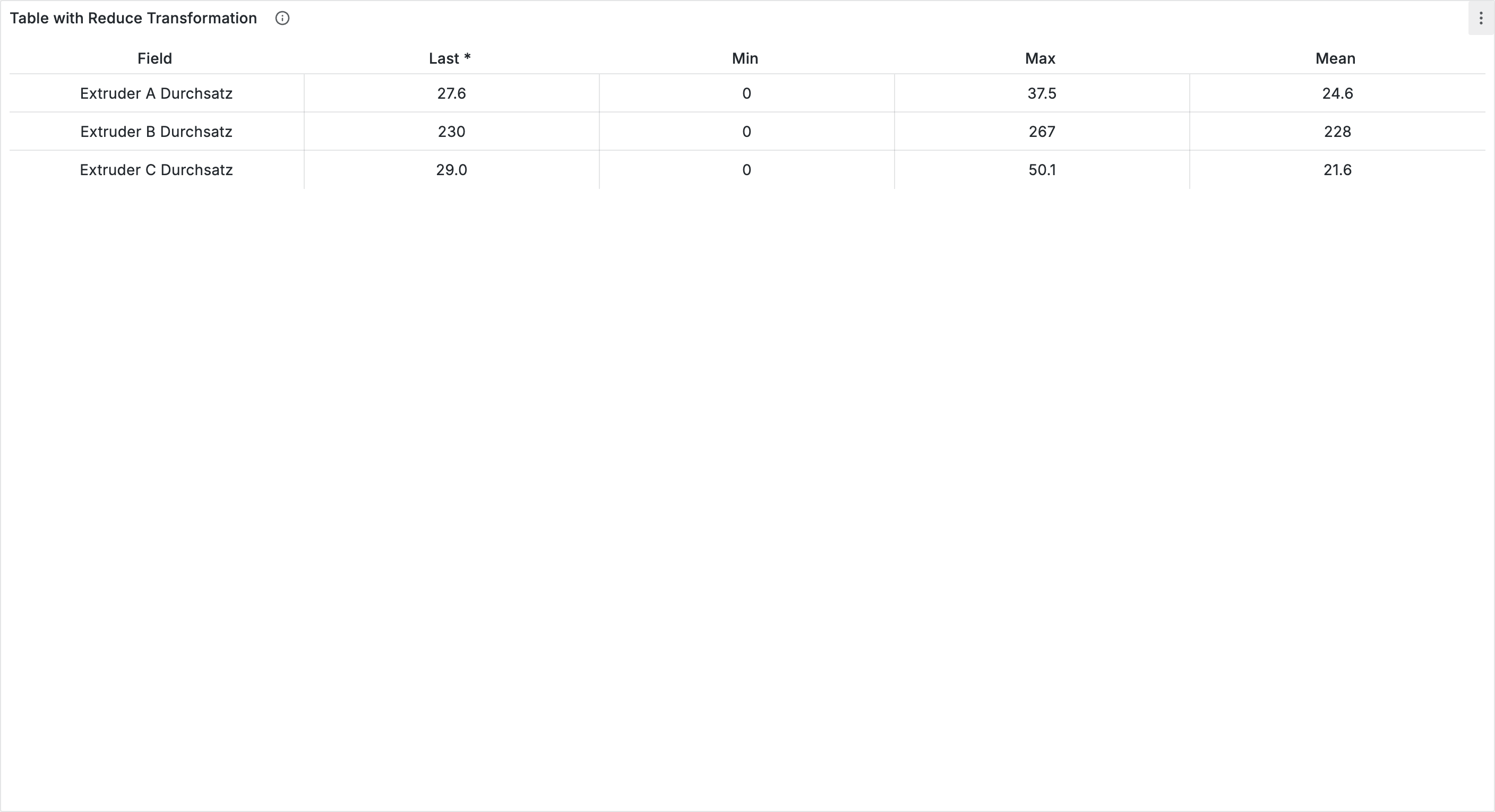
The table now shows one row per variable with the calculated columns:
***
## Sparklines
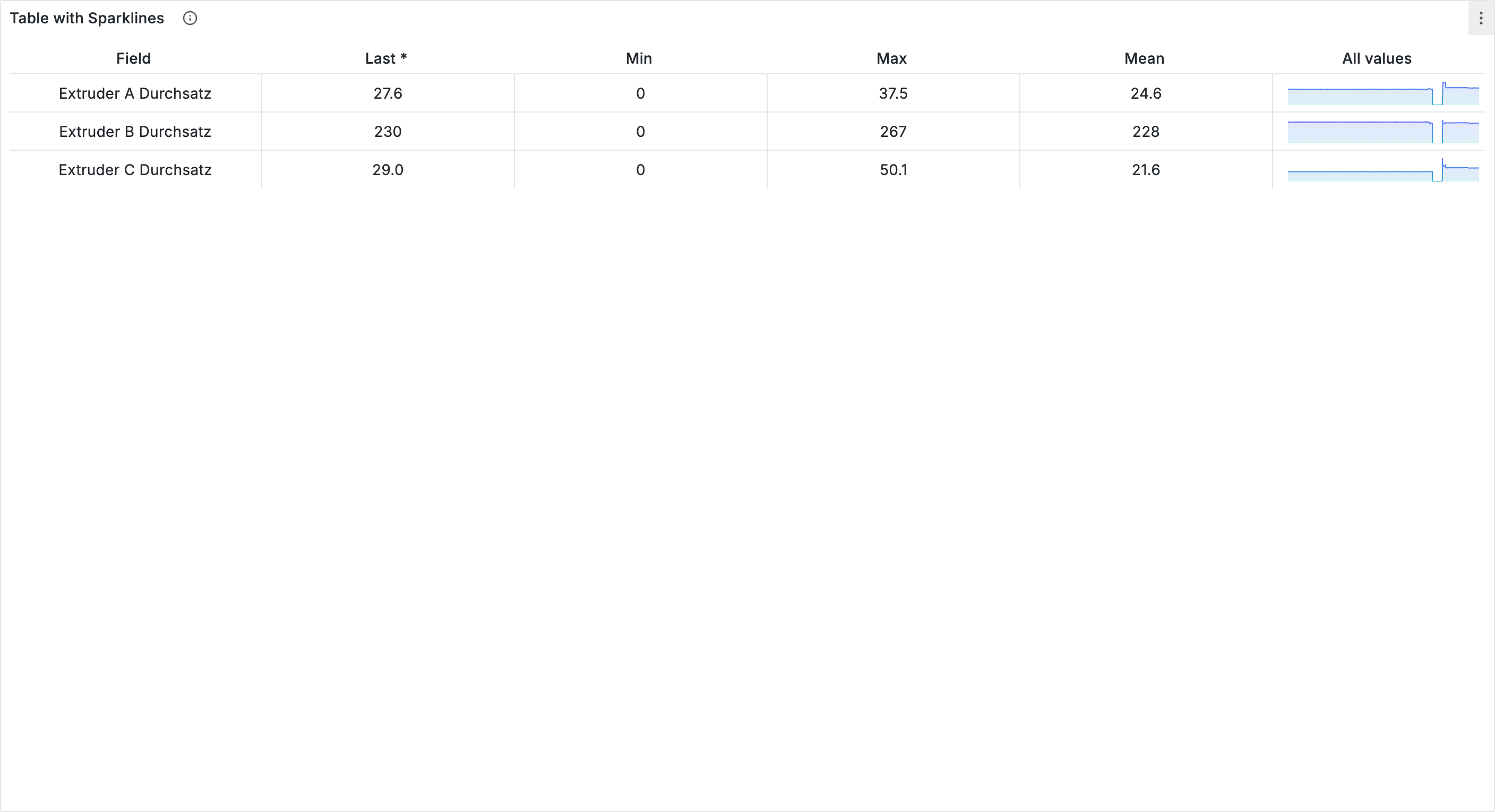
Sparklines are mini charts inside table cells that show the trend at a glance.
1. In the Reduce transformation, make sure **All values** is selected as a calculation
2. Go to the **Overrides** section in the right sidebar
3. Click **+ Add field override** → **Fields with name** → select "All values"
4. Click **+ Add override property** → **Cell type** → select **Sparkline**
{% hint style="info" %}
For a consistent look you can set a fixed color for all sparklines: **Standard options** → **Color scheme** → **Single color**.
{% endhint %}
***
## Cell display types
Grafana offers several ways to display values in table cells. Cell types are configured via **Overrides**: add an override for the desired column, then set the **Cell type** property.
### Colored text with value mappings
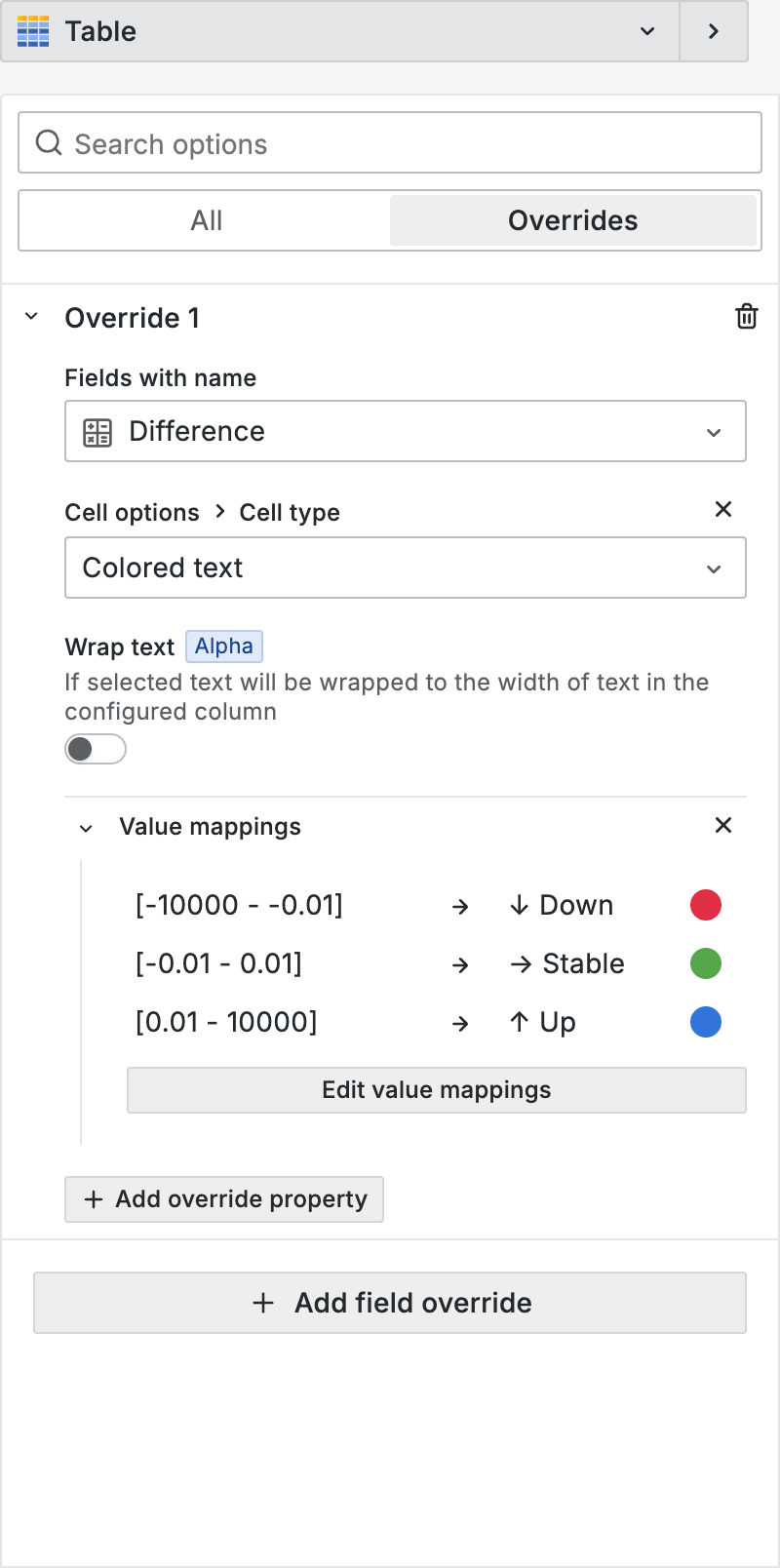
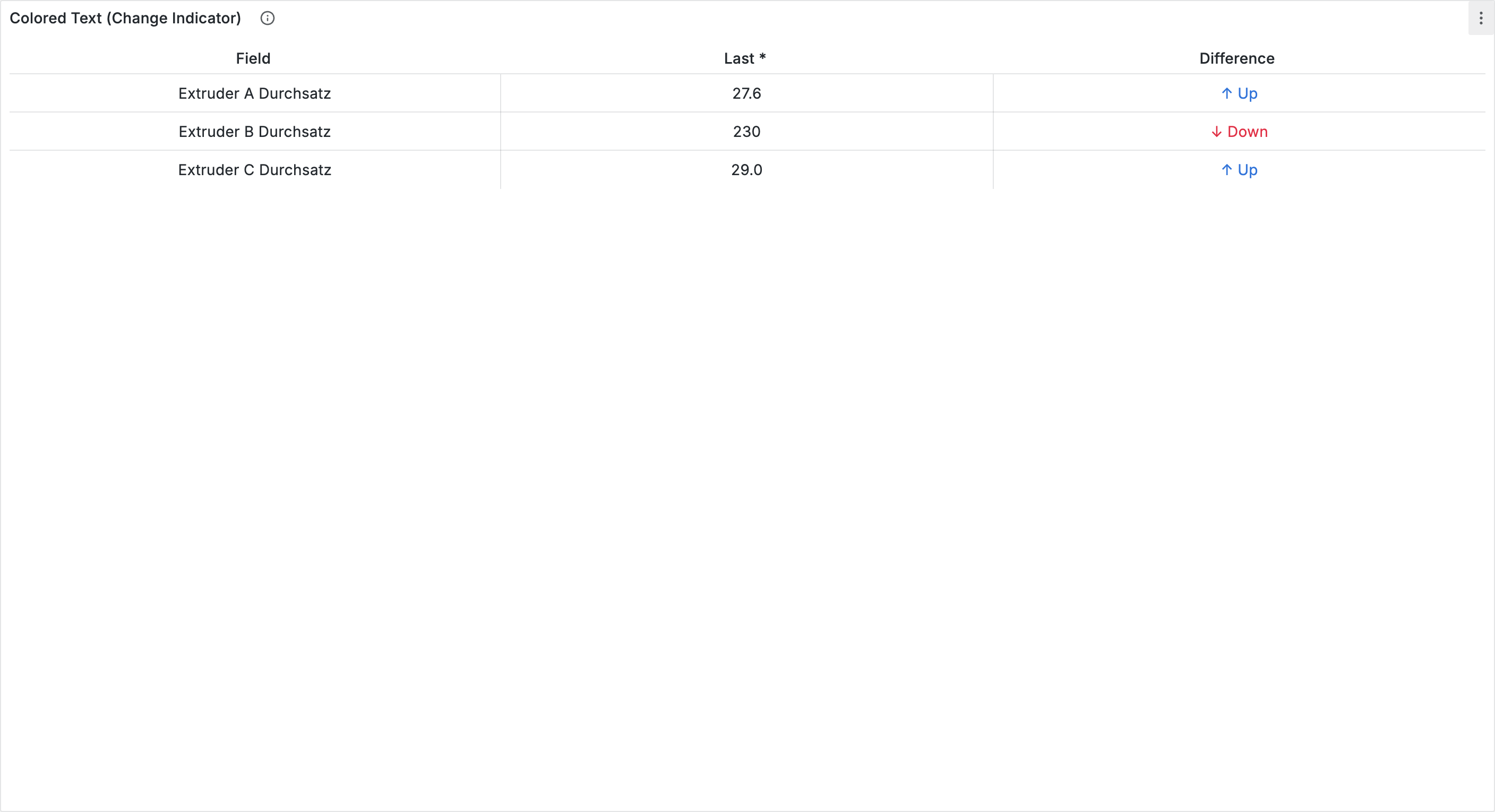
Combine the **Colored text** cell type with **Value mappings** to visually highlight changes. For example, for a "Difference" column:
1. Add an override for the column
2. Set **Cell type** to **Colored text**
3. Add the **Value mappings** property and click **Edit value mappings**
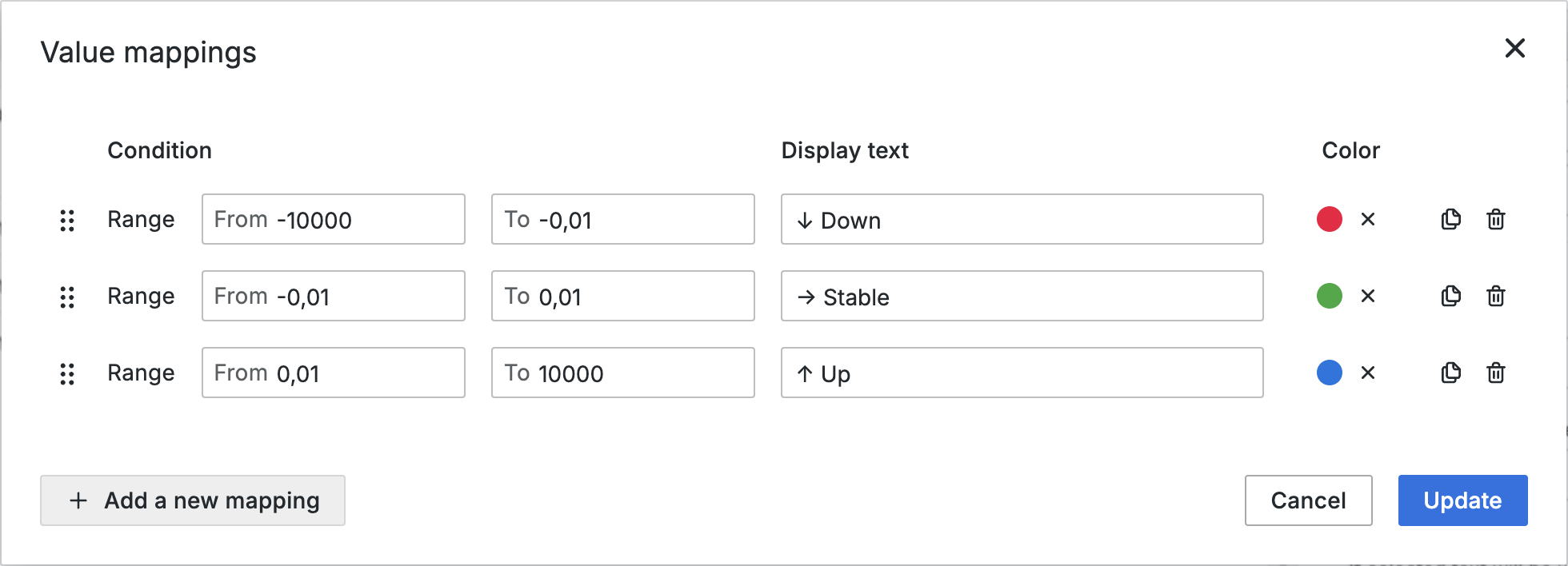
4. Choose **Range** as the type and create range mappings. Since Grafana does not support comparison operators like `> 0`, large ranges are used instead:
| From | To | Display | Color |
| ------ | ----- | -------- | ----- |
| -10000 | -0.01 | ↓ Down | Red |
| -0.01 | 0.01 | → Stable | Green |
| 0.01 | 10000 | ↑ Up | Blue |
{% hint style="info" %}
Instead of **Colored text** you can also use **Colored background** to color the entire cell. You can see this approach in action in the finished table at the end of this tutorial.
{% endhint %}
### Gauge cells
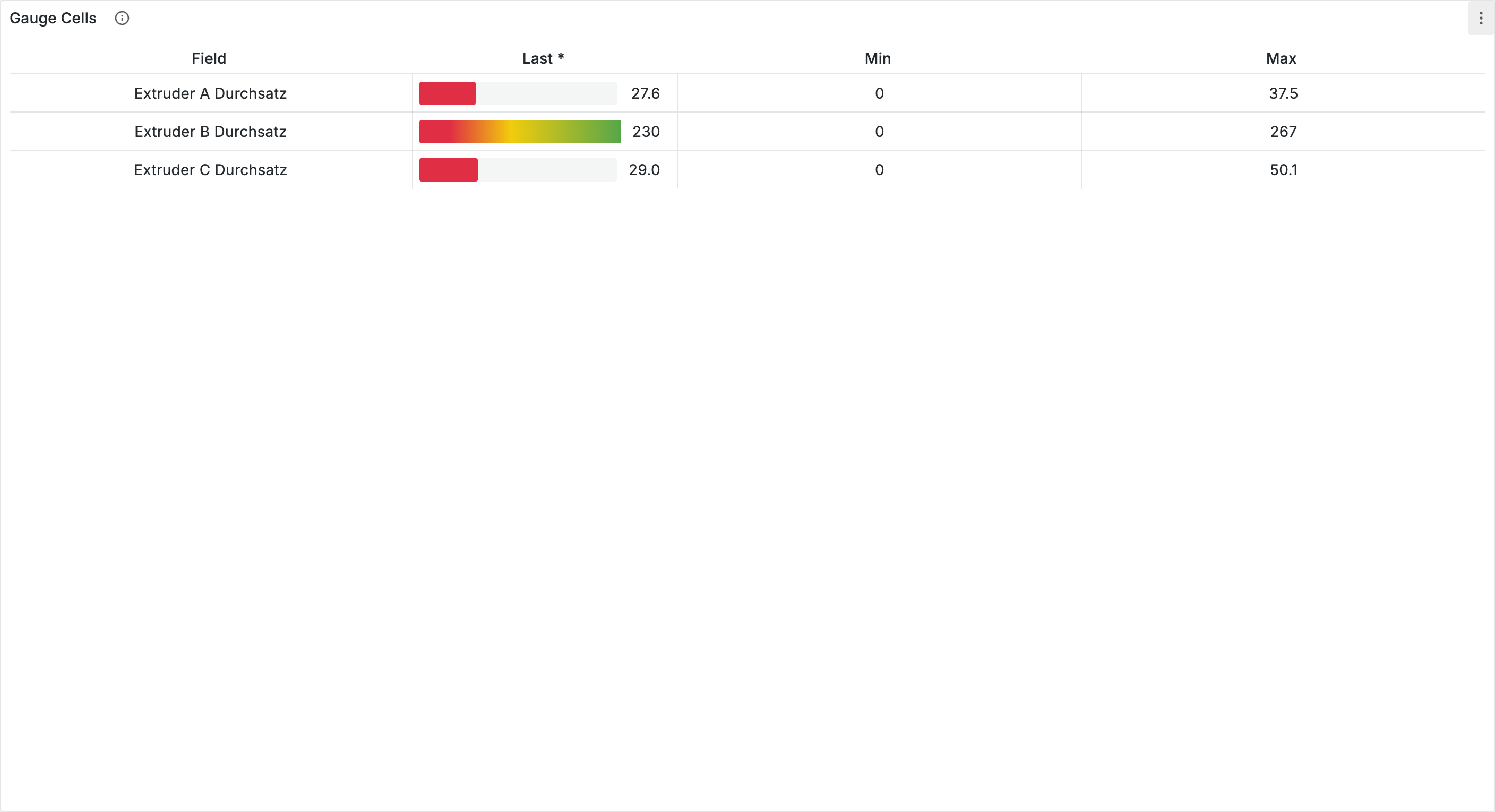
The **Gauge** cell type displays a bar that shows the value relative to its minimum and maximum.
1. Add an override for the "Last \*" column
2. Set **Cell type** to **Gauge**
3. Configure **Min** and **Max** in the override properties
***
## Column organization
The **Organize fields** transformation lets you rename, reorder, and hide columns.
1. In the **Transform** tab, add the **Organize fields by name** transformation
2. Rename columns, for example:
| Original | Renamed |
| ------------------ | -------- |
| Field | Variable |
| Last \* | Current |
| All values | Trend |
| Difference percent | Change |
3. Hide unnecessary columns (e.g. "First \*") by clicking the eye icon
4. Reorder columns by dragging and dropping them into the desired order
***
## The finished table
All the individual steps combine into a comprehensive summary table. Here is the complete configuration:
### Transformations
1. **Reduce** with: Last \*, Min, Max, Mean, All values, Difference percent
2. **Organize fields**: Rename columns (Variable, Current, Minimum, Maximum, Average, Change, Trend) and hide "First \*"
3. **Sort by**: Alphabetically by Variable
### Overrides
| Column | Cell type | Additional |
| ------- | ------------------ | ----------------------------------------------------- |
| Current | Gauge | Min: 0, Max: auto |
| Change | Colored background | Value mappings with arrows (↓↓ Down, → Stable, ↑↑ Up) |
| Trend | Sparkline | Fixed color (e.g. blue) |
### Sorting
The **Sort by** transformation sorts the table alphabetically by the "Variable" column. Users can also click column headers to change the sort order.
### Table footer
Under **Table** → **Footer** in the right sidebar:
1. Enable **Show table footer**
2. Select **Sum** as the calculation
3. Select the "Last \*" column (displayed as "Current")
The table footer shows the total throughput across all variables.
### Result
***
## Tips
* **Table vs. chart**: Tables are suited for exact values and comparing many variables. Charts are better for trends over time.
* **Limit columns**: Show a maximum of 5-8 columns and hide less important data.
* **Descriptive names**: Rename technical column names like "Difference percent" to understandable labels like "Change".
* **Performance**: Sparklines increase rendering overhead. For large datasets, narrow down the time range.
***
## Next steps
* [**Advanced styling**](/en/integrations/grafana/visualisation-types/04-advanced-styling.md) - Units, field overrides, and more
* [**Dashboard organization**](/en/integrations/grafana/intermediate-features/01-dashboard-organization.md) - Rows, folders, and linking