> For the complete documentation index, see [llms.txt](https://docs.enlyze.com/llms.txt). Markdown versions of documentation pages are available by appending `.md` to page URLs; this page is available as [Markdown](https://docs.enlyze.com/en/integrations/grafana/visualisation-types/04-advanced-styling.md).
# 04 Advanced Styling
Advanced styling options for Grafana panels.
Professional dashboards require consistent styling: appropriate colors, correct units, thresholds, and clear visual hierarchies. In this tutorial you learn the key techniques to make your panels production-ready:
## What you will learn
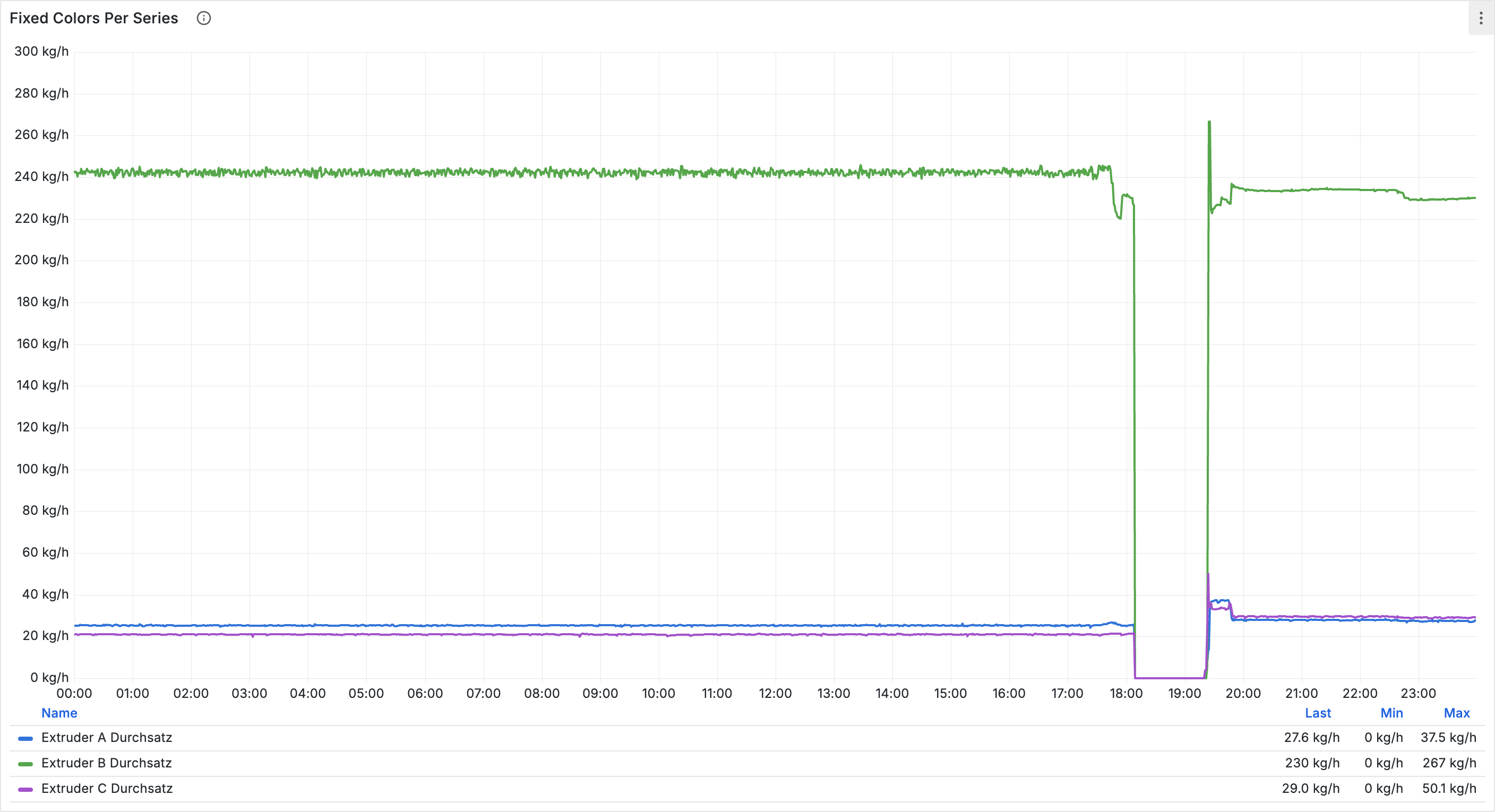
* Field overrides for individually styling specific data series
* Configuring units and decimal precision
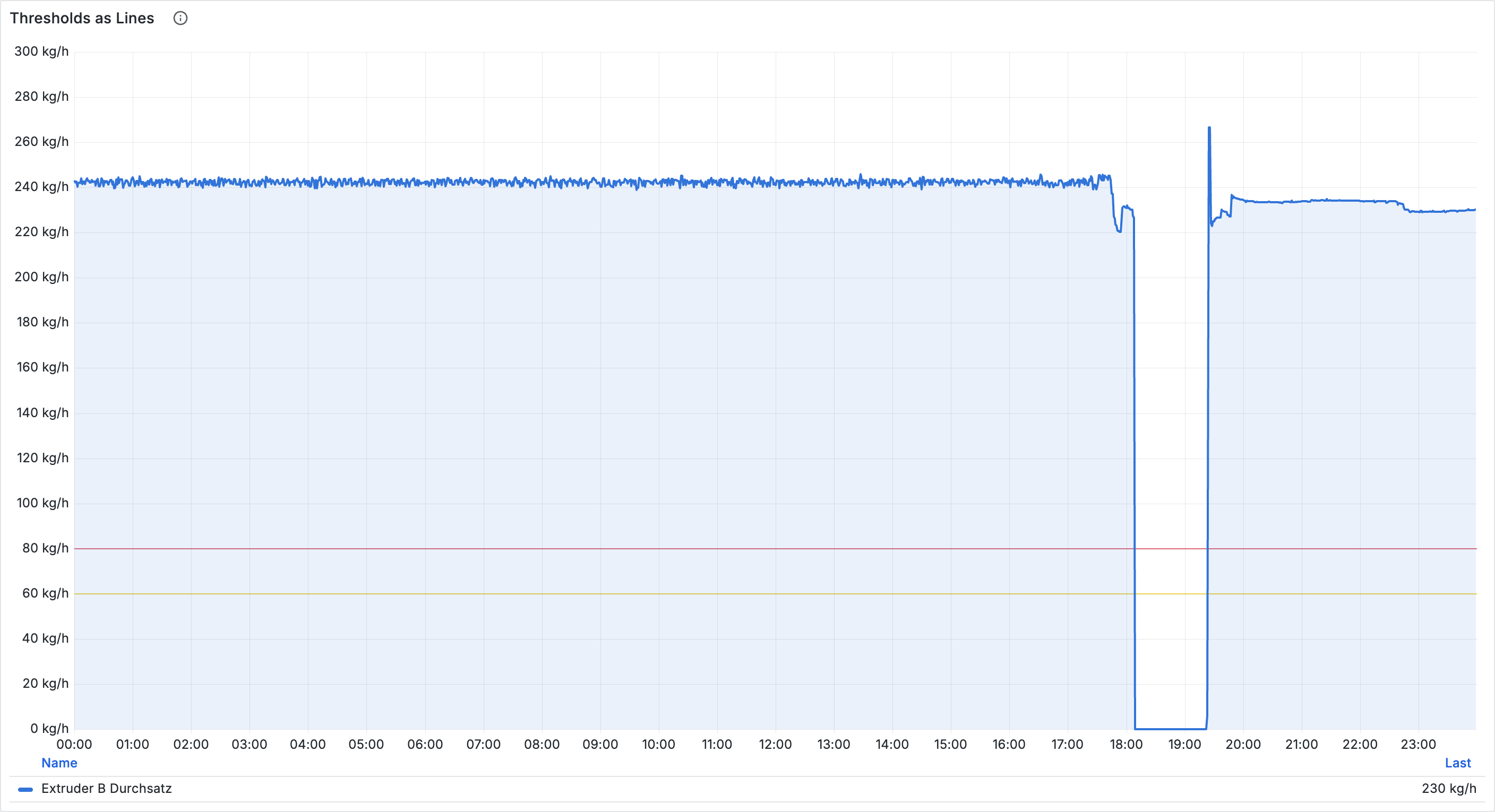
* Displaying thresholds directly on charts
* Using multiple Y-axes for different units
* Transparent panels for shopfloor displays
## Prerequisites
* Previous tutorials in this section completed
* Basic understanding of panel configuration
***
## Field overrides
Field overrides let you apply different settings to specific data series within a panel.
### Override types
| Type | Description | Example |
| ------------------------- | ------------------ | ------------------------------------- |
| **Fields with name** | Exact field name | "Abzugsgeschwindigkeit (Soll)" |
| **Fields matching regex** | Regular expression | `.*\(Soll\)$` for all setpoint values |
| **Fields with type** | Data type | All numeric fields |
### Create an override
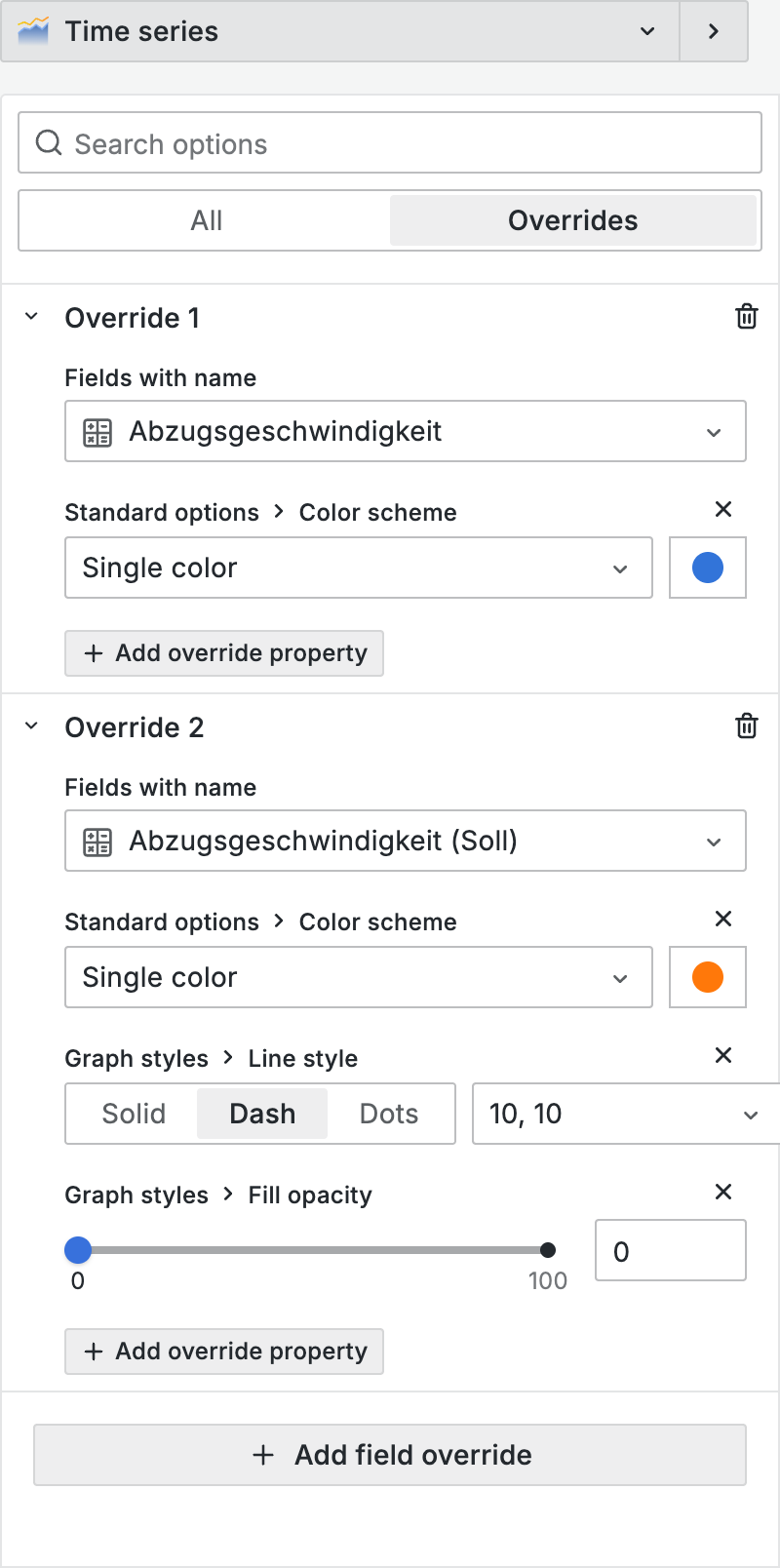
1. In the panel editor, find the **Overrides** section in the right sidebar
2. Click **+ Add field override** and choose the match type
3. Click **+ Add override property** and configure the desired property
### Common override properties
| Property | Path | Description |
| ------------ | ------------------------------- | ------------------ |
| Color | Standard options > Color | Fixed color |
| Unit | Standard options > Unit | Display unit |
| Decimals | Standard options > Decimals | Decimal precision |
| Display name | Standard options > Display name | Custom label |
| Line style | Graph styles > Line style | Solid, Dash, Dots |
| Line width | Graph styles > Line width | Line thickness |
| Y-axis | Axis > Placement | Left or right axis |
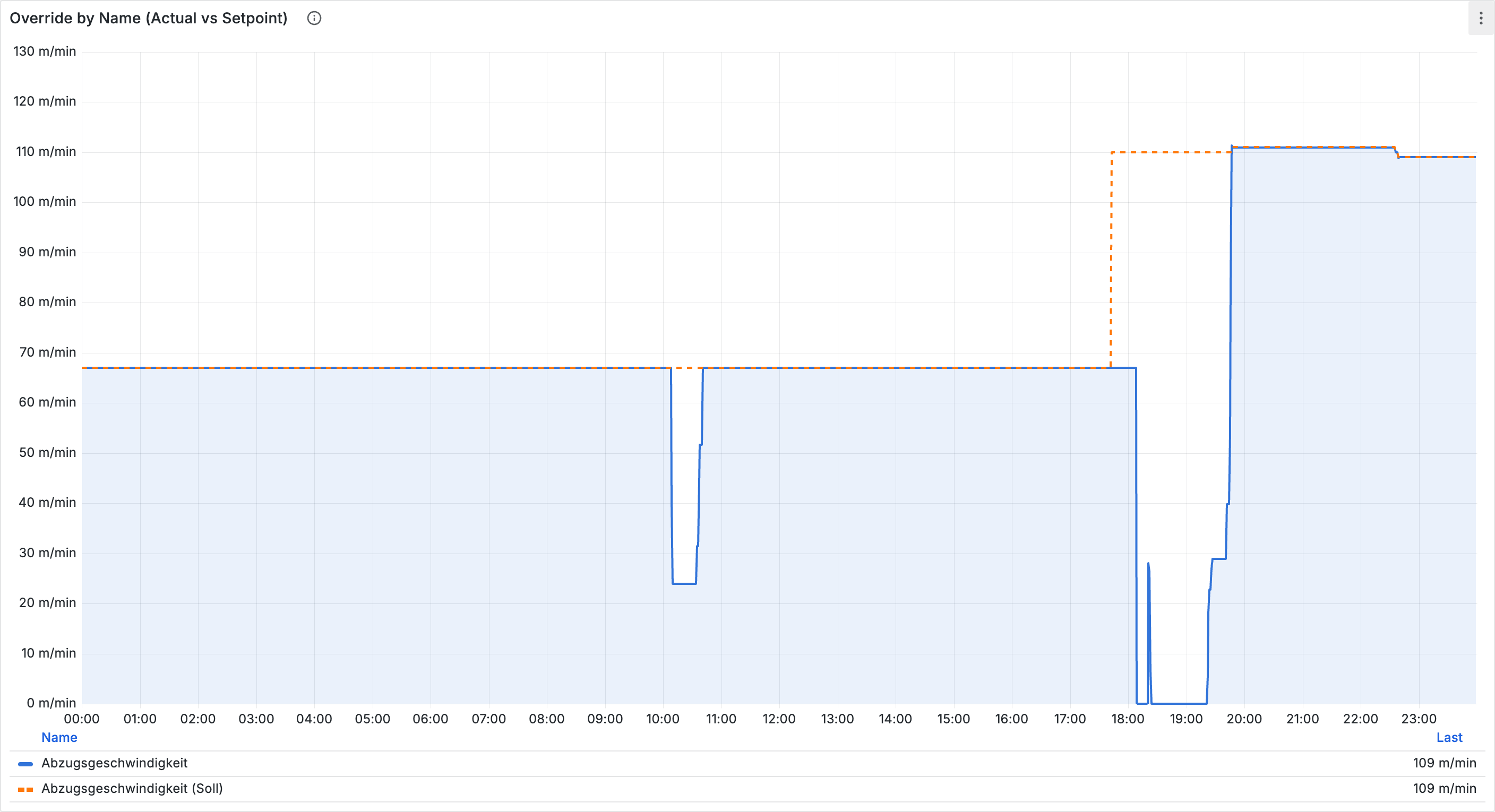
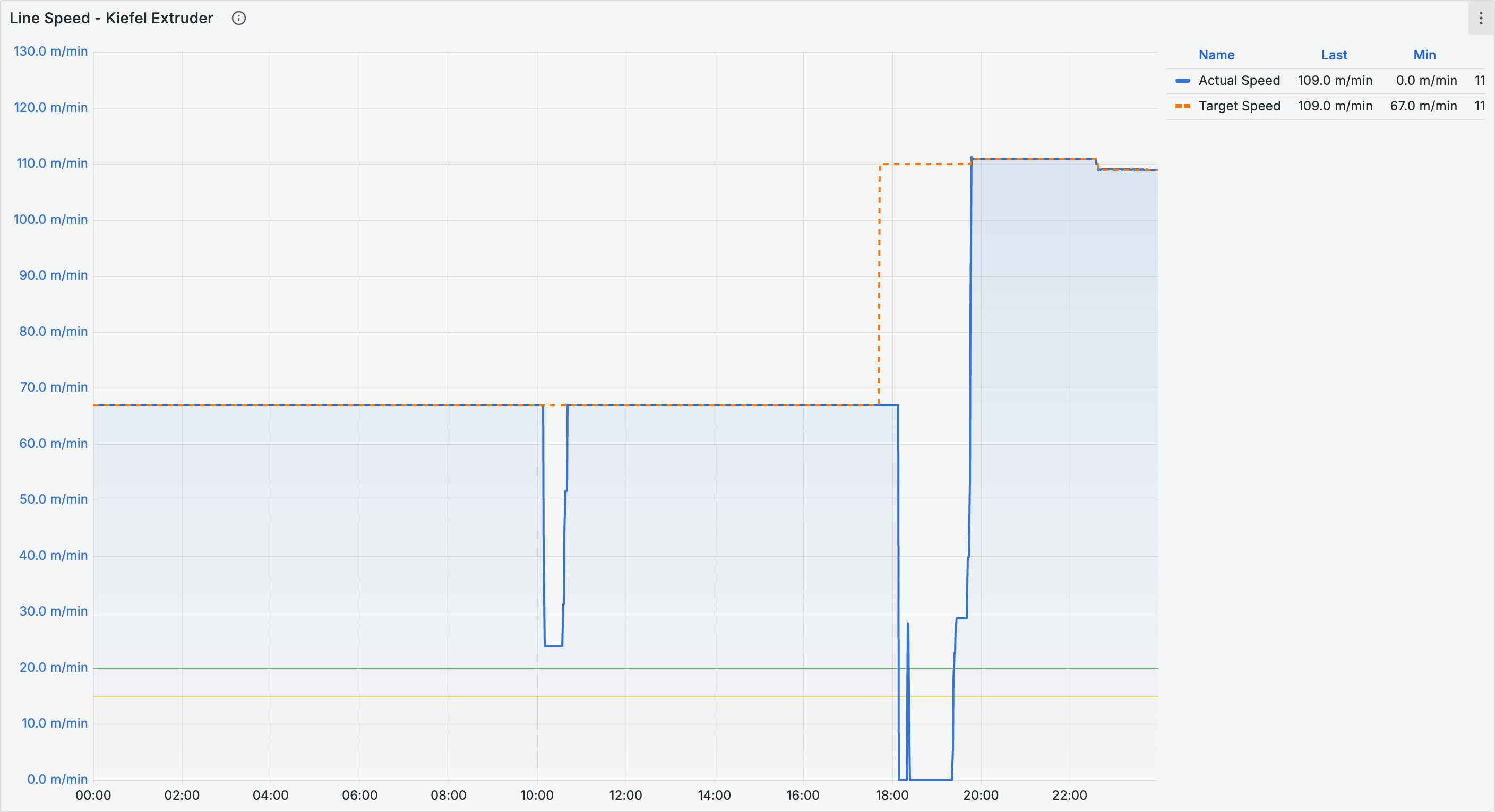
### Example: actual vs. setpoint
| Override | Color | Line style | Width |
| ------------ | -------------- | ------------- | ----- |
| Actual value | Blue (fixed) | Solid | 2 |
| Setpoint | Orange (fixed) | Dash (10, 10) | 1 |
***
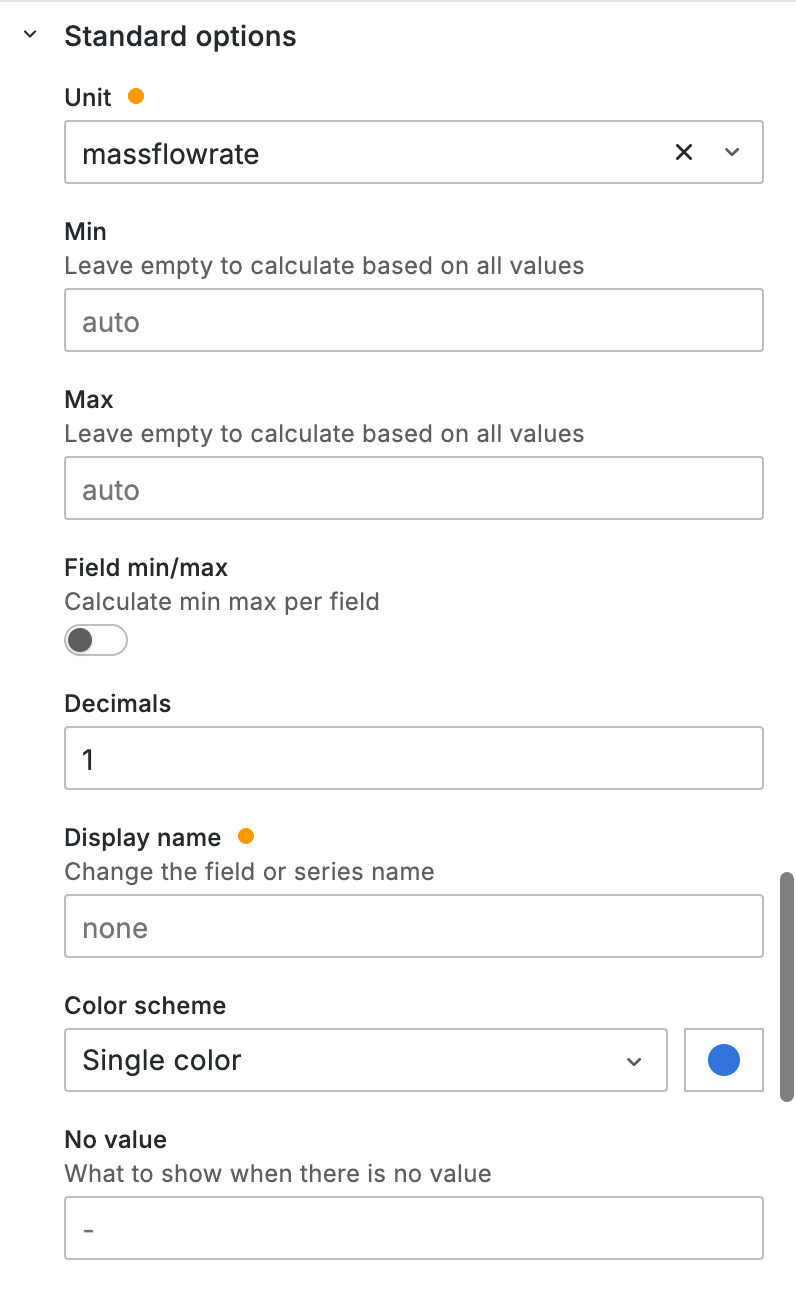
## Units and decimals
Correct units make values immediately understandable.
1. In the right sidebar, find **Standard options** > **Unit**
2. Browse the categories or use the search
### Common units in manufacturing
| Category | Units |
| --------------- | --------------- |
| **Throughput** | kg/h, t/h |
| **Temperature** | °C, °F |
| **Pressure** | bar, PSI |
| **Speed** | m/min, RPM |
| **Percentage** | Percent (0-100) |
Under **Decimals** you control the decimal precision. Rule of thumb: 0 for counters, 1 for temperatures and percentages, 2 for precision measurements.
{% hint style="info" %}
If the unit you need is not in the list: **Misc** > **Custom** and enter the suffix (e.g. "pieces/h").
{% endhint %}
***
## Colors
### Color schemes
Under **Standard options** > **Color scheme** you find several options:
| Scheme | Use case |
| -------------------- | ---------------------------------------------- |
| **Single color** | Simple panels with a single data series |
| **Classic palette** | Automatically distinguish multiple data series |
| **Green-Yellow-Red** | Performance metrics with gradient |
| **By value** | Status indicators based on thresholds |
### Color conventions for manufacturing
| Color | Usage |
| ---------- | ---------------------- |
| **Blue** | Actual/measured values |
| **Orange** | Setpoint/target values |
| **Green** | Good status |
| **Yellow** | Warning |
| **Red** | Critical/error |
***
## Thresholds on charts
Thresholds can be displayed as horizontal lines or colored regions directly on time series charts.
1. In the sidebar, find **Thresholds** and add threshold values
2. Find **Graph styles** > **Threshold display** and choose a mode:
| Mode | Description |
| --------------------- | ---------------------------------------- |
| **Off** | Only legend colors are affected |
| **As lines** | Horizontal lines at the threshold levels |
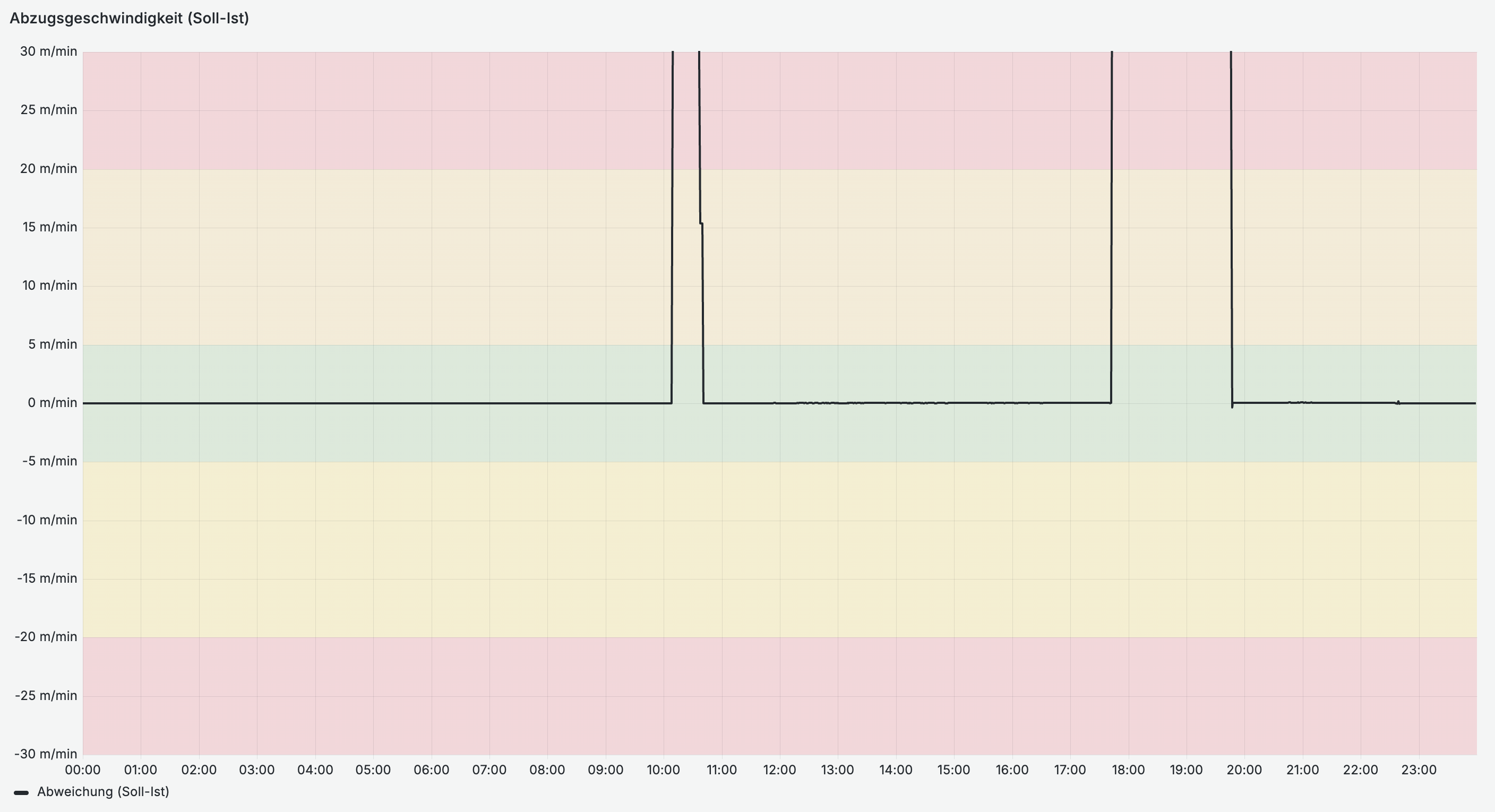
| **As filled regions** | Colored areas between the thresholds |
| **Both** | Lines and colored areas |
### Example: setpoint deviation
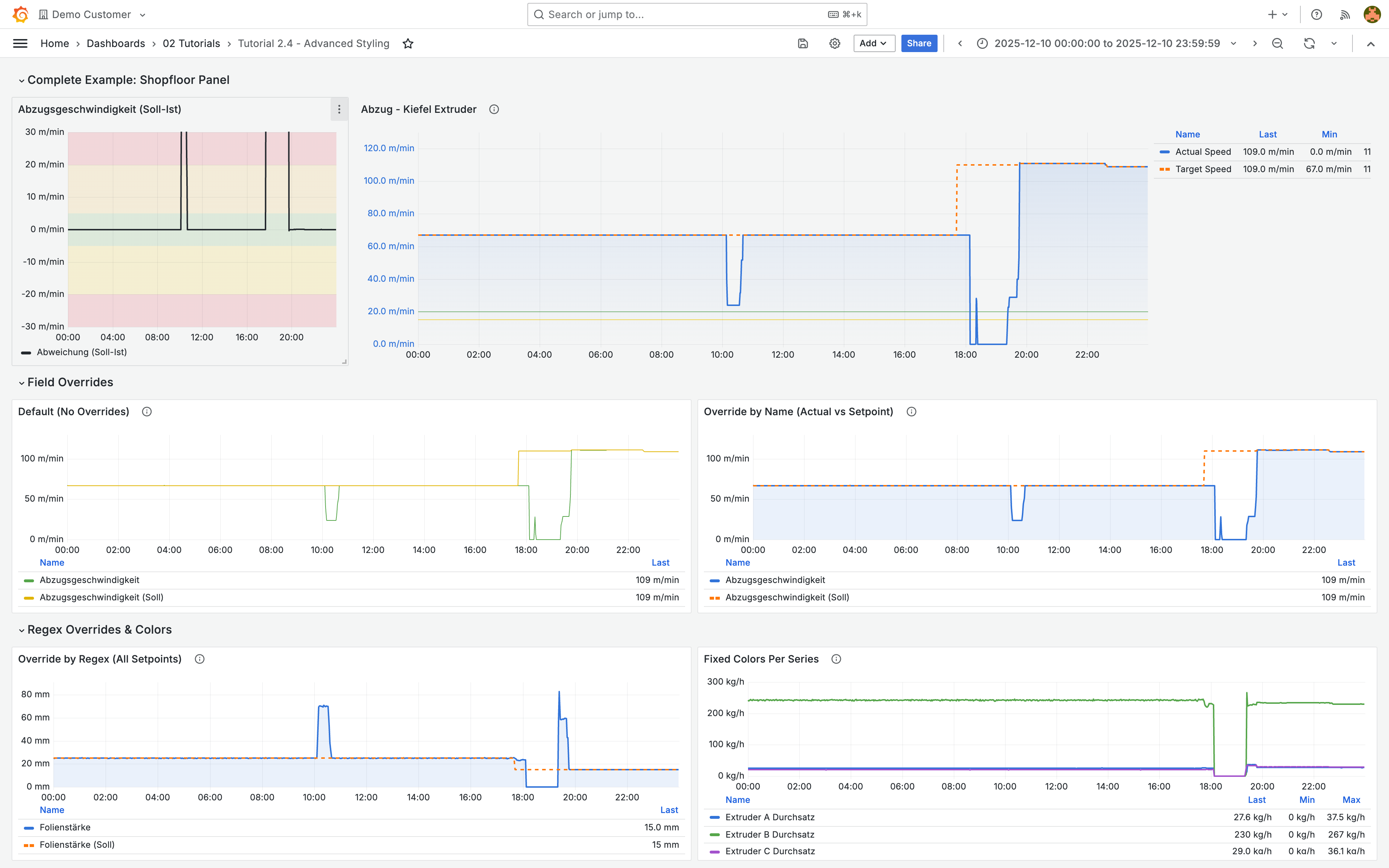
A practical example: calculate the difference between setpoint and actual value (e.g. via a transformation) and display it as its own time series. Then define symmetric thresholds using **As filled regions**:
| Threshold | Color | Meaning |
| --------- | ------ | --------------------------- |
| Base | Red | Large deviation (negative) |
| -20 | Yellow | Slight deviation (negative) |
| -5 | Green | Normal operation |
| 5 | Yellow | Slight deviation (positive) |
| 20 | Red | Large deviation (positive) |
Since for a deviation display the exact magnitude of large outliers matters less than the tolerance band itself, it is a good idea to limit the Y-axis. Set **Min** and **Max** under **Standard options** (e.g. -30 and 30). Under **Axis**, enable the **Centered zero** toggle to always center the zero line.
***
## Multiple Y-axes
The ENLYZE data source automatically places variables with different units on separate Y-axes. If you select temperature (°C), throughput (kg/h), and pressure (bar) in a single query, you get three axes.
If you want more control over the positioning, use overrides:
1. Add an override for the data series
2. Add the **Axis** > **Placement** property
3. Select **Right**
{% hint style="info" %}
Under **Axis** > **Color mode**, use the **Series** mode so that the axis color matches the data series color. This makes it clear which axis belongs to which data.
{% endhint %}
***
## Dashboard settings
### Transparent background
Under **Panel options** > **Transparent background** you can make the panel background transparent. Suitable for shopfloor displays and presentations.
### Time range
* **Dashboard time range**: In the dashboard settings (gear icon) under **Time options**, set the default time range and refresh interval
* **Panel-specific**: Under **Query options** > **Relative time**, override the dashboard time range for individual panels (e.g. "1h")
***
## The finished shopfloor panel
All the individual techniques combine into a production-ready panel:
| Setting | Value |
| ---------------- | ------------------------- |
| **Line width** | 2 |
| **Fill opacity** | 15 |
| **Gradient** | Opacity |
| **Legend** | Table with Last, Min, Max |
| **Transparent** | Yes |
### Overrides
| Data series | Color | Style |
| ------------ | ------ | --------------- |
| Actual speed | Blue | Solid, width 2 |
| Setpoint | Orange | Dashed, width 1 |
### Thresholds
| Value | Color | Meaning |
| --------------- | ------ | -------- |
| Base | Green | Normal |
| 90% of setpoint | Yellow | Warning |
| 80% of setpoint | Red | Critical |
***
## Tips
* **Consistency**: Use the same colors for the same metric types across the entire dashboard. Do not mix kg/h and t/h.
* **Regex overrides**: Use `.*\(Soll\)$` to assign the same color to all setpoint values at once.
* **Accessibility**: Do not rely on color alone. Text labels and lines help with limited color vision as well.
* **Performance**: Avoid too many overrides. Regex overrides are more efficient than many individual by-name overrides.
***
## Next steps
* [**Dashboard organization**](/en/integrations/grafana/intermediate-features/01-dashboard-organization.md) - Rows, folders, and linking
* [**Transformations**](/en/integrations/grafana/intermediate-features/02-transformations.md) - Data manipulation