> For the complete documentation index, see [llms.txt](https://docs.enlyze.com/llms.txt). Markdown versions of documentation pages are available by appending `.md` to page URLs; this page is available as [Markdown](https://docs.enlyze.com/en/production-optimization/analysis/automatic-assignment.md).
# Automatic assignment
Assign downtime reasons by rule instead of contextualising each downtime by hand.
Detected downtimes need a reason so they are booked correctly in the OEE calculation. Doing that by hand for every downtime is impractical across many machines. Automatic assignment applies rules from the availability plan and machine parameters.
{% hint style="warning" %}
This dashboard is in beta and enabled for selected organisations. Talk to your Customer Success Manager if you would like to use it.
{% endhint %}
## Prerequisites
* [Downtime detection](/en/production-optimization/downtimes/detection.md) configured for the machine
* A [downtime catalogue](/en/production-optimization/downtimes/defining-reasons.md) with default reasons
* For availability-plan assignment: a plan set up in the **Management** tab
## The three tabs
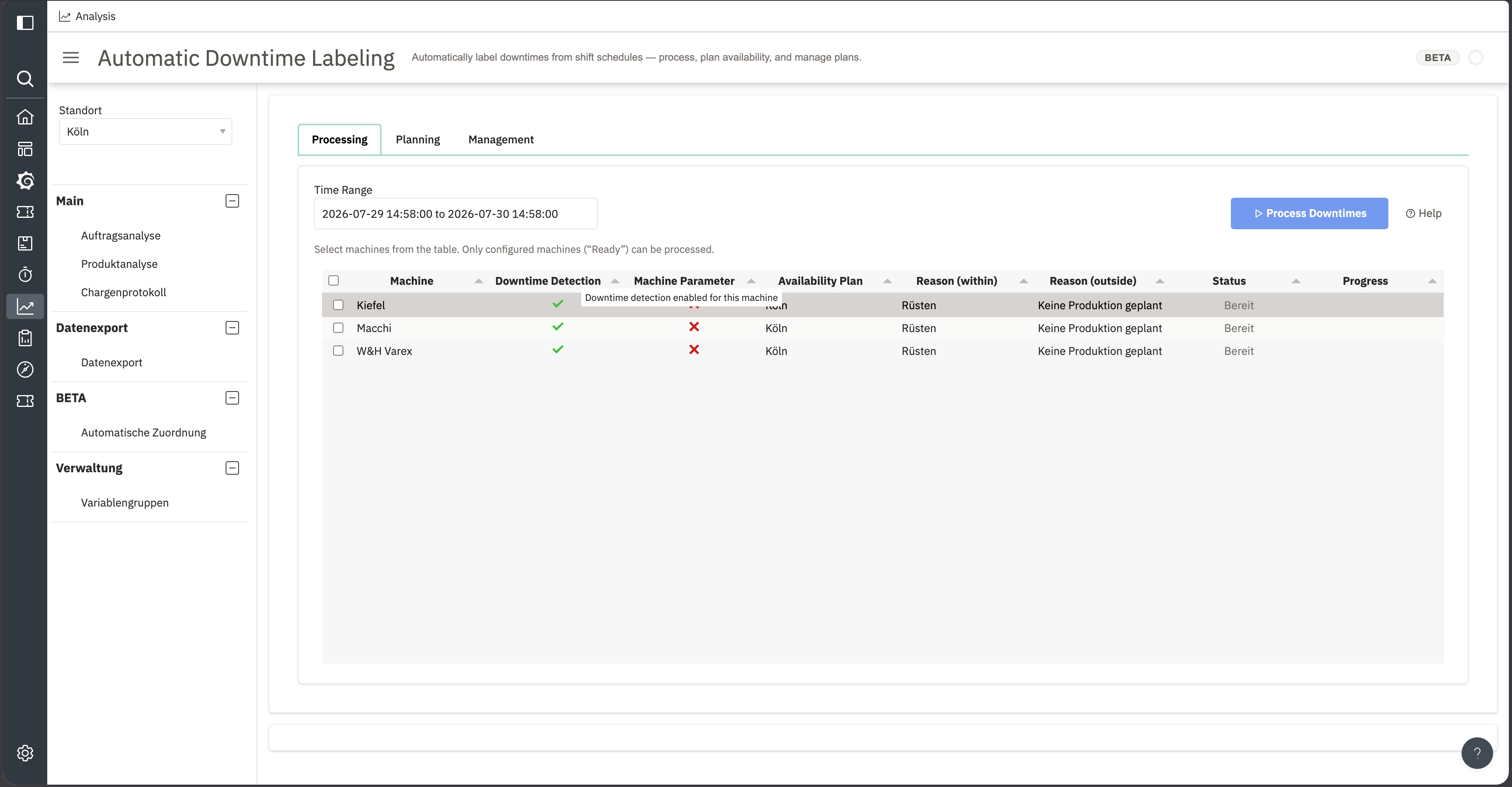
The table shows which assignment types are configured per machine
| Tab | Purpose |
| -------------- | ----------------------------------------------------------------------- |
| **Processing** | Run the assignment for machines and a time range |
| **Planning** | Maintain shifts and availability plans |
| **Management** | Create availability plans, assign machines to them, set default reasons |
## Processing
The table lists the site's machines with their configuration status:
| Column | Meaning |
| ---------------------- | -------------------------------------------------------- |
| **Downtime Detection** | Is detection configured for this machine |
| **Machine Parameter** | Is machine-parameter assignment configured |
| **Availability plan** | Which availability plan applies |
| **Reason (inside)** | Default reason for downtimes inside planned time |
| **Reason (outside)** | Default reason for downtimes outside planned time |
| **Status** | **Ready** (ready) or **Not configured** (not configured) |
| **Progress** | Progress of the current pass |
Only machines showing **Ready** can be processed. A configured downtime detection is enough for that; machine-parameter assignment is optional and may show a red cross in its column. Select machines in the table, set the **Time Range**, then select **Process Downtimes**.
{% hint style="warning" %}
Automatically assigned reasons carry the comment **Automatically assigned (shift plan)** or **Automatically assigned (machine data)**. That comment is exactly what makes the reason overwritable on a later run. To make an assignment stick, delete the comment on the downtime.
{% endhint %}
You can process the same range more than once, for example after the availability plan changed.
## Assignment by availability plan
The plan splits downtimes into two classes: those inside planned production time, which count as unplanned downtimes, and those outside it, which count as **No production planned**.
That is not a cosmetic distinction. The **No production planned** category reduces planned occupancy time, so it is not OEE-relevant. That time does not enter availability. See [Availability](/en/concepts/understanding-oee/availability.md).
### What happens to reasons already assigned
If a downtime already has a reason, its category decides whether the reason survives or is overwritten.
| Existing reason | Inside planned time | Outside planned time |
| ------------------------------------------------ | -------------------------------------- | ---------------------------------------- |
| no reason assigned | default reason for unplanned downtimes | default reason for no production planned |
| category **No production planned** | changed to unplanned | kept |
| category planned, unplanned or technical problem | kept | changed to no planned working time |
{% hint style="warning" %}
Two rows in that table overwrite an existing manual assignment. If someone contextualised a downtime by hand and the availability plan says otherwise, the plan wins. Check the plan before reprocessing a range.
{% endhint %}
## Assignment by machine parameters
Alongside the availability plan, reasons can be derived from machine parameters, such as a fault number from the controller.
{% hint style="info" %}
ENLYZE sets these rules up for you; they are not self-service. The **Machine Parameter** column in the **Processing** tab shows whether they are active for a machine. Talk to your Customer Success Manager if you want to use them.
{% endhint %}
## Planning
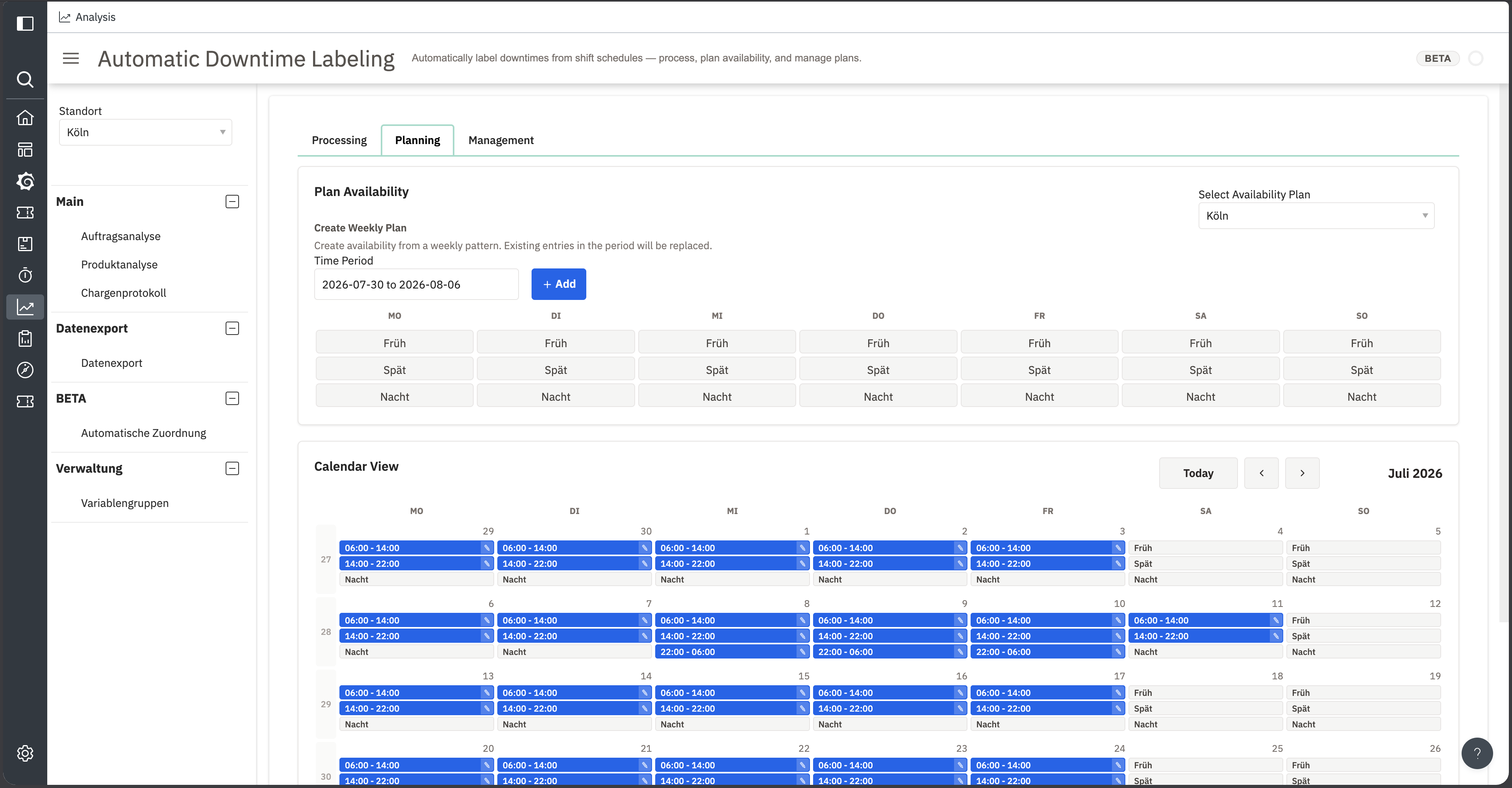
Maintain shifts and availability plans
The **Planning** tab is where you generate the actual shifts. Under **Create Weekly Plan** you pick a time period and a Monday-to-Sunday pattern, setting the shifts for each day. Existing entries in that period are replaced.
The **Calendar View** below shows the result week by week with concrete times, such as `06:00 - 14:00`. Individual shifts are edited there.
The former standalone shift planner has been folded into this tab.
## Management
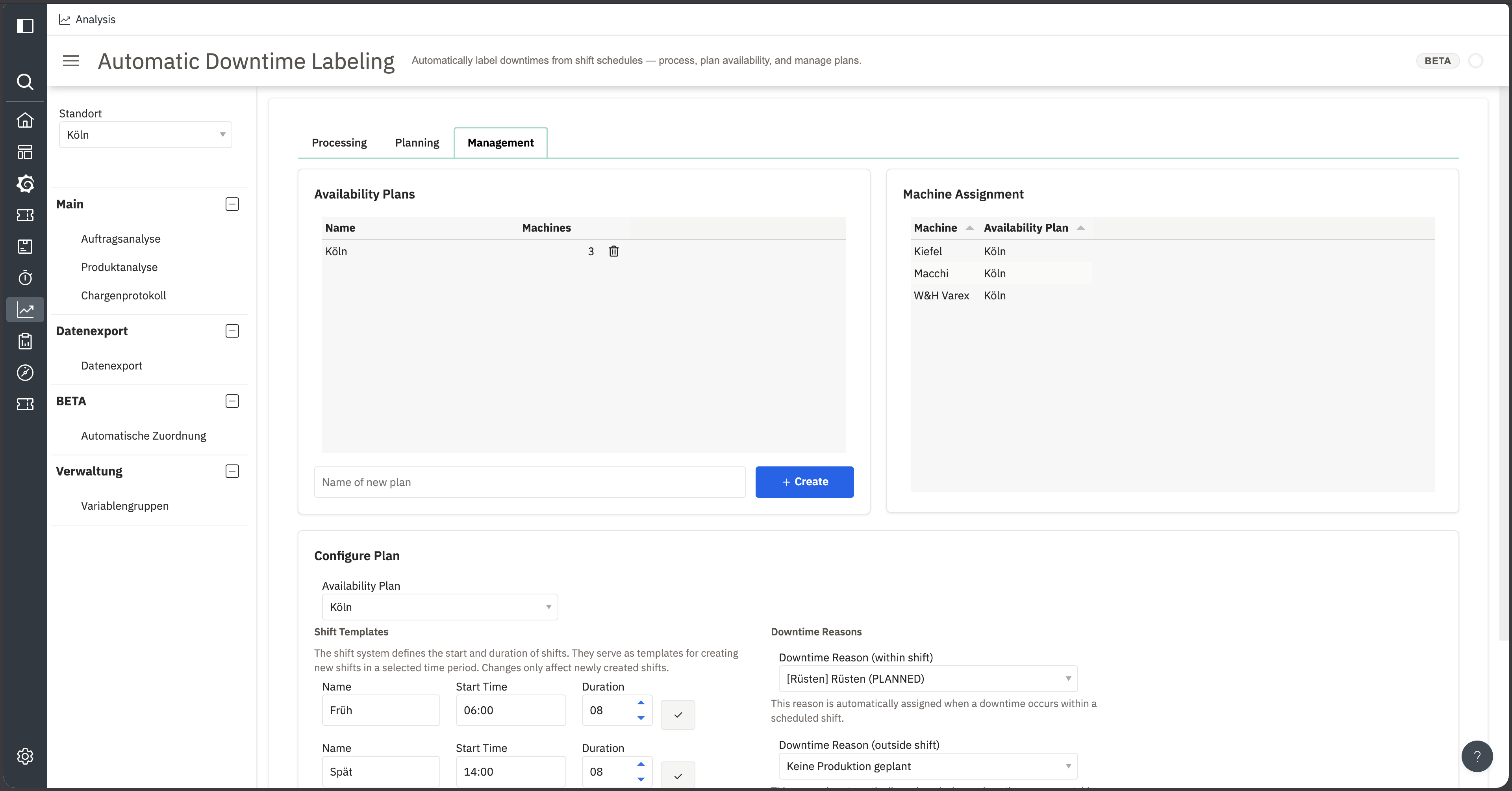
Set per machine which assignment types apply and with which default reasons
The tab has three areas:
* **Availability Plans**: the existing plans with the number of machines assigned. The name field below creates a new one.
* **Machine Assignment**: which machine follows which plan.
* **Configure Plan**: the selected plan's **Shift Templates**, each with a name, start time and duration in hours. Templates only define how new shifts are created; changes do not affect shifts already created. Beside them sit the **Downtime Reasons**: one default for inside a shift and one for outside, each showing its category in brackets, for example `[Setup] Setup (PLANNED)`.
A machine with no plan assigned shows as **Not configured** in the **Processing** tab.
## Common questions
A machine shows as not configured. What is missing?
Check the **Downtime Detection** and **Machine Parameter** columns in the same row. A red cross shows which part is missing. ENLYZE sets up downtime detection and machine-parameter rules; you create availability plans and assign machines in the **Management** tab.
Can I undo an assignment?
Not from this dashboard. Correct individual downtimes in the ENLYZE app, see [Assigning reasons to downtimes](/en/production-optimization/downtimes/assigning-reasons.md). To stop a later pass overwriting your correction, delete the **Automatically assigned ...** comment on the downtime.
Does processing change OEE retroactively?
Yes. Whether downtime time is OEE-relevant is decided by the **category** of the assigned reason, so the metrics for the processed range change.
The reasons themselves are useful beyond that: in the app's downtime report, and for questions like which unplanned faults occur most often.
## Related topics
* [Categories and assignment](/en/concepts/downtimes/categories-and-assignment.md) for the concepts behind the categories.
* [Defining downtime reasons](/en/production-optimization/downtimes/defining-reasons.md) before you assign automatically.