> For the complete documentation index, see [llms.txt](https://docs.enlyze.com/llms.txt). Markdown versions of documentation pages are available by appending `.md` to page URLs; this page is available as [Markdown](https://docs.enlyze.com/en/variable-mapping/contextualisation.md).
# Contextualisation
Explore, activate and deactivate machine variables
Variables in ENLYZE represent time series data extracted from a data source and linked to a specific machine. To make a variable available to services interacting with the ENLYZE Manufacturing Data Platform, you must first activate it. This guide explains how to explore variables, assign metadata, and activate them.
{% hint style="info" %}
What variables, time series, and the three variable statuses (Inactive, Exploration, Active) are is explained under [Variables & time series (Concepts)](/en/concepts/understanding-machine-data/variables-and-time-series.md).
{% endhint %}
## From Inactive to Exploration: Searching for Variables
The process of searching for variables to start exploring them, takes place in the [ENLYZE App](https://app.enlyze.com/). To choose inactive variables for exploration:
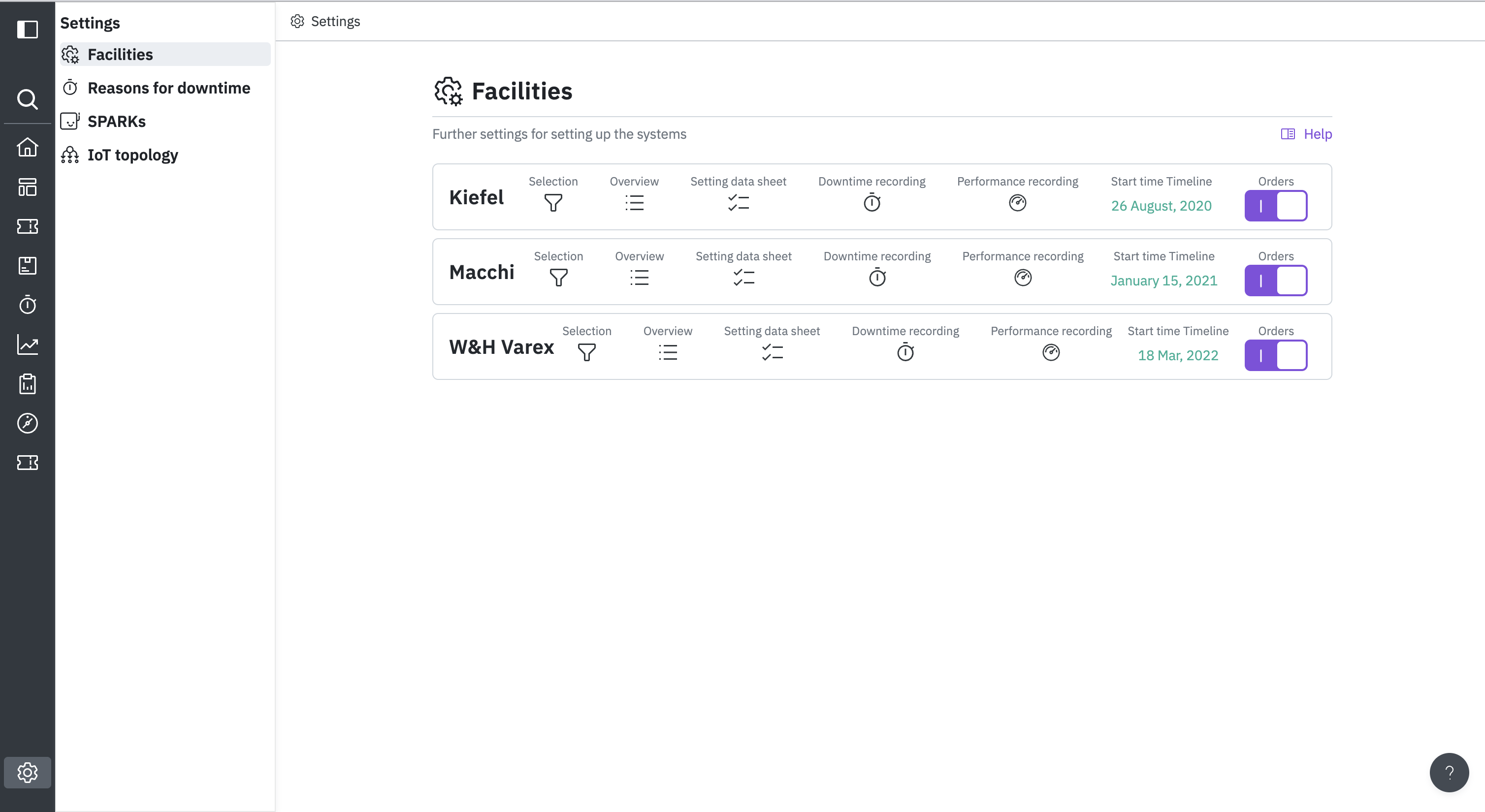
1. Navigate to [**Settings > Machines**](https://app.enlyze.com/settings/appliances)**.**
Machine Settings Page
2. Open the **Selection** section for the relevant machine.
3. Use the variable table to locate and select variables.
4. Move your selected variables listed on the right section to exploration using the `Explore` button.
### Available Filters
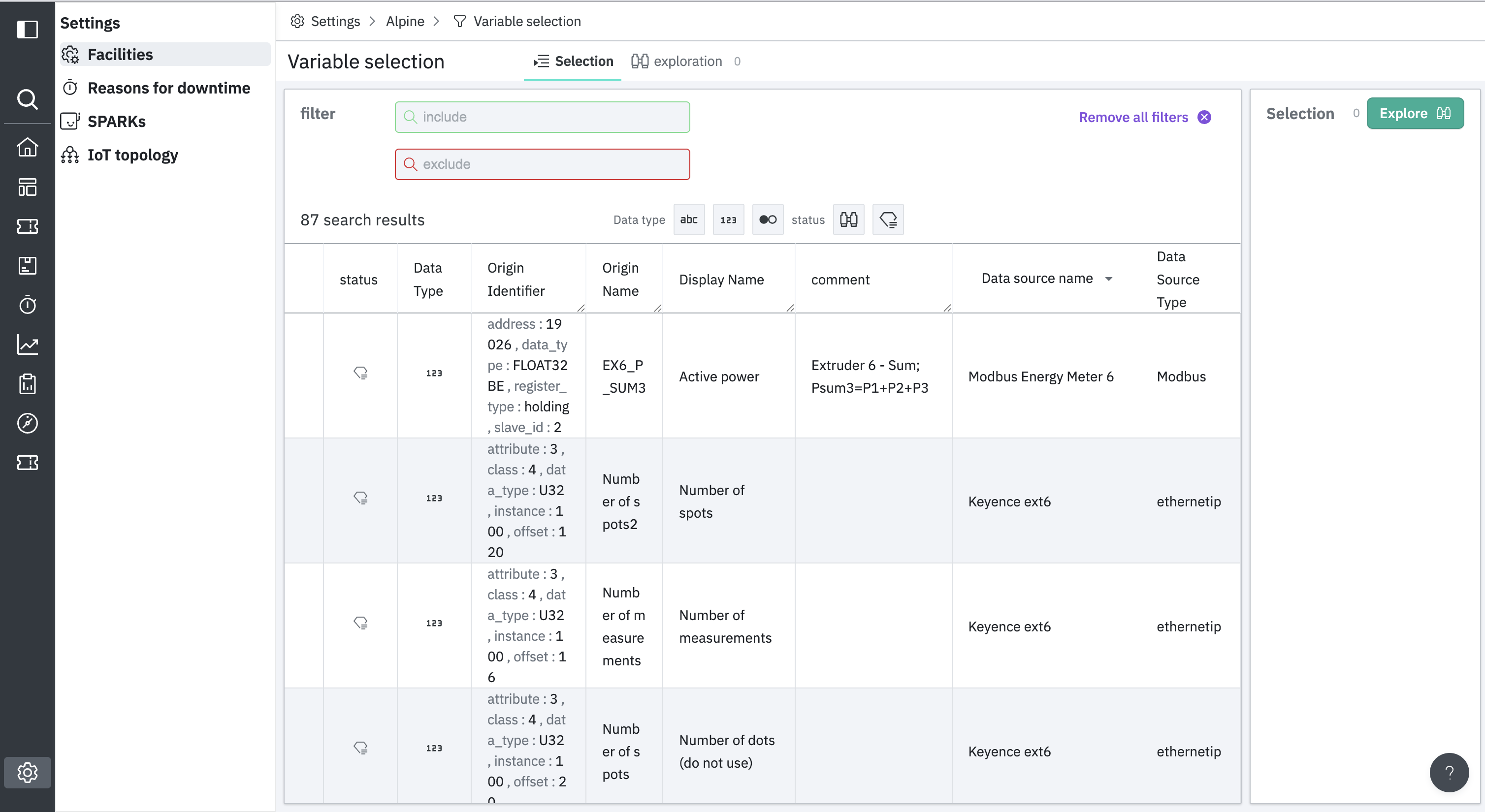
Variable Selection Section
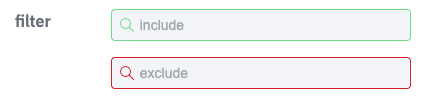
* **Include/Exclude by Keyword**
Use keywords to include or exclude variables. These filters apply to the `Origin Name`, `Display Name`, and `Comment` fields.
* **Data Type and Status**
Filter variables by type: *string, numerical or boolean*.
Filter variables by status:
* :dark\_sunglasses: Binoculars = Exploration
* 💎 Diamond = Active
* **Data Source Filter**
Each variable lists its origin in the `Data Source Name` column. Use this filter to narrow your search to specific sources.
Once you've selected variables for exploration, they appear in the right-hand panel. Click `Explore` to change their status to Exploration.
## From Exploration to Active: Contextualizing Variables
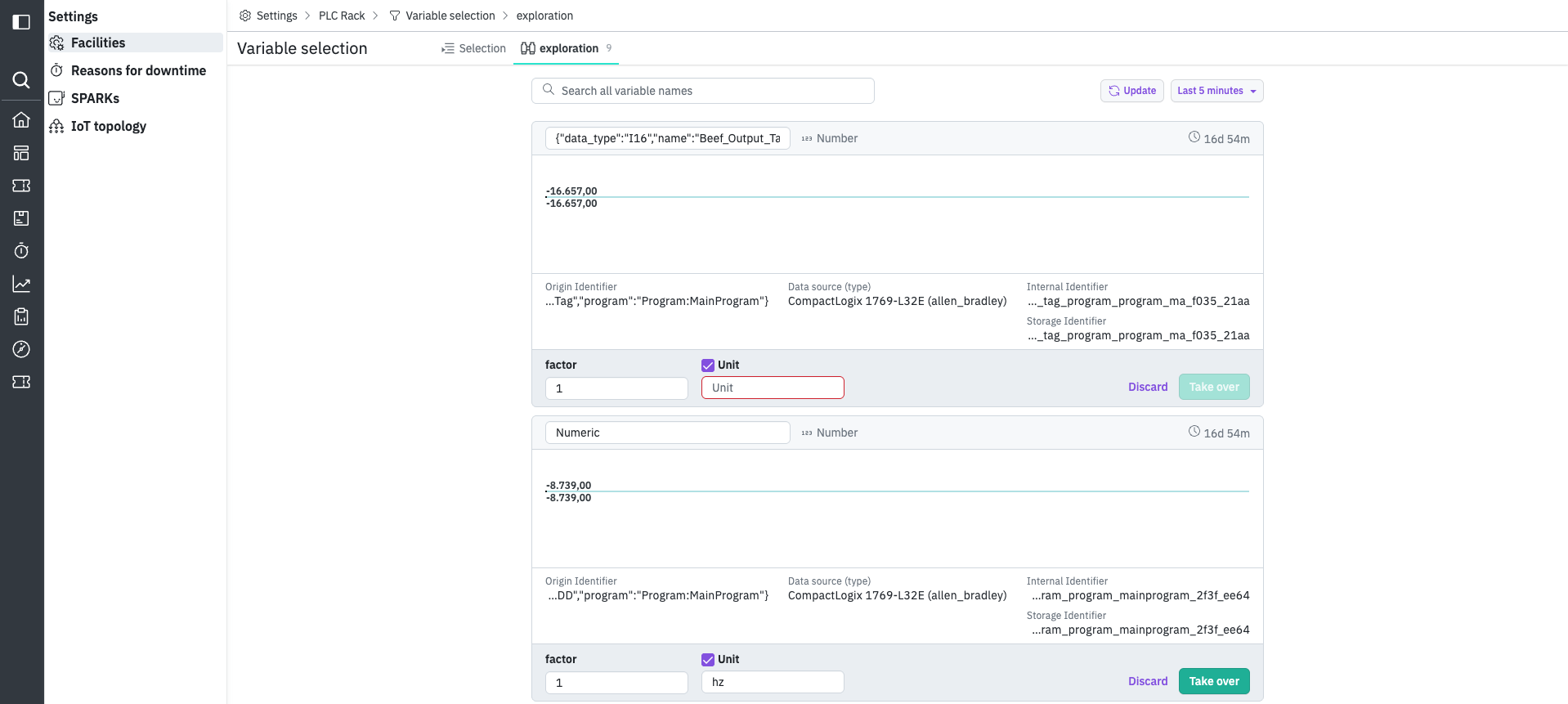
Variables in Exploration
You can manage variables in exploration under:
> **`Settings > Machines > Your_Machine > Selection > Exploration`**
This view allows you to preview the variable’s values over time. Use the **Time Picker** in the top-right corner to adjust the visible time range.
{% hint style="warning" %}
**Important**\
Data collection begins only after a variable is set to **Exploration**. No values are available from before that point. You can see how long a variable has been in this status via the indicator in the top-right of each variable card.
{% endhint %}
### Activating a Variable
To activate a variable:
1. Assign a **display** **name**. This name will be the one used by external services.
2. Set a **scaling factor** (if required).
3. Configure the **unit**.
Click `Take Over` to activate the variable. It will disappear from the exploration list and move to active.
### Discarding a Variable
If you no longer wish to explore a variable, you can discard it. This removes all collected data but the variable can still be found in the selection table.
## Managing Active Variables
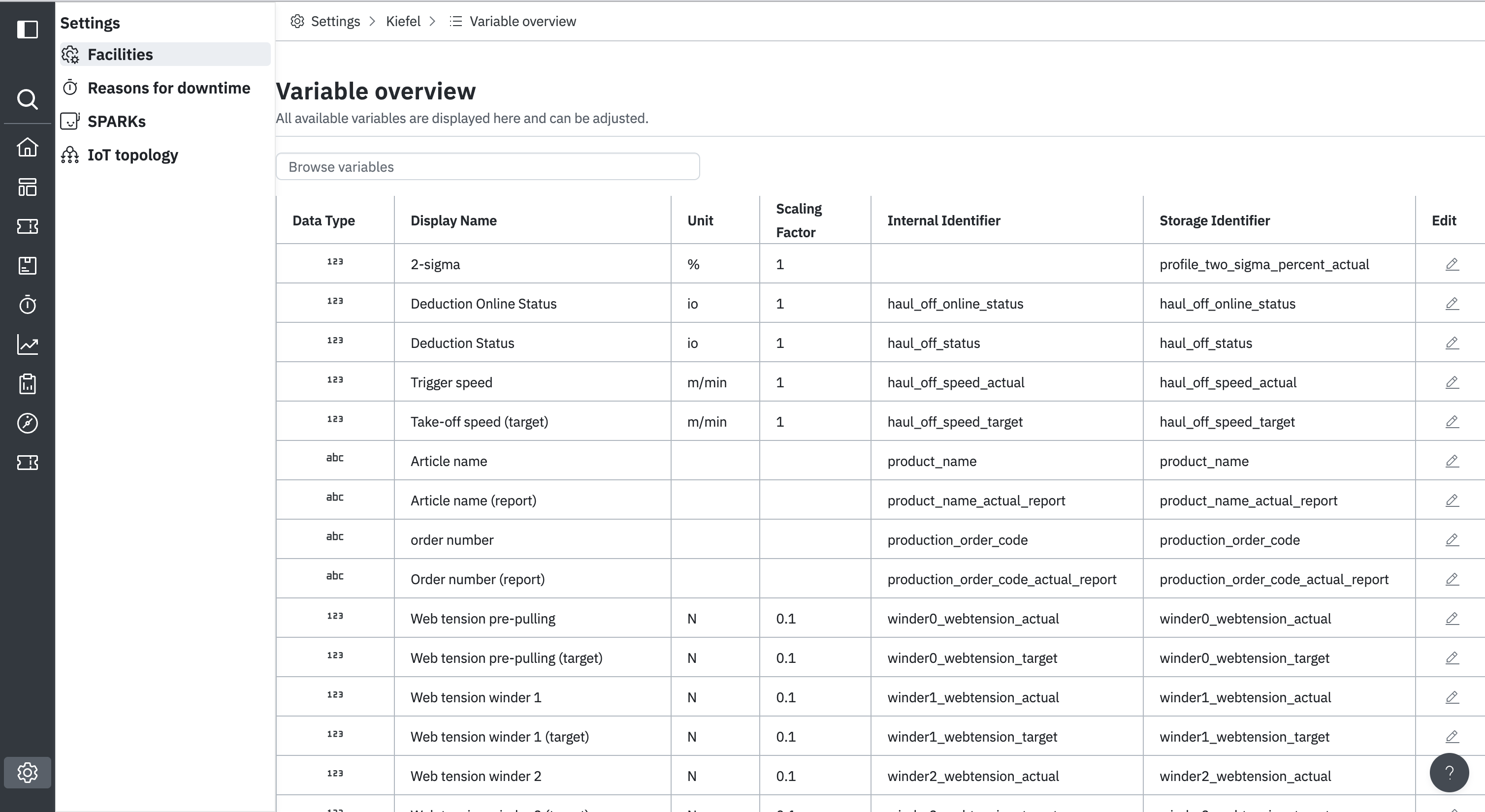
Overview of Active Variables
Access active variables via:
> **`Settings > Machines > Your_Machine > Overview`**
You can:
* Edit variable metadata using the **Edit** button in the right-most column.
* **Deactivate** a variable, which deletes its historical data and removes it from the overview.
## Related topics
Only in German
{% embed url="" %}
{% embed url="" %}