> For the complete documentation index, see [llms.txt](https://docs.enlyze.com/llms.txt). Markdown versions of documentation pages are available by appending `.md` to page URLs; this page is available as [Markdown](https://docs.enlyze.com/en/integrations/grafana/advanced-api/03b-advanced-variables.md).
# 04 Advanced Variables
Multi-select, repeat panels, and hidden variables for per-machine OEE.
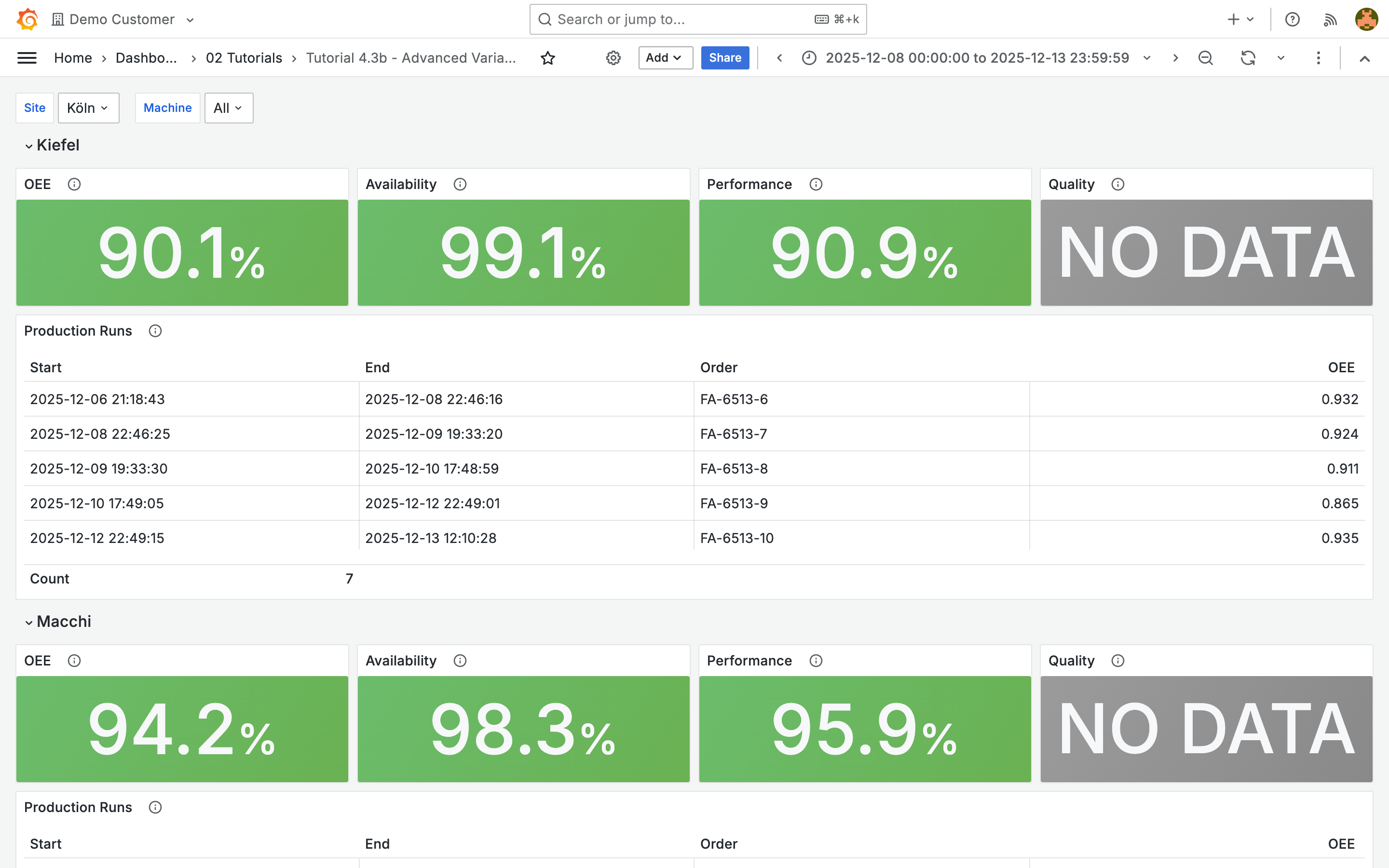
In this tutorial you'll build a dashboard that shows OEE metrics and production runs per machine. Panels repeat automatically for each selected machine:
## What you'll learn
* Multi-select and "Include All" for variables
* Automatically repeating panels (Repeat)
* Hidden variables for time rounding (OEE API)
* Per-machine OEE with POST queries
* Brief overview: time series data via the API
## Prerequisites
* [Working with Variables](/en/integrations/grafana/advanced-api/03-variables.md) completed
* Understanding of dashboard variables, JSONata, and API queries
***
## Multi-select and Include All
In [Part 1](/en/integrations/grafana/advanced-api/03-variables.md) the `machine` variable held a single value. For a dashboard showing multiple machines at once, you need multi-select.
1. Create a new dashboard with a `site` variable as in Part 1
2. Create a variable `machines` (plural) with these settings:
| Setting | Value |
| ------------- | ---------- |
| Variable type | Query |
| Name | `machines` |
| Label | Machine |
| URL | `machines` |
| Root selector | `$.data` |
3. Add under **URL Query Params**:
| Key | Value |
| ------ | --------- |
| `site` | `${site}` |
4. Columns: `name` (Name), `uuid` (UUID)
5. Under **Selection options**:
* Enable **Multi-value**
* Enable **Include All option**
* **Sort**: Alphabetical (asc)
* **Refresh**: On dashboard load
You can now select individual machines from the dropdown or choose **All** for every machine at the site.
{% hint style="info" %}
Note the variable name `machines` (plural). This signals that the variable can hold multiple values and avoids confusion with the single-value `machine` variable from Part 1.
{% endhint %}
***
## Repeating panels (Repeat)
Instead of creating separate panels for each machine, let Grafana repeat panels automatically.
### Configure a row with Repeat
1. Create a **Row** (click **Add** > **Row**)
2. Click the gear icon on the row
3. Set **Title** to `${machines:text}`
4. Under **Repeat for**: select the `machines` variable
Grafana now creates a separate row for each value of the `machines` variable. Within each row, `${machines}` is replaced by the UUID of the respective machine.
{% hint style="info" %}
Panels inside a repeat row automatically use the current iteration value. While `${machines}` normally contains multiple UUIDs, inside a repeat row it resolves to exactly one UUID per iteration.
{% endhint %}
{% hint style="warning" %}
You can only edit the **first** repeated element — whether row or panel. The remaining copies are automatically regenerated from the first element on every refresh.
{% endhint %}
***
## Hidden variables: time rounding for OEE
The `productivity-metrics` endpoint expects timestamps aligned to 10-minute intervals. Grafana's built-in time variables (`${__from}`, `${__to}`) return arbitrary timestamps. The solution: custom variables that round the selected time range to 10-minute intervals. Since these variables are only relevant for queries, they are implemented as **hidden variables** — they don't appear as dropdowns in the dashboard. If needed, you can include their value using `${start}` or `${end}` in panel titles for transparency.
### Create the start variable
1. Open **Dashboard Settings** > **Variables** > **+ New variable**
2. Configure:
| Setting | Value |
| ------------- | --------------------------- |
| Variable type | Query |
| Name | `start` |
| Hide | **Variable** (fully hidden) |
| Source | Inline |
| Data | `{"time": ${__from}}` |
| Root selector | see below |
| Refresh | **On time range change** |
3. Root selector (JSONata expression):
```
(
$time_millis := $number($.time);
$time_rounded := $time_millis - $time_millis % 600000;
$fromMillis($time_rounded)
)
```
`600000` milliseconds = 10 minutes. The formula rounds the timestamp down to the nearest 10-minute interval.
### Create the end variable
Create a second hidden variable `end` with the same settings, but:
| Setting | Value |
| ------- | ------------------- |
| Name | `end` |
| Data | `{"time": ${__to}}` |
{% hint style="info" %}
**Refresh: On time range change** is critical here. Without this setting, `start` and `end` would only be calculated when the dashboard loads and wouldn't update when you change the time range.
{% endhint %}
***
## Per-machine OEE with Repeat
Now you'll combine repeat rows with the `productivity-metrics` endpoint.
### OEE Stat panel
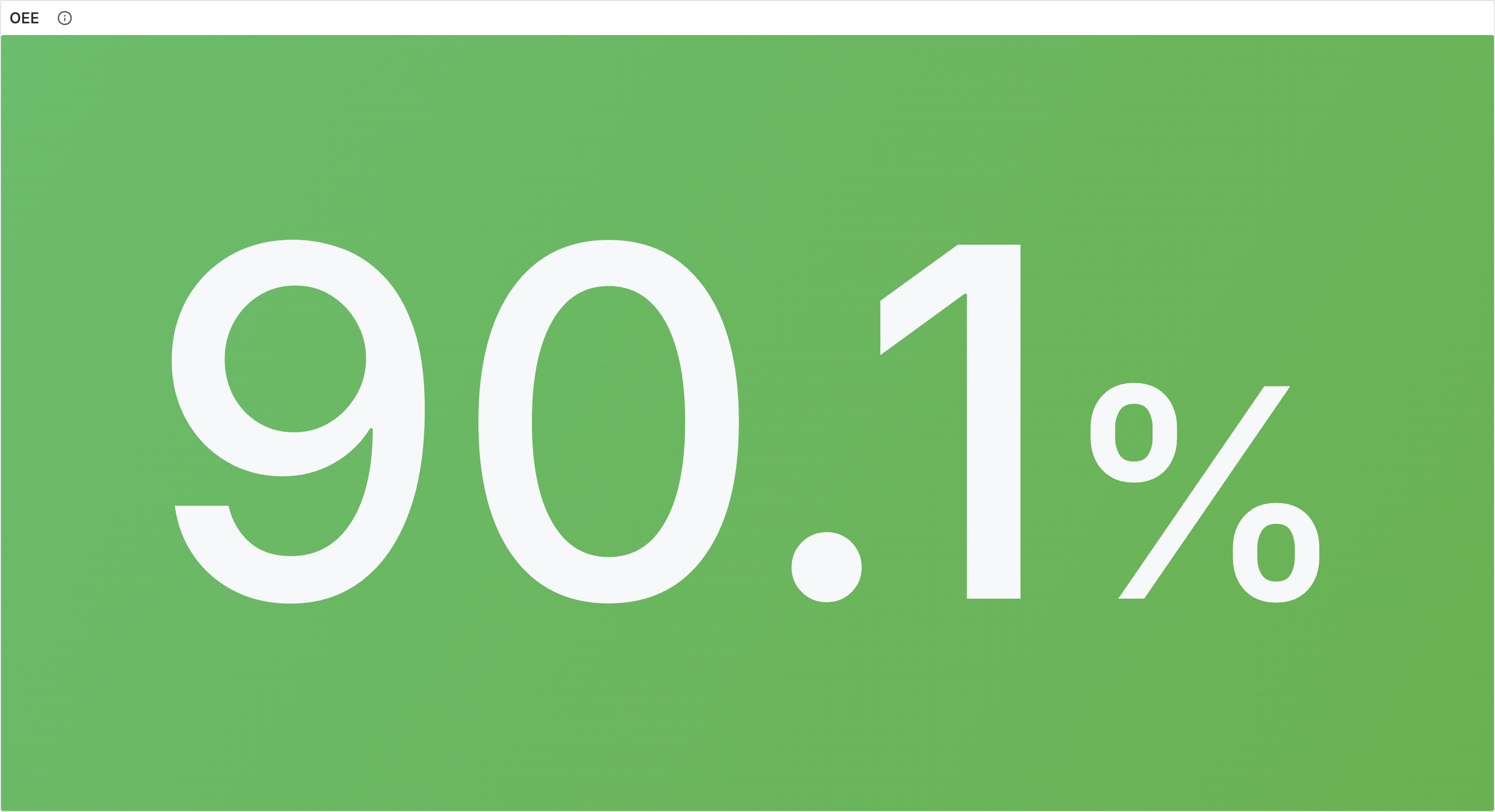
Create a **Stat** panel inside the repeat row:
| Setting | Value |
| ------------- | ------------------------------------------- |
| Method | POST |
| URL | `machines/${machines}/productivity-metrics` |
| Root selector | `$.data` |
Expand **Parsing options & Result fields** and add a **Column**:
| Selector | Title | Type |
| -------------------- | ------------ | ------ |
| `productivity.score` | productivity | Number |
Expand **URL options** and configure the request body:
| Setting | Value |
| ----------------- | --------------------------------------------------------------- |
| Body Type | Raw |
| Body Content Type | **JSON** |
| Body Content | `{"datetime_ranges": [{"start": "${start}", "end": "${end}"}]}` |
{% hint style="warning" %}
Make sure **Body Content Type** is set to **JSON** (not Text). The ENLYZE API rejects requests with `Content-Type: text/plain` (HTTP 422).
{% endhint %}
Configure the panel:
* **Unit**: Percent (0.0-1.0)
* **Color mode**: Background
* **Thresholds**: Red (base), Yellow (0.6), Green (0.8)
* **Value Mapping**: `null` → "NO DATA" (Grey)
### Why Columns instead of Root Selector?
It would be tempting to extract the score directly in the root selector, e.g. `$.data[0].productivity.score`. This works as long as the API returns data. However, if a machine wasn't running during the selected time range, `$.data` is an empty array. Accessing `[0]` then fails and Grafana shows an error instead of an empty panel.
The solution: set the root selector to `$.data` and extract the value via a **Column** (`productivity.score`). If there's no data, the column returns `null`. You can then display this `null` value as "NO DATA" using a **Value Mapping**.
### Additional OEE panels
Create panels for the remaining metrics using the same pattern:
| Panel | Root selector | Column Selector |
| ------------ | ------------- | -------------------- |
| Availability | `$.data` | `availability.score` |
| Performance | `$.data` | `performance.score` |
| Quality | `$.data` | `quality.score` |
Configure a value mapping for `null` → "NO DATA" in grey on all panels. Not all machines provide quality data, and machines without production in the selected time range show "NO DATA" for all metrics.
### Production runs table
Add a **Table** to the row showing the production runs for the respective machine:
| Setting | Value |
| ------------- | ------------------------------------------------------------------------- |
| Method | GET |
| URL | `production-runs` |
| Query Params | `machine=${machines}`, `start=${__from:date:iso}`, `end=${__to:date:iso}` |
| Root selector | `$.data` |
Add columns: `start` (Start, Timestamp), `end` (End, Timestamp), `production_order` (Order, String), `productivity.score` (OEE, Number).
***
## Excursus: time series data via the API
For time series data (e.g. temperature curves, throughput) the ENLYZE API offers the `timeseries` endpoint:
```json
POST /timeseries
{
"machine": "uuid",
"start": "2025-12-08T00:00:00Z",
"end": "2025-12-09T00:00:00Z",
"variables": ["variable-uuid-1", "variable-uuid-2"],
"resampling_interval": 60
}
```
The `resampling_interval` parameter (in seconds) reduces the data volume. Without resampling, queries can return very large datasets.
**Limitations:**
* The API paginates responses (max 100 entries per page). The Infinity plugin only supports automatic pagination experimentally.
* For time series visualizations, the ENLYZE data source (the dedicated Grafana plugin) is the better choice, as it handles pagination and resampling automatically.
***
## Tips
* **Variable Refresh**: "On dashboard load" for master data (sites, machines). "On time range change" for time-dependent calculations like the rounded timestamps.
* **Variable order**: The order in Settings determines the evaluation order: `site` → `machines` → `start` → `end`.
* **Debugging Repeat**: If repeat panels don't appear, check that the variable is correctly selected under **Repeat options** on the row and that it contains multiple values.
* **POST Body**: The body is specified as a string. Variables like `${start}` are replaced before sending. Ensure correct JSON syntax with quotes.
***
## Next steps
* [**Production Status Dashboard**](/en/integrations/grafana/production-dashboards/04-production-status.md) — Constant variables and live status displays for multiple machines